• Skip to primary navigation
  • Skip to main content

frankdenneman.nl

  • AI/ML
  • NUMA
  • About Me
  • Privacy Policy

VMware Cloud™ on AWS – A Closer Look

October 13, 2016 by frankdenneman

After a long time of keeping this silent, I can finally share a little bit what I’ve been focussing on at VMware. (This is a repost of content on blogs.vmware.com)
Today, VMware and Amazon Web Services (AWS) are announcing a strategic partnership providing the ability to run a full VMware Software Defined Data Center (SDDC) as a cloud service on AWS. This service will include all the enterprise tools you’re familiar with including vSphere, ESXi, VSAN and NSX. This article provides a technical preview of the new service VMware Cloud on AWS (VMC), allowing me to give you a sneak peak of the incredibly cool stuff that is coming.

vmware-aws_750
This architecture is a match made in heaven if you ask me. It allows administrators and architects that are used to vSphere to leverage the agility of AWS without re-architecting applications and reconstructing operational procedures. One great advantage is that vCenter will be the main platform of operations, therefore all tools that you currently run against vCenter in your on-premises vSphere deployment will work with the in-cloud SDDC environment. All these tools and functionalities that have been developed over the years are now coming together and provide an environment that allows workload mobility between clouds while pushing data center agility to new levels.
In short, once signed up, select a cluster size and a SDDC environment is created for you in a very short time. To emphasize (and to avoid any misconception), the VMware cloud will run on native ESX on next-generation, bare metal AWS Infrastructure. The VMware cloud will be deployed as a private cloud containing vSphere ESXi hosts, VSAN and NSX on AWS infrastructure. This will allow you to run enterprise workloads with the same performance, reliability and availability levels as your on-premises vSphere deployments but now on an AWS architecture. The main difference between the on-prem and in-cloud deployment is that VMware manages and operates the infrastructure of the VMware Cloud on AWS.
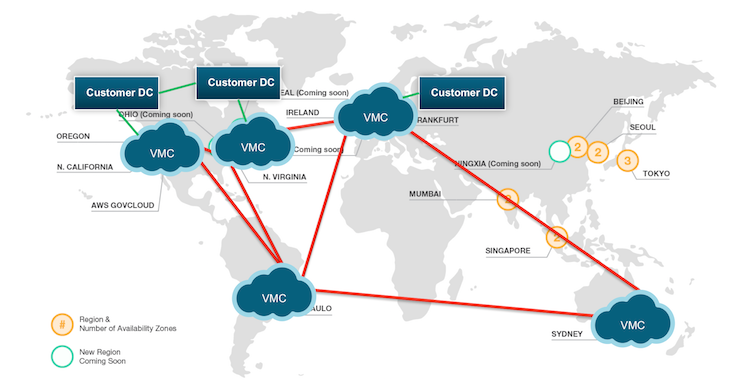
awsdcs_vmc_750
It is important to note here that this is a fully managed service. That is to say, VMware will install, manage and maintain the underlying ESXi, VSAN, vCenter and NSX infrastructure. Routine operations like patching or hardware failure remediation will be taken care of by VMware as part of the service. Customers will have delegated permissions to things like vCenter and will be able to use vCenter to perform administrative tasks but there will be some actions like patching which VMware will provide to you as part of the service. This means that VMware takes care of the core infrastructure in partnership with AWS.
VMware Cloud on AWS will be available as a stand-alone deployment, as a Hybrid cloud deployment or as a cloud-to-cloud deployment. With hybrid and cloud-to-cloud deployments, vCenter enhanced linked-mode provides a single pane of glass that assists IT operation teams to manage the SDDC deployments from a centralized console. NSX extends this single pane of glass by providing consistent network and security services between the various deployments. However, NSX is not a requirement! If you are not running NSX on premise right now, you will still be able to run VMware Cloud on AWS but you won’t be able to utilize the hybrid cloud features of NSX until you do. With the ability to span networks and clouds, vMotion provides workload mobility, allowing the movement of workloads in and out the various cloud deployments. Yes, you read that correctly, you can vMotion from your existing on-premises vSphere environment to AWS!
One of the interesting concepts is elastic scaling. Elastic scaling would help to solve one of the toughest challenges an IT architect can face: capacity planning. Major key points of capacity planning are current and future resource demand, failure recovery capacity and maintenance capacity. Finding the right balance between maintaining workload performance versus the downside of CAPEX and OPEX of reserved failover capacity is difficult. Think about how elastic scaling would transform vSphere clusters into agile powerhouses. Instead of going through the tedious procuring and installing process yourself, benefit from the IT-at-scale mindset and services delivered by AWS.
Since ESXi 4.0, vSphere HA has enabled workloads to restart the surviving hosts in the cluster. However, when a host outage is not temporary, host resources can become constrained due to the reduction of the available hosts. Auto-remediation can builds upon DR solutions ensuring available host resources remain consistent during an ESXi host outage. When a host failure is detected, auto-remediation adds other hosts to the cluster, ensuring that the workload performance will not be impacted in the long run by a host failure. If partial (hardware) failure occurs, auto-remediation ensures that VSAN operations complete before ejecting the degraded host.
Another benefit of this framework is the ability to retain similar levels of resources during maintenance. During maintenance operations, the cluster size is not reduced, workloads are not impacted by a loss of resources and continue to perform similarly as to normal operation hours.
I believe one of the strengths of VMware Cloud on AWS service is that it allows administrators, operation teams and architects to use their existing skill set and tools to consume AWS infrastructure. You can move workloads to the cloud without having to replatform them in any way, no conversion of virtual machines, no repackaging and very important no extensive testing, you just migrate the VM. Another strength it the ability to pair current workloads with the advanced feature set of AWS. As a result, IT teams will be able to extend their skill set discovering the vast catalog of services AWS has to offer. This creates an environment that works seamlessly with both on-premises private clouds and advanced AWS Public Cloud Services.
There are so many other great features that I want to cover, but let’s save that for future articles.

VMworld

If you want to learn more about the upcoming service VMware Cloud on AWS, come join us at VMworld Europe, breakout session INF7849: VMware Cloud on AWS – a closer look. In this session Alex Jauch and I dive a little deeper into the details of this service. For a more generic view, please register for the breakout session INF7711 – VMware Cloud Foundation on Public Clouds.
At VMworld Europe, I have a limited set of Meet the expert slots available to me, please register if you would like to have a more focused conversation about the service.
If you are interested in applying for the beta, please click here: http://learn.vmware.com/37941_REG
Filed Under: VMware

I'm Coming Home

August 30, 2016 by frankdenneman

I’m excited to announce that I’ve accepted a position at VMware as Senior Staff Architect. I can’t share the details of this next-level product that I will be working on right now. But I look forward to sharing more information when the time is right. I cannot wait to get started.
#GameOn!

Filed Under: VMware

NUMA Deep Dive Part 5: ESXi VMkernel NUMA Constructs

August 22, 2016 by frankdenneman

ESXi Server is optimized for NUMA systems and contains a NUMA scheduler and a CPU scheduler. When ESXi runs on a NUMA platform, the VMkernel activates the NUMA scheduler. The primary role of the NUMA scheduler is to optimize the CPU and memory allocation of virtual machines by managing the initial placement and load balance virtual machine workloads dynamically across the NUMA nodes. Allocation of physical CPU resources to virtual machines is carried out by the CPU scheduler.

It is crucial to understand that the NUMA scheduler is responsible for the placement of the virtual machine, but it’s the CPU scheduler that is ultimately responsible for allocating physical CPU resources and scheduling of vCPUs of the virtual machine. The main reason to emphasize this is to understand how hyper-threading fits into CPU and NUMA scheduling.
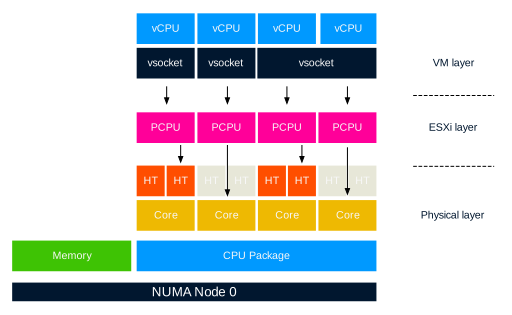
Before diving into the specifics of NUMA optimizations, let’s calibrate the understanding of the various components used at the physical layer, the ESXi kernel layer, and the virtual machine layer.

05-01-VMkernel_CPU_elements
A host consist of a CPU Package, that is the physical CPU piece with the pins, this is inserted in a socket (pSocket). Together with the local memory, they form a NUMA node.

Within the CPU package, cores exist. In this example, the CPU package contains four cores and each core has hyper-threading (HT) enabled. All cores (and thus HT) share the same cache architecture.

At the ESXi layer, the PCPU exist. A PCPU is an abstraction layer inside the ESXi kernel and can consume a full core or it can leverage HT.
At the VM layer, a virtual socket, and a vCPU exists. A virtual socket can map to a single PCPU or span multiple PCPUs. This depends on the number of vCPUs and the settings cores per socket inside the UI (cpuid.CoresPerSocket). The vCPU is the logical representation of the PCPU inside the virtual machine. The configuration vCPU and cores per socket impact the ability of applications (and operating systems) to optimize for cache usage.

ESXi VMkernel NUMA Constructs

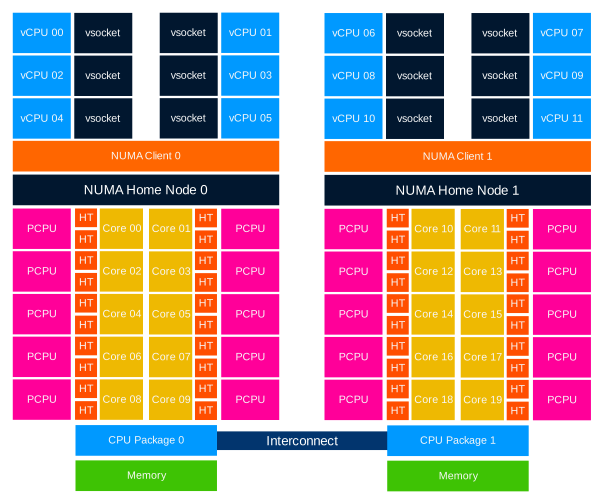
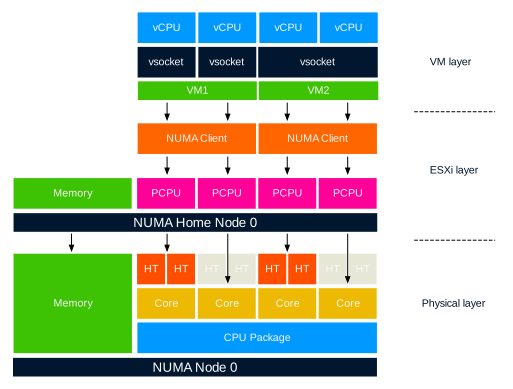
In order to apply initial placement and load balancing operations, the NUMA scheduler creates two logical constructs, the NUMA home node (NHN) and the NUMA client.

05-02-ESXi_VMkernel_NUMA_constructs
NUMA Home Node
The NUMA home node is a logical representation of a physical CPU package and its local memory. In this example, the NUMA home node consists of 4 cores and its local memory. By default the NUMA Home Node allows the NUMA client to count the physical cores in the CPU package. This count impacts the default NUMA client size.

This NUMA home node size is important to understand for virtual machine sizing. If the number of VCPUs of a VM exceeds the physical core count of one CPU package it is distributed across multiple nodes. If necessary, due to workload characteristics, distribution can be avoided by reducing the number of the vCPUs, or have the NUMA scheduler consider HTs.
By default NUMA optimization does not count the HTs when determining if the virtual machine could fit inside the NUMA home node. For particular workload that benefits from sharing cache and memory, it might be preferable to have the NUMA scheduler count the available HTs during the power-on operation. This setting, preferHT, is expanded upon in a paragraph below.

Similar consideration should be applied when sizing memory for the virtual machine. If the virtual memory configuration exceeds the NUMA home node configuration, then the memory scheduler is forced to consume memory from that is attached to another NUMA node. Please note that the NUMA scheduler is focused on consuming as much local memory as possible, it tries to avoid consuming remote memory.

Typically a CPU Package and its local memory are synonymous with a NUMA home node, exceptions are Intel Cluster-on-Die technology and AMD Opteron (Magny Cours and newer). When Cluster-on-Die is enabled on an Intel Xeon CPU, the CPU package is split up into two NUMA nodes optimizing the local cache structures.

If Cluster-on-Die is enabled on a dual Intel Xeon system , there are two CPU packages but four NUMA nodes. Marc Lang (@marcandreaslang) demonstrated COD on a 512GB system. Before COD, the system created two NUMA nodes, each addressing 256 GB per NUMA node. 3rd line from above NUMA/MB, two nodes are listed both containing ~262000 MB.

04-04-512GB-NUMA-ESXTOP
After enabling COD the system created four NUMA nodes, each addressing 128 GB per NUMA node.

04-05-512GB-NUMA-COD-ESXTOP

Transparent Page Sharing and NUMA Home Node
Traditionally, the NUMA home node is the boundary for Transparent Page Sharing (TPS). That means that only memory is shared between VMs within a NUMA node and not across NUMA nodes. However, due to multiple modifications to memory management, benefits of TPS during normal operations have been reduced increasingly.

First, large pages sharing index small pages inside the large page, but won’t allow to share and collapse until memory pressure occurs. (Duncan wrote an must read in-depth article about the thresholds of breaking large pages in 6.0) With the introduction of a security patch, described in KB 2080735, salting was introduced. I described salting in detail here, but in short, salting restricts TPS to share only memory within the VM itself. Inter-VM TPS is no longer enabled by default.

Please remember that salting did not increase the memory footprint directly, it just impacts savings when memory pressure occurs and large pages are collapsed. Instead of mapping many VMs to the same memory page, each VM will still have its own memory page.

Although it makes sense to consider TPS, to reduce memory footprint and get more cache hits by referring to memory that is already local, but the overall benefit of large pages is overwhelming due to fewer TLB misses and faster page table look-up time. Up to 30% performance improvements are claimed by VMware.

If you want to use TPS as much as possible during memory pressure, please follow the instructions listed in KB 2080735. Verify is you operating system is using ASLR (Address Space Layout Randomization) for security purposes or SuperFetch (proactive caching), if you run a Windows VDI environment, as both technologies can prevents sharing of memory pages.

NUMA Client
A NUMA client is the collection of vCPU and memory configuration of a virtual machine. The NUMA client is the atomic unit of the NUMA scheduler that is subject to initial placement and load balancing operations.

By default, the maximum number of vCPUs grouped with a NUMA client cannot exceed the physical core count of a CPU package. During power-on operations, the number of vCPUs are counted and are compared to the number of physical cores available inside the CPU Package. If the vCPU count does not exceed the physical core count a single NUMA client is created. These VCPUs will consume PCPUs from a single CPU package.

If the number of vCPUs exceeds the number of physical cores inside a single CPU package, multiple NUMA clients are created. For example, if a VM is configured with 12 vCPUs and the CPU package contains 10 cores, two NUMA clients are created for that virtual machine and the vCPUs are equally distributed across the two NUMA clients.

05-05-Wide_VM
Please note that there is no affinity set between a PCPU and a NUMA client. The CPU scheduler can migrate vCPUs between any PCPU provided by the CPU package! This allows the CPU scheduler to balance the workload optimally.

vNUMA Node
If multiple NUMA clients are created for a single virtual machine, then this configuration is considered to be a Wide-VM. The NUMA scheduler provides an extra optimization called vNUMA. vNUMA exposes the NUMA structure of the virtual machine, not the entire NUMA topology of the host, to the Guest OS running in the virtual machine. This means in the case of the 12 vCPU VM, vNUMA exposes two NUMA nodes with each 6 CPUs to the guest operating system. This allows the operating system itself to apply NUMA optimizations.

NUMA client in-depth

Now that the basics are covered, let’s dive into the NUMA client construct a little deeper and determine why proper sizing and sockets per core count can be beneficial to virtual machine performance.

During power-on, the NUMA scheduler creates a NUMA client, the internal name for a NUMA client is a Physical Proximity Domain (PPD). The vCPUs grouped into a single NUMA client are placed in its entirety on a NUMA node. During load-balancing operations, the group of vCPUs is migrated together. vCPUs remain inside a NUMA client and cannot be migrated between NUMA nodes or NUMA clients individually.

Memory load balancing operations is determined by reviewing the NUMA client configuration and the current overall activity within the system. The NUMA scheduler has different load-balancing types to solve imbalance or improve performance. For example, if a virtual machine has local and remote memory, NUMA determines whether it makes sense to migrate the group of vCPUs or to migrate the memory to the NUMA home node if possible. Initial placement and load balancing operations are covered in more detail in the next article of this series.

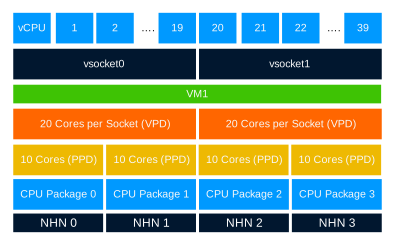
A Virtual Proximity Domain (VPD) is presented to the guest as the NUMA node. The size of the VPD is determined by the number of vCPUs and the cpuid.CoresPerSocket configuration or the number of vCPUs and the preferHT setting (PCPU count / Logical CPU count).

By default, the VPD aligns with the PPD, unless the vCPU count exceeds the physical core count and cpuid.CoresPerSocket is more than 1. For example, a virtual machine with 40 vCPUs and cpuid.CoresPerSocket of 20, creates a topology of 2 VPD’s containing 20 vCPUs spanning 4 PPDs containing each 10 PCPUs.
05-06-Spanning_2_VPDs_across_4_PPDs
Spanning VPDs across PPDs is something that should be avoided at all times. This configuration can create cache pollution and render most CPU optimizations inside the guest OS and application completely useless. It’s recommended to configure the VMs Cores Per Socket to align with the physical boundaries of the CPU package.

Auto sizing vNUMA clients
If multiple vNUMA clients are created, the NUMA scheduler auto-sizes the vNUMA clients. By default, it equally balances the number of vCPUs across the least amount of NUMA clients. Autosizing is done on the first boot of the virtual machine. It sizes the NUMA client as optimally as possible regarding the host it boots. During the initial boot, the VMkernel adds two advanced settings to the virtual machine:

numa.autosize.vcpu.maxPerVirtualNode=X
numa.autosize.cookie = “XXXXXX”

The autosize setting reflects the number of vCPUs inside the NUMA node. This setting is not changed, unless the number of vCPUs of the VM changes. This is particularly of interest for clusters that contain heterogeneous host configurations. If your cluster contains hosts with different core counts, you could end up with a NUMA misalignment. In this scenario, the following advanced settings can be used:

numa.autosize.once = FALSE
numa.autosize = TRUE

This forces the NUMA scheduler to reconfigure the NUMA clients on every power-cycle. Be aware that some workloads that can be negatively impacted when NUMA topology changes. Be careful using this setting.

Determining the vNUMA layout
VMware.log of the virtual machine contains information about the VPD and PPD configuration. Instead of downloading the VMware.log file you can use the command-line tool vmdumper to display the information:

vmdumper -l | cut -d \/ -f 2-5 | while read path; do egrep -oi "DICT.*(displayname.*|numa.*|cores.*|vcpu.*|memsize.*|affinity.*)= .*|numa:.*|numaHost:.*" "/$path/vmware.log"; echo -e; done

Courtesy of Valentin Bondzio of VMware.
Let’s use the scenario of a 12 vCPUs VM on the 10 core system. The VCPU count exceeds the physical core count, therefore two NUMA clients are expected:

05-07-Default-12vCPU-10core
The output shows that the virtual machine is backed by two Physical Proximity Domain (PPD0 and PPD1) and that two Virtual Proximity Domain exists (VPD0 and VPD1). Both VPDs are backed by a single PPD. The vCPUs are equally distributed across the proximity domains, vCPU0 – vCPU5 are running on PPD0, vCP6-vCPU11 are running on PPD1.

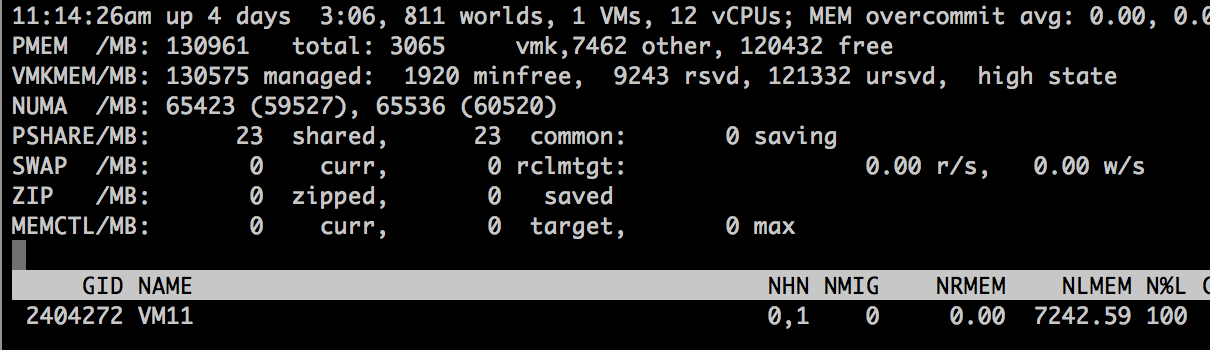
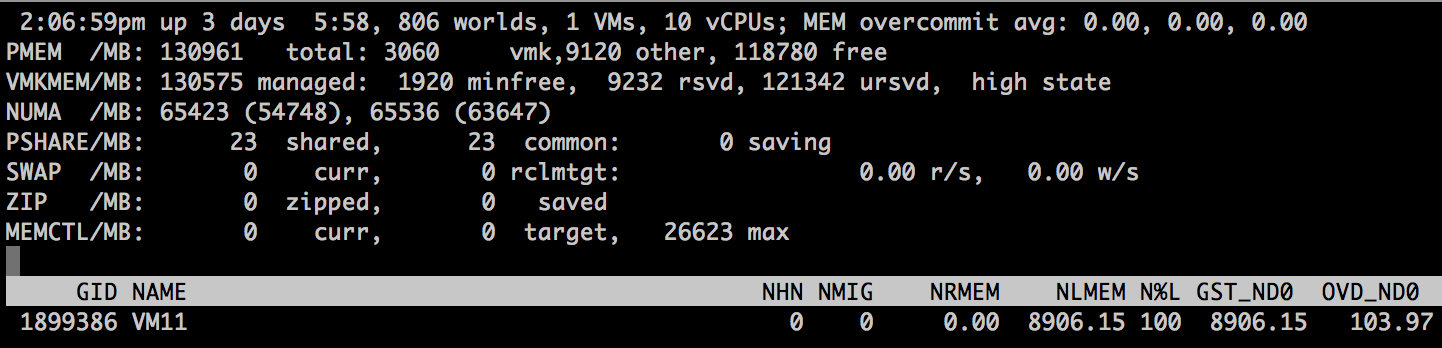
ESXTOP shows that the VM is running on two NUMA home nodes (ESXTOP, press M for memory, F to adjust fields, G to enable NUMA stats, SHIFT-V to display VMs only). NHM stands for NUMA home node and in this case, the VM has two NUMA home nodes, NHN0 and NHN1.

05-08-ESXtop_12_vcpu_10_cores
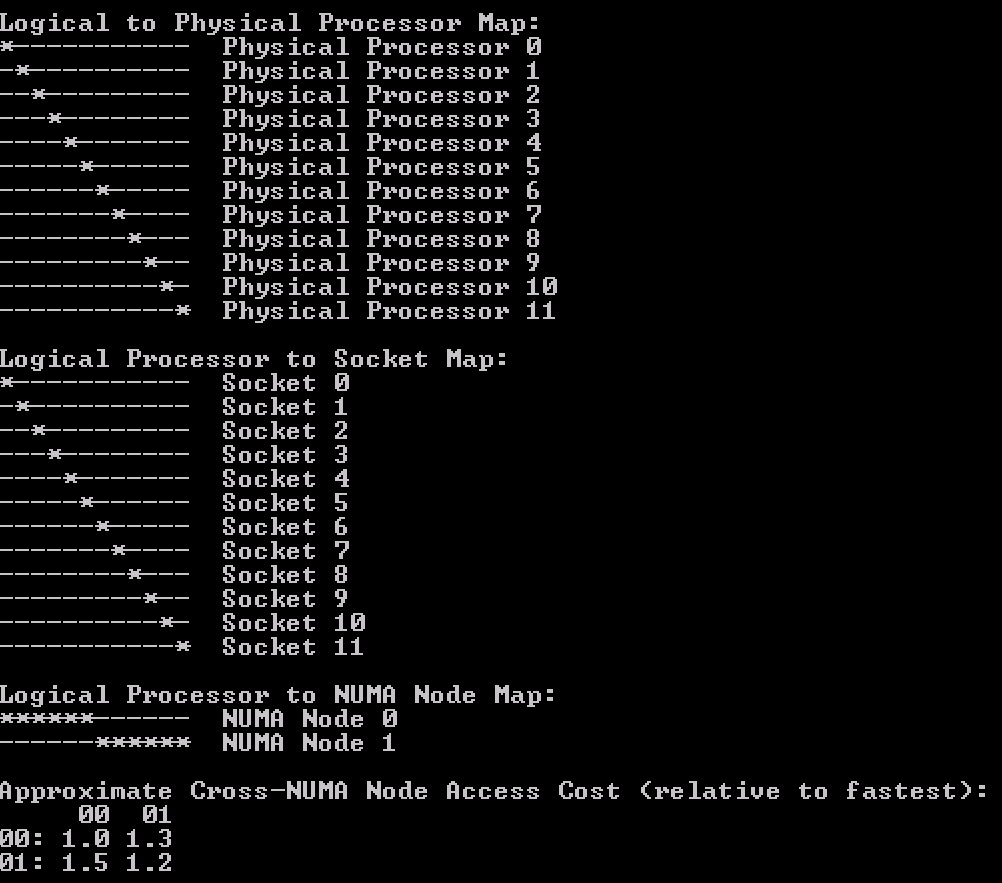
When running Windows 2012 R2 inside the virtual machine,  the CPU Performance Monitor displays NUMA nodes and displays the NUMA node the CPU belongs to. Another great tool to use to expose the NUMA topology witnessed by the Windows guest OS is the Sysinternals tools CoreInfo. Linux machines contain the command numactl


05-09-CoreInfo_12_vCPUs_10_Cores
But what if the virtual machine contains 10 vCPUs instead of 12?

05-10-10vCPU_12pCPU
The VM is backed by a single vNUMA client (VPD0) running on a single NUMA home node, NHN0.

05-11-ESXTOP-10vCPU-10PCU
Although there is one vNUMA node present, it is not exposed to Windows. Thus windows only detect 10 CPUS. Any reference to NUMA is lacking inside the CPU performance monitor.

Increasing NUMA client size, by counting threads, not cores (preferHT)

The advanced parameter numa.vcpu.preferHT=TRUE is an interesting one as it is the source of confusion whether a NUMA system utilizes HT or not. In essence, it impacts the sizing of the NUMA client and therefore subsequent scheduling and load balancing behavior.

By default the NUMA scheduler places the virtual machines into as few NUMA nodes as possible, trying spread the workload over the fewest cache structures it can. During placement, it only considers full physical cores for scheduling opportunity, as it wants to live up to the true potential of the core performance. Therefore, the NUMA client size is limited to the number of physical cores per CPU package.

Some applications share lots of memory between its threads (cache intensive footprint) and would benefit from having as much as memory local as possible. And usually benefitting from using a single local cache structure as well. For these workloads, it could make sense to prefer using HTs with local memory, instead of spreading the vCPUs across full cores of multiple NUMA home nodes.

The preferHT setting allows the NUMA scheduler to create a NUMA client that goes beyond the physical core count, by counting the present threads. For example, when running a 12 vCPU virtual machine on a 10 core system, the vCPUs are distributed equally across two NUMA clients (6-6)C. When using numa.vcpu.preferHT=TRUE the NUMA scheduler counts 20 scheduling possibilities and thus a single VPD is created of 12, which allows the NUMA scheduler to place all the vCPU’s into a single CPU package.

Please note that this setting does not force the CPU scheduler to only run vCPUs on HTs. It can still (and possible attempt to) schedule a vCPU on a full physical core. The scheduling decisions are up to the CPU scheduler discretion and typically depends on the over-commitment ratio and utilization of the system.  For more information about this behavior please review the article Reservations and CPU scheduling.

Because logical processors share resources within a physical core, it results in lower CPU progression than running a vCPU on a dedicated physical core.  Therefore, it is imperative to understand whether your application has a cache intensive footprint or whether it relies more on CPU cycles.  When using the numa.vcpu.preferHT=TRUE setting, it instructs the CPU scheduler to prioritize on memory access over CPU resources. As always, test thoroughly and make a data-driven decision before moving away from the default!

I’m maybe overstating the obvious, but in this scenario, make absolutely sure that the memory sizing of the VM fits within a NUMA home node.  The NUMA scheduler attempts to keep the memory local, but if the amount of memory does not fit a single NUMA node it has to place it in a remote node, reducing the optimization of preferHT.

numa.vcpu.preferHT=TRUE is a per-vm setting, if necessary this setting can be applied at host level. KB article 2003582 contains the instructions to apply the setting at VM and host level.

Keep in mind that when you set preferHT on a virtual machine that has already been powered-on once the NUMA client auto size is still active. Adjust the auto size setting in the advanced configuration of the virtual machine or adjust the Cores Per Socket. More about this combination of settings are covered in a paragraph below.

Reducing NUMA client size

Sometimes it’s necessary to reduce the NUMA client size for application memory bandwidth requirements or for smaller systems. These advanced parameters can help you change the default behavior. As always make a data-driven-decision before you apply advanced parameters in your environment.

Advanced parameter numa.vcpu.min
Interesting to note is the size of 10 vCPUs in relationship to the vNUMA setting. One of the most documented settings is the advanced setting numa.vcpu.min. Many sites and articles will tell you that vNUMA is enabled by default on VMs with 8 vCPUs or more. This is not entirely true. vNUMA is enabled by default once the vCPU count is 9 or more AND the vCPU count exceeds the number of physical core count. You can use the numa.vcpu.min setting when your NUMA nodes and VM vCPU configurations are smaller than 8 and you want to expose vNUMA topology to the guest OS.

Advanced parameter numa.vcpu.maxPerMachineNode
Some workloads are bandwidth intensive rather than memory latency sensitive. In this scenario, you want to achieve the opposite of what numa.vcpu.preferHT achieves and use the setting numa.vcpu.maxPerMachineNode. This setting allows you to reduce the number of vCPU that is grouped within a NUMA client.  It forces the NUMA scheduler to create multiple NUMA clients for a virtual machine which would have fit inside a single NUMA home node if the default settings were used.

Cores per Socket
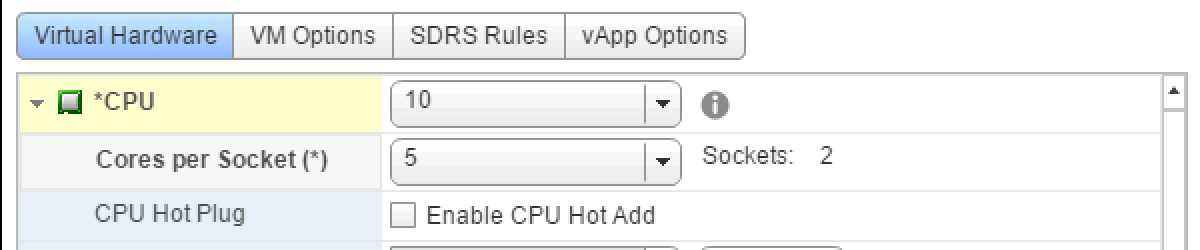
The UI setting Cores per Socket (Advanced parameter: cpuid.coresPerSocket) directly creates a vNUMA node if a value is used that is higher than 1 (and the number of total vCPUs exceeds the numa.vcpu.min count). Using the 10 vCPU VM example again, when selecting 5 Cores per Socket, the ESXi kernel exposes two vSockets and groups 5 virtual CPUs per vSocket.
05-12-cpuid.cores.PerSocket
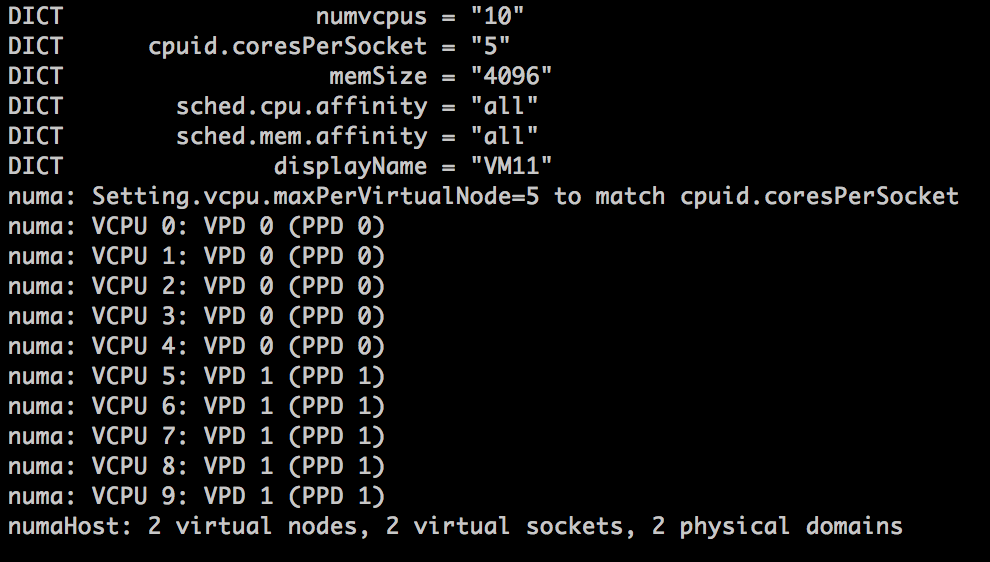
When reviewing the VPD and PPD info, the VMware.log shows two virtual nodes are created, running on 2 virtual sockets deployed on 2 physical domains. If you change cpuid.coresPerSocket you also change numa.vcpu.maxPerVirtualNode  and the log files confirms this: Setting.vcpu.maxPerVirtualNode=5 to match cpuid.coresPerSocket.

05-13-2vPDs_10_vCPUs_10_Cores
CoreInfo ran inside the guest os shows the topology of having 5 cores in a single socket (Logical Processor to Socket Map).

05-14-CoreInfo_10_vCPUs_10_Cores

Combine preferHT and Cores Per Socket to leverage application cache optimizations

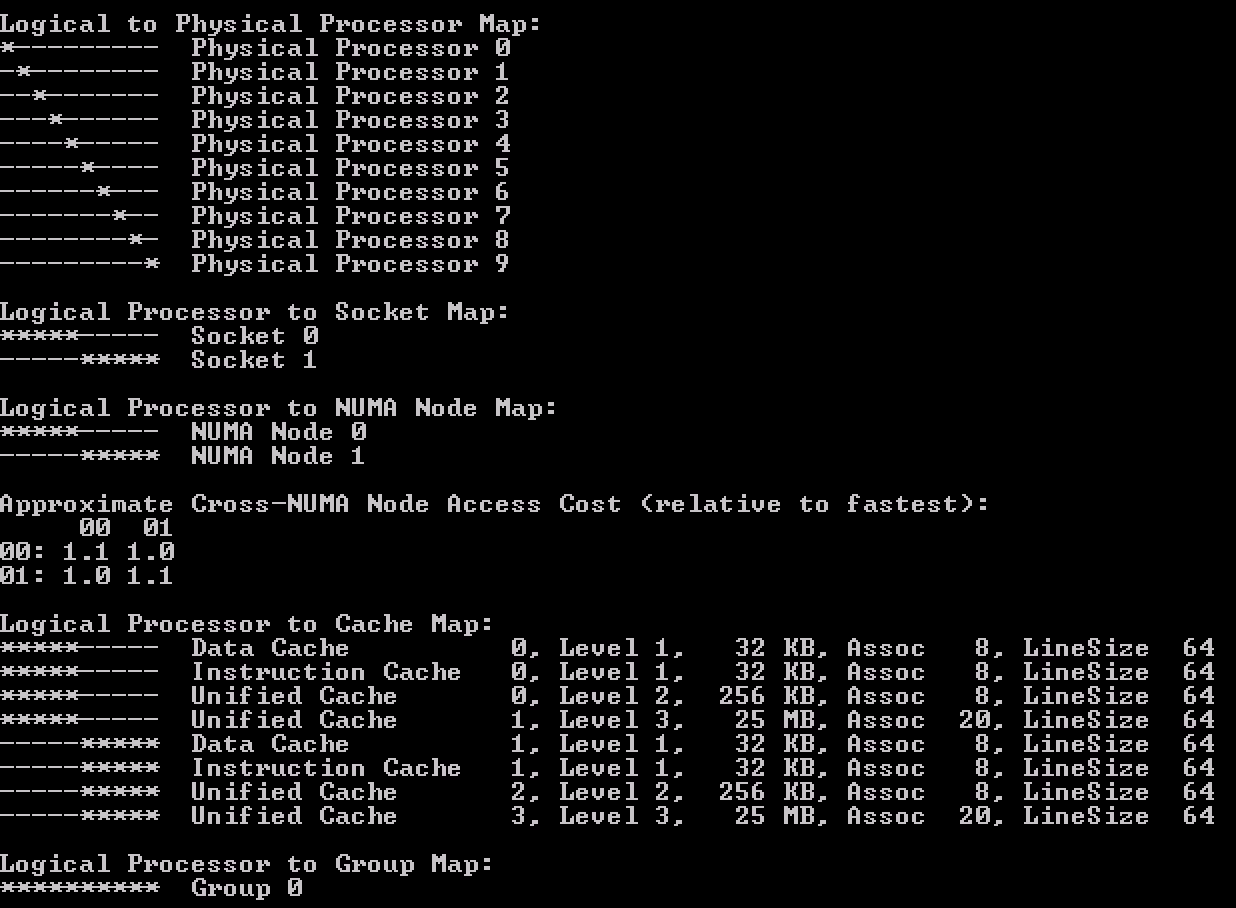
Now compare the previous output with the Coreinfo output of a virtual machine that has 10 cores split across 2 NUMA nodes but using the default setting cores per socket = 1. It’s the “Logical Processor to Cache Map” that is interesting!
05-15-CoreInfo-CorePerSocket-1
This shows that the virtual socket topology is exposed to the guest operating system, along with its cache topology. Many applications that are designed to leverage multi-CPU systems, run optimizations to leverage the shared caching.Therefore it makes sense that when the option preferHT is used, to retain the vCPUs in a single socket, the Cores Per Socket reflect the physical cache topology.

05-14-CoreInfo_10_vCPUs_10_Cores
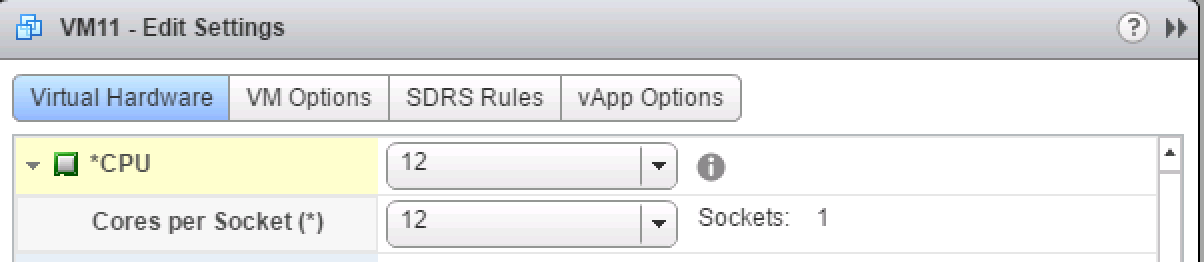
This allows the application to make full use of the shared cache structure. Take the following steps to align the Cores Per Socket to 12, creating a single vNUMA node to match the physical topology:

05-16-Cores_Per_Socket
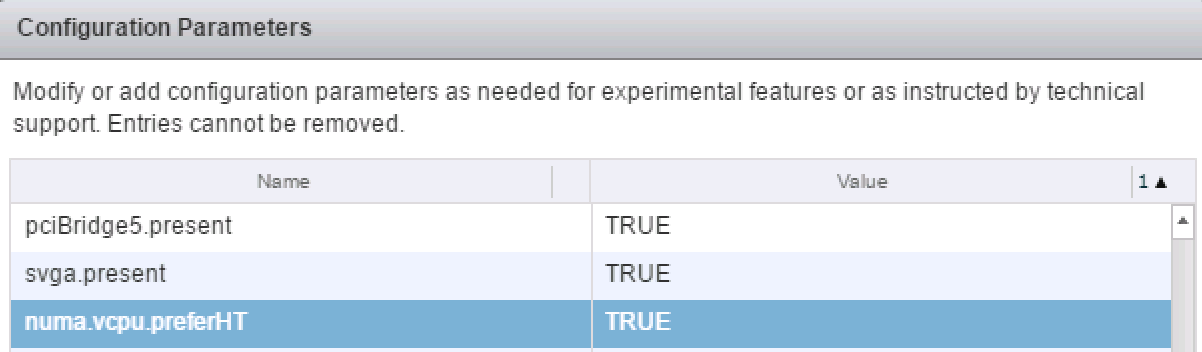
Set numa.vcpu.preferHT=TRUE (Edit settings VM, VM Options, Advanced, Edit Configuration, Add Row)
05-17-numa_vcpu.preferht_true
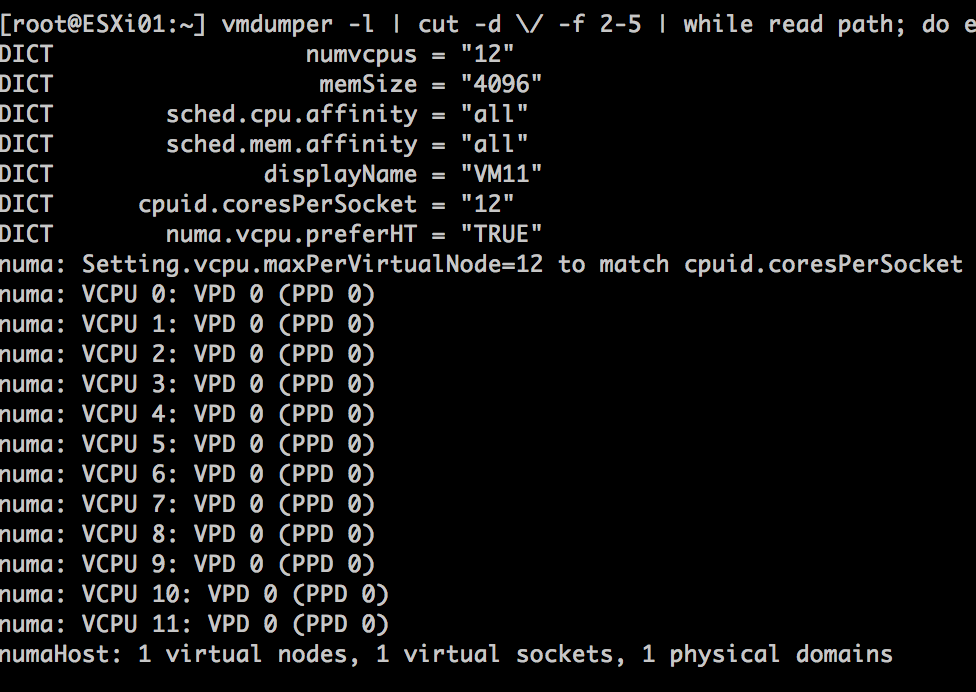
Verify with the vmdumper command that numa.vcpu.preferHT is accepted and that the guest OS will see 1 NUMA node with all vCPUs grouped on a single socket.

05-18-PreferHT_Cores_Per_Socket
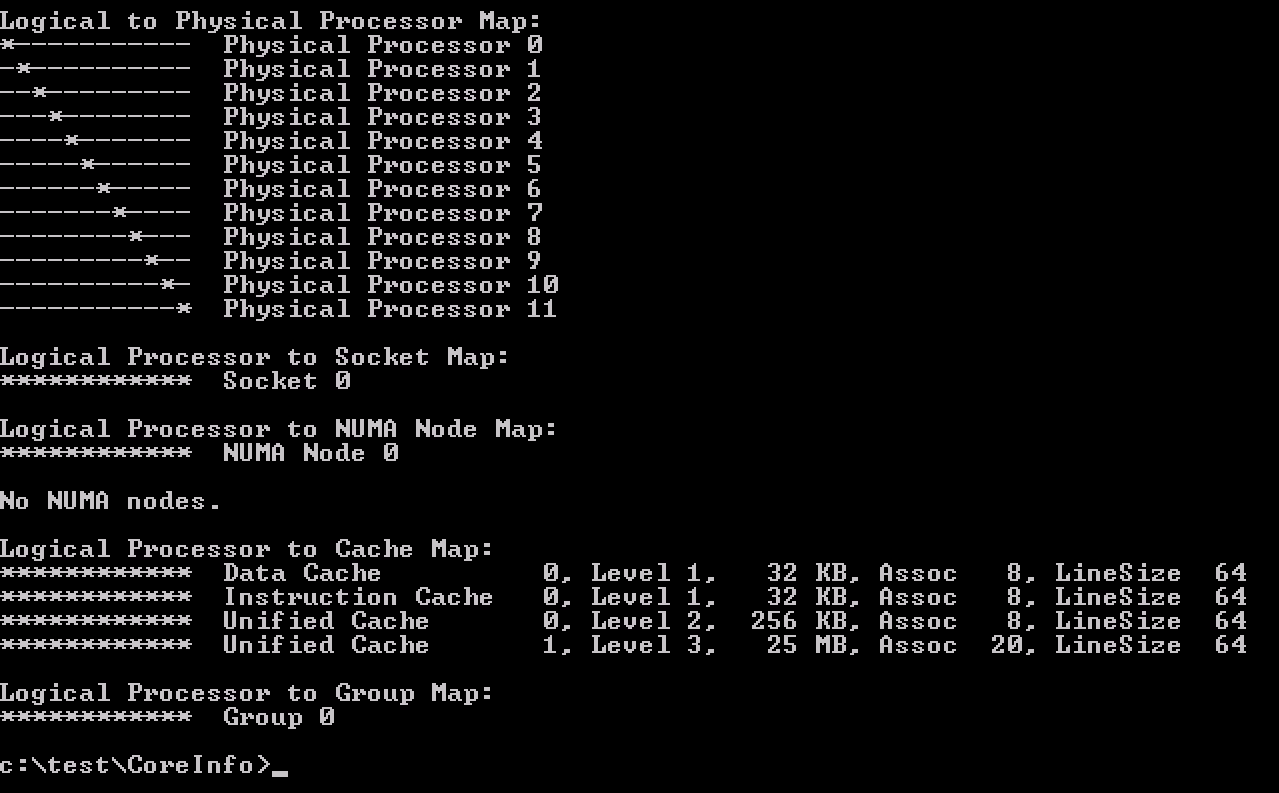
When running CoreInfo the following output is shown;
05-19-One_cache_to_rule_them_all
Please note that applications and operating systems can now apply their cache optimizations as they have determined all CPUs share the same last level cache. However, not all applications are this advanced. Contact your software vendor to learn if your application can benefit from such a configuration.

NUMA and CPU Hot Add
If CPU Hot Add is enabled, NUMA client cannot be sized deterministically. Remember that NUMA client sizing only happens during power-on operations and the Hot Add option is the complete opposite by avoiding any power operation. Due to this, NUMA optimizations are disabled and memory is interleaved between the NUMA Home Nodes for the virtual machine. This typically results in performance degradation as memory access has to traverse the interconnect. The problem with enabling Hot Add is that this is not directly visible when reviewing the virtual machines with ESXTOP.

If the vCPU count exceeds the physical core count of a CPU package, a single VPD and PPD are created while spanning across two physical domains.

05-20-Hot-Add-enabled
CoreInfo also shows that there are no NUMA nodes.
05-21-CoreInfo_Hot_Add
However, ESXTOP shows something different.The two physical domains is the one that throws people off when reviewing the virtual machine in ESXTOP.

05-22-ESXTOP_Hot_Add
As the virtual machine spans across two physical NUMA nodes, ESXTOP correctly reports it’s using the resources of NHN1 and NHN2. However, memory is spanned across the Nodes. The 100% locality is presented from a CPU perspective, i.e. whether the NUMA clients memory is on the same physical NUMA node its vCPUs are on.In this scenario, where memory is interleaved, you cannot determine whether the virtual machine is accessing local or remote memory.

Size your VM correct

For most workloads, the best performance occurs when memory is accessed locally. The VM vCPU and memory configuration should reflect the workload requirements to extract the performance from the system. Typically VMs should be sized to fit in a single NUMA node. NUMA optimizations are a great help when VM configuration span multiple NUMA nodes, but if it can be avoided, aim for a single CPU package design.

If a wide VM configuration is non-avoidable, I recommend researching the CPU consumption of the application. Often HTs provide enough performance to have VM still fit into a single CPU package and leverage 100% memory locality. This is achieved by setting the preferHT setting. If preferHT is used, align the cores per socket to the physical CPU package layout. This to leverage the operating system and application last level cache optimizations.

The 2016 NUMA Deep Dive Series:
Part 0: Introduction NUMA Deep Dive Series
Part 1: From UMA to NUMA
Part 2: System Architecture
Part 3: Cache Coherency
Part 4: Local Memory Optimization
Part 5: ESXi VMkernel NUMA Constructs
Part 6: NUMA Initial Placement and Load Balancing Operations
Part 7: From NUMA to UMA

Filed Under: NUMA, VMware Tagged With: NUMA

NUMA Deep Dive Part 4: Local Memory Optimization

July 13, 2016 by frankdenneman

If a cache miss occurs, the memory controller responsible for that memory line retrieves the data from RAM. Fetching data from local memory could take 190 cycles, while it could take the CPU a whopping 310 cycles to load the data from remote memory. Creating a NUMA architecture that provides enough capacity per CPU is a challenge considering the impact memory configuration has on bandwidth and latency. Part 2 of the NUMA Deep Dive covered QPI bandwidth configurations, with the QPI bandwidth ‘restrictions’ in mind, optimizing the memory configuration contributes local access performance the most. Similar to CPU, memory is a very complex subject and I cannot cover all the intricate details in one post. Last year I published the memory deep dive series and I recommend to review that series as well to get a better understanding of the characteristics of memory.

Memory Channel

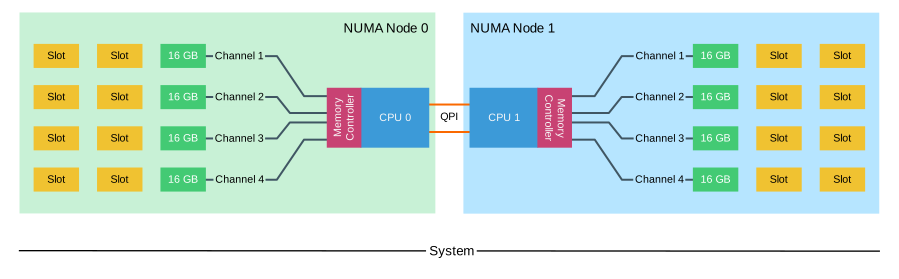
The Intel Xeon microarchitecture contains one or two integrated memory controllers. The memory controller connects through a channel to the DIMMs. Sandy Bridge (v1) introduced quadruple memory channels. These multiple independent channels increase data transfer rates due to concurrent access of multiple DIMMs. When operating in quad-channel mode, latency is reduced due to interleaving. The memory controller distributes the data amongst the DIMM in an alternating pattern, allowing the memory controller to access each DIMM for smaller bits of data instead of accessing a single DIMM for the entire chunk of data. This provides the memory controller more bandwidth for accessing the same amount of data across channels instead of traversing a single channel storing all data into a single DIMM. In total, there are four memory channels per processor, each channel connect up to three DIMM slots. Within a 2 CPU system, eight channels are present, connecting the CPUs to a maximum of 24 DIMMs.
Quad-channel mode is activated when four identical DIMMs are put in quad-channel slots. When three identical DIMMs are used in Quad-channel CPU architectures, triple-channel is activated, when two identical DIMMs are used, the system will operate in dual-channel mode.

05-01-Memory_Channels
Please note that interleaving memory across channels is not the same as the Node Interleaving setting of the BIOS. When enabling Node Interleaving the system breaks down the entire memory range of both CPUs into a single memory address space consisting 4KB addressable regions and maps them in a round robin fashion from each node (more info can be found in part 1). Channel interleaving is done within a NUMA node itself.

Regions
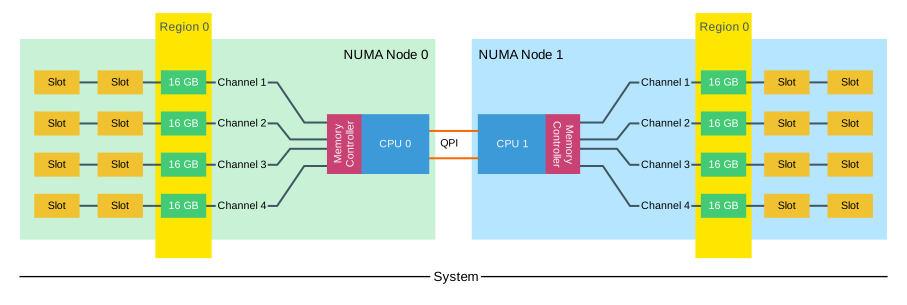
When all four channels are populated the CPU interleaves memory access across the multiple memory channels. This configuration has the largest impact on performance, especially on throughput. To leverage interleaving optimally, the CPU creates regions. The memory controller groups memory across the channels as much as possible. When creating a 1 DIMM per Channel (DPC) configuration, the CPU creates one region (Region 0) and interleaves the memory access.
05-02-Memory_Channel_Region_0
In this example, one DIMM is placed in a DIMM slot of each channel . Both NUMA nodes are configured identically. The total amount of memory is 128 GB, each NUMA node contains 64 GB. Each NUMA node benefits from the quad-channel mode and has its region 1 filled. Each NUMA node controls its own regions.

Unbalanced NUMA Configuration
05-03-Unbalanced NUMA
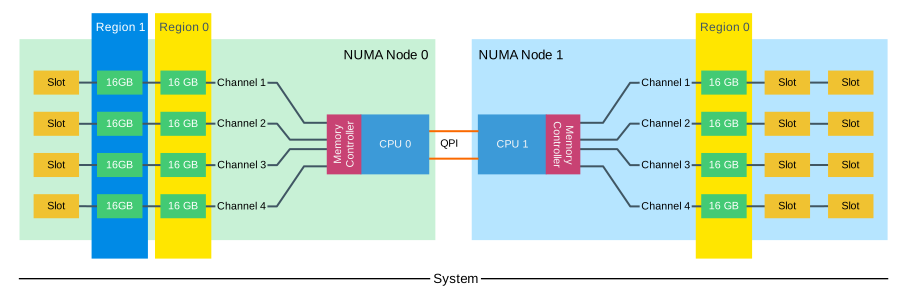
In this example, an additional 64GB is installed in NUMA node 0. CPU 0 will create two regions and will interleave the memory across the four channels and benefit from the extra capacity. NUMA Node 0 contains 128 GB, NUMA node 1 contains 64 GB. However, this level of optimization of local bandwidth would not help the virtual machines who are scheduled to run on NUMA node 1, less memory available means it could require fetching memory remotely. Remote memory access experiences the extra latency of multi-hops and the bandwidth constraint of the QPI compared to local memory access.

Unbalanced Channel Configuration
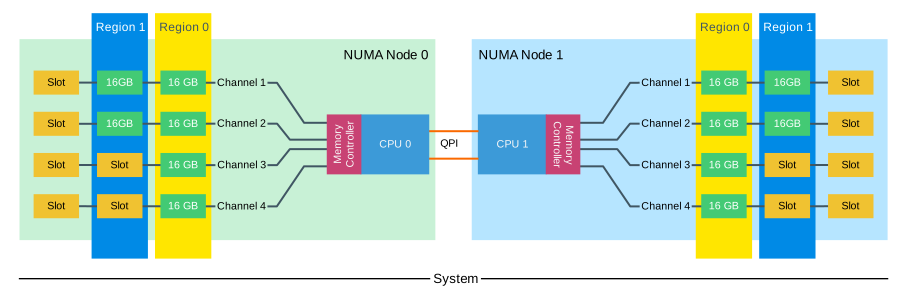
05-04-Unbalanced_Region_and_DPC
The memory capacity is equally distributed across the NUMA Nodes, both nodes contain 96 GB of RAM. The CPUs create two regions, region 0 (64GB) interleaves across four channels, region 1 (32GB) interleaves across 2 channels. Native DIMM speed remains the same (MHz). However, some performance loss occurs due to control management overhead. With local and remote memory access in mind, this configuration does not provide a consistent memory performance. Data access is done across four channels for region 0 and two channels for region 1. Data access across the QPI to the other memory controller might fetch the data across two or four channels. LCC configurations contain a single memory controller whereas MCC and HCC contain two memory controllers. This memory layout creates an unbalance in load on memory controllers with MCC and HCC configuration as well.

When adding more DIMMs to the channel, the memory controller consumes more bandwidth for control commands. By adding more DIMMs, more management overhead is created which reduces the available bandwidth for read and write data. The question arises, do you solve the capacity requirement by using higher capacity DIMMS or take the throughput hit by moving to a 3 DIMMs per Channel (DPC) configuration.

DIMMS per Channel

When designing a system that provides memory capacity while maintaining performance requires combining memory ranking configuration , DIMMs per Channel and CPU SKU knowledge. Adding more DIMMS to the channel increases capacity, unfortunately, there is a downside when aiming for high memory capacity configurations and that is the loss of bandwidth. This has to do with the number of ranks per channel.

Ranks
DIMMs come in three rank configurations; single-rank, dual-rank or quad-rank configuration, ranks are denoted as (xR). Together the DRAM chips grouped into a rank contain 64-bit of data. If a DIMM contains DRAM chips on just one side of the printed circuit board (PCB), containing a single 64-bit chunk of data, it is referred to as a single-rank (1R) module. A dual rank (2R) module contains at least two 64-bit chunks of data, one chunk on each side of the PCB. Quad ranked DIMMs (4R) contains four 64-bit chunks, two chunks on each side.

To increase capacity, combine the ranks with the largest DRAM chips. A quad-ranked DIMM with 4Gb chips equals 32GB DIMM (4Gb x 8bits x 4 ranks). As server boards have a finite amount of DIMM slots, quad-ranked DIMMs are the most effective way to achieve the highest memory capacity. However, a channel supports a limited amount of ranks due to maximal capacitance.

Ivy Bridge (v2) contained a generation 2 DDR3 memory controller that is aware of the physical ranks behind the data buffer. Allowing the memory controller to adjust the timings and providing better back-to-back reads and writes. Gen 2 DDR3 systems reduce the latency gap between Registered DIMMs (RDIMMS) and Load Reduced DIMMs but most importantly it reduces the bandwidth gap.

Memory rank impacts the number of DIMMS supported per channel. Modern CPUs can support up to 8 physical ranks per channel. This means that if a large amount of capacity is required quad ranked RDIMMs or LRDIMMs should be used. When using quad ranked RDIMMs, only 2 DPC configurations are possible as 3 DPC equals 12 ranks, which exceeds the 8 ranks per memory rank limit of currents systems. The memory deep dive article Memory Subsystem Organisation covers ranks more in-depth.

Load Reduced DIMMs
Load Reduced DIMMs (LRDIMMs) buffer both the control and data lines from the DRAM chips. This decreases the electrical load on the memory controller allowing for denser memory configurations. DDR3 LRDIMMS experienced added latency due to the use of a buffer, DDR4 changed the design of the DIMM structure and placed the buffer closer to the DRAM chips removing the extra latency (For more info: Memory Deep Dive: DDR4 Memory).

DPC Bandwidth Impact
The CPU SKU determines the maximum memory frequency. Broadwell (v4) LLC support up to 2133 MHz, MCC and HCC configurations support up to 2400 MHz (source: ark.intel.com). Choosing between a 10 core E5-2630 v4 and a 12 core E5-2650 v4, does not only provide you 2 extra cores, it provides an additional memory bandwidth. 2133 MHz equals 17064 MB/s, whereas 2400 MHz has a theoretical bandwidth of 19200 MB/s. By moving to an MCC configuration, your not only increasing the core count, but you will increase the memory subsystem with 13%, each core will benefit from this.

The DIMM type and the DPC value of the memory configuration restrict the frequency. As mentioned, using more physical ranks per channel lowers the clock frequency of the memory banks. When more ranks per DIMM are used the electrical loading of the memory module increases. And as more ranks are used in a memory channel, memory speed drops restricting the use of additional memory. Therefore in certain configurations, DIMMs will run slower than their listed maximum speeds.

RDIMM 1 DPC 2 DPC 3 DPC LRDIMM 1 DPC 2 DPC 3 DPC Source
Cisco 2400 MHz 2400 MHz 1866 MHz 2400 MHz 2400 MHz 2133 MHz Cisco PDF
Dell 2400 MHz 2400 MHz 1866 MHz 2400 MHz 2400 MHz 2133 MHz Dell.com
Fujitsu 2400 MHz 2400 MHz 1866 MHz 2400 MHz 2400 MHz 1866 MHz Fujitsu PDF
HP 2400 MHz 2400 MHz 1866 MHz 2400 MHz 2400 MHz 2400 MHz* HP PDF
Performance Drop 0 0 28% 0 0 12%/28%

* I believe this is a documentation error from HP side, DDR4 standards support 2133 MHz with 3 DPC configurations.
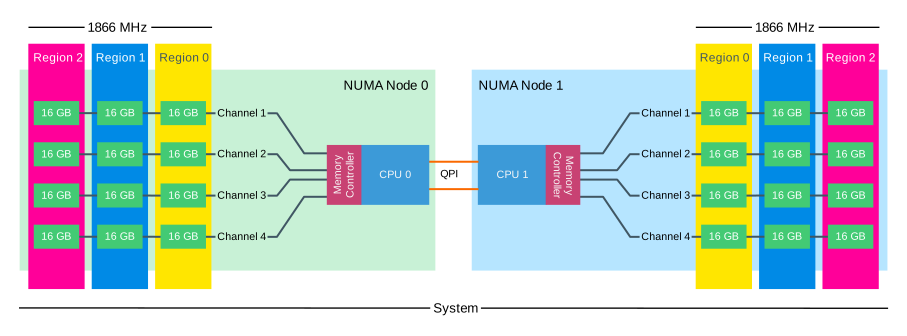
When creating a system containing 384 GB, using 16GB and populat every DIMM slot results in a memory frequency of 1866 MHz, while using (and let’s not forget, paying for) 2400 MHZ RDIMMs.
05-05_DPC_Bandwidth_Impact
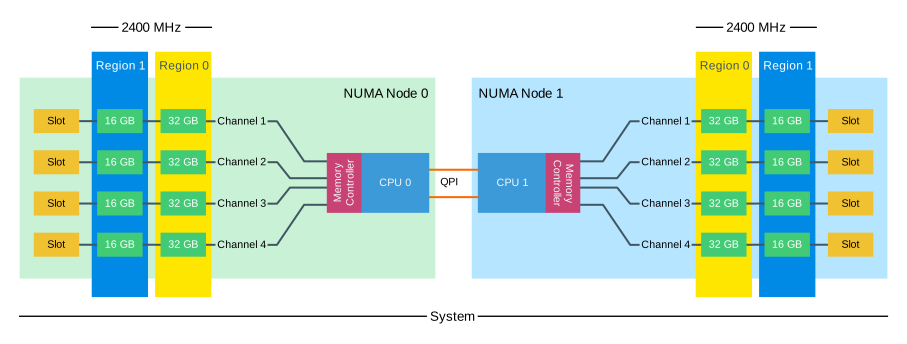
Using previous examples of unbalanced NUMA or unbalanced channel configuration, you simply cannot create a 384GB configuration with 32GB DIMMs alone. The next correct configuration, leveraging quadruple channels, is a mix of 32 GB and 16 GB DIMMs.
05-06-Mixed_DIMMS_2DPC
Mixed configurations are supported however there are some requirements and limitations server vendors state when using mixed configurations:

  • RDIMMS and LRDIMMS must not be mixed.
  • RDIMMs of type x4 and x8 must not be mixed.
  • The configuration is incrementing from bank 1 to 3 with decreasing DIMM sizes. The larger modules should be installed first.

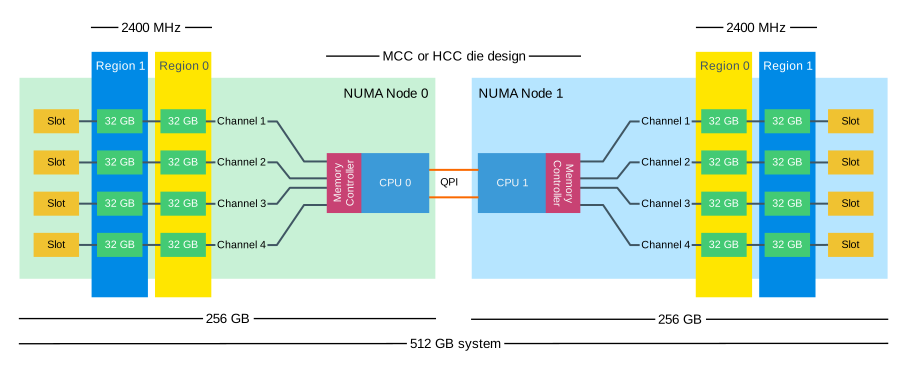
To get the best performance, select the memory module with the highest rank configuration. Due to the limitation of 8 ranks per channel, Rx4 RDIMMs and LRDIMMS allow for the largest capacity configuration, while maintaining bandwidth. Looking at today’s memory prices, DDR4 32GB memory modules are the sweet spot.
05-07-Homogeneous_DIMMS_2DPC_High_BW

Bandwidth and CAS Timings

The memory area of a memory bank inside a DRAM chip is made up of rows and columns. To access the data, the chip needs to be selected, then the row is selected, and after activating the row the column can be accessed. At this time the actual read command is issued. From that moment onwards to the moment the data is ready at the pin of the module, that is the CAS latency. It’s not the same as load-to-use as that is the round trip time measured from a CPU perspective.

CAS latencies (CL) increase with each new generation of memory, but as mentioned before latency is a factor of clock speed as well as the CAS latency. Generally, a lower CL will be better, however, they are only better when using the same base clock. If you have faster memory, higher CL could end up better. When DDR3 was released it offered two speeds, 1066MHz CL7 and 1333 MHz CL8. Today servers are equipped with 1600 MHz CL9 memory.DDR4 was released with 2133 MHz CL13. However, 2133 MHz CL15 is available at the major server vendors. To work out the unloaded latency is: (CL/Frequency) * 2000.

This means that 1600 MHz CL9 provides an unloaded latency of 11.25ns, while 2133 MHz CL15 provides an unloaded latency of 14.06ns. A drop of 24.9%. However, there is an interesting correlation with DDR4 bandwidth and CAS latency. Many memory vendors offer DDR4 2800 MHz CL14 to CL 16. When using the same calculation, 2800 MHz CL16 provides an unloaded latency of (16/2800) * 2000 = 11.42ns. Almost the same latency at DDR3 1600 MHz CL9! 2800 MHZ CL14 provides an unloaded latency of 10ns, resulting in similarly loaded latencies while providing more than 75% bandwidth.

Energy optimized

DDR3 memory runs at 1.5 V, low voltage DDR3 memory runs at 1.3V. There is currently no low-voltage extension for DDR4 (yet), however, DDR4 runs standard at 1.2 V. This reduction in power consumption is a big advantage of DDR4 as it provides energy savings of approximately 30% with the same data rate. Most BIOSes contain energy optimized settings reducing power consumption of memory. Due to the already low voltage, little power savings are gained. However bandwidth drops, Fujitsu states memory frequency drops down to 1866 MHz regardless of DPC configuration when using 2400 MHz memory modules. Be aware when configuring the BIOS and verify memory frequency is not modified when using particular energy settings.

NUMA system architecture configuration

In order to allow your virtual machines to get the best performance, especially consistent performance, care must be taken when designing and configuring an ESXi host. The selection of CPU die design, low core count, medium core count or high core count, impacts local memory bandwidth (2133 MHz vs 2400 MHz, Interconnect bandwidth (QPI 6.4 GT/s, 8.0 GT/s or 9.6 GT/s) and thus remote memory performance as well well as the cache snoop modes, HS with DR + OSB or Cluster-on-Die. These elements all have an important role in overall performance of your virtual datacenter. This concludes the physical configuration portion of the NUMA Deep Dive series, up next, VMkernel CPU and Memory Scheduling.

The 2016 NUMA Deep Dive Series:
Part 0: Introduction NUMA Deep Dive Series
Part 1: From UMA to NUMA
Part 2: System Architecture
Part 3: Cache Coherency
Part 4: Local Memory Optimization
Part 5: ESXi VMkernel NUMA Constructs
Part 6: NUMA Initial Placement and Load Balancing Operations
Part 7: From NUMA to UMA

Filed Under: NUMA, VMware

NUMA Deep Dive Part 3: Cache Coherency

July 11, 2016 by frankdenneman

When people talk about NUMA, most talk about the RAM and the core count of the physical CPU. Unfortunately, the importance of cache coherency in this architecture is mostly ignored. Locating memory close to CPUs increases scalability and reduces latency if data locality occurs. However, a great deal of the efficiency of a NUMA system depends on the scalability and efficiency of the cache coherence protocol! When researching the older material of NUMA, today’s architecture is primarily labeled as ccNUMA, Cache Coherent NUMA.

hpcresearch.nl:

The term “Cache Coherent” refers to the fact that for all CPUs any variable that is to be used must have a consistent value. Therefore, it must be assured that the caches that provide these variables are also consistent in this respect.

This means that a memory system of a multi-CPU system is coherent if CPU 1 writes to a memory address (X) and later on CPU2 reads X, and no other writes happened to X in between, CPU 2 read operation returns the value written by CPU 1 write operation.
To ensure that the local cache is up to date, the snoopy bus protocol was invented, which allowed caches to listen in on the transport of these “variables” to any of the CPU and update their own copies of these variables if they have them. The interesting thing is that with today’s multicore CPU architecture, cache coherency manifest itself within the CPU package as well as cache coherency between CPU packages. A great deal of memory performance (bandwidth and latency) depends on the snoop protocol.

Caching Architecture

Sandy Bridge (v1) introduced a new cache architecture. The hierarchy exists of an L1, L2 and a distributed LLC accessed via the on-die scalable ring architecture. Although they are all located on the CPU die, there are differences in latency between L1, L2 and LLC. L1 is the fastest cache and it typically takes the CPU 4 cycles to load data from the L1 cache, 12 cycles to load data from the L2 cache and between 26 and 31 cycles to load the data from L3 cache. In comparison, it takes roughly 190 cycles to get the data from local memory while it could take the CPU a whopping 310 cycles to load the data from remote memory.

Each core has a dedicated L1 and L2 cache, this is referred to as private cache as no other core can overwrite the cache lines, the LLC is shared between cores. The L1 cache is split into two separate elements, the Instruction cache (32KB) and the data cache (L1D) (32KB). The L2 cache (256KB) is shared by instructions and data (Unified) and is considered to be an exclusive cache. That means that it does not have to contain all the bits that is present in the L1 cache (instructions and data). However, it’s likely to have the same data and instructions as it’s bigger (less evictions). When data is fetched from memory it fills all cache levels on the way to the core (LCC->L2->L1). The reason why it’s also in the LCC is because the LCC is designed as an inclusive cache. It must have all the data contained in the L2 or L1 cache. More about LLC in a later paragraph.

Data Prefetching
In order to improve performance, data can be speculatively loaded into the L1 and L2 cache, this is called prefetching. It’s the job of the prefetcher to load data into the cache before the core needs it. Performance improvements up to 30% have been quoted by Intel. The Xeon microarchitecture can make use of both hardware and software prefetching. A well-known software prefetching technology is SSE (Streaming SIMD Extension; SIMD: Single Instruction Multiple Data) SSE provides hints to the CPU which data to prefetch for an instruction. The hardware prefetchers are split between L1 and L2 cache.
The component that actual stores the data in the L1D is called the data cache unit (DCU) and is 32KB in size. The L1D manages all the loads and stores of the data. The DCU prefetcher fetches next cache lines from the memory hierarchy when a particular access pattern is detected. The DCU IP prefetcher attempts to load the next instruction before the core actually request it. L2 prefetchers also interact with the LLC. When the L2 contains too many outstanding requests, the L2 prefetchers stores the data in the LLC to avoid eviction of useful cache lines.

Note
In storage, the unit of transportation is a block, in memory its called a line.
The Intel Xeon microarchitecture uses a cache line size of 64 bytes.
Two L2 prefetchers exists Spatial Prefetcher and Streamer. The spatial prefetcher attempts to complete every cache line fetched to the L2 cache with another cache line in order to fill a 128-byte aligned chunk. The streamer monitors read requests from the L1D cache and fetch the appropriate data and instructions. Server vendors might use their own designation for L1 and L2 prefetchers

Intel Server Vendors
DCU Prefetcher DCU Streamer Prefetcher
DCU IP-based stride prefetcher DCU IP Prefetcher
Spatial prefetcher Adjacent Cache Line Prefetch
Streamer Hardware Prefetcher

All four prefetchers are extremely important for performance. There are some use cases known where prefetchers consume more bandwidth and CPU cycles than actually benefit performance, but these cases are extremely rare. Testing prefetcher effectiveness is extremely difficult as synthetic test are usually focused on measuring best case scenario bandwidth and latency using sequential access patterns. And you guess it, they workload pattern where prefetchers shine. My recommendation is to have the prefetchers set to enabled.

Last Level Cache

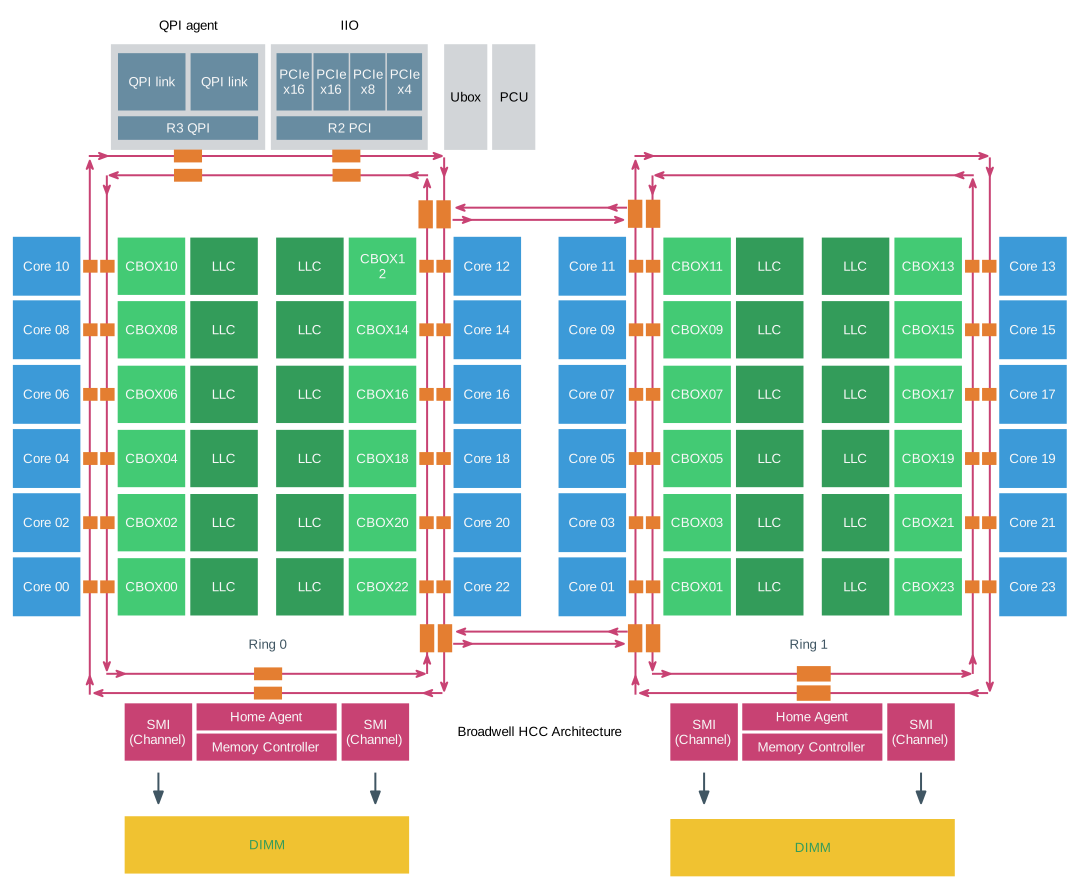
The L1 and L2 cache are private to the core and stores data it reads, writes or modifies. The LLC cache is shared amongst the cores. Sandy Bridge (v1) moved away from a single unified cache entity in the Uncore to a distributed and partitioned cache structure. The total LLC is carved up into 2.5 MB slices and can be fully accessed and utilized by all cores in the system. It’s mentioned in many articles that a core is associated with a core, but the association is just a physical construct. A core cannot control the placement of data in the LCC and has no ability to access anything but the entire LLC. The LCC is accessed through the scalable on-die ring and latency depends on the number of hops to access the data.

03-05-Broadwell_HCC_Architecture

Scalable on-die ring

The cache is an inclusive cache, meaning that it includes all of the data that is stored in the lower level caches. The memory addresses are hashed and distributed amongst the slices. This approach leverages the incredible bandwidth of the scalable on-die interconnect while reducing hot spots and contention for the cache addresses. It also helps coherency. The L3 slices are connected to the scalable on-die interconnect, that connects the cores and the Uncore containing the R3QPI (Ring to QPI interconnect) and the home agent servicing the Integrated Memory Controller. There are two tag arrays, one for data accesses and one for coherency requests and prefetching. The rings run in a clockwise direction as well as a counter-clockwise direction in order to provide the shortest path between core and cache slice. Intel stated the bandwidth of the ring was ~ 844GB/s in the Sandy Bridge Architecture. Since Haswell (v3) the rings are connected by buffered interconnects to allow the rings to operate independently, coinciding with the introduction of Cluster-on-Die cache snoop mode.

The core scalability of the Xeon family results in different die designs. There are three core-count configurations, Low core count (LCC), medium core count (MCC) and high core count (HCC). With every new generation Xeon, the classification of the various configurations change. For example in Haswell (v3) 8 core CPUs were labeled as LCC, in the Broadwell (v4) architecture, 10 core CPUs are labeled as LCC.

Max core count Die Design Core Columns Memory Controllers
10 Low Core Count 2 1
16* Medium Core Count 3 2
22 High Core Count 4 2

The Xeon E5-2690 v4 is considered to be a medium core count configuration, while the E5-2683 and E5-2697A are classified as a high core count configuration. Both MCC and HCC configuration have two integrated memory controllers and no performance difference should occur. This configuration outlier should be treated as an academic curiosity. The availability of multiple rings and home agents allows for a specific NUMA optimized cache snoop algorithm. This will become evident in a later section.

Cache Snooping

Data from the LCC slice can be read by any core in the system, once the data is in the private cache it can be modified. When a cache operation occurs that can affect coherence the cache broadcast this to all other caches. Each cache listens (Snoops) for these messages and react accordingly. Cache coherency protocols keep track of these changes and the most popular invalidation-based-protocol is MESI. Within the MESI Protocol data in cache can be in four states, Modified (M), Exclusive (E), Shared (S), Invalid (I).

L2 Cache State Definition State Definition Cache line exists in
M Modified The cache line is updated relative to memory Single core
E Exclusive The cache line is consistent with memory Single cores
S Shared The cache line is shared with other cores, the cache line is consistent with other cores, but may not be consistent with memory Multiple cores
I Invalid The cache line is not present in this core L1 or L2 Multiple cores

A simple example, a 2 vCPU VM consuming on core 1 and 2 runs SQL server. The VM runs on a 4 core ESXi host.

1: A SQL query requests memory at address X. The query runs on vCPU1 and core 1 detects it does not have this data in it’s L1 and L2 cache. A snoop request is made to the caching agents. Both the L1 and L2 cache of core 1 do not contain this data and a request is made to the caching agent, this could be the caching agent of the LCC slice or the home agent depending on the snoop algorithm. The agent will send out a snoop request to all the cache agents (or the home agent) to determine if they have the cache line. At this point, no cache has this data and MESI protocol states that data is in an invalid state for all four cores.

2: The data is retrieved from memory and stores it into the LLC and the private cache of the core 1. The MESI state of this cache line changes and is Exclusive for core 1 and invalid for the remaining cores.

3; Core1 updates the data which transitions the state of the cache line from Exclusive to Modified.

4: At this point, another query that runs on core 2 wants X as well. The core checks L1 and L2 and both miss, the request is forwarded to the LCC and determines X is present. It might not be consistent anymore, therefore a snoop is sent to core 1 to determine whether the data is modified. It is and retrieves the data and sends it over to core 2, the MESI state of the cache line is changed and now it’s in an shared state.

The example provided was based on the traditional MESI protocol, however, Intel applies the MESIF protocol. With the introduction of forwarding, it changed the role of the S state. With MESI when data is in a shared state, each cache owning that cache line can respond to the inquiry. In a 20 core count system this can create a lot of traffic, and as a NUMA system shares its memory address space, it can produce many redundant responses between the CPU, often with varying (high) latency. To solve this problem, one cache line is promoted to the F state. This cache line is the only one that can respond and forward data, all the other cache lines containing the data are placed in the shared mode, which now is silent. The F state transitions to the newest version of the data, solving temporal locality problems of the cache, as this cache is the least likely to evict the cache line. The forwarding state reduces interconnect traffic, as in MESI, all caches in S states responds.

Although I would love to go in-depth on this theory, a detailed explanation of the MESIF protocol is out of the scope of this article. I tried to keep it as simple as possible, losing some interesting details, such as Cache Valid Bits (CVB) For more information see the manuscript of J.R. Goodman and H.H.J HUM – MESIF: A Two-Hop Cache Coherency Protocol for Point-to-Point Interconnects

Snoop Modes

A Snoop mode determine which agent will management snoop operations issues by the cores. Snoops can be sent by the caching agent (Cbox) of each LLC slice or by the home agent. Until now, with every new generation micro-architecture, a new Snoop Mode is introduced. These modes are configurable through BIOS settings and have an effect on cache latency and bandwidth consumption, impact overall performance. Although Intel recommends a default Snoop Mode to the server vendors, not every BIOS conforms to that recommendation. My recommendation is to include QPI Snoop Modes in your documentation as a configuration item. If the system is configured with the default option recommended by Intel do not change this without any data-driven reason. Today four snoop modes are available, one snoop mode (Cluster-on-Die) is available only if two home nodes are available in the package (MCC and HCC die designs).

Early Snoop
This snoop mode was introduced by Sandy Bridge (v1) and is available on all newer generations. Within early snoop the caching agent generates the snoop probe or the snoop request, using the scalable on-die ring it can directly send that snoop to other cache agents or broadcast it to all the other agents in the system. This model provides a low latency response time, although the amounts broadcast (especially in HCC die designs) can eat up the bandwidth between the NUMA nodes. Typically this snoop mode is not recommended when using NUMA optimized workload. Some vendors did not optimize the BIOS defaults and use this snoop mode even for their newest models. Please check your BIOS.

Home Snoop
This snoop mode was introduced by Ivy Bridge (v2) and is available on all newer generations. Instead of each caching agent generating snoop messages, it’s the home agent tied to the memory controller that generates the snoop request. Since the snoop request has to go to the home agent and travel the on-die scalable ring, it has a higher latency than early snoop. By leveraging a more centralized entity such as the home agent, it does reduce the bandwidth consumption. Home Snoop mode is geared towards workloads which are bandwidth sensitive.

Home Snoop with Directory and Opportunistic Snoop Broadcast (OSB)
This mode uses the home agent but it can also speculatively snoop the remote CPU in parallel with the directory read on the home agent. The home agent contains an “in-memory snoop directory” to determine the state of the various cache lines, this reduces snoop traffic primarily on reads. The home agent snoops in parallel with the directory lookup when it thinks there is available system bandwidth to support the snoop traffic…When the system gets more heavily loaded, the snoops are delayed and only sent to the agents the directory information indicates need to be snoop. That way the snoop overhead is kept low in heavily loaded systems and it will focus the available bandwidth on the data instead.

This snoop mode was introduced by Ivy Bridge (v2) and was removed in Haswell (v3). It has been reintroduced by Broadwell (v4) and is the recommended default snoop mode by Intel for the Broadwell generation. Please check your BIOS settings as not every vendor follows Intel recommendations.

Cluster-on-Die
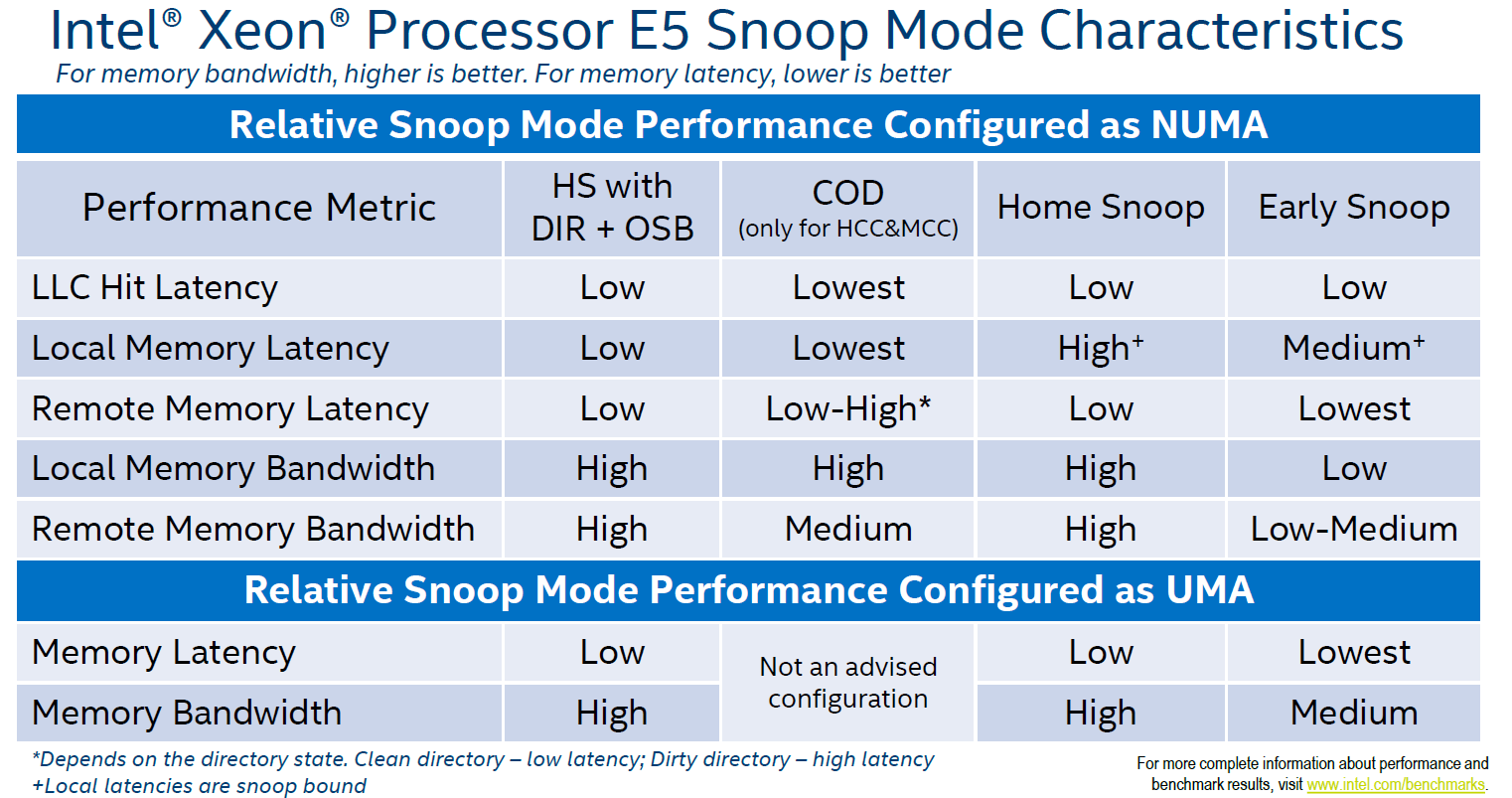
Although the Home Snoop with DIR + OSB has the overall best performance, when running a highly optimized NUMA workload you might want to consider the Cluster-on-Die snoop mode. This mode provides the best performance for local operations. It provides the lowest LLC hit latency and a low local memory latency. Remote memory performance depends on the write activity of the workloads.

04-02-Snoop_mode_characteristics
If you have your workload correctly sized and are able to fit workloads within NUMA nodes, Cluster-on-Die can improve performance. If the virtual data center is designed to run a high consolidation ratio, forcing the ESXi CPU scheduler to span small footprint VMs across NUMA nodes, Home Snoop with Directory and OSB might be a better fit.

Cluster-on-Die architecture

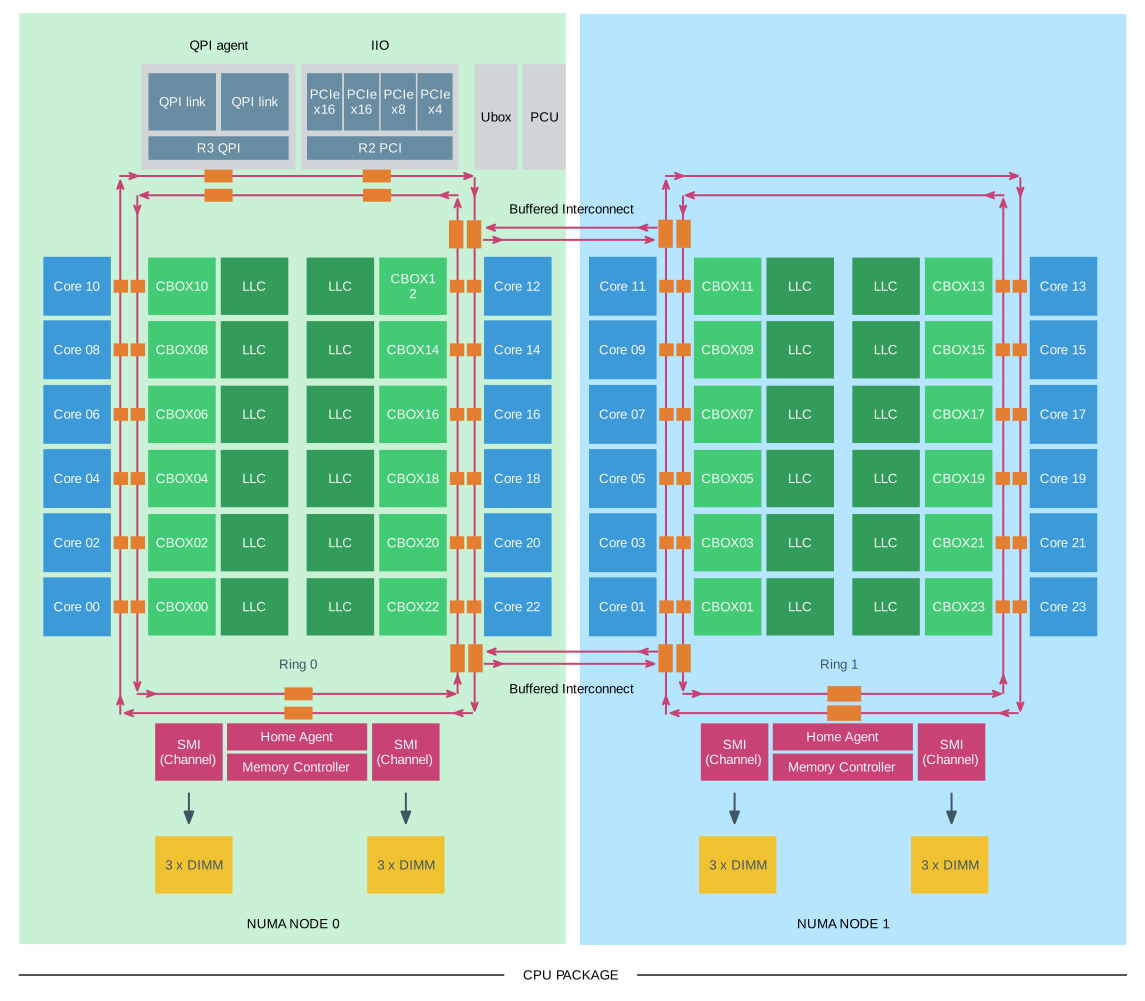
Cluster-on-Die (COD) is only available on MCC and HCC die design packages. When enabling COD, it logically divides the CPU into two equal NUMA node, incorporating a part of the scalable ring on-die Interconnect that services the home agent & integrated memory controller. In the MCC and HCC die design, there are two active memory controllers, each servicing two channels. The NUMA nodes are associated with the respective controllers.

04-03-Cluster-On-Die_HCC
Please note that there will be two NUMA nodes in one CPU package! That means there will be four NUMA nodes in a dual socket system. Marc Lang (@marcandreaslang) demonstrated COD on a 512GB system. Before COD, the system created two NUMA nodes, each addressing 256 GB per NUMA node.
04-04-512GB-NUMA-ESXTOP
After enabling COD the system created four NUMA nodes, each addressing 128 GB per NUMA node.
04-05-512GB-NUMA-COD-ESXTOP
COD segments the LLC and the RAM. By segmenting the LLC, it decreases the latency by reducing the number of slices in the NUMA node. For example, the E5-2699 v4 contains 22 cores, with COD enabled, it creates two affinity domains of 11 slices. Data will be distributed in only 11 LLC slices inside each affinity domain instead of 22 slices, thereby decreasing hop count. In addition, the COD in Broadwell (v4) microarchitecture eliminates cross buffered interconnect traffic, reducing ring collisions and other overhead that reduces the available bandwidth.

If there is a cache miss in the LLC within the affinity domain, it will contact the home agent responsible for the memory directly. Each home agent tracks the memory lines it is responsible for. Therefore the LLC can contain cache lines of “remote memory” and traffic will occur across the buffered interconnect if the NUMA scheduler cannot “affinitize” the process and the memory properly.

ESXi 5.5 update 3 and ESXi 6.0 supports COD, check https://kb.vmware.com/kb/2142499. As mentioned in part 2, ESXi does not use SLIT information to understand topological distance between the physical CPUs. Instead, ESXi determines the inter-domain latencies by probing the CPUs at boot-time and use this information for initial placement and migration decisions.  Since COD is a boot-time configuration, ESXi has a good view of the latencies of the NUMA domains. Having multiple NUMA nodes presented by a single CPU package is not a new thing. In 2011 AMD released the Magny-Cours architecture, which combined 2 6 core Bulldozer CPUs in one package. Unfortunately, a lot of negative performance results were reported by VMware community members due to the ESXi NUMA round-robin scheduling decisions. The cache architecture of the AMD didn’t help as well.

Snoop mode recommendation

If the VMs are right-sized to fit into a single NUMA node, COD could deliver a stellar performance, when operating a large collection of Wide VMs I would recommend to select the snoop mode “Home Snoop with Directory and Opportunistic Snoop Broadcast (OSB)” as COD is all about reducing latency through affinity
Up next, Part 4: Local Memory Optimization
The 2016 NUMA Deep Dive Series:
Part 0: Introduction NUMA Deep Dive Series
Part 1: From UMA to NUMA
Part 2: System Architecture
Part 3: Cache Coherency
Part 4: Local Memory Optimization
Part 5: ESXi VMkernel NUMA Constructs
Part 6: NUMA Initial Placement and Load Balancing Operations
Part 7: From NUMA to UMA

Filed Under: NUMA, VMware

  • « Go to Previous Page
  • Page 1
  • Interim pages omitted …
  • Page 10
  • Page 11
  • Page 12
  • Page 13
  • Page 14
  • Interim pages omitted …
  • Page 28
  • Go to Next Page »

Copyright © 2026 · SquareOne Theme on Genesis Framework · WordPress · Log in