• Skip to primary navigation
  • Skip to main content

frankdenneman.nl

  • AI/ML
  • NUMA
  • About Me
  • Privacy Policy

Please help VMware bring project NEE down to its (k)nees

February 5, 2013 by frankdenneman

Folks,
We have been testing the HOL platform for a few weeks using automated scripts and thought it would be great if we could do a real time stress test of our environment.
The goal of this test is to put a massive load on our infrastructure and see how fast we can get the service to crawl to its knees. We understand that this is not a very good scientific approach but think collecting real user data will help us prepare for massive loads like Partner Exchange and VMworld.
Currently we have close to 10,000 users in the Beta so we expect the application / infrastructure to keel over right after we start. We want to use this test as a way to learn what happens and where the smoke is coming from.
If you registered for the Beta and you do not have an account please check your inbox from email from admin projectnee.com to verify your account. If you have not registered its time to do so,…REGISTER FOR BETA
Here is what we need you to do:

  1. Take any lab on Thursday Feb 7th from 2:00 – 4:00 PM PST.
  2. Send us feedback (on this thread) on your experience.
  3. Include Lab Name, Description of Problem, Screen Shot.

Follow Project NEE on Twitter for latest Updates http://twitter.com/vmwarehol
Thanks for your support!
 

Filed Under: VMware

New technical paper: The CPU Scheduler in VMware vSphere 5.1

January 24, 2013 by frankdenneman

Today a new technical paper is available on vmware.com.
Description
The CPU scheduler is an essential component of vSphere 5.x. All workloads running in a virtual machine must be scheduled for execution and the CPU scheduler handles this task with policies that maintain fairness, throughput, responsiveness, and scalability of CPU resources. This paper describes these policies, and this knowledge may be applied to performance troubleshooting or system tuning. This paper also includes the results of experiments on vSphere 5.1 that show the CPU scheduler maintains or exceeds its performance over previous versions of vSphere.
If you are interested in CPU scheduling and in particular NUMA, download the paper: The CPU Scheduler in VMware vSphere 5.1

Filed Under: VMware

Hide all Getting Started Pages in vSphere 5.1 webclient in 3 easy steps

January 23, 2013 by frankdenneman

I’m rebuilding my lab and after I installed a new vCenter server I was confronted with those Getting Started tabs again. That reminded me that I promised someone at a VMUG to blog how to remove these tabs in one single operation.

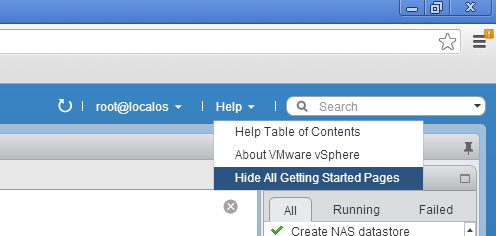
  1. Go to Help (located in the blue bar top right of your screen)
  2. Click on the arrow
  3. Select Hide All Getting Started Pages

Hide-All-Getting-Started-Pages

Filed Under: VMware

A primer on Network I/O Control

January 17, 2013 by frankdenneman

Network I/O Control (NetIOC) provides controls to partition network capacity during contention. NetIOC provides additional control over the usage of network bandwidth in the form of network isolation and limits. vMotion operations introduce temporary network traffic that tries to consume as much bandwidth as possible. In a converged network vMotion operations may have a disruptive effect on other network traffic streams. Due to way NetIOC operates, NetIOC provides control for predictable networking performance while different network traffic streams are contending for the same bandwidth. This article serves as an introduction on Network I/O Control resource control before we dive into specifics on how to use NetIOC on multi-NIC vMotion networks on distributed switches. Please note that this article covers NetIOC in vSphere 5.1
Distributed Switch
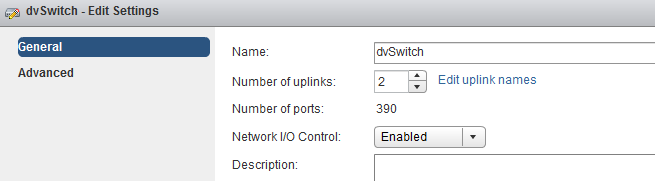
NetIOC is only available on the vNetwork Distributed Switch (vDS). To enable it, in the vSphere web client go to Networking, Manage, Settings, click on the third icon from the left (Edit distributed switch settings) and enable Network I/O Control.
01-enable-netioc
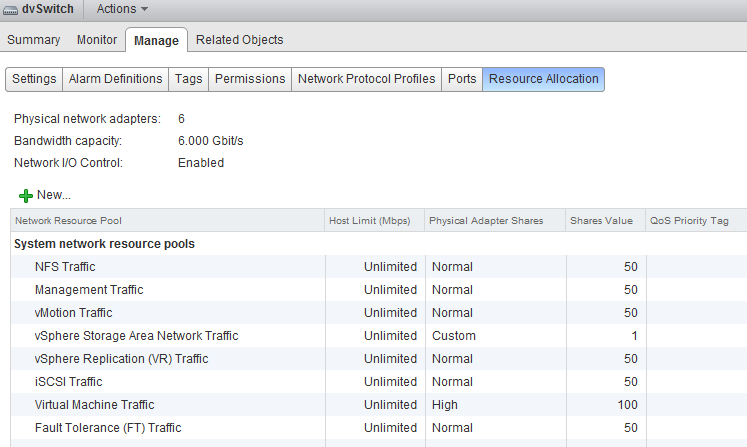
Once enabled go to the Resource Allocation tab there you will find an overview of the (predefined) Network Resource Pools, Host Limits and Physical Adapter Shares and the Shares value.
02-resource-allocation-tab
Network Resource Pool
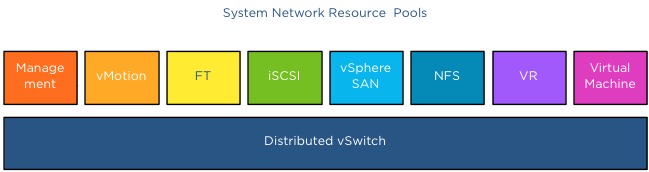
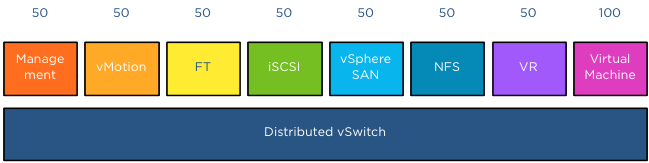
The NetIOC network resource pool (NRP) construct is quire similar in many ways to the compute resource pools already existing for CPU and Memory. Each resource pool is assigned shares to define the relative priority of its workload against other workloads active on the same resource. In the case of NetIOC, network resource pools are used to differentiate between network traffic classes. NetIOC predefines 7 different system network resource pools:
1. Management Traffic
2. vMotion Traffic
3. Fault Tolerance (FT) Traffic
4. iSCSI Traffic
5. vSphere Storage Area Network Traffic *
6. NFS Traffic
7. vSphere Replication (VR) Traffic
8. Virtual Machine Traffic
* The vSphere client marks this as a User defined network resource pool, while the web client marks this (correctly) as system network resource pool.
03-system network resource pools
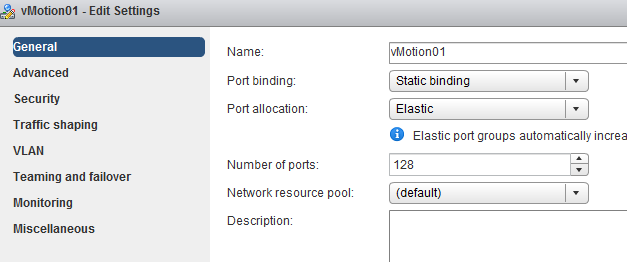
NetIOC classifies incoming traffic and binds it automatically to the correct system network resource pool; therefor you do not have to assign the vMotion traffic network resource pool to the distributed port groups manually. Once a vMotion operation starts NetIOC “tags” it as vMotion traffic and assigns the appropriate share value to it. The user interface displays the term (default) in the Network resource pool settings screen.
04-default-network-resource-pool
vSphere 5.0 introduced User-defined network resource pools and these are only applicable to virtual machine network traffic. User defined network pools are excellent to partition your network when multiple customers are using a shared network infrastructure.
Physical adapter Shares
NetIOC shares are comparable to the traditional CPU and memory shares. In the case of NetIOC, shares assigned to a network resource pool determine the portion of the total available bandwidth if contention occurs. Similar to compute shares, shares are only relative to the other active shares using the same resource.
NetIOC provides 3 predefined share levels and a custom share level. The predefined share levels; low, normal and high provide an easy method of assigning a number of shares to the network resource pool. Low assigns 25 shares to the network resource pool, Normal 50 shares and High 100 shares. Custom allows you to assign the number of shares yourself within the supported range of 1 – 100. By default every system network resource pool is assigned 50 shares with the exception of the virtual machine traffic resource pool, this NRP gets 100 shares.
05- default share values
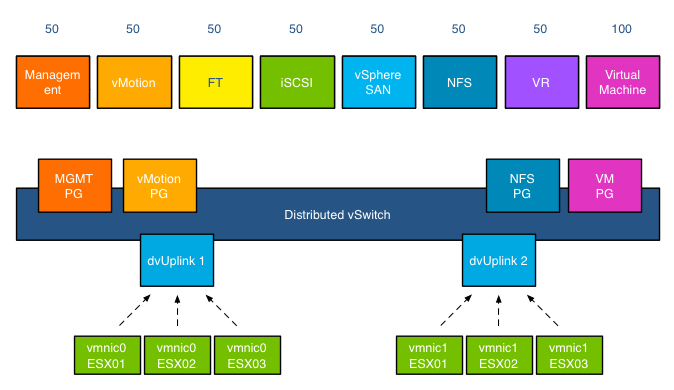
The key to understand network resource pools and shares is that the shares apply on the physical adapter; hence the name physical adapter shares ;). This means that if the physical adapter of a host is saturated the shares of the network resource pools actively transmitting are in play. For example, your distributed switch is configured with a Management portgroup, a vMotion portgroup, NFS and virtual machine portgroup. All NRPs are configured with default shares and you use 2 uplinks. For the sake of simplicity, in this scenario both uplinks are configured as active uplinks
06-ds-architecture
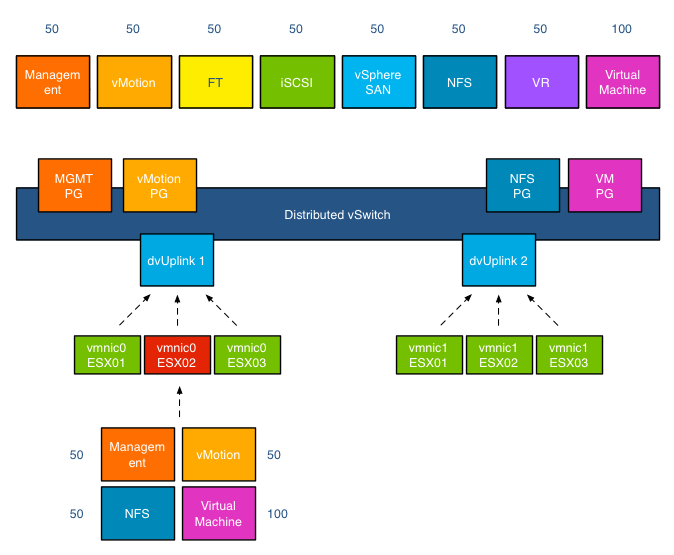
Although this environment is configured with 4 portgroups, the default system network pools remain to exist. The existences of the non-utilized system-NRPs have no effect on the distribution of bandwidth during contention. As mentioned before the when the physical adapter is saturated, then the shares apply. In the following scenario vmnic0 of host ESX02 is saturated, as there are only 4 portgroups active on the distributed switch, the shares of the network pools are applied:
07-all-shares-applied
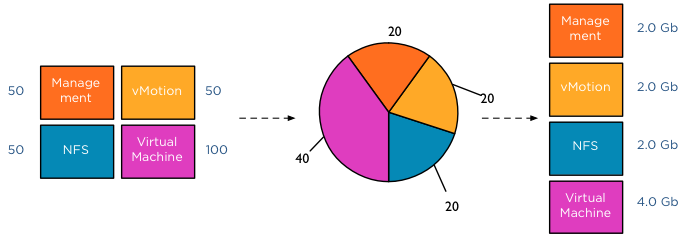
This means that 50+50+50+100 (250) shares are active, in this scenario the virtual machine network resource pool gets to divide 40% (100/(50+50+50+100)) of the available physical network bandwidth. If vmnic0 was a 10GB NIC, the virtual machines network pool would receive 4GB to distribute amongst the actively transmitting virtual machines on that host.
071-distribution-of-bandwidth
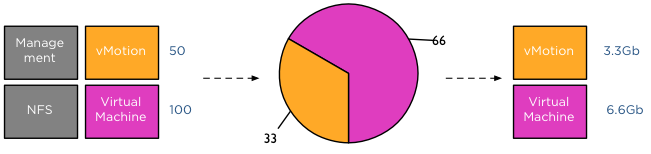
This was a worst-case scenario because usually not all portgroups are transmitting, as the shares are relative to other network pools actively using the physical adapter it might happen that Virtual Machine and vMotion traffic is only active on this NIC. In that case only the shares of the vMotion NRP and VM NRP are compared against each other to determine the available bandwidth for both network resource pools.
08-relative-share-priority
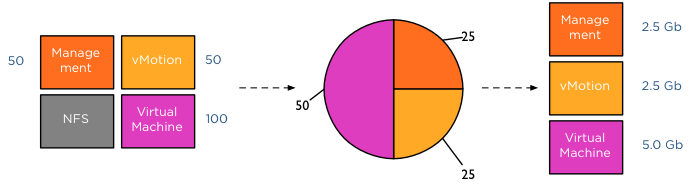
The moment another traffic source transmits to the distributed switch a new calculation is made to determine the available bandwidth for the network resource pools. For example, HA is heart beating across the management LAN, using vmnic0, therefor the active transmitting network resource pools are Management, vMotion and virtual machines, generating a distribution of network bandwidth as follows:
09-relative-share-priority 3 streams
Host Limits
Up to vSphere 5.1 NetIOC applies a limit per host. This means that the host limit enforces a traffic bandwidth limit on the overall set of dvUplinks for that particular network resource pool. The limit is expressed in an absolute unit of Mbps. This means that if you set a 3000Mpbs limit on the vMotion network resource pool, the traffic stream of the vMotion network resource pool will never exceed the given limit of 3000Mpbs for a distributed switch out of a particular ESX host.
vSphere 5.1 introduced a big adjustment to hosts limits, the host limits now applies to each individual uplink. This means that when setting a host limit on the network resource pool for vMotion of 3000Mbps, vMotion is limited to transmit a maximum of 3Gb per uplink. In the case of a Multi-NIC vMotion configuration (2NICs) the maximum traffic vMotion can issue to the vmnics is 6Gb.
Please note that limits only apply on ingress traffic (incoming traffic from vm to vds) meaning that a limit only affects native traffic coming from the active virtual machine running on the host or the vMotion traffic initiated on the host itself.
Coming up next..
The next article in this series is how to use NetIOC for predictable network performance when using a Multi-NIC vMotion configuration on a distributed vSwitch.

Filed Under: VMware

Adjusting the cost of vMotion – a word of caution

January 15, 2013 by frankdenneman

Yesterday I posted an article on how to change the cost of vMotion in order to change the default number of concurrent vMotion. As I mentioned in the article, I’m not a proponent of changing advanced settings.

Today Kris posted a very interesting question;

How about the scenario where one uses multi NIC vMotion for against two 5Gbps virtual adapters)? I know a cost of 4 will be set for the network by the VMkernel, however as the aggregate bandwidth becomes 10Gbps is it safe enough to raise the limit? Perhaps not to the full 8 for 10Gbps, but 6?

vMotion system resource pool

Please note that this article does not bash Kris. He provides a use case that I’ve heard a couple of times, making his comment an example use case. Although Kris’s scenario sounds like a very good use case to adjust the cost settings to circumvent the line-speed detection of the VMkernel to determine the max-cost of the network resource, it does not solve the other dynamic elements using line speed.

DRS MaxMovesPerHost
ESX 4.1 Introduces the MaxMovesPerHost setting, allowing the host to dynamically set the limit on moves. The limit is based on how many moves DRS thinks can be completed in one DRS evaluation interval. DRS adapts to the frequency it is invoked (pollPeriodSec, default 300 seconds) and the average migration time observed from previous migrations. However, this limit is still bound by the detected line speed and the associated Max cost. Although the proposed environment has 10GB line speed in total available, the VMkernel will still set the max cost to allow 4 vMotions on the host. Restricting the number of migrations, DRS can initiate during a load balance operation.

vMotion system resource pool CPU reservation
vMotion tries to move the used memory blocks as fast as possible. vMotion uses all the available bandwidth depending on the available CPU speed and bandwidth. Depending on the detected line speed, vMotion reserves an X amount of CPU speed at the start of a vMotion process. vMotion computes its desired host vMotion CPU reservation. For every 1GBe vMotion link speed it detects vMotion in vSphere 5.1 reserved 10% of a CPU core with a minimum desired CPU reservation of 30%. This means that if you use a single 1GBe, vMotion reserves 30% of a core, if you use 4 x 1GBe connections, that means vMotion reserves 40% of a core. A 10GBe link is special as vMotion reserves 100% of a single core.

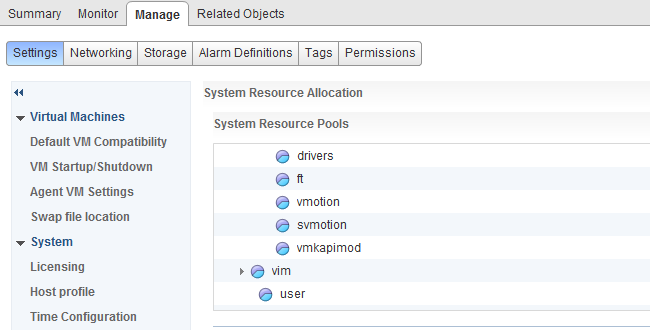
vMotion creates a (system) resource pool and sets the appropriate CPU reservation on the resource pool. It’s important to note that this is being done to the vMotion resource pool, which means that the reservation is shared across all vMotions happening on the host.

Using two 5GB links, results in a 40% CPU core reservation (default 30% plus 10% for the extra link). However, this dynamic behavior might get unnoticed if you have enough spare CPU cycles in your source and destination host.

Word of caution
I hope these two examples show that there are multiple dynamic elements working together on various levels in your virtual infrastructure. Adjusting a setting might improve the performance of a specific use case, but to change the overall behavior, lots of settings have to be changed. Due to the lack of time and specific information correlating various settings is impossible for many of us most of the time. Therefore I would like to repeat my recommendation. Please do not adjust advanced settings only if VMware supports ask you to.

Filed Under: DRS, vMotion, VMware

  • « Go to Previous Page
  • Page 1
  • Interim pages omitted …
  • Page 17
  • Page 18
  • Page 19
  • Page 20
  • Page 21
  • Interim pages omitted …
  • Page 28
  • Go to Next Page »

Copyright © 2026 · SquareOne Theme on Genesis Framework · WordPress · Log in