• Skip to primary navigation
  • Skip to main content

frankdenneman.nl

  • AI/ML
  • NUMA
  • About Me
  • Privacy Policy

Storage DRS and Storage vMotion bugs solved in vSphere 5.0 Update 2.

December 21, 2012 by frankdenneman

Today Update 2 for vSphere ESXI 5.0 and vCenter Server 5.0 were released. I would like to highlight two bugs that have been fixed in this update, one for Storage DRS and one for Storage vMotion
Storage DRS
vSphere ESXi 5.0 Update 2 was released today and it contains a fix that should be interesting to customers running Storage DRS on vSphere 5.0. The release note states the following bug:

Adding a new hard disk to a virtual machine that resides on a Storage DRS enabled datastore cluster might result in Insufficient Disk Space error
When you add a virtual disk to a virtual machine that resides on a Storage DRS enabled datastore and if the size of the virtual disk is greater than the free space available in the datastore, SDRS might migrate another virtual machine out of the datastore to allow sufficient free space for adding the virtual disk. Storage vMotion operation completes but the subsequent addition of virtual disk to the virtual machine might fail and an error message similar to the following might be displayed:
Insufficient Disk Space

In essence Storage DRS made room for the incoming virtual machine, but failed to place the new virtual machine. This update fixes a bug in the datastore cluster defragmentation process. For more information about datastore cluster defragmentation read the article: Storage DRS initial placement and datastore cluster defragmentation.
Storage vMotion
vCenter Server 5.0 Update 2 contains a fix that allows you to rename your virtual machine files with a Storage vMotion.

vSphere 5 Storage vMotion is unable to rename virtual machine files on completing migration
In vCenter Server , when you rename a virtual machine in the vSphere Client, the vmdk disks are not renamed following a successful Storage vMotion task. When you perform a Storage vMotion of the virtual machine to have its folder and associated files renamed to match the new name. The virtual machine folder name changes, but the virtual machine file names do not change.

Duncan and I knew how many customers where relying on this feature for operational processes and pushed heavily to get it back in. We are very pleased to announce it’s back in vSphere 5.0, unfortunately this fix is not available in 5.1 yet!
For more info about the fixes in the updates please review the release notes:
ESXi 5.0 : https://www.vmware.com/support/vsphere5/doc/vsp_esxi50_u2_rel_notes.html
vCenter 5.0: https://www.vmware.com/support/vsphere5/doc/vsp_vc50_u2_rel_notes.html
Filed Under: Storage DRS, vMotion, VMware

Multi-NIC vMotion – failover order configuration

December 20, 2012 by frankdenneman

After posting the article “designing your vMotion network” I quickly received the question which failover order configuration is better. Is it better to configure the redundant NIC(s) as standby or as unused? The short answer: always use standby and never unused!
Tomas Fojta posted the comment that it does not make sense to place the NICs into standby mode:

In the scenario as depicted in the diagram I prefer to use active/unused. If you think about it the standby option does not give you anything as when one of the NICs fails both vmknics will be on the same NIC which does not give you anything.

Although it does not provide any performance benefits having vMotion routing the traffic across the same physical NIC during a NIC failure, there are two important reasons for providing redundant connection to each vmknic:

  1. Abstraction layer
  2. Using a default interface for management traffic

Abstraction layer
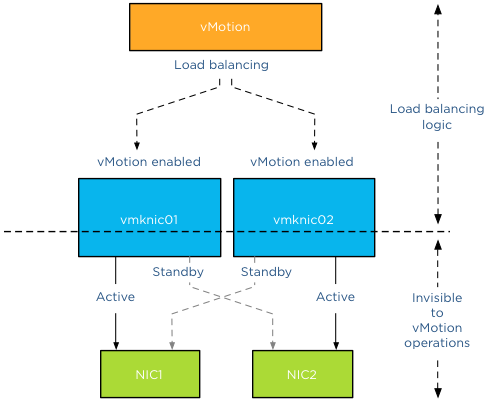
As mentioned in the previous article, vMotion operations are done at the vmknic level. Due to vMotion focussing on the vmknic layer instead of the physical layer, some details are abstracted from vMotion load balancing logic such as the physical NIC’s link state or health. Due to this abstraction vMotion just selects the appopriate vmknics for load balancing network packets and trusts that there is connectivity between the vmknics of the source and destination host.

Default interface
Although vMotion is able to use multiple vmknics to load balance traffic, vMotion assigns one vmknic as its default interface and prefers to use this for connection management and some trivial management transmissions. *
As such, if you’ve got multiple physical NICs on a host that you plan to use for vMotion traffic, it makes sense to mark them as standby NICs for the other vMotion vmknics on the host. That way, even if you lose a physical NIC, you won’t see vMotion network connectivity issues.
This means that if you have designated three physical NICs for vMotion your vmknic configuration should look as follows:

VMknic Active NIC Standby NIC
vmknic0 NIC1 NIC2, NIC3
vmknic1 NIC2 NIC1, NIC3
vmknic2 NIC3 NIC1, NIC2

By placing the redundant NICs into standby instead of unused you avoid the risk of having an unstable vMotion network. If a NIC fails, you might experience some vMotion performance degradation as the traffic gets routed through the same NIC, but you can trust your vMotion network to correclty migrate all virtual machines off the host in order for to replace the faulty NIC.
* Word to the wise
By writing about the fact that vMotion designates a vmknic to be the default interface I’m aware that this triggers and sparks the interest of some of the creative minds in our community. Please do not attempt to figure out which vmknic is designated as default interface and make that specific vmknic redundant and different from the rest. To paraphrase Albert Einstein: “Simplicity is the root of all genius”. Keep your Multi-NIC consistent and identical within the host and throughout all hosts. This saves you a lot of frustration during troubleshooting. Being able to depend on your vMotion network to migrate the virtual machines safely and correctly is worth its weight in gold.
Part 1 – Designing your vMotion network
Part 3 – Multi-NIC vMotion and NetIOC
Part 4 – Choose link aggregation over Multi-NIC vMotion?
Part 5 – 3 reasons why I use a distributed switch for vMotion networks

Filed Under: vMotion

Thin or thick disks? – it’s about management not performance

December 19, 2012 by frankdenneman

This is my contribution to the debate Zero or Thick disks – debunking the performance myth.
The last couple of years all sorts of VMware engineers worked very hard to reduce the performance difference between thin disks and thick disks. Many white-papers have been written by performance engineers to explain the improvements made on thin-disk. Therefore today the question whether to use Thin-provisioned disks or Eager zero thick is not about the difference in performance but the difference in management.
When using Thin-provisioned VMDKs you need to have a very clear defined process. What to do, when your datastore, which stores the thin provisioned disks is getting full? You need to define a consolidation ratio, you need to understand which operational process might be dangerous to your environment (think Patch-Tuesday) and what space utilization threshold you need to define before migrating thin-provisioned disks to other datastores.
Today Storage DRS can help you with many of the fore mentioned challenges. For more information please read the article: Avoiding VMDK level over-commitment while using Thin-provisioned disks and Storage DRS.
If Storage DRS is not used, Thin-provisioned disks can require a seamless collaboration between virtualization teams (provisioning and architecture) and storage administrators. When this is not possible due to organizational cultural differences, thin provisioning is rather a risk, than bliss.
Zero out process: Eager zero thick on the other hand might provide in some (corner) cases a marginal performance increase; the costs involved could outweigh the perceived benefits. First of all, Eager zero thick disks need to be zeroed out during creation, when your array doesn’t support the VAAI initiatives, this can take a hit on performance and the time to provision is extended. With terabyte sized disks becoming more common this will impact provisioning time immensely.
Waste of space: Most virtualized environments use virtual machines, typically configured with oversized OS disks and over-specced data disks, resulting in wasted space full of zero’s. Thin-provisioned disks only occupy the space used for storing data, not zero’s.
Migration: Storage vMotion goes out of its way to migrate every little bit of a virtual disk, this means it needs to copy over every zeroed out block. Combined with the oversized disks, you are creating unnecessary overhead on your hosts and storage subsystem copying and verifying the integrity of zeroed out blocks. Migrating thin disks only requires migrating the “user-data”, resulting in faster migration times, lesser overhead on hosts and storage subsystem.
In essence, Thin-provisioned disks versus Eager zero thick is all about resource/time saving versus risk avoidance. Choose wisely

Filed Under: Storage DRS, VMware

vMotion Futures Survey

December 19, 2012 by frankdenneman

If you have a few spare minutes, please fill out the survey about vMotion futures. We are very interested in how you use vMotion and especially your opinion about use cases for Long-distance vMotion operations. It takes about 10 minutes to get through.
http://tinyurl.com/VMwareVMotion2012

Filed Under: vMotion

Storage vMotion and the vSphere web-client

December 18, 2012 by frankdenneman

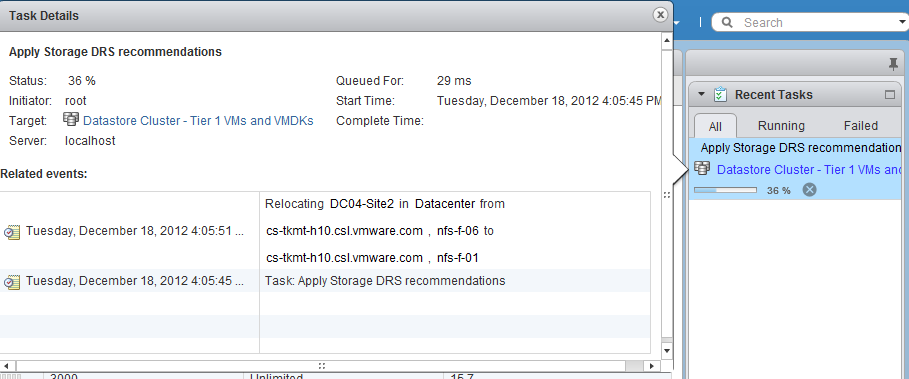
The new web client of vSphere 5.1 is my weapon of choice when working in my lab. It contains a lot of “hidden” gems, the UI team spends a lot of time crafting and aligning the user-interface to the administrator needs. One thing that drove me nuts was the lack of information when running a Storage vMotion operation. The Recent task doesn’t show anything, other than Storage vMotion operation itself and the target. When using Storage DRS, it only shows the name of the target Datastore cluster. Sometimes you just want to know which datastore the virtual machine migrated to.
The new recent task window
For example, take a look at the Recent Tasks window in the right size of the corner of the web client. When running a storage vMotion operation, it displays the Storage vMotion task similar to the vSphere client. However, when clicking on the task itself it shows the event info and task in one view. Helping you identify the source and destination datastore of the Storage vMotion process.

Compare that to the workflow of the old vSphere client
Select the task in the Recent task bar and double click it.

This brings you in the Task and Events view of the target datastore cluster. By default the view is displaying events. Therefore you need to select Tasks, then select the task itself and then click on the related events in the bottom view.

It may look trivial, but these things do speed up your work. Eradicating unnecessary clicks and wait time before a screen refreshes sure makes your job a little easier.

Filed Under: Storage DRS, vMotion

  • « Go to Previous Page
  • Page 1
  • Interim pages omitted …
  • Page 47
  • Page 48
  • Page 49
  • Page 50
  • Page 51
  • Interim pages omitted …
  • Page 83
  • Go to Next Page »

Copyright © 2026 · SquareOne Theme on Genesis Framework · WordPress · Log in

