• Skip to primary navigation
  • Skip to main content

frankdenneman.nl

  • AI/ML
  • NUMA
  • About Me
  • Privacy Policy

New TPS management capabilities

February 2, 2015 by frankdenneman

Recently VMware decided that it’s best to change Transparent Page Sharing (TPS) behavior. In KB 2080735 they state the following:

Although VMware believes the risk of TPS being used to gather sensitive information is low, we strive to ensure that products ship with default settings that are as secure as possible. For this reason new TPS management options are being introduced and inter-Virtual Machine TPS will no longer be enabled by default in ESXi 5.5, 5.1, 5.0 Updates and the next major ESXi release. Administrators may revert to the previous behavior if they so wish.

VMware reworked the TPS code and the new code is included in version: ESXi 5.5 Update 2d (Q1, 2015), ESXi 5.1 Update 3 (12/4, 2014) and ESXi 5.0 Update 3d (Q1, 2015).
In the previous released patches*, new TPS management capabilities where introduced but not enabled by default. The new TPS management capabilities introduce the concept of salting has been introduced to control Intra-VM TPS.
What is salting?
This whole exercise of protecting TPS started when researchers found a way to determine the AES encryption key in use of virtual machines on a physical processor (grossly simplified explanation). To counter act this, VMware added salting options to harden TPS. In encryption salting is the act of adding random data to make a common password uncommon. By concatenating random data to a common password, the password now becomes uncommon, making it unlikely to show up in any common password list. This slows down the attack. Martin Suecia provided a more elaborate, but easy to understand, explanation about salting on crypto.stackexchange.com.
VMware adopted this concept to group virtual machines. If they contain the same random number they are perceived to be trustworthy and can share pages. If the random number doesn’t match, no memory page sharing occurs between the virtual machines. By default the vc.uuid of the virtual machine is used as random number. And because the vc.uuid is unique randomly generated string for a virtual machine in a Virtual Center, it will never be able to share pages with other virtual machines.
Lets rehash TPS, as there seems to be some misconception on how TPS works. TPS by itself is a two-tier process.
Two tier process
There is an act of identifying identical pages and there is an act of sharing (collapsing) identical pages. TPS cannot collapse pages immediately when starting a virtual machine. TPS is a process in the VMkernel; it runs in the background and searches for redundant pages. Default TPS will have a cycle of 60 minutes (Mem.ShareScanTime) to scan a VM for page sharing opportunities. The speed of TPS mostly depends on the load and specs of the Server. Default TPS will scan 4MB/sec per 1 GHz. (Mem.ShareScanGHz). Slow CPU equals slow TPS process. (But it’s not a secret that a slow CPU will offer less performance that a fast CPU.) TPS defaults can be altered, but it is advised to keep to the default. VMware optimized memory management in ESX 4 that allow pages which Windows initially zeroes will be page-shared by TPS immediately. Please not that this is based on best effort basis this to avoid creating massive overhead on trying to scan in-line.
TPS and large pages
One caveat, TPS will not collapse large pages when the ESX server is not under memory pressure. ESX will back large pages with machine memory, but installs page sharing hints. When memory pressure occurs, the large page will be broken down and TPS can do it’s magic. For more info: Future direction of disabling TPS by default and its impact on capacity planning.
TPS and CPU NUMA structures
Another impact on the memory sharing potential is the NUMA processor architecture. NUMA allows the best memory performance by storing memory pages as close to a CPU as possible. TPS memory sharing could reduce the performance while pages are shared between two separate CPU systems. For more info about NUMA and TPS please read the article: “Sizing VMS and NUMA nodes”
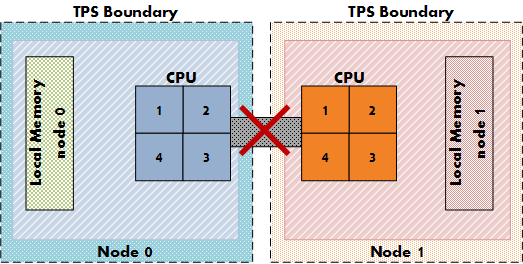
NUMA-TPS
Intra-VM and Inter-VM
When TPS identifies a common page it will collapse it, common pages occur within the memory footprint of a virtual machine itself (Intra-VM) and between virtual machines (Inter-VM). The new setting allows for TPS to collapse page within the memory footprint of the virtual machine itself, but not between virtual machines! Be aware that Intra-VM sharing only occurs today within a NUMA node, with small pages or when large pages are torn down.
TPS salting
In order to Salt pages, two settings must be activated, one at the host (VMkernel) level and one at the virtual machine level. The VMkernel setting is Mem.ShareForceSalting and in the upcoming update releases it is set to “2”. Why not use the setting “1” you might ask? By reviewing the various KB articles, it seems that VMware extending the current salting options introduced in update releases: ({5.5,5.1}201410401 and 5.0 201412401) (KB: 2091682)
KB article 2097593 provides us with the following table:
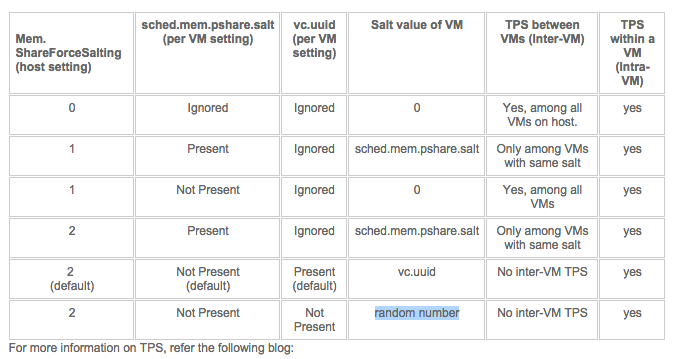
TPS Management settings
Re-enable Intra-VM TPS
That means that if you want to re-enable Intra-VM TPS you have two options. In-line with security guidelines or reverting back to traditional TPS behavior.
1: To be in-line with the security guidelines you have to set Mem.ShareForceSalting to 1 or 2 and for the virtual machines you wish to share, set sched.mem.pshare.salt to a common value. (Bottom row in the table)
2: To revert back to the traditional TPS behavior you have to set Mem.ShareForceSalting to 0.
For the changes to take effect do either of the two:
1. Migrate all the virtual machines to another host in cluster and then back to original host.
2. Shutdown and power-on the virtual machines.
Since its normal to place host in maintenance mode before changing its configuration, option 1 seems like the most common operation. Put a host into maintenance mode, let DRS migrate all the virtual machines to another host, change the setting and exit maintenance mode. Rinse and repeat for all hosts in the cluster.
Recommendations whether to use salting?
Honestly I don’t have any. Security is something that shouldn’t be taken lightly. VMware implies that this security measure is somewhat excessive. Therefor it depends on your security guidelines and your service offering (Public cloud versus own infrastructure) whether you should go through the extra length of securing TPS or not.
Would I recommend enabling TPS? Of course! It’s one of the most intelligent features of the vSphere stack. Allowing you to use the available resources as efficiently as possible.
By default salting is disabled (Mem.ShareForceSalting=0). This means TPS happens as it used to before this patch, that is, all the Virtual Machines on an ESXi box participate in TPS.
* Previous released patches
VMware ESXi 5.5, Patch ESXi550-201410401
VMware ESXi 5.1, Patch ESXi510-201410401
VMware ESXi 5.0, Patch ESXi500-201412401

Filed Under: VMware

99 cents Promo to celebrate a major milestone of the vSphere Clustering Deepdive series

October 9, 2014 by frankdenneman

This week Duncan was looking at the sales numbers of the vSphere Clustering Deep Dive series and he noticed that we hit a major milestone in September. In September 2014 we passed the 45000 copies distributed of the vSphere Clustering Deep Dive. Duncan and I never ever expected this or even dared to dream to hit this milestone.
vSphere-clustering-booksWhen we first started writing the 4.1 book we had discussions around what to expect from a sales point of view and we placed a bet, I was happy if we sold 100 books, Duncan was more ambitious with 400 books. Needless to say we reset our expectations many times since then… We didn’t really follow it closely in the last 12-18 months, and as today we were discussing a potentially update of the book we figured it was time to look at the numbers again just to get an idea. 45000 copies distributed (ebook + printed) is just remarkable.
We’ve noticed that the ebook is still very popular, and decided to do a promo. As of Monday the 13th of October the 5.1 e-book will be available for only $ 0.99 for 72 hours, then after 72 hours the price will go up to $ 3.99 and then after 72 hours it will be back to the normal price. So make sure to get it while it is low priced!
Pick it up here on Amazon.com! The only other kindle store we could open the promotion up for was amazon.co.uk, so that is also an option!

Filed Under: VMware

vSphere 5.5 Home lab

March 27, 2014 by frankdenneman

For a while I’ve been using three Dell R610 servers in my home lab. The machines specs are quite decent, each server equipped with two Intel Xeon 5530 CPUs, 48GB of memory and four 1GB NICs. With a total of 24 cores (48 HT Threads) and 144GB of memory the cluster has more than enough compute power.
However from a bandwidth perspective they are quite limited, 3 Gbit/s SATA and 1GbE network bandwidth is not really pushing the envelope. These limitations do not allow me to properly understand what a customer can expect when running FVP software. In addition I don’t have proper cooling to keep the machines cool and their power consumption is something troubling.
Time for something new, but where to begin?
CPU
Looking at the current lineup of CPUs doesn’t make it easier. Within the same CPU vendor product line multiple types of CPU socket exist, multiple different processor series exist with comparable performance levels. I think I spent most of my time on figuring out which processor to select. Some selection criteria were quite straightforward. I want a single CPU system and at least 6 cores with Hyper-Threading technology. The CPU must have a high clock speed, preferably above 3GHz.
Intel ARK (Automated Relational Knowledge base) provided me the answer. Two candidates stood out; the Intel Core i7 4930 and the Intel Xeon E5 1650 v2. Both 6 core, both HT-enabled, both supporting the advanced technologies such as VT-x, VT-d and EPT. http://ark.intel.com/compare/77780,75780
The main difference between the two CPU that matters the most to me is the higher number of supported memory of the Intel Xeon E5. However the i7-4930 supports 64GB, which should be enough for a long time. But the motherboard provided me the answer
Motherboard
Contrary to the variety of choices at CPU level, there is currently one Motherboard that stands out for me. It looks it almost too good to be true and I’m talking about the SuperMicro X9SRH-7TF. This thing got it all and for a price that is unbelievable. The most remarkable features are the on-board Intel X540 Dual Port 10GbE NIC and the LSI 2308 SAS controller. 8 DIMM slots, Intel C602J chipset and a dedicated IPMI LAN port complete the story. And the best part is that its price is similar of a PCI version of the Intel X540 Dual Port 10GbE NIC. The motherboard only supports Intel E5 Xeons, therefor the CPU selection is narrowed down to one choice, the Intel Xeon E5 1650 v2.
CPU Cooler
The SuperMicro X9SRH-7TF contains an Intel LGA2011 socket with Narrow ILM (Independent Loading Mechanism) mounting. This requires a cooler designed to fit this narrow socket. The goal is to create silent machines and the listed maximum acoustical noise of 17.6 dB(A) of the Noctua NH-U9DX i4 “sounds” promising.
Memory
The server will be equipped with 64GB. Four 16GB DDR3-1600 modules allowing for a future upgrade of memory. The full product name: Kingston ValueRAM KVR16R11D4/16HA Modules.
Network
Although two 10 GbE NICs provide more than enough bandwidth, I need to test scenarios where 1GbE is used. Unfortunately vSphere 5.5 does not support the 82571 chipset used by the Intel PRO/1000 Pt Dual Port Server Adapter currently inserted in my Dell servers. I need to find an alternative 1 GbE NIC recommendations are welcome.
Power supply
I prefer a power supply that is low noise and fully modular. Therefore I selected the Corsair RM550. Besides a noise-reducing fan the PSU has a Zero RPM Fan Mode, which does not spin the fan until it is under heavy load, reducing the overall noise level of my lab when I’m not stressing the environment.
Case
The case of choice is the Fractal Design Define R4. Simple but elegant design, enough space inside and has some sound reducing features. Instead of the standard black color, I decided to order the titanium grey.
SSD
Due to the PernixDrive program I have access to many different SSD devices. Currently my lab contains Intel DC 3700 100GB and Kingston SSDNOW enterprise e100 200GB drives. Fusion I/O currently not (yet) in the PernixDrive program was so kind to lend me a Fusion I/O IODrive of 3.2 TB, unfortunately I need to return this to Fusion someday.
Overview

Component Type Cost
CPU Intel Xeon E5 1650 v2 540 EUR
CPU Cooler Noctua NH-U9DX i4 67 EUR
Motherboard SuperMicro X9SRH-7TF 482 EUR
Memory Kingston ValueRAM KVR16R11D4/16HA 569 EUR
SSD Intel DC 3700 100GB 203 EUR
Kingston SSDNOW enterprise e100 200GB 579 EUR
Power Supply Corsair RM550 90 EUR
Case Fractal Design Define R4 95 EUR
Price per Server (without disks) 1843 EUR

In total two of these machines are build as a start of my new lab. Later this year more of these machines will be added. I would like to thank Erik Bussink for providing me recommendations and feedback on the component selection of my new vSphere 5.5 Home Lab. I’m sure he will post a new article of his new lab soon.

Filed Under: VMware

Installing Exchange Jetstress without full installation media.

February 5, 2014 by frankdenneman

I believe in testing environments with applications that will be used in the infrastructure itself. Pure synthetic workloads, such as IOmeter, are useful to push hardware to their theoretical limit but that’s about it. Using a real life workload, common to your infrastructure, will give you a better understanding of the performance and behavior of the environment you are testing. However, it can be cumbersome to setup the full application stack to simulate that workload and it might be difficult to simulate future workload.
Simulators made by the application vendor, such as SQLIO Disk Subsystem Benchmark Tool or Exchange Server Jetstress, provide an easy way to test system behaviour and simulate workloads that might be present in the future.
One of my favourite workload simulators is MS Exchange server Jetstress however its not a turn-key solution. After installing Exchange Jetstress you are required to install the ESE binary files from an Exchange server. It can happen that you don’t have the MS exchange installation media available or a live MS exchange system installed.
01-Missing files - jetstress 2010
Microsoft recommends downloading the trail version of Exchange, install the software and then copy the files from its directory. Fortunately you can save a lot of time by skipping these steps and extract the ESE files straight from an Exchange Service Pack. Added bonus, you immediately know you have the latest versions of the files.
I want use Jetstress 2010 and therefor I downloaded Microsoft Exchange Server Jetstress 2010 (64 bit) and Microsoft Exchange Server 2010 Service Pack 3 (SP3).
To extract the files direct from the .exe file, I use 7zip file archiver. ()
The ESE files are located in the following directory:

File Path
ese.dll \setup\serverroles\common
eseperf.dll \setup\serverroles\common\perf\amd64
eseperf.hxx \setup\serverroles\common\perf\amd64
eseperf.ini \setup\serverroles\common\perf\amd64
eseperf.xml \setup\serverroles\common\perf\amd64


Copy the ESE files into the Exchange Jetstress installation folder. By default, this folder is “C:\Program Files\Exchange Jetstress”.
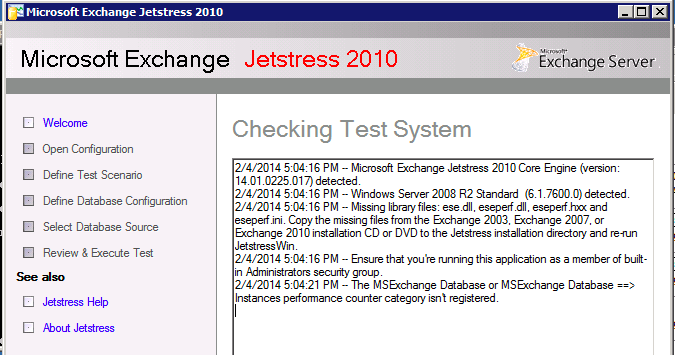
Be aware that you need to run Jetstress as an administrator. Although you might login your system using you local and domain admin account, Jetstress will be kind enough to throw the following error:

The MSExchange Database or MSExchange Database ==> Instrances performance counter category isn’t registered

Just right-click the Jetstress shortcut and select “run as administrator” and you are ready for action.
Happy testing!

Filed Under: VMware

vSphere 5.5 vCenter server inventory 0

January 16, 2014 by frankdenneman

After logging into my brand spanking new vCenter 5.5 server I was treated with a vCenter server inventory count of 0. Interesting to say the least as I installed vCenter on a new windows 2008 R2 machine, connected to a fresh MS active directory domain. I installed vCenter with a user account that is domain admin, local admin and has all the appropriate local rights (Member of the Administrators group, Act as part of the operating system and Log on as a Service). The install process went like a breeze, no error messages whatsoever and yet the vCenter server object was mysteriously missing after I logged in. A mindbender! Being able to log into the vCenter server and finding no trace of this object whatsoever, it felt like someone answering the door and saying he’s not home.
I believed I did my due diligence, I read the topic “Prerequisites for Installing vCenter Single Sign-On, Inventory Service, and vCenter Server” and followed every step, however it appeared I did not RTFM enough.
administrator@vsphere.local only
Apparently vSphere will only attach the permissions and assign the role of administrator to the default account administrator@vsphere.local and you have to logon with this account after the installation is complete. See “How vCenter Single Sign-On Affects Log In Behavior” for the following quote:

After installation on a Windows system, the user administrator@vsphere.local has administrator privileges to both the vCenter Single Sign-On server and to the vCenter Server system.

It threw my off balance by allowing me to log in with the account that I used to install vCenter, this made me assume the account automatically received the appropriate rights to manage the vCenter server. To gain access to the vCenter database you must manually assign the administrator role to the AD group or user account of your liking. As an improvement over 5.1 vCenter 5.5 adds the active directory as an identity source, but will not assign any administrator rights, ignoring the user account used for installing the product. Follow these steps to use your AD accounts to manage vCenter.
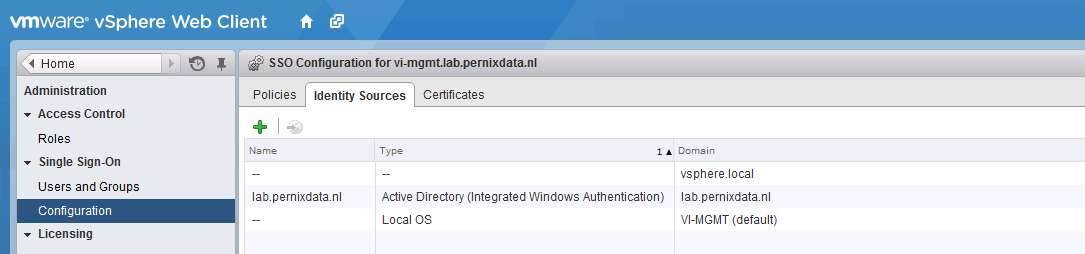
1. Verify AD domain is listed as an Identity Source
Log in with administrator@vsphere.local and select Configuration in the home menu tree. Only when you are logged in with an SSO administrator vCenter will show the Single Sign-on menu option. Select Single Sign-on | Configuration and verify if AD domain is listed.
1-SSO configuration identify sources
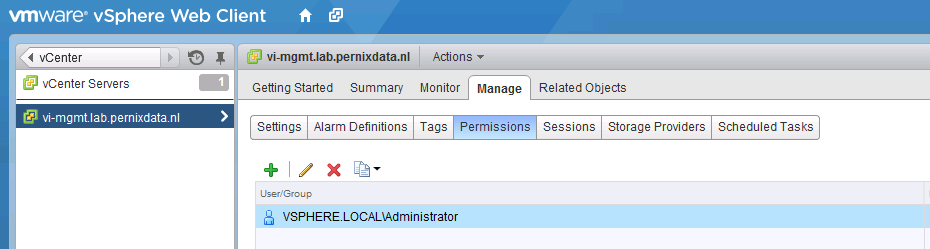
2. Add Permissions to top object vCenter
Go back to home, select menu option vCenter, vCenter Servers and then the vCenter server object. Select the menu option Manage, Permissions
2-vCenter permissions
3. Add User or Group to vCenter
Click on the green + icon to open the add permission screen. Click on the Add button located at the bottom.
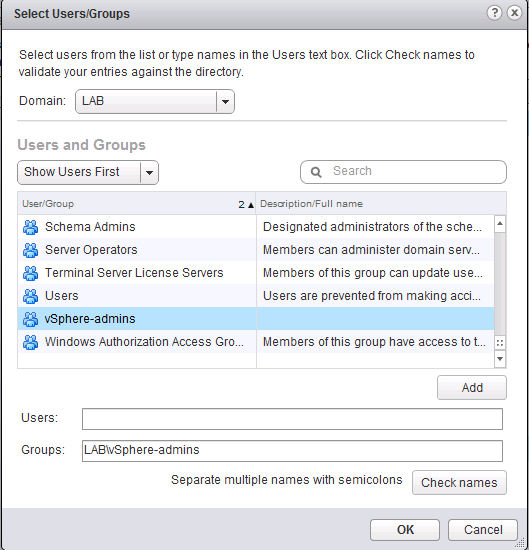
4. Select the AD domain
Select the AD domain and then the user or group. In my example I selected the AD group “vSphere-admins”. I’m using groups to keep the vCenter configuration as low-touch as possible. When I need grant additional users administrator rights I can simple do this in my AD Users and Computers tool. Traditionally auditing is of a higher level in AD then in vCenter.
3-Select AD domain and Group
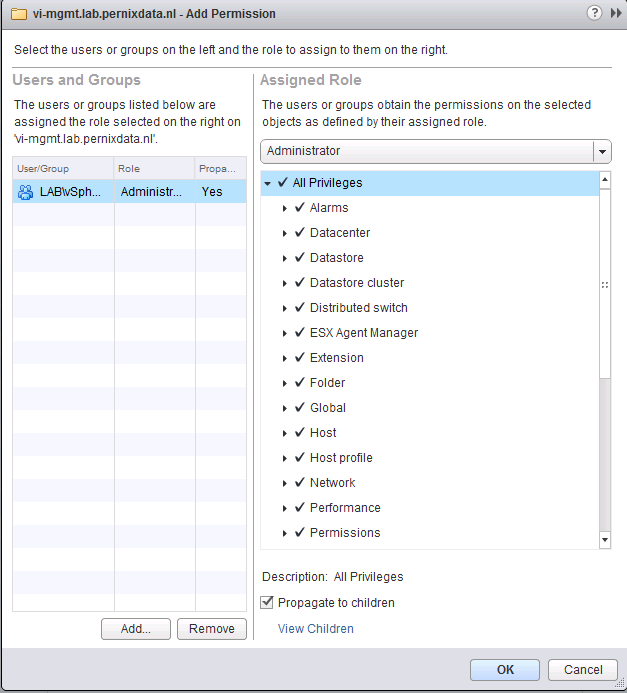
5. Assign Administrator Role
In order to manage the vCenter server all privileges need to be assigned to that user, by selecting the administrator role all privileges are assigned and propagated to all the child objects in the database.
4-Assign Administrator Role to AD group
6. Log in with your AD account
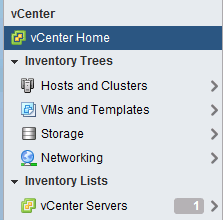
Log out the user administrator@vsphere.local and enter your AD account. Click on vCenter to view the vCenter Inventory list. vCenter Servers should list the new vCenter server.
5-vCenter Server Inventory List

Filed Under: VMware

  • « Go to Previous Page
  • Page 1
  • Interim pages omitted …
  • Page 14
  • Page 15
  • Page 16
  • Page 17
  • Page 18
  • Interim pages omitted …
  • Page 28
  • Go to Next Page »

Copyright © 2026 · SquareOne Theme on Genesis Framework · WordPress · Log in