• Skip to primary navigation
  • Skip to main content

frankdenneman.nl

  • AI/ML
  • NUMA
  • About Me
  • Privacy Policy

Designing your vMotion network

December 18, 2012 by frankdenneman

A well designed vMotion network will benefit the environment in many ways. Before vSphere 5, designing a vMotion network was relative easy, select the fastest NIC and assign it to a vMotion vmknic. vSphere 4.x supports both 1GB and 10GB networks and since vSphere 5.0 vMotion is able to leverage multiple NICs. Multi-NIC in vSphere 5.x makes it a bit more challenging. The combination of NICs, the failover mode and which load balancing policy need to be taken into consideration when configuring your vMotion network.
The benefit of multi-NIC vMotion network
In vSphere 5.x vMotion balances the vMotion operations across all available NICs. Both for a single vMotion operation and for multiple concurrent vMotions operations. By using multiple NICs it reduces the duration of a vMotion operation. This benefits:

  • Manual vMotion processes: Allocating more bandwidth to the vMotion process will result in faster migration times. The less time spend on monitoring a manual process means more time you can spend on other – more important – operations.
  • DRS load balancing: Based on the average time per migration and the number of concurrent vMotion process, DRS restrict the number of load balancing operations it can process between two load balancing runs. By providing more bandwidth to the vMotion network, DRS is able to run more load balancing operations in between load balancing runs, which in turn benefits the load balance of the cluster. Better load balance means better resource availability for the virtual machines, which in turn means better performance for your applications.
  • Maintenance mode: Faster migration times, means reducing the time a host enters maintenance mode. With the increase of consolidation ratio, the time it takes to migrate all the virtual machines off the host is increased as well. This can have impact on your SLA and the ability to service the host within the allowed time.

Multi-NIC setup
The vMotion process leverages the vmknic instead of sending packets directly to a physical NIC.In order to use multiple NICs for vMotion, multiple vmknics are required. Duncan wrote an excellent article how to setup multi-NIC vMotion network.
Failover order and Load balancing policy
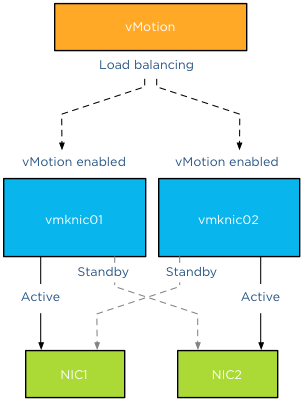
Each vmknic should only use one active NIC, this result in only one valid load balancing policy and that is “Route based on originating virtual port”. This setup inhibits physical NIC load balancing such as IP-hash or the load balancing policy “based on physical load (LBT)”. The reason why the active/standby failover order is the only valid and supported configuration is because of the way vMotion load balancing works. The vMotion process itself handles load balancing, based on its own algorithm, vMotion picks a vmknic for a specific network packet. As vMotion expects the vmknic to be backed by a single physical NIC, sending out data through a given vmknic ensures vMotion that the data traverses that dedicated physical NIC. If the physical NICs were configured in a load-balancing mode, this could interfere with the vMotion level load balancing logic. vMotion would not be able to predict which physical NIC is used by the vmknic and possible sending all vMotion traffic over the same NIC, even if Motion sends the data to different vmknics.
Consistent configuration
Ensure that each physical NIC is configured in a consistent and correct way across the vMotion network on the host and across the hosts inside the cluster. vCenter is very conservative and if it detects a mismatch it drops the number of concurrent vMotion operations on that host back to 2 regardless of the available bandwidth. Therefore always check on each level if the link speed, MTU and duplex settings are identical, both on the NIC side as well as the switch side. Please keep in mind that the all the vMotion vmknics should exist in the same subnet. Although its possible to set static routes, “routable vMotion” configurations are not supported by VMware.
Link speed
By default vCenter allows 4 concurrent vMotion operations on a host with a 1 GB vMotion network and 8 concurrent vMotion operations on a host with a 10 GB vMotion network. Be aware that this is based on the detected link-speed. In other words, if the physical NIC reports at least 10GbE, link speed, vCenter allows 8 vMotions, but if the physical NIC reports less than 10GBe, vCenter allows a maximum of 4 concurrent vMotions on that host. To stress it again, the number of concurrent vMotions is based on the detected link speed. For example, take the HP Flex technology. This sets a hard limit on the flexnics, resulting in the reported link speed equal or less to the configured bandwidth on Flex virtual connect level. I’ve come across many Flex environments configured with more than 1GB bandwidth, ranging between 2GB to 8GB. Although they will offer more bandwidth per vMotion process, it will not offer an increase in the number of concurrent vMotions, limiting the number of concurrent vMotion operations to 4.
As mentioned before, vCenter is very conservative; multi-NIC vMotion limits are currently determined by the slowest available vMotion NIC. This means that if you include a 1GB NIC in your 10GB vMotion network configuration, that host is restricted to maximum of 4 concurrent vMotion operations per host. I’ve seen a few vMotion network designs where a 1GB link was added to the 10GB vMotion network configuration, primarily used as a safety net. Just in case the 10GB network drops, well that safety net just restricted that host to 4 concurrent vMotion operations.
Increase in NICS does not impact number of concurrent vMotions
Using multiple NICs increases the bandwidth available for the vMotion process; it does not increase the number of concurrent vMotions. When 10Gb uplinks are used for the vMotion, the maximum concurrent vMotions allowed is eight, even with multiple NICs are assigned, the limit remains at eight. However the increase in bandwidth will decrease the duration of each vMotion process.
A Multi-NIC vMotion configuration is slightly more complex that single NIC vMotion networks, but this setup will benefit you in many ways. Reducing vMotion operation times allows DRS to schedule more load balancing operations per invocation and the increased bandwidth allows the host to complete the transition to maintenance mode faster. Multi-VM is very helpful when leveraging the new vMotion possibility by migrating the virtual machine between hosts and datastores simultaneously.
Part 2 – Multi-NIC vMotion failover order configuration
Part 3 – Multi-NIC vMotion and NetIOC
Part 4 – Choose link aggregation over Multi-NIC vMotion?
Part 5 – 3 reasons why I use a distributed switch for vMotion networks
Filed Under: vMotion

SIOC on datastores backed by a single datapool

December 6, 2012 by frankdenneman

Duncan posted an article today in which he brings up the question: Should I use many small LUNs or a couple large LUNs for Storage DRS? In this article he explains the differences between Storage I/O Control (SIOC) and Storage DRS and why they work well together, to re-emphasize, the goal of Storage DRS load balancing is to fix long term I/O imbalances, while SIOC addresses short term burst and loads. SIOC is all about managing the queue’s while Storage DRS is all about intelligent placement and avoiding bottlenecks.
Julian Wood makes an interesting remark, and both Duncan and I hear this remark when discussing SIOC. Don’t get me wrong I’m not picking on Julian, I’m merely stating the fact he made a frequently used argument.

“There is far less benefit in using Storage IO Control to load balance IO across LUNs ultimately backed by the same physical disks than load balancing across separate physical storage pools. “

Well when you look at the way SIOC works I tend to disagree with this statement. As stated before, SIOC manages queues, queues to the datastores used by the virtual machines in the virtual datacenter. Typically speaking these virtual machines differ from workload types, from peak moments and also they differ in importance to the organization. With the use of disk shares, important virtual machine can be assigned a higher priority within the disk queue. When contention occurs, and this is important to realize, when contention occurs these business critical virtual machine get prioritized over other virtual machines. Not all important virtual machines generate a constant stream of I/O, while other virtual machines, maybe with a lower priority do generate a constant stream of IO. The disk shares provide the high priority low IO virtual machines to get a foot between the door and get those I/Os to the datastore and back. Without SIOC and disk shares you need to start thinking of increasing the queue depth of each hosts and think about smart placement of these virtual machines (both high and low I/O load) to avoid those high I/O load getting on the same host. These placement adjustment might impact DRS load balancing operations, possibly affecting other virtual machines along the way. Investing time in creating and managing a matrix of possible vm to datastore placement is not the way to go in this time with rapidly expanding datacenters.
Because SIOC is a datastore-wide scheduler, SIOC determines the queue-depth of the ESX hosts connected to the datastores running virtual machines on those datastores. Hosts with higher priority virtual machines get “deeper” queue depths to the datastore and hosts with lower priority virtual machines running on the datastore receive shorter queue-depths. To be more precise, SIOC calculates the datastore wide latency and each local host scheduler determines the queue depth for the queues of the datastore.
But remember queue depth changes only occur when there is contention, when the datastore exceeds the SIOC latency threshold. For more info about SIOC latency read “To which Host level latency statistic is the SIOC threshold related”
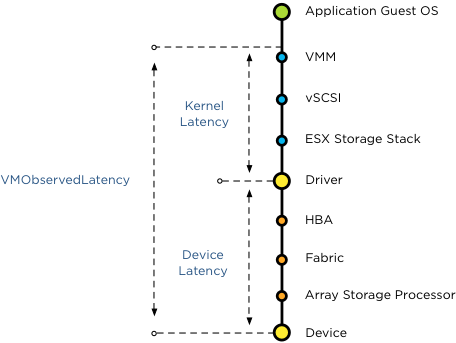
Coming back to the argument, I firmly believe that SIOC has benefits in a shared diskpool structure, between the VMM and the datastore a lot of queue’s exists.
vSphere 5.1 VMObservedLatency
Because SIOC takes the avg device latency off all hosts connected to the datastore into account, it understands the overall picture when determining the correct queue depth for the virtual machines. Keep in mind, queue depth changes occur only during contention. Now the best part of SIOC in 5.1 is that it has the Automatic Latency Threshold Computation. By leveraging the SIOC injector it understands the peak value of a datastore and adjust the SIOC threshold. The SIOC threshold will be set to 90% of its peak value, therefor having an excellent understanding of the performance capability of the datastore. This is done on a regular basis so it keeps actual workload in mind. This dynamic system will give you far more performance benefit that statically setting the queue-depth and DNSRO for each host.
One of the main reasons of creating multiple datastores that are backed by a single datapool is because of creating a multi-path environment. Together with advanced multi-pathing policies and LUN to controller port mappings, you can get the most out of your storage subsystem. With SIOC, you can manage your queue depths dynamically and automatically, by understanding actually performance levels, while having the ability to prioritize on virtual machine level.

Filed Under: SIOC Tagged With: DRS, SIOC, Storage DRS

Overlapping DRS VM-Host affinity rule in a vSphere Stretched Cluster

December 5, 2012 by frankdenneman

A question on the VMware community forum triggered me to validate DRS behavior of applying VM to Host group rules. The scenario describes a stretched HA cluster with overlapping DRS group rules, allowing to run particular VMs on hosts in a single site and a subset of hosts of both sides. How does DRS handle overlapping groups?
The architecture
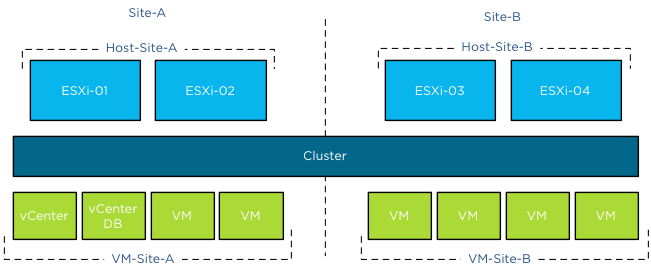
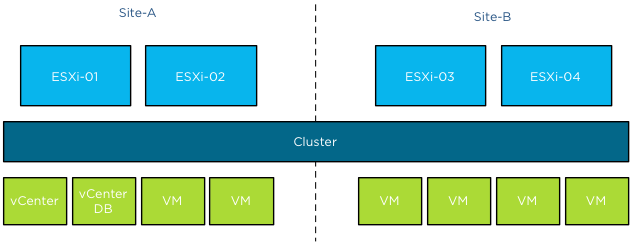
In this scenario the stretched cluster contains four hosts; ESXi-01 and ESXi-02 are located in Site A, ESXi-03 and ESXi-04 are located in Site B.
vSphere Stretched Cluster logical diagram
A collection of virtual machines are run by the hosts in the cluster, two management virtual machines, vCenter and vCenterDB are a part of this group. Storage housing the virtual machines are available for all hosts. Storage architecture is not the focus of this article, for more information about storage configurations and stretched vSphere clusters, please read the white paper: VMware vSphere Metro Storage Cluster Case Study
Site DRS VM-Host groups
ESXi-01 and ESXi-02 are grouped in Host DRS group Host-Site-A, ESXi-03 and ESXi-04 are grouped in Host DRS group Host-Site-B. All virtual machines running in Site-A are grouped in a VM DRS group VM-Site-A, all virtual machines running in Site-B are grouped in a VM DRS group VM-Site-B. All (Site) rules are configured as preferential rules (Should run on).
Site DRS VM-Host groups in a vSphere stretched cluster
Management DRS VM-Host group
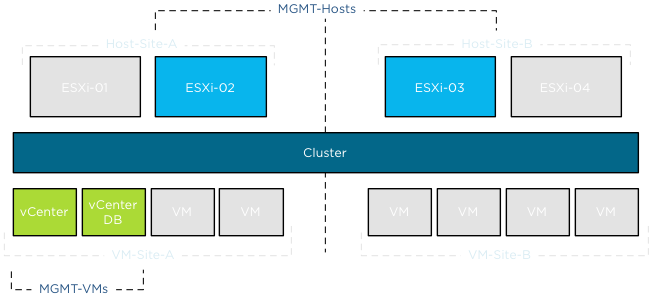
In the scenario described on the community forum, the virtual machines vCenter and vCenterDB are placed in an additional VM DRS group; MGMT-VMs.
This group should be run on a select set of hosts of both sides, to simulate similar behavior the Host DRS group configured in my environment contains ESXi-02 of Site-A and ESXi-03 of Site-B. The group is named MGMT-Hosts.
Overlapping DRS VM-Host affinity rule in a vSphere Stretched Cluster
Overlapping rule-set
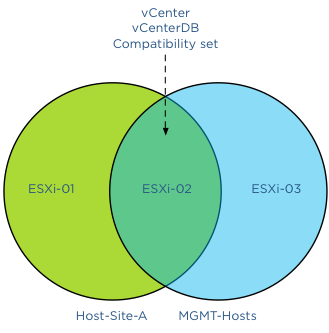
Because the management virtual machines are a part of the VM-Site-A VM group an overlap of compatible hosts exists. Please note that DRS allows virtual machines to be a member of multiple VM groups. When reviewing the active affinity rules in a DRS cluster, DRS extracts a subset of compatible hosts for each virtual machine and uses this subset for placement and load balancing decisions. A Venn diagram shows the compatible host for the VMs vCenter and vCenterDB and specifically the host(s) listed in the compatibility set.
Venn diagram illustrating VM compatibility set of vSphere hosts
This means that under normal operation DRS will choose to run the virtual machines on ESXi-02 as it satisfies both rules. With normal condition I want to indicate that there is not excessive load on any of the host and all hosts are configured identically without any hardware failures. Back to the scenario, what if there is a host failure or ESXi-02 is placed into maintenance mode?
Maintenance mode
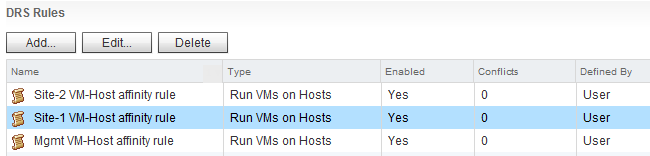
Now what happens if ESXi-02 is placed into maintenance mode? As previously mentioned, DRS determines the set of compatible hosts. As ESXi-02 is placed into maintenance mode, DRS mark this host as a source host for migration. This way DRS knows which virtual machine to select for migration and excludes ESXi-02 as a valid destination for migrations. DRS must select other hosts listed in the Host DRS group. As ESXi-02 is not a valid destination, DRS needs to select either ESXi-01 or ESXi-03. Which host will it select? This depends on the creation date of the DRS rules, in other words, the newer DRS VM-Host rule is selected first. This is important to understand when applying overlapping VM-Host affinity rules in your environment. The last rule you create is applied first, overruling all other existing rules. In my lab, I created the MGMT rule as last, therefor having the youngest timestamp.
DRS rules User Interface vSphere 5.1 Web Client
There is no option of showing the timestamp in the user-interface of the web and vSphere client. I have provided this feedback to the engineering team. Hopefully they can include it in future releases.
I placed ESXi-02 into maintenance mode and DRS migrated the virtual machines to ESXi-03, regulated by the MGMT VM-Host affinity rule. After placing ESXi-03 into maintenance mode, the virtual machines were moved to ESXi-01 as there were no compatible hosts available to satisfy the MGMT affinity rule. As ESXi-01 is listed in the Host-Site-A group of the Site-A affinity rule, DRS had no choice other than moving them to ESXi-01. After resetting the lab and destroying all the rules, I created the same set of host groups, VM groups and affinity rules, but I created the Site-A affinity rule as last. This resulted in the behavior that DRS moved the virtual machines to host ESXi-01 after placing ESXi-02 into maintenance mode, as DRS respected the Site-A affinity rule.
Alarms
As DRS supports non-contradicting overlapping affinity rules, no alarm was generated. During the scenario where both ESXi-02 and ESXi-03 were placed into maintenance mode, no alarm was triggered. It was expected to see an alarm that an affinity alarm is violated, however after digging through some code and contacting engineering this appears to be behavior by design. In the current release, the alarm is only triggered when mandatory rules (must run on) are violated.
HA behavior
All rules are configured with preferential rule sets (Should run on) and HA is not aware of DRS constructs. When a mandatory rule set (Must run on) is created, the hosts listed in the rule set are registered in the compatibility list of the virtual machine itself. Only those hosts registered in the compatibility list are viable destinations. During startup, HA checks the compatibility list and attempts to start up the virtual machine on any of these hosts listed. As the virtual machines are a part of a preferential affinity rule, all hosts are listed in the compatibility list and therefor HA could place them on a host outside the DRS Host Group.
Conclusion
If you want certain virtual machines to gravitate to specific hosts or a specific site, please take into account the way DRS sequence the active affinity rules.

Filed Under: Uncategorized

Calculating the bandwidth usage and duration of a vMotion process?

December 4, 2012 by frankdenneman

Every once in a while I get the question if I have a calculator that can determine the lead-time and the bandwidth consumption of a vMotion process. Unfortunately I haven’t got such a calculator, as there isn’t an easy way to calculate the consumed bandwidth and the duration of a vMotion process.
CPU
vMotion tries to move the used memory blocks as fast as possible. vMotion uses all the available bandwidth depending on the available CPU speed and bandwidth. Depending on the detected line speed, vMotion reserves an X amount of CPU speed at the start of a vMotion process. vMotion computes its desired host vMotion CPU reservation. For every 1GBe vMotion link speed it detects vMotion in vSphere 5.1 reserved 10% of a CPU core with a minimum desired CPU reservation of 30%. This means that if you use a single 1GBe, vMotion reserves 30% of a core, if you use 4 x 1GBe connections, that means vMotion reserves 40% of a core. A 10GBe link is special as vMotion reserves 100% of a single core.
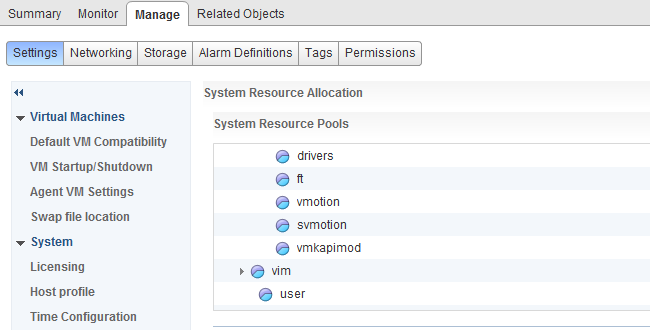
vMotion creates a (system) resource pool and sets the appropriate CPU reservation on the resource pool. It’s important to note that this is being done to the vMotion resource pool, which means that the reservation is shared across all vMotions happening on the host.
vMotion system Resource Pool
Warning: DO NOT CHANGE the default settings of the system vMotion resource pool. This is set dynamically by the kernel depending on its memory state, manually adjusting this setting will likely hurt performance. Please do not attempt to be smarter then the kernel, many have tried, very few have succeeded.
DRS
When DRS is enabled, it can decide to migrate virtual machines as well. It might happen that this occurs at the same time your vMotion process is running. All vMotions will be placed into the vMotion resource pool contesting for the resources acquired by the resource pool of vMotion. If high priority for the manual vMotion is selected (User interface uses the term: Reserve CPU for optimal vMotion performance) then the vMotion process receives a higher priority within the vMotion resource pool. In which case the high priority vMotion will have double the relative CPU shares, and as a result probably complete more quickly than their lower priority counterparts. However it still need to share the resources claimed by the vMotion resource pool. Although it has a higher priority over DRS vMotions, sharing resources still may have an effect on the duration of the vMotion process.
Memory
vMotion copies only the used memory blocks, a virtual machine doesn’t always have to use all of its memory. Therefor its not easy to determine the required bandwidth. To make it more complex, as we are migrating a live virtual machine, the virtual machine can dirty (re-use) memory blocks that are already copied over, those blocks have to be sent again. Prolonging the duration of the process and the used bandwidth.
Swap file
If the swap file is located on a non-shared datastore and pages has been stored in the swap file, those pages are copied over to the new swap file on a location accessible by the destination host. This will increase the demand for bandwidth and increases the duration of the vMotion process. For more information about the impact of non-shared swap files, please read the following articles: (Alternative) VM swap file locations Q&A and (Alternative) VM swap file locations Q&A – part 2.
Conclusion
As you can see, it’s very difficult to determine the duration of a vMotion process and the actual bandwidth it consumes.

Filed Under: vMotion

How to create a "New Storage DRS recommendation generated" alarm

November 30, 2012 by frankdenneman

It is recommended to configure Storage DRS in manual mode when you are new to Storage DRS. This way you become familiar with the decision matrix Storage DRS uses and you are able to review the recommendations it provides. One of the drawbacks of manual mode is the need to monitor the datastore cluster on a regular basis to discover if new recommendations are generated. As Storage DRS is generated every 8 hours and doesn’t provide insights when the next invocation run is scheduled, it’s becomes a bit of a guessing game when the next load balancing operation has occurred.
To solve this problem, it is recommended to create a custom alarm and configure the alarm to send a notification email when new Storage DRS recommendations are generated. Here’s how you do it:
Step 1: Select the object where the alarm object resides
If you want to create a custom rule for a specific datastore cluster, select the datastore cluster otherwise select the Datacenter object to apply this rule to each datastore cluster. In this example, I’m defining the rule on the datastore cluster object.
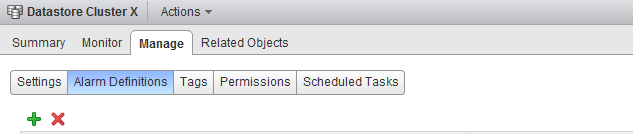
Step 2: Go to Manage and select Alarm Definitions
Click on the green + icon to open the New Alarm Definition wizard
Storage DRS datastore cluster object
Step 3: General Alarm options
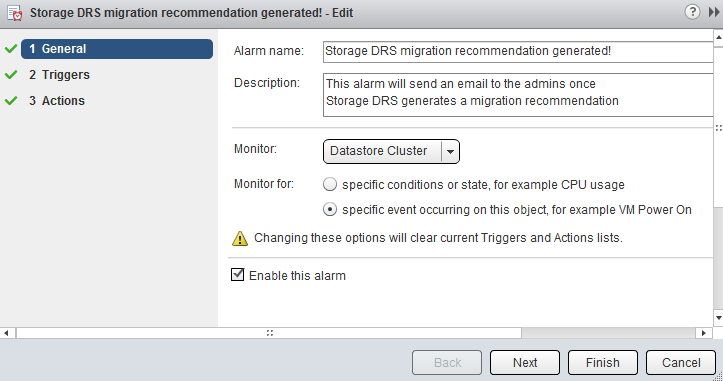
Provide the name of the alarm as this name will be used by vCenter as the subject of the email. Provide an adequate description so that other administrators understand the purpose of this alarm.
In the Monitor drop-down box select the option “Datastore Cluster” and select the option “specific event occurring on this object, for example VM Power On”. Click on Next.
Storage DRS vCenter new alarm definition
Step 4: Triggers
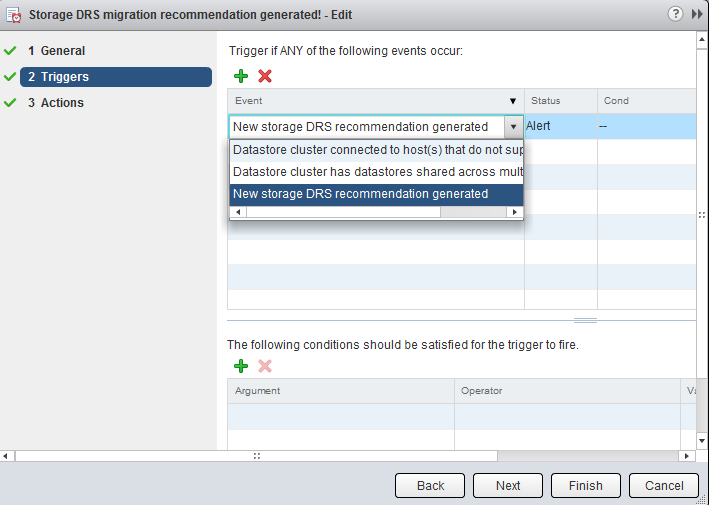
Click on the green + icon to select the event this alarm should be triggered by. Select “New Storage DRS recommendation generated”. The other fields can be left blank, as they are not applicable for this alarm. Click on next.
Storage DRS new recommendation trigger
Step 5: Actions
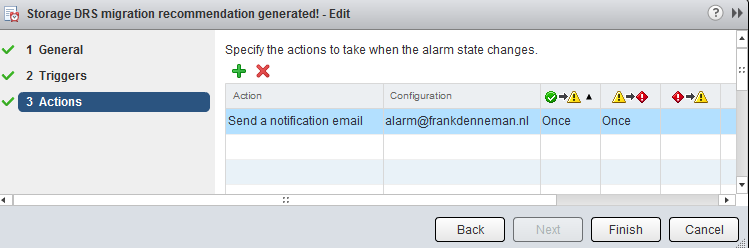
Click on the green plus icon to create a new action. You can select “Run a Command”, “Send a notification email” and “Send a notification trap”. For this exercise I have selected “Send a notification email”. Specify the email address that will receive the messages containing the warning that Storage DRS has generated a migration recommendation. Configure the alarm so that it will send a mail once when the state changes from green to yellow and yellow to red. Click on Finish.
Storage DRS new recommendation alarm email notification configuration
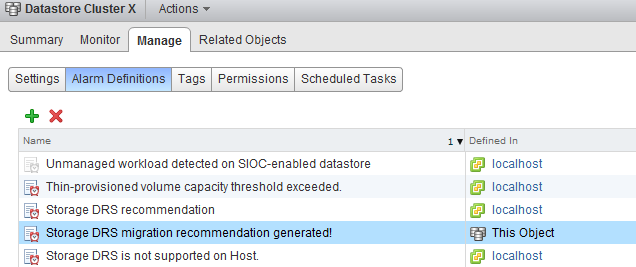
The custom alarm is now listed between the pre-defined alarms. As I chose to define the alarm on this particular datastore cluster, vCenter list that the alarm is defined on “this Object”. This particular alarm is therefor not displayed at Datacenter level and cannot be applied to other datastore clusters in this vCenter Datacenter.
Storage DRS new recommendation alarm listed
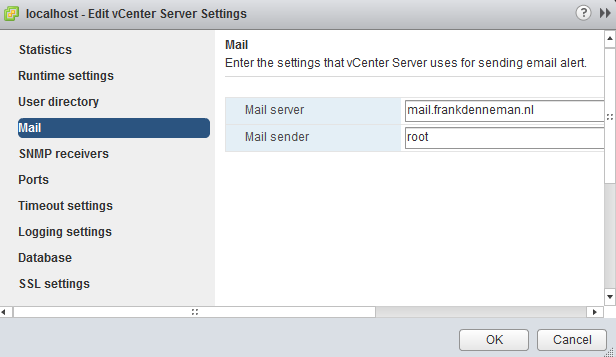
Please note that you must configure a Mail server when using the option “send a notification email” and configure an valid SNMP receiver when using the option “Send a notification trap”. To configure a mail or SNMP server, select the vCenter server option in the inventory list, select manage, settings and click on edit. Go to Mail and provide a valid mail server address and an optional mail sender.
Configure a mail server in vCenter general settings
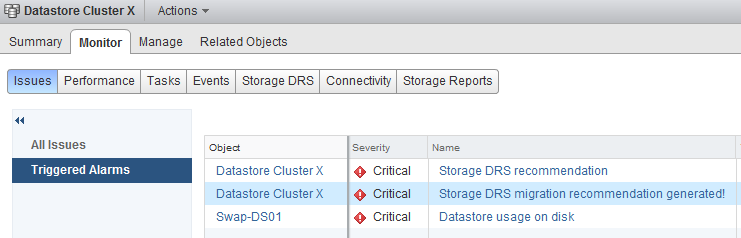
To test the alarm, I moved a couple of files onto a datastore to violate the datastore cluster space utilization threshold. Storage DRS ran and displayed the following notifications on the datastore cluster summary screen and at the “triggered alarm” view:
vCenter shows the following triggered alerts on the Storage DRS datastore cluster
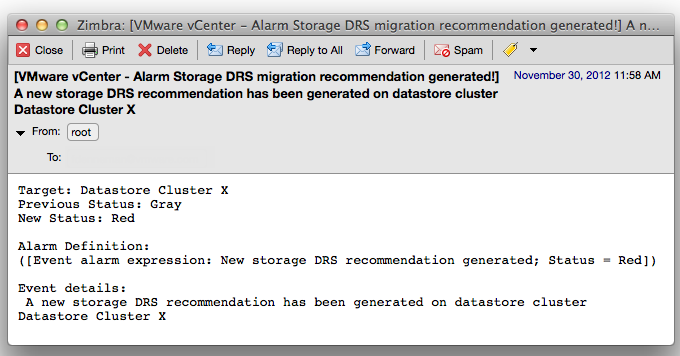
The moment Storage DRS generated a migration recommendation I received the following email:
email message generated by vCenter Storage DRS new recommendation alarm
As depicted in the screenshot above, the subject of the email generated by vCenter contains the name of the alarm you specified (notice the exclamation mark), the event itself – New Storage DRS recommendation generated” and the datastore cluster in which the event occurred.

Filed Under: Storage DRS Tagged With: Migration recommendation, Storage DRS, vCenter alarm

  • « Go to Previous Page
  • Page 1
  • Interim pages omitted …
  • Page 48
  • Page 49
  • Page 50
  • Page 51
  • Page 52
  • Interim pages omitted …
  • Page 83
  • Go to Next Page »

Copyright © 2026 · SquareOne Theme on Genesis Framework · WordPress · Log in