Monday 8th of February I was scheduled to participate in the defend session of the VCDX panel at Las Vegas. For people not familiar with the VCDX program, the defend panel is the final part of the extensive VCDX program.
My defend session was the first session of the week, so my panel members where fresh and eager to get started. Besides the three panel members, an observer and a facilitator where also present in the room. The session consisted out of three parts;
• Design defend session (75 minutes)
• Design session (30 minutes)
• Troubleshooting session (15 minutes)
During the design defend session you are required to present your design, I used a twelve deck slide presentation and included all blueprints\Visio drawings as appendix. This helped me a lot, as I am not a native English speaker using diagrams helped me to explain the layout.
There is no time limit on the duration of the presentation, but it is wise to keep it as brief as possible. During the session, the panel will try to address a number of sections and if they cannot address these sections this can impact your score.
The design and troubleshooting session you need to show you are able to think on your feet. One of the goals is to understand your though process. Thinking out loud and using the whiteboard will help you a lot.
So how was my experience? After meeting my panel members I started to get really nervous as one of the storage guru’s within VMware was on my panel. The other two panel members have an extreme good track record inside the company as well, so basically I was being judged by an all-star panel. I thought my presentation went well, but word of advice; read your submitted documentation on a regular basis before entering the defend panel as the smallest details can be asked.
After completing the design defend pane, I was asked to step outside. After the short break the design session and troubleshooting scenarios were next. I did not solve the design and troubleshooting scenarios, but that is really not the goal of those sections.
Thinking out loud in English can be challenging for non-native English speakers, so my advice is to try to practice this as much as possible. I did a test presentation for a couple of friends and discovered some areas to focus on before doing the defend part of the program.
After completing my defend panel, I was scheduled to participate as an observer on the remaining defend panel sessions the rest of the week. After multiple sessions as an observer and receiving the news that I passed the VCDX defend panel, I participated as a panel member on a defend session. Hopefully I will be on a lot more panels in the upcoming year, because sitting on the other side of the table is so much better than standing in front of it sweating like a pig. 🙂
Sizing VMs and NUMA nodes
Note: This article describes NUMA scheduling on ESX 3.5 and ESX 4.0 platform, vSphere 4.1 introduced wide NUMA nodes, information about this can be found in my new article: ESX4.1 NUMA scheduling
With the introduction of vSphere, VM configurations with 8 CPUs and 255 GB of memory are possible. While I haven’t seen that much VM’s with more than 32GB, I receive a lot of questions about 8-way virtual machines. With today’s CPU architecture, VMs with more than 4 vCPUs can experience a decrease in memory performance when used on NUMA enabled systems. While the actually % of performance decrease depends on the workload, avoiding performance decrease must always be on the agenda of any administrator.
Does this mean that you stay clear of creating large VM’s? No need to if the VM needs that kind of computing power, but the reason why I’m writing this is that I see a lot of IT departments applying the same configuration policy used for physical machines. A virtual machine gets configured with multiple CPU or loads of memory because it might need it at some point during its lifecycle. While this method saves time, hassle and avoid office politics, this policy can create unnecessary latency for large VMs. Here’s why:
NUMA node
Most modern CPU’s, Intel new Nehalem’s and AMD’s veteran Opteron are NUMA architectures. NUMA stands for Non-Uniform Memory Access, but what exactly is NUMA? Each CPU get assigned its own “local” memory, CPU and memory together form a NUMA node. An OS will try to use its local memory as much as possible, but when necessary the OS will use remote memory (memory within another NUMA node). Memory access time can differ due to the memory location relative to a processor, because a CPU can access it own memory faster than remote memory.

Figure 1: Local and Remote memory access
Accessing remote memory will increase latency, the key is to avoid this as much as possible. How can you ensure memory locality as much as possible?
VM sizing pitfall #1, vCPU sizing and Initial placement.
ESX is NUMA aware and will use the NUMA CPU scheduler when detecting a NUMA system. On non-NUMA systems the ESX CPU scheduler spreads load across all sockets in a round robin manner. This approach improves performance by utilizing as much as cache as possible. When using a vSMP virtual machine in a non-NUMA system, each vCPU is scheduled on a separate socket.
On NUMA systems, the NUMA CPU scheduler kicks in and use the NUMA optimizations to assigns each VM to a NUMA node, the scheduler tries to keep the vCPU and memory located in the same node. When a VM has multiple CPUs, all the vCPUs will be assigned to the same node and will reside in the same socket, this is to support memory locality as much as possible.
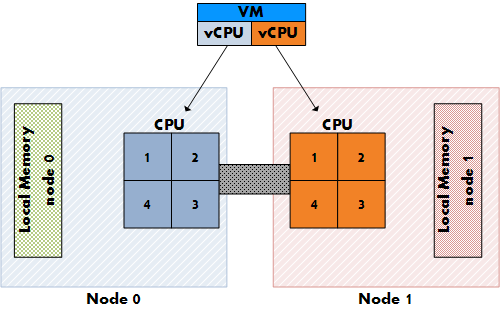
Figure 2: NON-NUMA vCPU placement
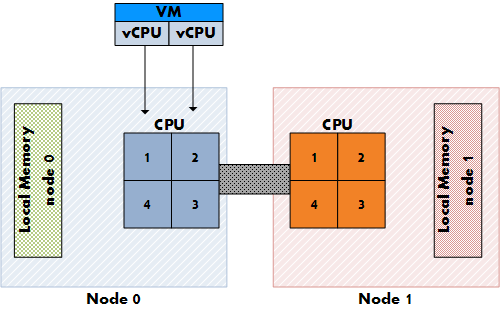
Figure 3: NUMA vCPU placement
At this moment, AMD and Intel offer Quad Core CPU’s, but what if the customer decides to configure an 8-vCPU virtual machine? If a VM cannot fit inside one NUMA node, the vCPUs are scheduled in the traditional way again and are spread across the CPU’s in the system. The VM will not benefit from the local memory optimization and it’s possible that the memory will not reside locally, creating added latency by crossing the intersocket connection to access the memory.
VM sizing pitfall #2: VM configured memory sizing and node local memory size
NUMA will assign all vCPU’s to a NUMA node, but what if the configured memory of the VM is greater than the assigned local memory of the NUMA node? Not aligning the VM configured memory with the local memory size will stop the ESX kernel of using NUMA optimizations for this VM. You can end up with all the VM’s memory scattered all over the server.
So how do you know how much memory every NUMA node contains? Typically each socket will get assigned the same amount of memory; the physical memory (minus service console memory) is divided between the sockets. For example 16GB will be assigned to each NUMA node on a two socket server with 32GB total physical. A quick way to confirm the local memory configuration of the NUMA nodes is firing up esxtop. Esxtop will only display NUMA statistics if ESX is running on a NUMA server. The first number list the total amount of machine memory in the NUMA node that is managed by ESX, the statistic displayed within the round brackets is the amount of machine memory in the node that is currently free.

Figure 4: esxtop memory totals
Let’s explore NUMA statistics in esxtop a little bit more based on this example. This system is a HP BL 460c with two Nehalem quad cores with 64GB memory. As shown, each NUMA node is assigned roughly 32GB. The first node has 13GB free; the second node has 372 MB free. It looks it will run out of memory space soon, luckily the VMs on that node still can get access remote memory. When a VM has a certain amount of memory located remote, the ESX scheduler migrates the VM to another node to improve locality. It’s not documented what threshold must be exceeded to trigger the migration, but its considered poor memory locality when a VM has less than 80% mapped locally, so my “educated” guess is that it will be migrated when the VM hit a number below the 80%. Esxtop memory NUMA statistics show the memory location of each VM. Start esxtop, press m for memory view, press f for customizing esxtop and press f to select the NUMA Statistics.
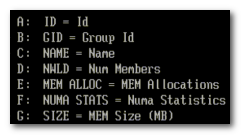
Figure 5: Customizing esxtop
Figure 6 shows the NUMA statistics of the same ESX server with a fully loaded NUMA node, the N%L field shows the percentage of mapped local memory (memory locality) of the virtual machines.
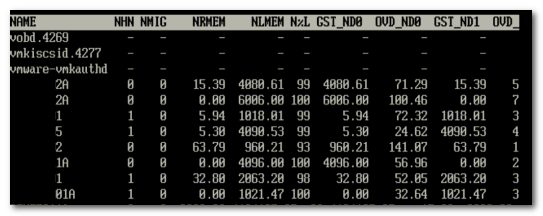
Figure 6: esxtop NUMA statistics
It shows that a few VMs access remote memory. The man pages of esxtop explain all the statistics:
| Metric | Explanation |
|---|---|
| NHN | Current Home Node for virtual machine |
| NMIG | Number of NUMA migrations between two snapshots. It includes balance migration, inter-mode VM swaps performed for locality balancing and load balancing |
| NRMEM (MB) | Current amount of remote memory being accessed by VM |
| NLMEM (MB) | Current amount of local memory being accessed by VM |
| N%L | Current percentage memory being accessed by VM that is local |
| GST_NDx (MB) | The guest memory being allocated for VM on NUMA node x. “x” is the node number |
| OVD_NDx (MB) | The VMM overhead memory being allocated for VM on NUMA node x |
Transparent page sharing and memory locality.
So how about transparent page sharing (TPS), this can increase latency if the VM on node 0 will share its page with a VM on node 1. Luckily VMware thought of that and TPS across nodes is disabled by default to ensure memory locality. TPS still works, but will share identical pages only inside nodes. The performance hit of accessing remote memory does not outweigh the saving of shared pages system wide.
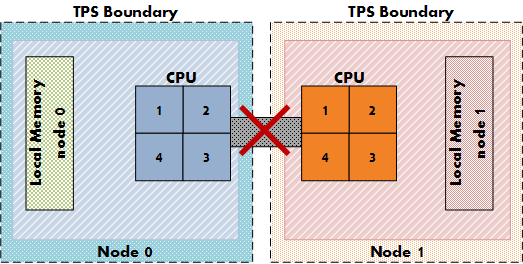
Figure 7: NUMA TPS boundaries
This behavior can be changed by altering the setting VMkernel.Boot.sharePerNode. As most default settings in ESX, only change this setting if you are sure that it will benefit your environment, 99.99% of all environments will benefit from the default setting.
Take away
With the introduction of vSphere ESX 4, the software layer surpasses some abilities current hardware techniques can offer. ESX is NUMA aware and tries to ensure memory locality, but when a VM is configured outside the NUMA node limits, ESX will not apply NUMA node optimizations. While a VM still run correctly without NUMA optimizations, it can experience slower memory access. While the actually % of performance decrease depends on the workload, avoiding performance decrease if possible must always be on the agenda of any administrator.
To quote the resource management guide:
The NUMA scheduling and memory placement policies in VMware ESX Server can manage all VM transparently, so that administrators do not need to address the complexity of balancing virtual machines between nodes explicitly.
While this is true, administrators must not treat the ESX server as a black box; with this knowledge administrators can make informed decisions about their resource policies. This information can help to adopt a scale-out policy (multiple smaller VMs) for some virtual machines instead of a scale up policy (creating large VMs) if possible.
Beside the preference for scale up or scale out policy, a virtual environment will profit when administrator choose to keep the VMs as agile as possible. My advice to each customer is to configure the VM reflecting its current and near future workload and actively monitor its habits. Creating the VM with a configuration which might be suitable for the workload somewhere in its lifetime can have a negative effect on performance.
Get notification of these blogs postings and more DRS and Storage DRS information by following me on Twitter: @frankdenneman
VMware updates Timekeeping best practices
A couple of weeks ago I discovered that VMware updated its timekeeping best practices for Linux virtual machines. December 7th VMware published a new best practice of timekeeping in Windows VMs. (KB1318)
VMware now recommends to use either W32Time or NTP for all virtual machines. This a welcome statement from VMware ending the age old question while designing a Virtual Infrastructure; Do we use VMware tools time sync or do we use W32time? If we use VMware tools, how do we configure the Active Directory controller VMs?
VMware Tools can still be used and still function well enough for most non time sensitive application. VMware tools time sync is excellent in accelerating and catching up time if the time
that is visible to virtual machines (called apparent time) is going slowly, but W32time and NTP can do one thing that VMware tools time sync can’t, that’s slowing down time.
Page 15 of the (older) white paper: Timekeeping in VMware Virtual Machines
http://www.vmware.com/pdf/vmware_timekeeping.pdf explains the issue.
However, at this writing, VMware Tools clock synchronization has a serious limitation: it cannot correct the guest clock if it gets ahead of real time (except in the case of NetWare guest operating systems).
For more info about timekeeping best practices for Windows VMs, please check out KB article 1318 http://kb.vmware.com/kb/1318
It appears that VMware updated the Timekeeping best practices for Linux guests as well.
http://kb.vmware.com/kb/1006427 (9 december 2009)
Impact of mismatch Guest OS type
During Healthchecks I frequently encounter virtual machines configured with the incorrect Guest OS type specified. Incorrect configuration of Guest OS of the virtual machine can lead to;
• Reduction of performance
• Different default type for the SCSI device *
• Different defaults of devices
• Wrong VMware Tools presented to the Guest OS resulting in failure to install
• Inability to select virtual hardware such as enhanced vmxnet, vmxnet3 or number of vCPUs.
• Inability to activate features such as CPU and Memory Hot Add.
• Inability to activate Fault Tolerance.
• VM burning up 100% of CPU when idling (rare occasions)
Buslogic SCSI Device
* Due to mismatch of Guest OS Type, windows 2000 and Windows 2003 can be configured with a Buslogic SCSI device. Using the Buslogic virtual adapter with Windows 2000 and 2003 will limit the effective IO queue depth of one. This limits disk throughput severely and lead to serious performance degradation. For more information visit KB article 1614
Virtual Machine Monitor and execution mode
Selecting the wrong Guest OS type can be of influence of the selected execution mode.
When a virtual machine is powering on, the VMM inspects the physical CPU’s features and the guest operating system type to determine the set of possible execution modes. This can have a slight impact on performance and in some extreme cases application crashes or BSODs.
VMware published a Must-Read whitepaper about the VMM and execution modes
http://www.vmware.com/files/pdf/software_hardware_tech_x86_virt.pdf
How to solve the mismatch?
vCenter only displays the configured Guest OS of the Virtual Machine, it will not check the installed operating system inside the virtual machine. Powercli offers the solution to this problem, today more and more people start to discover the beauty of Powercli and incorporate this in their day-to-day activities.
So I’ve asked PowerCLI guru Alan Renouf if he could write a PowerCLI script which can detect the Guest OS mismatch.
Get-View -ViewType VirtualMachine | Where { $_.Guest.GuestFullname} | Sort Name |Select-Object Name, @{N=”SelectedOS”;E={$_.Guest.GuestFullName}}, @{N=”InstalledOS”;E={$_.Summary.Config.GuestFullName}} | Out-GridView
Alans “one-liner” checks the configured Gues Os Type in the VM (VM properties) and queries the VMtools to see which operating system it reports.
Once the mismatch is identified, set the correct Guest OS Type in the VM properties as soon as possible. The best way to deal with the mismatch is to power-down the VM before changing the guest OS type.
Impact of memory reservation
I have a customer who wants to set memory reservation on a large scale. Instead of using resource pools they were thinking of setting reservations on VM level to get a guaranteed performance level for every VM. Due to memory management on different levels, using such a setting will not get the expected results. Setting aside the question if it’s smart to use memory reservation on ALL VM’s, it raises the question what kind of impact setting memory reservation has on the virtual infrastructure, how ESX memory management handles memory reservation and even more important; how a proper memory reservation can be set.
Key elements of the memory system
Before looking at reservations, let’s take a look what elements are involved. There are three memory layers in the virtual infrastructure:
• Guest OS virtual memory – Virtual Page Number (VPN)
• Guest OS physical memory – Physical Page Number (PPN)
• ESX machine memory – Machine Page Number (MPN)
The OS inside the guest maps virtual memory ( VPN) to physical memory(PPN). The Virtual Machine Monitor (VMM) maps the PPN to machine memory (MPN). The focus of this article is on mapping physical page numbers (PPN) to Machine Page Number (MPN).
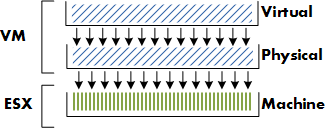
Impact of memory management on the VM
Memory reservations guarantee that physical memory pages are backed by machine memory pages all the time, whether the ESX server is under memory pressure or not.
Opposite of memory reservations are limits. When a limit is configured, the memory between the limit and the configured memory will never be backed by machine memory; it could either be reclaimed by the balloon driver or swapped even if enough free memory is available in the ESX sever.
Next to reservations and limits, shares play an important factor in memory management of the VM. Unlike memory reservation, shares are only of interest when contention occurs.
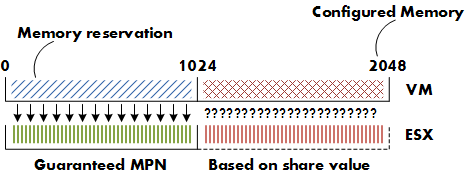
The availability of memory between memory reservation and configured memory depends on the entitled shares compared to the total shares allocated to all the VMs on the ESX server.
This means that the virtual machine with the most shares can have its memory backed by physical pages. For the sake of simplicity, the vast subject of resource allocation based on the proportional share system will not be addressed in this article.
One might choose to set the memory reservation equal to the configured memory, this will guarantee the VM the best performance all of the time. But using this “policy” will have its impact on the environment.
Admission Control
Configuring memory reservation has impact on admission control . There are three levels of admission control;
• Host
• High Availability
• Distributed Resource Scheduler
Host level
When a VM is powered on, admission control checks the amount of available unreserved CPU and memory resources. If ESX cannot guarantee the memory reservation and the memory overhead of the VM, the VM is not powered on. VM memory overhead is based on Guest OS, amount of CPUs and configured memory, for more information about memory overhead review the Resource management guide.
HA and DRS
Admission control also exist at HA and DRS level. HA admission control uses the configured memory reservation as a part of the calculation of the cluster slot size.The amount of slots available equals the amount of VM’s that can run inside the cluster. To find out more about slot sizes, read the HA deepdive article of Duncan Epping. DRS admission control ignores memory reservation, but uses the configured memory of the VM for its calculations. To learn more about DRS and its algorithms read the DRS deepdive article at yellow-bricks.com
Virtual Machine Swapfile
Configuring memory reservation will have impact on the size of the VM swapfile; the swapfile is (usually) stored in the home directory of the VM. The virtual machine swapfile is created when the VM starts. The size of the swapfile is calculated as follows:
Configured memory – memory reservation = size swap file
Configured memory is the amount of “physical” memory seen by guest OS. For example; configured memory of VM is 2048MB – memory reservation of 1024MB = Swapfile size = 1024MB.
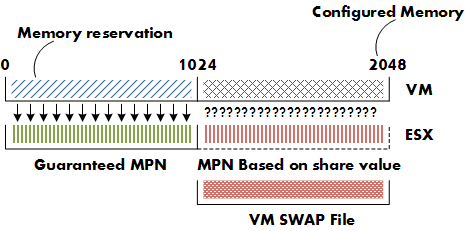
ESX use the memory reservation setting when calculating the VM swapfile because reserved memory will be backed by machine memory all the time. The difference between the configured memory and memory reservation is eligible for memory reclamation.
Reclaiming Memory
Let’s focus a bit more on reclaiming. Reclaiming of memory is done by ballooning or swapping. But when will ESX start to balloon or swap? ESX analyzes its memory state. The VMkernel will try to keep 6% free (Mem.minfreepct) of its memory. (physical memory-service console memory)
When free memory is greater or equal than 6%, the VMkernel is in a HIGH free memory state. In a high free memory state, the ESX host considers itself not under memory pressure and will not reclaim memory in addition to the default active Transparent Page sharing process.
When available free memory drops below 6% the VMkernel will use several memory reclamation techniques. The VMkernel decides which reclamation technique to use depending on its threshold. ESX uses four thresholds high (6%), soft (4%) hard (2%) and low (1%). In the soft state (4% memory free) ESX prefers to use ballooning, if free system memory keeps on dropping and ESX will reach the Hard state (2% memory free) it will start to swap to disk. ESX will start to actively reclaim memory when it’s running out of free memory, but be aware that free memory does not automatically equal active memory.
Memory reservation technique
Let’s get back to memory reservation .How does ESX handle memory reservation? Page 17 of the Resource Management Guide states the following:
Memory Reservation
If a virtual machine has a memory reservation but has not yet accessed its full reservation, the unused memory can be reallocated to other virtual machines.
Memory Reservation Used
Used for powered‐on virtual machines, the system reserves memory resources according to each virtual machine’s reservation setting and overhead. After a virtual machine has accessed its full reservation, ESX Server allows the virtual machine to retain this much
memory, and will not reclaim it, even if the virtual machine becomes idle and stops accessing memory.
To recap the info stated in the Resource Management Guide, when a VM hits its full reservation, ESX will never reclaim that amount of reserved memory even if the machine idles and drops below its guaranteed reservation. It cannot reallocate that machine memory to other virtual machines.
Full reservation
But when will a VM hit its full reservation exactly? Popular belief is that the VM will hit full reservation when a VM is pushing workloads, but that is not entirely true. It also depends on the Guest OS being used by the VM. Linux plays rather well with others, when Linux boots it only addresses the memory pages it needs. This gives ESX the ability to reallocate memory to other machines. After its application or OS generates load, the Linux VM can hit its full reservation. Windows on the other hand zeroes all of its memory during boot, which results in hitting the full reservation during boot time.
Full reservation and admission control
This behavior will have impact on admission control. Admission control on the ESX server checks the amount of available unreserved CPU and memory resources. Because Windows will hit its full reservation at startup, ESX cannot reallocate this memory to other VMs, hereby diminishing the amount of available unreserved memory resources and therefore restricting the capacity of VM placement on the ESX server. But memory reclamation, especially TPS will help in this scenario, TPS (transparent page sharing) reduces redundant multiple guest pages by mapping them to a single machine memory page. Because memory reservation “lives” at machine memory level and not at virtual machine physical level, TPS will reduce the amount of reserved machine memory pages, memory pages that admission controls check when starting a VM.
Transparant Page Sharing
TPS cannot collapse pages immediately when starting a VM in ESX 3.5. TPS is a process in the VMkernel; it runs in the background and searches for redundant pages. Default TPS will have a cycle of 60 minutes (Mem.ShareScanTime) to scan a VM for page sharing opportunities. The speed of TPS mostly depends on the load and specs of the Server. Default TPS will scan 4MB/sec per 1 GHz. (Mem.ShareScanGHz). Slow CPU equals slow TPS process. (But it’s not a secret that a slow CPU will offer less performance that a fast CPU.) TPS defaults can be altered, but it is advised to keep to the default.TPS cannot collapse pages immediately when starting a VM in ESX 3.5. VMware optimized memory management in ESX 4; pages which Windows initially zeroes will be page-shared by TPS immediately.
TPS and large pages
One caveat, TPS will not collapse large pages when the ESX server is not under memory pressure. ESX will back large pages with machine memory, but installs page sharing hints. When memory pressure occurs, the large page will be broken down and TPS can do it’s magic. More info on Large pages and ESX can be found at Yellow Bricks. http://www.yellow-bricks.com/2009/05/31/nehalem-cpu-and-tps-on-vsphere/
Use resource pools
Setting memory reservation has impact on the VM itself and its surroundings. Setting reservation per VM is not best practice; it is advised to create resource pools instead of per VM reservations. Setting reservations on a granular level leads to increased administrative and operational overhead. But when the situation demands to use per VM reservation, in which way can a reservation be set to guarantee as much performance as possible without wasting physical memory and with as less impact as possible. The answer: set reservation equal to the average Guest Memory Usage of the VMs.
Guest Memory Usage
Guest Memory Usage shows the active memory use of the VM. Which memory is considered active memory? If a memory page is accessed in mem.sampleperiod (60sec), it is considered active. To accomplish this you need to monitor each VM, but this is where vCenter comes to the rescue. vCenter logs performance data and does this for a period of time. The problem is that the counters average-, minimum and maximum active memory data is not captured on the default vCenter statistics. vCenter logging level needs to upgraded to a minimum level of 4. After setting the new level, vCenter starts to log the data. Changing the statistic setting can be done by Administration > VirtualCenter Management Server Configuration > Statistics.
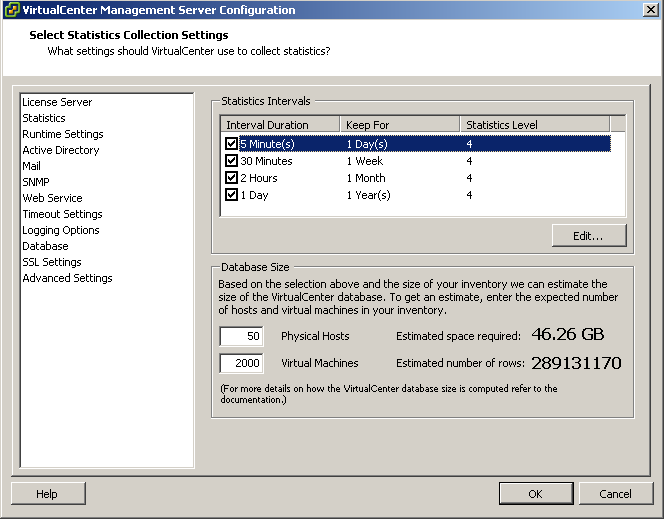
To display the average active memory of the VM, open the performance tab of the VM and change chart options, select memory
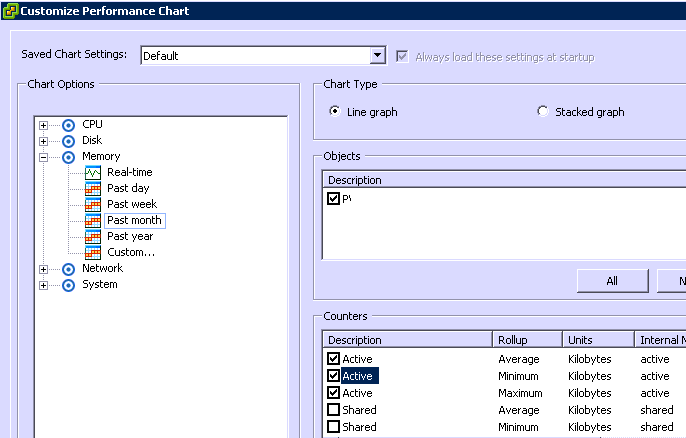
Select the counters consumed memory and average-, minimum- and maximum active memory. The performance chart of most VMs will show these values close to each other. As a rule the average active memory figure can be used as input for the memory reservation setting, but sometimes the SLA of the VM will determine that it’s better to use the maximum active memory usage.
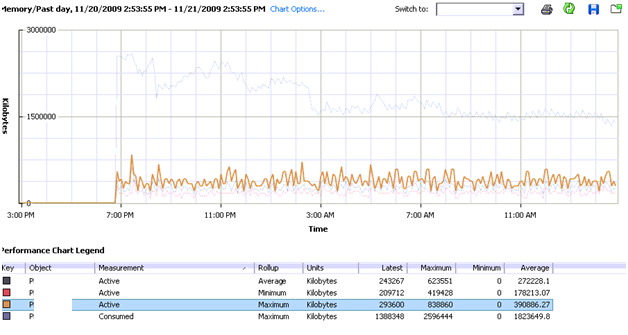
Consumed memory is the amount of host memory that is being used to back guest memory. The images shows that memory consumed slowly decreases.
The active memory use does not change that much during the monitored 24 hours. By setting the reservation equal to the maximum average active memory value, enough physical pages will be backed to meet the VM’s requests.
My advice
While memory reservation is an excellent mechanism to guarantee memory performance levels of a virtual machine, setting memory reservation will have a positive impact on the virtual machine itself and can have a negative impact on its surroundings.
Memory reservation will ensure that virtual machine memory will be backed by physical memory (MPN) of the ESX host server. Once the VM hit its full reservation the VMkernel will not reclaim this memory, this will reduce the unreserved memory pool. This memory pool is used by admission control, admission control will power up a VM machine only if it can ensure the VMs resource request. The combination of admission control and the restraint of not able to allocate reserved memory to other VMs can lead to a reduced consolidation ratio.
Setting reservations on a granular level leads to increased administrative and operational overhead and is not best practice. It is advised to create resource pools instead of per VM reservations. But if a reservation must be set, use the real time counters of VMware vCenter and monitor the average active memory usage. Using average active memory as input for memory reservation will guarantee performance for most of its resource requests.
I recommend reading the following whitepapers and documentation;
Carl A. Waldspurger. Memory Resource Management in VMware ESX Server: http://waldspurger.org/carl/papers/esx-mem-osdi02.pdf
Understanding Memory Resource Management in VMware ESX: http://www.vmware.com/files/pdf/perf-vsphere-memory_management.pdf
Description of other interesting memory performance counters can be found here http://www.vmware.com/support/developer/vc-sdk/visdk25pubs/ReferenceGuide/mem.html
Software and Hardware Techniques for x86 Virtualization: http://www.vmware.com/files/pdf/software_hardware_tech_x86_virt.pdf
Get notification of these blogs postings and more DRS and Storage DRS information by following me on Twitter: @frankdenneman