• Skip to primary navigation
  • Skip to main content

frankdenneman.nl

  • AI/ML
  • NUMA
  • About Me
  • Privacy Policy

VCDX defend clinic: Choosing between Multi-NIC vMotion and LBT

January 7, 2014 by frankdenneman

A new round of VCDX defenses will kickoff soon and I want to wish everyone that participates in the panel session good luck. Usually when VCDX panels are near, I receive questions on how to prepare for a panel. And one recommendation I usually provide is

“Know why you used a specific configuration of a feature and especially know why you haven’t used the available alternatives”.

Let’s have some fun with this and go through a “defend clinic”. The point of this clinic is to provide you an exercise model than you can use for any configuration, not only for a vMotion configuration. It helps you to understand the relationship of information you provide throughout your documentation set and helps you explain how you derived through every decision to come to this design.
To give you some background, when a panel member is provided the participants documentation set, he enters a game of connecting the dots. This set of documents are his only view into the your world while creating the design and dealing with your customer. He needs to take your design and compare it to the requirements of the customer, the uncertainties you dealt with in the form of assumptions and the constraints that were given. Reviewing the design on technical accuracy is only a small portion of the process. That’s just basically checking to see if you are using your tools and material correctly, the remaining part is to understand if you build the house to the specification of the customer while dealing with regional laws and the available space and layout of the land. Building a 90.000 square feet single floor villa might provide you the most amount of easily accessible space, but if you want to build that thing in downtown Manhattan you’re gonna have a bad time. 😉
Structure of the article
This exercise lists the design goals and its influencers, requirements, constraints and assumptions. The normal printed text is architects (technical) argument while the paragraphs are displayed in Italic can be seen as questions or thoughts of a reviewer/panel member.
Is this a blue print on how to beat the panel? No! It’s just an exhibition on how to connect and correlate certain statement made in various documents. Now let’s have some fun exploring and connecting the dots in this exercise.
Design goal and influencers
Your design needs to contain a vMotion network as the customer wants to leverage DRS load balancing, maintenance mode and overall enjoy the fantastic ability of VM mobility. How will you design your vMotion network?
In your application form you have stated that the customer want to see a design that reduces complexity, increases scalability, prefers to have the best performance available as possible. Financial budget and the amount of IP-addresses are constraints and the level of expertise of the virtualization management team is an assumption.
Listing the technical requirements
Since you are planning to use vSphere 5.x you have the choice to create a traditional single vMotion-enabled VMKnic, Multi-NIC vMotion setup or use vMotion configuration that uses “Route based on physical NIC load” load balance algorithm (commonly known as LBT) to distribute vMotion traffic amongst multiple active NICs. As the customer does not prefer to use link aggregation, IP-hash based / EtherChannel configurations are not valid.
First let’s review the newer vMotion configurations and how they differentiate from the traditional vMotion configuration, where you have one single VMKnic, a single IP address, connected to a single Portgroup which is configured to use an active and standby NIC?
Multi-NIC vMotion
• Multiple VMKnics required
• Multiple IP-addresses required
• Consistent configuration of NIC failover order required
• Multiple physical NICs required
Route based on physical NIC load
• Distributed vSwitch required
• Multiple physical NICs required
It goes without saying that you want to provide the best performance possible that leads you into considering using multiple NICs to increase bandwidth. But which one will be better? A simple performance test will determine that.
VCDX application form: Requirements
In your application document you stated that one of the customer requirements was “Reducing complexity”. Which of the two configurations do you choose now, what are your arguments? How do you balance or prioritize performance over complexity reduction?
If Multi-NIC vMotion beats LBT configuration in performance, leading to faster maintenance mode operations, better DRS load balance operations and overall reduction in lead time of a manual vMotion process, would you still choose the simpler configuration over the complex one?
Simplicity is LBTs forte, just enable vMotion on a VMKnic, add multiple uplinks, set them to active and your good to go. Multi-NIC vMotion exists of more intricate steps to get a proper configuration up and running. Multiple vMotion-enabled VMKnics are necessary, each with their own IP-range configuration, secondly vMotion requires deterministic path control, meaning that it wants to know which path is selects to send traffic across.
As the vMotion load balancing process is higher up in the stack, NIC failover orders are transparent for vMotion. It selects a VMKnic and assumes it resembles a different physical path then the other available VMKnics. That means its up to the administrator to provide these unique and deterministic paths.
Are they capable of doing this? You mentioned the level of expertise of the admin team as an assumption, how do you guarantee that they can execute this design, properly manage it for a long period and expand the design without the use of external resources?
Automation to the rescue
Complexity of technology by itself should not pose a problem, its how you (are required to) interact with it that can lead to challenges. As mentioned before Multi-NIC vMotion requires multiple IP-addresses to function. On a side note this could put pressure on the IP-ranges as all vMotion enabled VMKnics inside the cluster requires being a part of the same network. Unfortunately routed vMotion is not supported yet. Every vMotion VMKnic needs to be configured properly, Pair this with availability requirements and the active and standby NIC configuration of each VMKnic can cause headaches if you want to have a consistent and identical network configuration across the cluster. Power-CLI and Host Profiles can help tremendously in this area.
Supporting documents
Now have you included these scripts in your documentation? Have you covered the installation steps on how to configure vMotion on a distributed switch? Make sure that these elements are included in your supporting documents!
What about the constraints and limitations?
Licensing
Unfortunately LBT is only available in distributed vSwitches, resulting in a top-tier licensing requirement if LBT is selected. The LBT configuration might be preferred over Multi-NIC vMotion configuration because it provides the least amount of complexity increase over the traditional configuration.
How does this intersect with the listed budget constraint and the customer is not able –or willing – to invest in enterprise licenses?
IP4 pressure
One of the listed constraints in the application form is the limited amount of IP addresses in the available IP range destined for the virtual infrastructure. This could impact your decision on which configuration to select. Would you “sacrifice” the amount of IP-s to get a better vMotion performance and all the related improvements on the remaining dependent features or is scalability and future expansion of your cluster more important? Remember scalability is also listed in the application form as a requirement.
Try this at home!
These are just an example of questions that can be asked during a defense. Try to find these answers when preparing for you VCDX panel. When finalizing the document set, try to do this exercise. Even better to find a group of your peers and try to review each others design while reviewing the application form and the supporting set of documents. At the Nordic VMUG Duncan and I spoke with a group of people that are setting up a VCDX study group, I think this is a great way of not only preparing for a VCDX panel but to learn and improve your skill set you can use in your daily profession.
Filed Under: VCDX, VMware

My lab and the birth of the portable Ikea lack 19” datacenter rack

December 16, 2013 by frankdenneman

Currently, topics about labs are hot, and when meeting people at the VMUGs or other tech conferences, I get asked a lot about my lab configuration. I’m a big fan of labs, and I think everybody who works in IT needs a lab, whether it’s at home or in a centralized location.

At PernixData, we have two major labs. One on the east coast and one on the west coast of the U.S. Both these labs are shared, so you cannot do everything you like. However, sometimes you want to break stuff. You want to pull cables and disks and kill an entire server or array. To see what happens. For these reasons having a lab that is 4000 miles away doesn’t work. Enough reasons to build a small lab at home.

Currently topic about labs are hot and when meeting people at the VMUGs or other tech conferences, I get asked a lot about my lab configuration. I’m a big fan of labs and I think everybody who works in IT needs a lab, whether it’s at home or in a centralised location.
At PernixData we have two major labs. One at the east coast and one at the west coast of the U.S of A. Both these labs are shared, that means you cannot do everything you like. However sometimes you want to break stuff, you want to pull cables, disks, kill an entire server or array. Just to see what happens. For these reasons having a lab that is 4000 miles away doesn’t really work, enough reasons to build a small lab at home.

Nested or physical hardware?
To nest or not to nest, that’s not even the question. Nesting is amazing, and VMware spends a lot of energy and time on nested environments (think HOL). Recently the fling VMware tools for Nested ESXi was released, and I assume more nested ESXi flings will follow after seeing the attention it received from the community.

But to run nested ESXi, you need to have physical hardware. Thanks to a generous donation, I received 6 Dell r610s, which covered my compute level requirements. But sometimes, you only want to test the software, and in those cases, you do not need to fire up an incredibly loud semi-datacenter rig. For those situations, I created an ESXi host that is near silent when running full speed. This ESXi server also hosts a nested ESXi environment and is just a white box with a simple ASUS mobo, 24GB, and the Intel 1GB Ethernet port. Once this machine is due for renewal, a white box following the baby dragon design will replace it.

To test the software at the enterprise level, you require multiple levels of bandwidth, sometimes the bare minimum and sometimes copious amounts of it. The R610 sports 4 x 1GB Ethernet connections, allowing me to test scenarios that can happen in a bandwidth-constrained environment. Usually, compelling cases happen when you have a lot of restrictions to deal with, and these 1GB NICs are perfect for this. 10GB connections are on my wish list, but to have a nice setup, you still need to invest more than 1000 bucks in testing it adequately.

A little bit over the top for my home lab, but the community came to the rescue and provided me with a solution; the Infiniband hack. A special thanks go out to Raphael Schitz and Eric Bussink for providing me the software and the information to run my lab at 10Gbps and being able to provide incredibly low latencies to my virtual machines. With the InfiniBand setup, I can test scenarios where bandwidth is not a restriction and investigate specific setups and configurations. For more info, listen to the vBrownbag tech talk where Erik Bussink dives into the topic “InfiniBand in the Lab“

The storage layer is provided by some virtual storage appliances, each backed by a collection of different SSD disks and WD Black Caviar 750GB disks. Multiple solutions allow me to test various scenarios such as all-flash arrays, hybrid, and all magnetic disk arrays. If I need to understand the specific dynamics of an array, I log in to one of the two US-based labs.

Home office
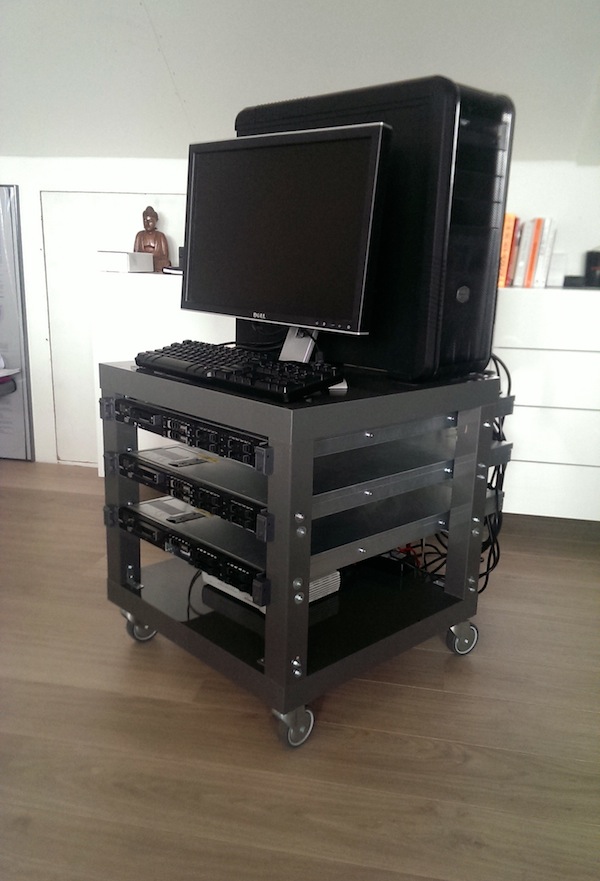
My home office is designed to be an office and not a data center. So where do you place 19″ rack servers without ruining the esthetics of your minimalistic designed home office ;). Well, you create a 19″ rack on wheels so you can roll it out of sight and place it wherever you want it. Introducing the portable Ikea lack 19″ datacenter rack.
ikea portable rack-1
Regular readers of my blog or Twitter followers know I’m a big fan of hacking IKEA furniture. I created a whiteboard desk that got the attention of multiple sites and ikeahackers.net provided me with a lot of ideas on how to hack the famous lack table side table.

I bought two lack tables, a couple of L-shaped brackets, four wheels, nuts, and bolts. The first lack table provides the base platform. Only the tabletop is used. The legs are discarded and act as a backup if I make a mistake during the drilling.

I didn’t test the center of the tabletop, but the corners of the tabletop are solid and can be used to install wheels. I used heavy-duty ball-bearing wheels with an offset swivel caster design that permits ease of directional movement. Simple 5mm nuts and bots keep the L shape brackets in place, but beware, the table legs are not made of solid wood. They are hollow! Only a few centimeters of the top of the leg is solid. This to hold the screw that connects the table and leg. To avoid having the server pull the screw through the leg due to its weight, I used washers to keep them in place

What’s next?
From a hardware perspective, 10GbE is still high on my wishlist. When looking at the software layer, I want to create a more automated way of deploying and testing PernixData FVP software. One of the things I’m looking into is using and incorporating Auto Deploy in the lab. But that’s another blog post.t.

Filed Under: Uncategorized

Send F11 key to nested ESXi on Mac

November 5, 2013 by frankdenneman

I only use Mac at home, most of the time it’s great sometimes it’s not.
For example when installing or configuring your remote lab. I have a windows server installed on a virtual machine that runs vCenter and the vSphere client.

When I’m installing a new nested ESXi server, I connect with a remote desktop session to the Windows machine and use the VMware vSphere client.

During the ESXi install process, it requires to press the F11 key to continue with the install process. However, F11 isn’t mapped by the vSphere client automatically and there isn’t a menu option in the vSphere client to send it to the client.

Fortunately, I found the combination, so I’m writing it down here as I’m bound to forget.

Press FN-CMD-F11 to send the key to the install screen of ESXi.

Happy installing!

Filed Under: VMware

vCPU configuration. Performance impact between virtual sockets and virtual cores?

September 18, 2013 by frankdenneman

A question that I frequently receive is if there is a difference in virtual machine performance if the virtual machine is created with multiple cores instead of selecting multiple sockets?

Single core CPU
VMware introduced multi core virtual CPU in vSphere 4.1 to avoid socket restrictions used by operating systems. In vSphere a vCPU is presented to the operating system as a single core cpu in a single socket, this limits the number of vCPUs that can be operating system. Typically the OS-vendor only restricts the number of physical CPU and not the number of logical CPU (better know as cores).

For example, Windows 2008 standard is limited to 4 physical CPUs, and it will not utilize any additional vCPUs if you configure the virtual machine with more than 4 vCPUs. To solve the limitation of physical, VMware introduced the vCPU configuration options “virtual sockets” and “cores per socket”. With this change you can for example configure the virtual machine with 1 virtual sockets and 8 cores per socket allowing the operating system to use 8 vCPUs.

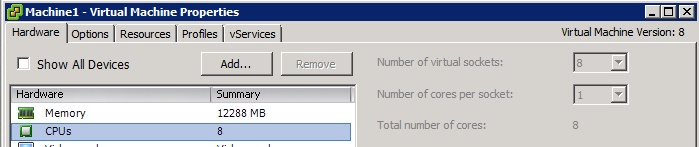
Just to show it works, I initially equipped the VM running Windows 2008 standard with 8 vCPU each presented as a single core.

00-8-virtual sockets
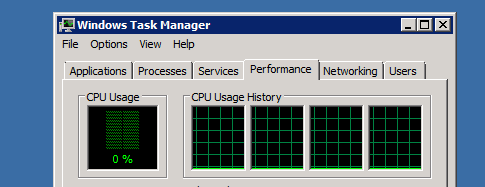
When reviewing the cpu configuration inside the Guest OS, the task manager shows 4 CPUs:

01-basic information
A final check by opening windows task manager verified it only uses 4 vCPUs.

02-windows task manager
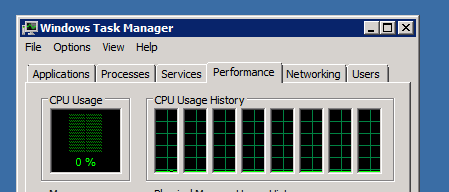
I reconfigured the virtual machine to present 8 vCPU using a single socket and 8 number of cores per socket.

03-1socket
I proceeded to power-on the virtual machine:
04-task manager 8 vCPU
Performance impact
Ok so it worked, now the big question, will it make a difference to use multiple sockets or one socket? How will the Vmkernel utilize the physical cores? Might it impact any NUMA configuration. And it can be a very short answer. No! There is no performance impact between using virtual cores or virtual sockets. (Other than the number of usuable vCPU of course).

Abstraction layer
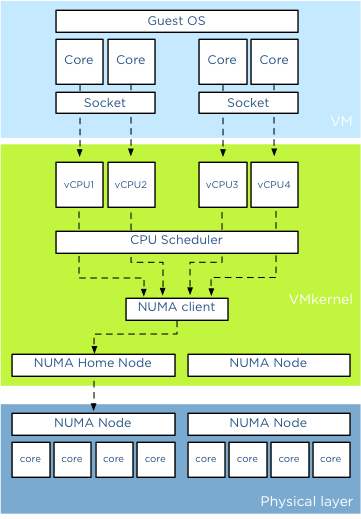
And its because of the power of the abstraction layer. Virtual socket and virtual socket are “constructs” presented upstream to the tightly isolated software container which we call a virtual machine. When you run a operating system it detects the hardware (layout) within the virtual machine. The VMkernel schedules a Virtual Machine Monitor (VMM) for every vCPU. The virtual machine vCPU configuration is the sum of number of cores x number of sockets. Lets use the example of 2 virtual socket 2 virtual core configuration.

05-vCPU-Stack
The light blue box shows the configuration the virtual machine presents to the guest OS. When a CPU instruction leaves the virtual machine it get picked up the Vmkernel. For each vCPU the VMkernel schedules a VMM world. When a CPU instruction leaves the virtual machine it gets picked up by a vCPU VMM world. Socket configurations are transparent for the VMkernel

NUMA
When a virtual machine powers on in a NUMA system, it is assigned a home node where memory is preferentially allocated. The vCPUs of a virtual machine are grouped in a NUMA client and this NUMA client is scheduled on a physical NUMA node. For more information about NUMA please read the article: “Sizing VMs and NUMA nodes” Although it’s a not covering the most current vSphere release, the basics remain the same.

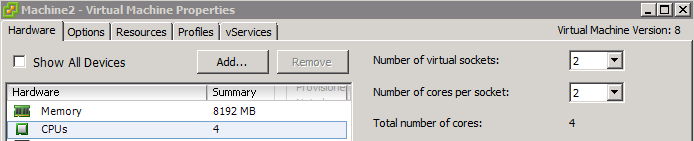
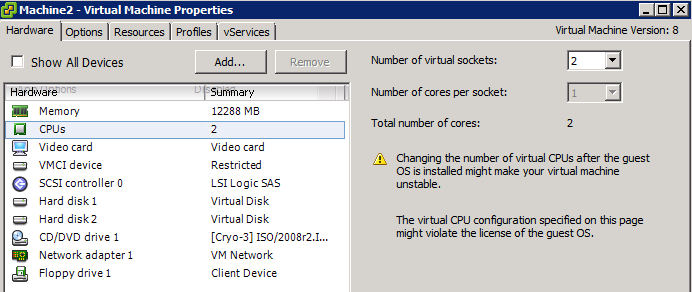
To verify that the sockets have no impact on the NUMA scheduler I powered up a new virtual machine and configured it with two sockets with each 2 cores. The host running the virtual machine is a dual socket quad core machine with HT enabled. Providing 4 vCPUs to the virtual machine ensures me that it will fit inside a single NUMA node.

06-2cores
When reviewing the memory configuration of the virtual machine in ESXTOP we can deduct that its running on a single physical CPU using 4 cores on that die. Open the console, run ESXTOP, press M for memory view. Use V (capital v) to display on VM worlds only. Press F and select G for NUMA stats. You might want to disable other fields to reduce the amount of information on your screen.

07-ESXtop
The column, NHN identifies the current Numa Home Node, which in Machine2 case is Numa node 0. N%L indicates how much memory is accessed by the NUMA client and it shows 100%, indicating that all vCPUs access local memory. The column GST_ND0 indicates how much memory is provided by Node0 to the Guest. This number is equal to the NLMEM counter, which indicated the current amount of local memory being accessed by VM on that home node.

vNUMA
What if you have a virtual machine with more than 8 CPU (for clarity, life of a Wide NUMA starts at a vCPU count of 9). Then the VMkernel presents the NUMA client home nodes to the Guest OS. Similar to the normal scheduling, the socket configuration are also transparent in this case.

Why differentiate between sockets and cores?
Well there is a difference and it has to do with the Hot-Add CPU feature. When enabling the option CPU Hot Plug you can only increase the virtual socket count.

08-hot-add
In short using virtual sockets or virtual cores does not impact the performance of the virtual machine. It only effects the initial configuration and the ability to assign more vCPU when your Operating System restricts the maximum number of physical CPUs. Always check if your VM configuration is in compliance with the vendor licensing rules before increasing the vCPU count!

Filed Under: NUMA, VMware

New Book Project: Tweet sized vSphere Design Considerations – Selection process

June 21, 2013 by frankdenneman

Just a quick update – this week we passed the deadline for Call of entries and have closed the form. Well over 400 design considerations were submitted and it’s now up to the judges to go through the design considerations.
Thanks all for submitting your entries! Stay tuned for more updates.

Filed Under: VMware

  • « Go to Previous Page
  • Page 1
  • Interim pages omitted …
  • Page 35
  • Page 36
  • Page 37
  • Page 38
  • Page 39
  • Interim pages omitted …
  • Page 83
  • Go to Next Page »

Copyright © 2026 · SquareOne Theme on Genesis Framework · WordPress · Log in