During my Storage DRS presentation at VMworld I talked about datastore cluster architecture and covered the impact of partially connected datastore clusters. In short – when a datastore in a datastore cluster is not connected to all hosts of the connected DRS cluster, the datastore cluster is considered partially connected. This situation can occur when not all hosts are configured identically, or when new ESXi hosts are added to the DRS cluster.
The problem
I/O load balancing does not support partially connected datastores in a datastore cluster and Storage DRS disables the IO load balancing for the entire datastore cluster. Not only on that single partially connected datastore, but the entire cluster. Effectively degrading a complete feature set of your virtual infrastructure. Therefore having an homogenous configuration throughout the cluster is imperative.
Warning messages
An entry is listed in the Storage DRS Faults window. In the web vSphere client:
1. Go to Storage
2. Select the datastore cluster
3. Select Monitor
4. Storage DRS
5. Faults.

The connectivity menu option shows the Datastore Connection Status, in the case of a partially connected datastore, the message Datastore Connection Missing is listed.

When clicking on the entry, the details are shown in the lower part of the view:

Returning to a fully connected state
To solve the problem, you must connect or mount the datastores to the newly added hosts. In the web client this is considered a host-operation, therefore select the datacenter view and select the hosts menu option.
1. Right-click on a newly added host
2. Select New Datastore
3. Provide the name of the existing datastore
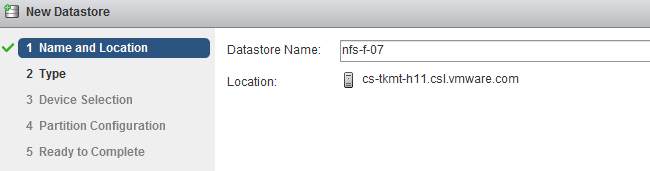
4. Click on Yes when the warning “Duplicate NFS Datastore Name” is displayed.
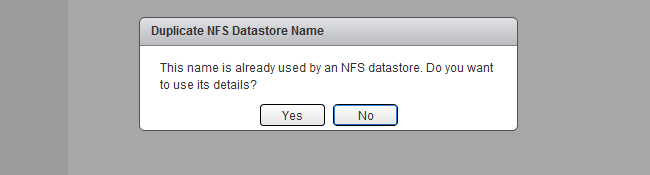
5. As the UI is using existing information, select next until Finish.
6. Repeat steps for other new hosts.
After connecting all the new hosts to the datastore, check the connectivity view in the monitor menu of the of the datastore cluster

Get notification of these blogs postings and more DRS and Storage DRS information by following me on Twitter: @frankdenneman
vSphere 5.1 DRS advanced option LimitVMsPerESXHost
During the Resource Management Group Discussion here in VMworld Barcelona a customer asked me about limiting the number of VMs per Host. vSphere 5.1 contains an advanced option on DRS clusters to do this. If the advanced option: “LimitVMsPerESXHost” is set, DRS will not admit or migrate more VMs to the host than that number. For example, when setting the LimitVMsPerESXHost to 40, each host allows up to 40 virtual machines.
No correction for existing violation
Please note that DRS will not correct any existing violation if the advanced feature is set while virtual machines are active in the cluster. This means that if you set LimitVMsPerESXHost to 40 and at the time 45 virtual machines are running on an ESX host, DRS will not migrate the virtual machines out of that host. However It does not allow any more virtual machines on the host. DRS will not allow any power-ons or migration to the host, both manual (by administrator) and automatic (by DRS).
High Availability
As this is a DRS cluster setting, HA will not honor the setting during a host failover operation. This means that HA can power on as many virtual machines on a host it deems necessary. This is to avoid any denial of service by not allowing virtual machines to power-on if the “LimitVMsPerESXHost” is set too conservative.
Impact on load balancing
Please be aware that this setting can impact VM happiness. This setting can restrict DRS in finding a balance with regards to CPU and Memory distribution.
Use cases
This setting is primary intended to contain the failure domain. A popular analogy to describe this setting would be “Limiting the number of eggs in one basket”. As virtual infrastructures are generally dynamic, try to find a setting that restricts the impact of a host failure without restricting growth of the virtual machines.
I’m really interested in feedback on this advanced setting, especially if you consider implementing it, the use case and if you want to see this setting to be further developed.
Get notification of these blogs postings and more DRS and Storage DRS information by following me on Twitter: @frankdenneman
From the archives – An old Isometric diagram
While searching for a diagram I stumbled upon an old diagram I made in 2007. I think this diagram started my whole obsession with diagrams and to add “cleanness” to my diagrams.

This diagram depicts a virtual infrastructure located in two datacenters with replication between them. This infrastructure is no longer in use, but to make absolutely sure, I changed the device names into generic text labels such as ESX host, array, SW switch, etc. Back then I really liked to draw Isometric style. Now I’m more focused onto block diagrams and trying to minimalize the number of components in a diagram. In essence I follow the words from Colin Chapman: Simplify, then add lightness. But then applied to diagrams 🙂
The fact that this diagram is still stored on my system tells me that I’m still very proud of this diagram. So that made me wonder, which diagram did you design and are you proud of?
Get notification of these blogs postings and more DRS and Storage DRS information by following me on Twitter: @frankdenneman
Cloudphysics VM Reservation & Limits card – a closer look
The VM Reservation and Limits card was released yesterday. CloudPhysics decided to create this card based on the popularity of this topic in the contest. So what does this card do? Let’s have a closer look.
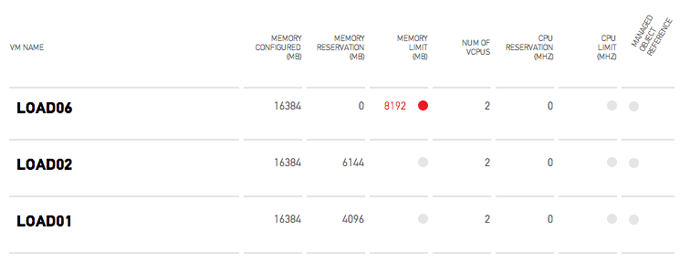
This card provides you an easy overview of all the virtual machines configured with any reservation or limits for CPU and memory. Reservations are a great tool to guarantee the virtual machine continuous access to physical resources. When running business critical applications reservations could provide a constant performance baseline that helps you meet your SLA. However reservations can impact your environment as the VM reservations impacts the resource availability of other virtual machines in your virtual infrastructure. It can lower your consolidation ratio: The Admission Control Family and it can even impact other vSphere features such as vSphere High Availability. The CloudPhysics HA Simulation card can help you understand the impact of reservations on HA.
Besides reservations virtual machine limits are displayed. A limit restricts the use of physical access of the virtual machine. A limit could be helpful to test the application during various level of resource availability. However virtual machine limits are not visible to the Guest OS, therefor it cannot scale and size its own memory management (or even worse the application memory management) to reflect the availability of physical memory. For more information about memory limits, please read this post by Duncan: Memory limits. As the VMkernel is forced to provide alternative memory resources limits can lead to the increased use of VM swap files. This can lead to performance problems of the application but can also impact other virtual machines and subsystems used in the virtual infrastructure. The following article zooms into one of the many problems when relying on swap files: Impact of host local VM swap on HA and DRS.
Color indicators
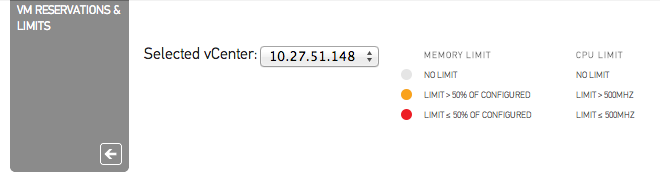
As virtual machine level limits can impact the performance of the entire virtual infrastructure, the CloudPhysics engineers decided to add an additional indicator to help you easily detect limits. When a virtual machine is configured with a memory limit still greater than 50% of its configured size an Amber dot is displayed next to the configured limit size. If the limit is smaller or equal to 50% of its configured size than a red dot is displayed next to the limit size. Similar for CPU limits, an amber dot is displayed when the limit of a virtual machine is set but is more than 500MHz, a red dot indicates that the virtual machine is configured with a CPU limit of 500MHz or less.
For example: Virtual Machine Load06 is configured with 16GB of memory. A limit is set to 8GB (8192MB), this limit is equal to 50% of the configured size. Therefore the VM reservation and Limits card displays the configured limit in red and presents an additional red dot.

Flow of information
The indicators are also a natural divider between the memory resource controls and the CPU controls. As memory resource control impacts the virtual infrastructure more than the CPU resource controls, the card displays the memory resource controls at the left side of the screen.
We are very interested in hearing feedback about this card, please leave a comment.
Get notification of these blogs postings and more DRS and Storage DRS information by following me on Twitter: @frankdenneman
Cloudphysics VM Reservation & Limits card – a closer look
The VM Reservation and Limits card was released yesterday. CloudPhysics decided to create this card based on the popularity of this topic in the contest. So what does this card do? Let’s have a closer look.
This card provides you an easy overview of all the virtual machines configured with any reservation or limits for CPU and memory. Reservations are a great tool to guarantee the virtual machine continuous access to physical resources. When running business critical applications reservations could provide a constant performance baseline that helps you meet your SLA. However reservations can impact your environment as the VM reservations impacts the resource availability of other virtual machines in your virtual infrastructure. It can lower your consolidation ratio: The Admission Control Family and it can even impact other vSphere features such as vSphere High Availability. The CloudPhysics HA Simulation card can help you understand the impact of reservations on HA.
Besides reservations virtual machine limits are displayed. A limit restricts the use of physical access of the virtual machine. A limit could be helpful to test the application during various level of resource availability. However virtual machine limits are not visible to the Guest OS, therefor it cannot scale and size its own memory management (or even worse the application memory management) to reflect the availability of physical memory. For more information about memory limits, please read this post by Duncan: Memory limits. As the VMkernel is forced to provide alternative memory resources limits can lead to the increased use of VM swap files. This can lead to performance problems of the application but can also impact other virtual machines and subsystems used in the virtual infrastructure. The following article zooms into one of the many problems when relying on swap files: Impact of host local VM swap on HA and DRS.
Color indicators
As virtual machine level limits can impact the performance of the entire virtual infrastructure, the CloudPhysics engineers decided to add an additional indicator to help you easily detect limits. When a virtual machine is configured with a memory limit still greater than 50% of its configured size an Amber dot is displayed next to the configured limit size. If the limit is smaller or equal to 50% of its configured size than a red dot is displayed next to the limit size. Similar for CPU limits, an amber dot is displayed when the limit of a virtual machine is set but is more than 500MHz, a red dot indicates that the virtual machine is configured with a CPU limit of 500MHz or less.
For example: Virtual Machine Load06 is configured with 16GB of memory. A limit is set to 8GB (8192MB), this limit is equal to 50% of the configured size. Therefore the VM reservation and Limits card displays the configured limit in red and presents an additional red dot.
Flow of information
The indicators are also a natural divider between the memory resource controls and the CPU controls. As memory resource control impacts the virtual infrastructure more than the CPU resource controls, the card displays the memory resource controls at the left side of the screen.
We are very interested in hearing feedback about this card, please leave a comment.
Get notification of these blogs postings and more DRS and Storage DRS information by following me on Twitter: @frankdenneman