Last week I reviewed some recently submitted designs and it appears that the requirements stated in the application form are too ambiguous. During this year I’ve seen many application forms and the same error are made by many candidates. Let’s go over the sections which contain the most errors and try to remove any doubts for future candidates.
The VMware VCDX Handbook and application form is subject to change. So this article is based on version 1.0.5. The application form is available for candidates enrolled in the VCDX program.
Section 4 Project References
What deliverables were provided? (This should represent a comprehensive design package and include, at a minimum, the design, blueprints, test plan, assembly and configuration guide, and operations guide.)
Ok so this requirement is not understood clearly by some. To meet this requirement you MUST submit at least:
1. the VMware VI 3.5 or vSphere design document.
2. blueprints (Visio drawings of physical and logical layout)
3. a documented test plan
4. a assembly and configuration guide
5. and a operation guide.
This means you are required to submit those five listed documents otherwise your application is rejected (bad) or returned for rework (Still bad, but it doesn’t cost you 300 bucks and you might have a chance to defend during the upcoming defense panels).
Section 5 Design Development Activities
This section requires you to submit five requirements, assumptions and constrains that had to be followed within this design.
This means you must submit at least five requirements, five assumptions and five constrains you encountered when working on the design. I’ve seen some application forms with requirements such as enough power, enough floor space and enough cables. Which are all genuine requirements if you are a project manager. We are requesting a list of requirements, assumptions and constraints which you as a virtual infrastructure architect had to deal with. The submitted design needs to align and deal with requirements and constraints listed in the application form.
Design Deliverable Documentation:
A small error made by many, no big deal if you miss this but it makes our live much easier if you do it correctly. This sections requires you to list the page numbers where the diagrams can be found not how many pages the document has.
Design Decisions
In this section you must provide four decision criteria for each of the decision areas, this means if you leave one field empty the application will be rejected.
It’s just really simple; your application form is NOT completed when a field is empty. Not completed forms get rejected.
Application form does not equal design document
The application form is not a substitute for the design document. It is a part of the VCDX certification program and not a part of the VMware virtual infrastructure design. The two are not complimentary to each other. Everything stated in the application form must be included in the design document or any of the other documents. Just remember you are submitting a defense you have delivered to a real or imaginary customer! Ask yourself have you ever submitted a VCDX application form during a design project to your customer?
DRS-FT integration
Another new feature of vSphere 4.1 is the DRS-Fault Tolerance integration. vSphere 4.1 allows DRS not only to perform initial placement of the Fault Tolerance (FT) virtual machines, but also migrate the primary and secondary virtual machine during DRS load balancing operations. In vSphere 4.0 DRS is disabled on the FT primary and secondary virtual machines. When FT is enabled on a virtual machine in 4.0, the existing virtual machine becomes the primary virtual machine and is powered-on onto its registered host, the newly spawned virtual machine, called the secondary virtual machine is automatically placed on another host. DRS will refrain from generating load balancing recommendations for both virtual machines.
The new DRS integration removes both the initial placement- and the load-balancing limitation. DRS is able to select the best suitable host for initial placement and generate migration recommendations for the FT virtual machines based on the current workload inside the cluster. This will result in a more load-balanced cluster which likely has positive effect on the performance of the FT virtual machines. In vSphere 4.0 an anti-affinity rule prohibited both the FT primary- and secondary virtual machine to run on the same ESX hosts based on an anti-affinity rule, vSphere 4.1 offers the possibility to create a VM-host affinity rule ensuring that the FT primary and secondary virtual machine do not run on ESX hosts in the same blade chassis if the design requires this. For more information about VM-Host affinity rules please visit this article.
Not only has the DRS-FT integration a positive impact on the performance of the FT enabled virtual machines and arguably all other VMs in the cluster but it will also reduce the impact of FT-enabled virtual machines on the virtual infrastructure. For example, DPM is now able to move the FT virtual machine to other hosts if DPM decides to place the current ESX host in standby mode, in vSphere 4.0, DPM needs to be disabled on at least two ESX host because of the DRS disable limitation which I mentioned in this article.
Because DRS is able to migrate the FT-enabled virtual machines, DRS can evacuate all the virtual machines automatically if the ESX host is placed into maintenance mode. The administrator does not need to manually select an appropriate ESX host and migrate the virtual machines to it, DRS will automatically select a suitable host to run the FT-enabled virtual machines. This reduces the need of both manual operations and creating very “exiting” operational procedures on how to deal with FT-enabled virtual machines during the maintenance window.
DRS FT integration requires having EVC enabled on the cluster. Many companies do not enable EVC on their ESX clusters based on either FUD on performance loss or arguements that they do not intend to expand their clusters with new types of hardware and creating homogenous clusters. The advantages and improvement DRS-FT integration offers on both performance and reduction of complexity in cluster design and operational procedures shed some new light on the discussion to enable EVC in a homogeneous cluster. If EVC is not enabled, vCenter will revert back to vSphere 4.0 behavior and enables the DRS disable setting on the FT virtual machines.
Disable DRS and VM-Host rules
vSphere 4.1 introduces DRS VM-Host Affinity rules and offer two types of rules, mandatory (must run on /must not run on) and preferential (should run on /should nor run on). When creating mandatory rules, all ESX hosts not contained in the specified ESX Host DRS Group are marked as “incompatible” hosts and DRS\VMotion tasks will be rejected if an incompatible ESX Host is selected.
A colleague of mine ran into the problem that mandatory VM-Host affinity rules remain active after disabling DRS; the product team explained the reason why:
By design, mandatory rules are considered very important and it’s believed that the intended user case which is licensing compliance is so important, that VMware decided to apply these restrictions to non-DRS operations in the cluster as well.
If DRS is disabled while mandatory VM-Host rules still exist, mandatory rules are still in effect and the cluster continues to track, report and alert mandatory rules. If a VMotion would violate the mandatory VM-Host affinity rule even after DRS is disabled, the cluster still rejects the VMotion.
Mandatory rules can only be disabled if the administrator explicitly does so. If it the administrator intent to disable DRS, remove mandatory rules first before disabling DRS.
Load Based Teaming
In vSphere 4.1 a new network Load Based Teaming (LBT) algorithm is available on the distributed virtual switch dvPort groups. The option “Route based on physical NIC load” takes the virtual machine network I/O load into account and tries to avoid congestion by dynamically reassigning and balancing the virtual switch port to physical NIC mappings.
The three existing load-balancing policies, Port-ID, Mac-Based and IP-hash use a static mapping between virtual switch ports and the connected uplinks. The VMkernel assigns a virtual switch port during the power-on of a virtual machine, this virtual switch port gets assigned to a physical NIC based on either a round-robin- or hashing algorithm, but all algorithms do not take overall utilization of the pNIC into account. This can lead to a scenario where several virtual machines mapped to the same physical adapter saturate the physical NIC and fight for bandwidth while the other adapters are underutilized. LBT solves this by remapping the virtual switch ports to a physical NIC when congestion is detected.
After the initial virtual switch port to physical port assignment is completed, Load Based teaming checks the load on the dvUplinks at a 30 second interval and dynamically reassigns port bindings based on the current network load and the level of saturation of the dvUplinks. The VMkernel indicates the network I/O load as congested if transmit (Tx) or receive (Rx) network traffic is exceeding a 75% mean over a 30 second period. (The mean is the sum of the observations divided by the number of observations).
An interval period of 30 seconds is used to avoid MAC address flapping issues with the physical switches. Although an interval of 30 seconds is used, it is recommended to enable port fast (trunk fast) on the physical switches, all switches must be a part of the same layer 2 domain.
DPM scheduled tasks
vSphere 4.1 introduces a lot of new features and enhancements of the existing features, one of the hidden gems I believe is the DPM enable and disable scheduled tasks. The DPM “Change cluster power settings” schedule task allows the administrator to enable or disable DPM via an automated task. If the admin selects the option DPM off, vCenter will disable all DPM features on the selected cluster and all hosts in standby mode will be powered on automatically when the scheduled task runs.
This option removes one of the biggest obstacles of implementing DPM. One of the main concerns administrators have, is the incurred (periodic) latency when enabling DPM. If DPM place an ESX host in standby mode, it can take up to five minutes before DPM decides to power up the ESX host again. During this (short) period of time, the environment experiences latency or performance loss, usually this latency occurs in the morning.
It’s common for DPM to place ESX hosts in standby mode during the night due to the decreased workloads, when the employees arrive in the morning the workload increases and DPM needs to power on additional ESX hosts. The period between 7:30 and 10:00 is recognized as one of the busiest periods of the day and during that period the IT department wants their computing power lock, stock and ready to go.
This scheduled task will give the administrators the ability to disable DPM before the workforce arrive. Because the ESX hosts remain powered-on until the administrator or a DPM scheduled task enables DPM again, another schedule can be created to enable DPM after the periods of high workload demand ends. To create a scheduled task to disable DPM, open vCenter, go to Home>Management>Scheduled Tasks (CTRL-Shift-T) and select the task “Change cluster power settings”.
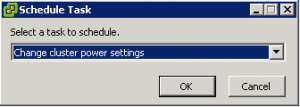
Select the default power management for the cluster , On or Off and configure the task.
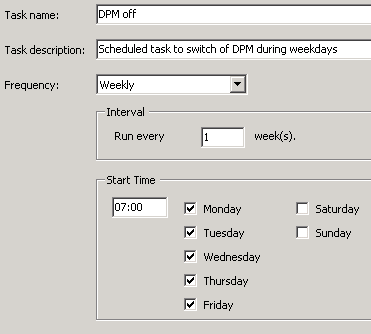
For example, by scheduling a DPM disable task on every weekday at 7:00, the administrator is ensured that all ESX hosts are powered on before 8 o’clock every weekday in advance of the morning peak, rather than have to wait for DPM to react to the workload increase.
By scheduling the DPM disable task more than one hour in advance of the morning peak, DRS will have the time to rebalance the virtual machine across all active hosts inside the cluster and Transparent Page Sharing process can collapse the memory pages shared by the virtual machines on the ESX hosts. By powering up all ESX hosts early, the ESX cluster will be ready to accommodate load increases.