• Skip to primary navigation
  • Skip to main content

frankdenneman.nl

  • AI/ML
  • NUMA
  • About Me
  • Privacy Policy

vSphere 7 DRS Scalable Shares Deep Dive

May 27, 2020 by frankdenneman

You are one tickbox away from completely overhauling the way you look at resource pools. Yes you can still use them as folders (sigh), but with the newly introduced Scalable Shares option in vSphere 7 you can turn resource pools into more or less Quality of Service classes. Sounds interesting right? Let’s first take a look at the traditional working of a resource pool, the challenges they introduced, and how this new delivery of resource distribution works. To understand that we have to take a look at the basics of how DRS distributes unreserved resources first.

Compute Resource Distribution

A cluster is the root of the resource pool. The cluster embodies the collection of the consumable resources of all the ESXi hosts in the cluster. Let’s use an example of a small cluster of two hosts. After overhead reduction, each host provides 50GHz and 50GB of memory. As a result, the cluster offers 100 GHz and 100 GB of memory for consumption.

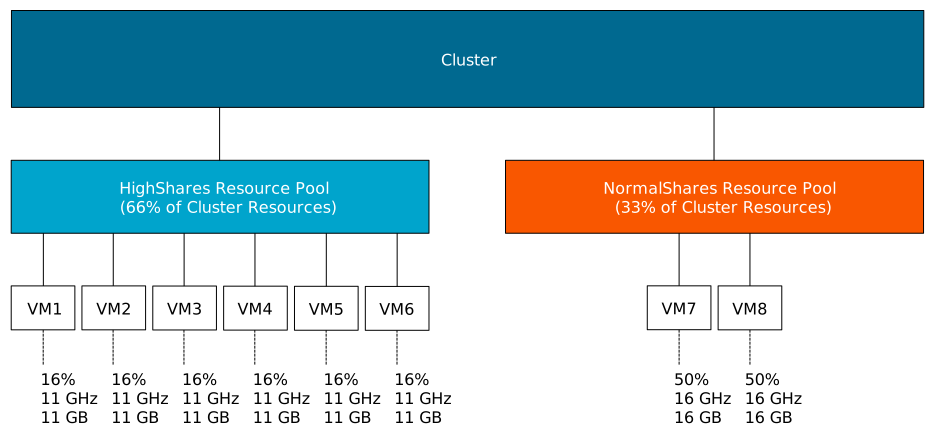
A resource pool provides an additional level of abstraction, allowing the admin to manage pools of resources instead of micro-managing each VM or vSphere pod individually. A resource pool is a child object of a cluster. In this scenario, two resource pools exist; a resource pool with the HighShares, and a resource pool (RP) with the name NormalShares.

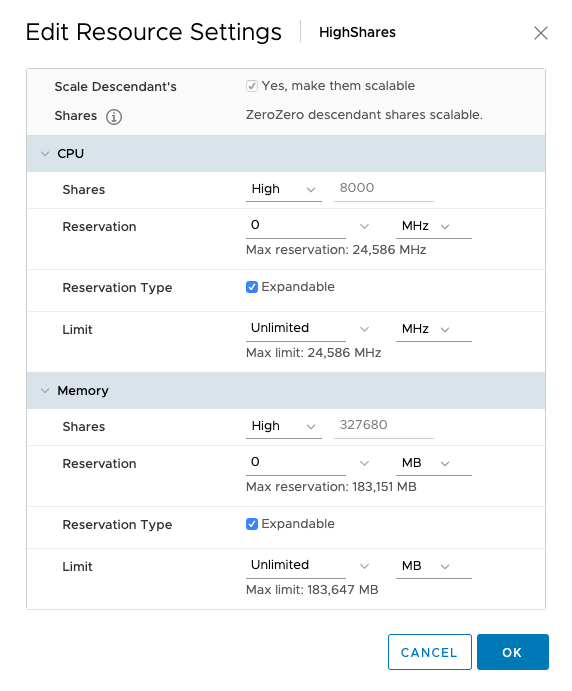
The HighShares RP is configured with a high CPU shares level and a high memory shares level, the NormalShares RP is configured with normal CPU shares level, and normal memory shares level. As a result, HighShares RP receives 8000 CPU shares and 327680 shares of memory, while the NormalShares RP receives 4000 CPU shares and 163840 shares of memory. A ratio is created between the two RPs of 2:1.
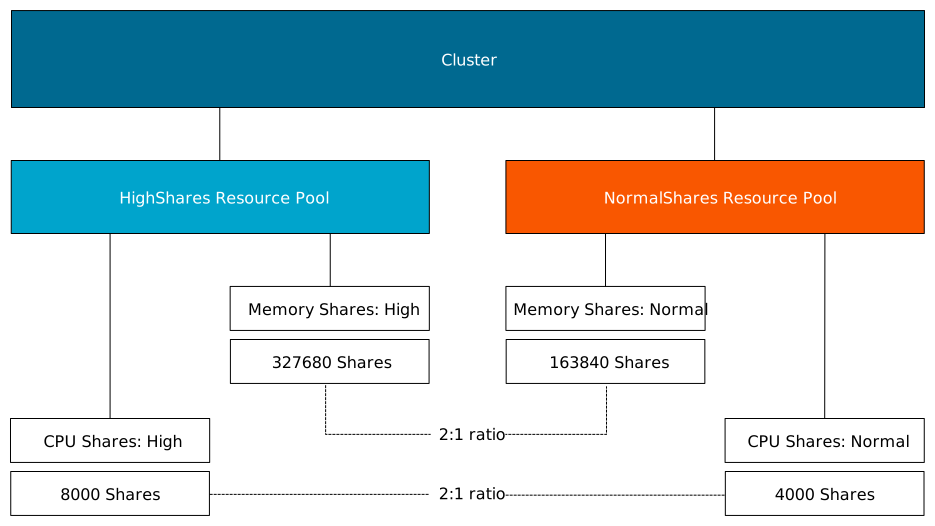
In this example, eight VM with each two vCPUs and 32 GBs are placed in the cluster. Six in the HighShares RP and two VMs in the NormalShares RP. If contention occurs, the cluster awards 2/3 of the cluster resources to HighShares RP and 1/3 of cluster resources to the NormalShares RP. The next step for the RP is to divide the awarded resources to its child-objects, those can be another level of resource pools or workload objects such as VMs and vSphere Pods. If all VMs are 100% active, HighShares RP is entitled to 66 GHz and 66 GBs of memory, the NormalShares RP gets 33 GHz and 33 GBs of memory.

And this is perfect because the distribution of resources follows the desired ratio “described” by the number of shares. However, it doesn’t capture the actual intent of the user. Many customers use resource pools to declare the relative priority of workload compared to the workload in the other RPs, which means that every VM in the resource pool HighShares is twice as important as the VMs in the NormalShare RP. The normal behavior does not work that way, as it just simply passes along the awarded resources.

In our example, each of the six VMs in HighShares RP gets 1/6 of 2/3s of the cluster resources. In other words, 16% of 66Ghz & 66GB = ~11 GHz & ~ 11 GBs, while the two VMs in the NormalShares RP get 1/2 of 1/3 of the cluster resources. 50% of 33 GHz & 33 GB = ~16 GHz and ~16 GBs. In essence, the lower priority group VMs can provide more resources per individual workload. This phenomenon is called the priority pie paradox.
Scalable Shares
To solve this problem and align resource pool sizing more with the intent of many of our customers, we need to create a new method. A technique that auto-scales the shares of RP to reflect the workloads deployed inside it. Nice for VMs, necessary for high-churn containerized workloads. (See vSphere Supervisor Namespace for more information about vSphere Pods and vSphere namespaces. And this new functionality is included in vSphere 7 and is called Scalable Shares. (Nice backstory, the initial idea was developed by Duncan Epping and me, not on the back of a napkin, but on some in-flight magazine found on the plane on our way to Palo Alto back in 2012. It felt like a tremendous honor to receive a patent award on it. It’s even more rewarding to see people rave about the new functionality).

Enable Scalable Shares
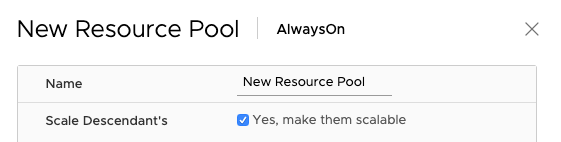
Scalable shares functionality can be enabled at the cluster level and the individual resource pool level.
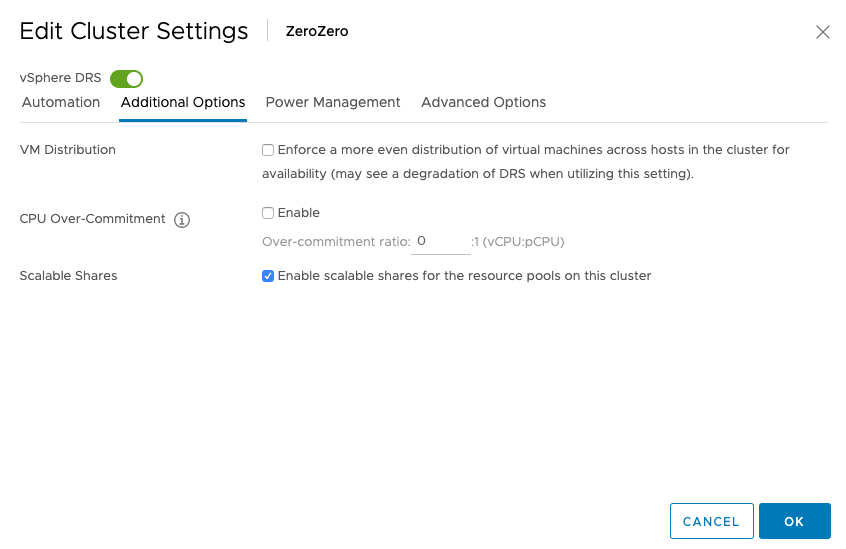
It’s easier to enable it at the cluster level as each child-RP automatically inherits the scalable shares functionality. You can also leave it “unticked” at the cluster level, and enable the scalable shares on each individual resource pool. The share value of each RP in that specific resource pool is automatically adjusted. Setting it at this level is pretty much intended for service providers as they want to carve up the cluster at top-level and assign static portions to customers while providing a self-service IAAS layer beneath it.
When enabling shares at the cluster-level, nothing really visible happens. The UI shows that the functionality is enabled, but it does not automatically change the depicted share values. They are now turned into static values, depended on the share value setting (High/Normal/Low).
We have to trust the system to do its thing. And typically, that’s what you want anyway. We don’t expect you to keep on staring at dynamically changing share values. But to prove it works, it would be nice if we can see what happens under the cover. And you can, but of course, this is not something that we expect you to do during normal operations. To get the share values, you can use the vSphere Managed Object Browser. William (of course, who else) has written extensively about the MOB. Please remember that it’s disabled by default, so follow William’s guidance on how to enable it. 

To make the scenario easy to follow, I grouped the VMs of each RP on a separate host. The six VMs deployed in the HighShares RP run on host ESXi01. The two VMs deployed in the NormalShares RP run on host ESXi02. I did this because when you create a resource pool tree on a cluster, the RP-tree is copied to the individual hosts inside the cluster. But only the RPs that are associated with the VMs that run on that particular host. Therefore when reviewing the resource pool tree on ESXi01, we will only see the HighShares RP, and when we look at the resource pool tree of ESXi02, it will only show the NormalShares RP. To view the RP tree of a host, open up a browser, ensure the MOB is enabled and go to

https://<ESXi-name-or-ipaddress>/mob/?moid=ha%2droot%2dpool&doPath=childConfiguration

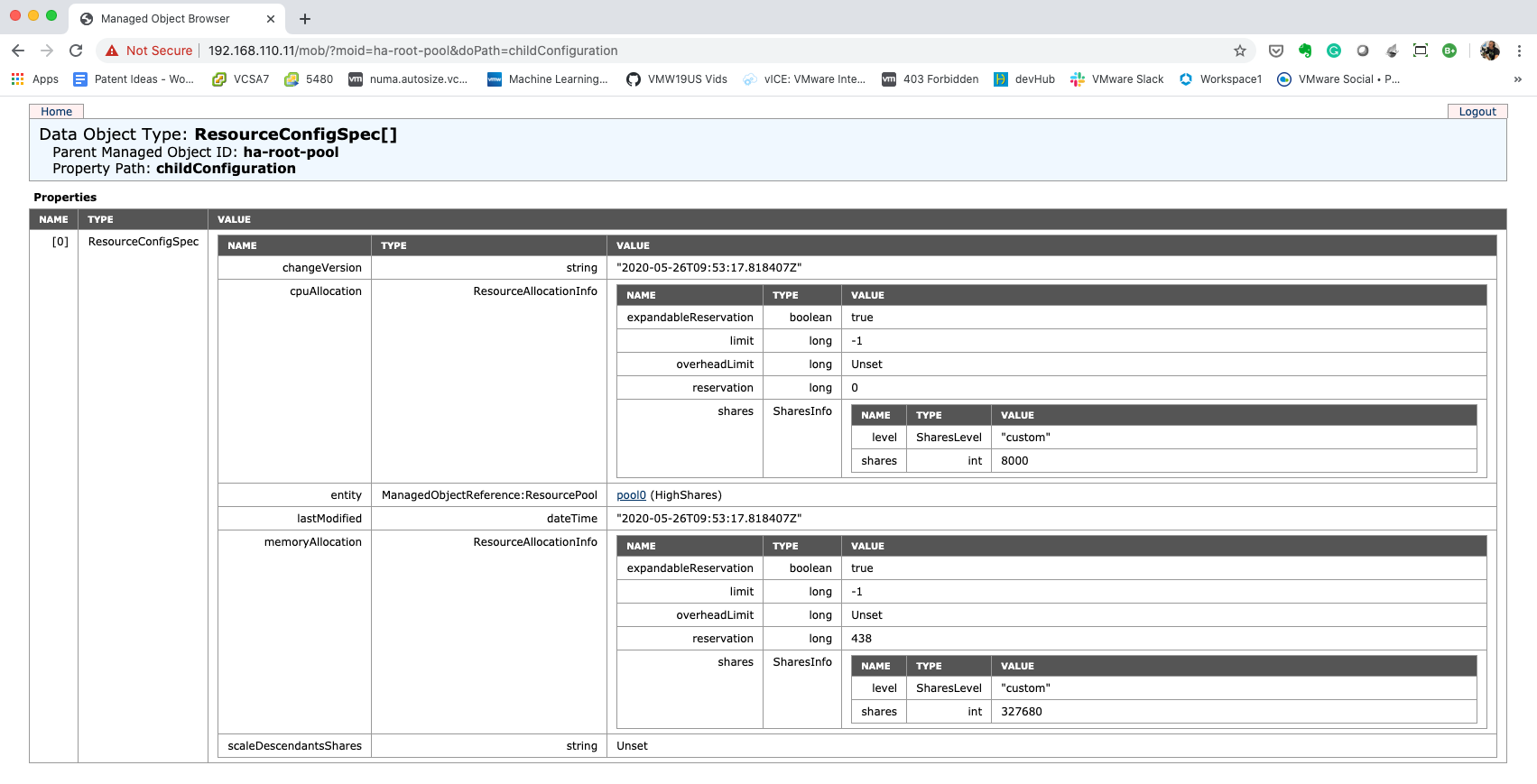
Thanks to William for tracking this path for me. When reviewing ESXi01 before enabling scalable shares, we see the following:

  • ManagedObjectReference:ResourcePool: pool0 (HighShares)
  • CpuAllocation: Share value 8000
  • MemoryAllocation: Share value: 327680

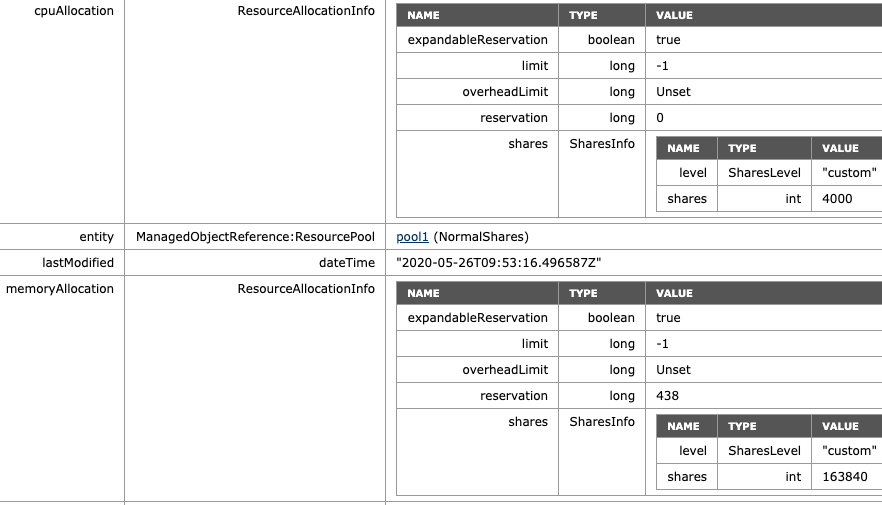
I cropped the image for ESXi02, but here we can see that the NormalShare RP defaults are:

  • ManagedObjectReference:ResourcePool: pool1 (NormalShares)
  • CpuAllocation: Share value 4000
  • MemoryAllocation: Share value: 163840

Resource Pool Default Shares Value

If you wonder about how these numbers are chosen, an RP is internally sized as a 4vCPU 16GB virtual machine. With a normal setting (default), you get 1000 shares of CPU for each vCPU and ten shares of memory for each MB (16384×10). High Share setting award 2000 shares for each vCPU and twenty shares of memory for each MB. Using a low share setting leaves you with 500 shares per CPU and five shares of memory for each MB.
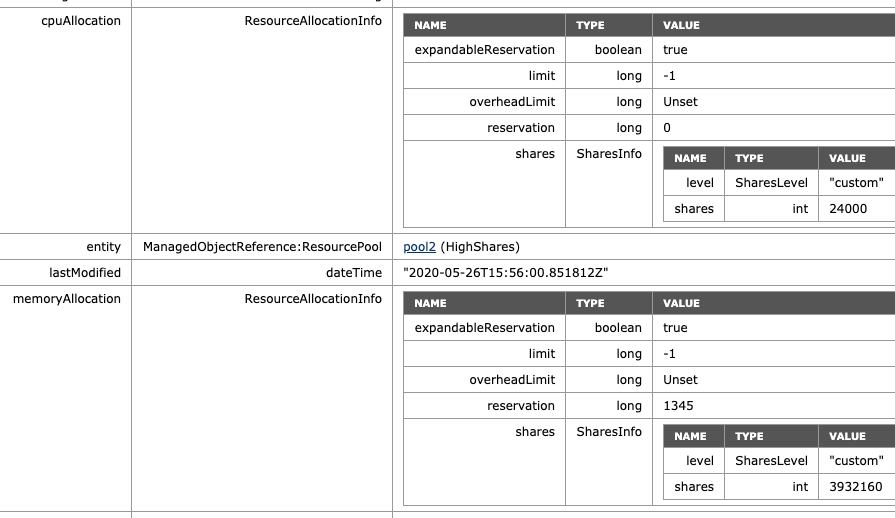
When enabled, we can see that scalable shares have done its magic. The shares value of HighShares is now 24000 for CPU and 392160 shares of memory. How is this calculation made:

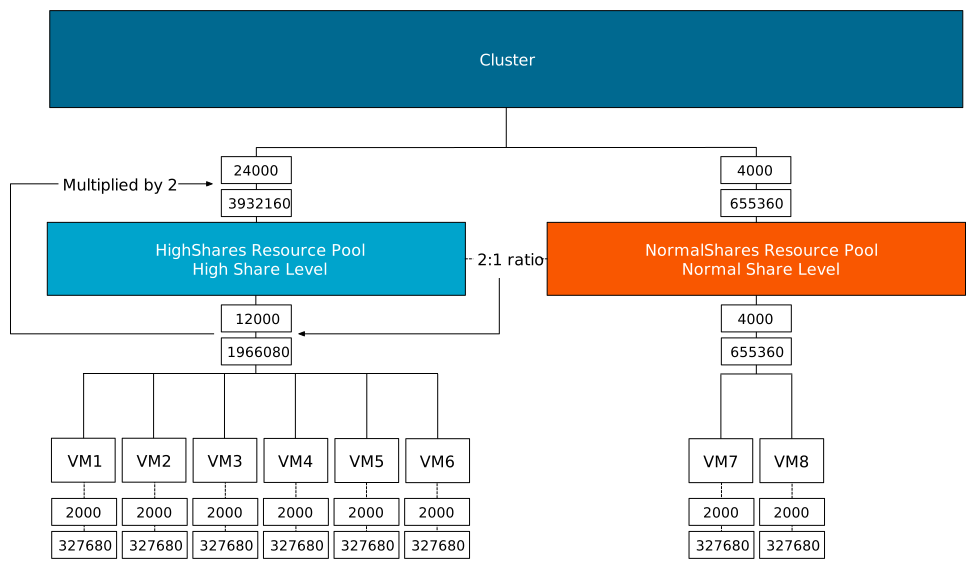
  1. Each VM is set to normal share value.
  2. Each VM has 2 vCPUs ( 2 x 1000 shares = 2000 CPU shares)
  3. Each VM has 32 GB of memory = 327680 shares.
  4. There are six VMs inside the RP, and they all run on ESXi01:
  5. Sum of CPU shares active in RP: 2000 + 2000 + 2000 + 2000 + 2000 + 2000 = 12000
  6. Sum of Memory shares active in RP: 327680 + 327680 + 327680 + 327680 + 327680 + 327680 = 1966080
  7. The result is multiplied by the ratio defined by the share level of the resource pools.

The ratio between the three values (High:Normal:Low) is 4:2:1. That means that the ratio between high and normal is 2:1, and thus, HighShares RP is awarded 12000 x 2 = 24000 shares of CPU and 1966080 x 2 = 3932160 shares of memory.
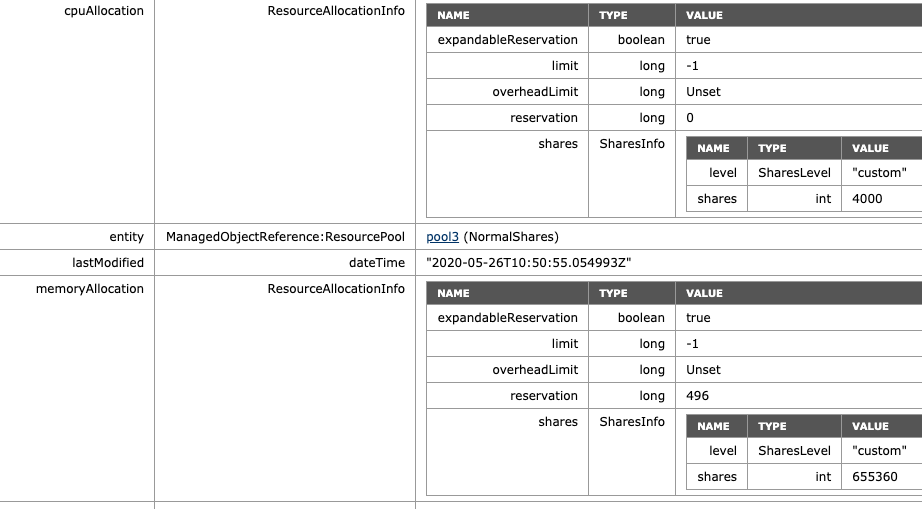
To verify, the MOB shows the adjusted values of NormalShares RP, which is 2 x 2000 CPU shares = 4000 CPU shares and 2 x 163840 = 655360 shares of memory.
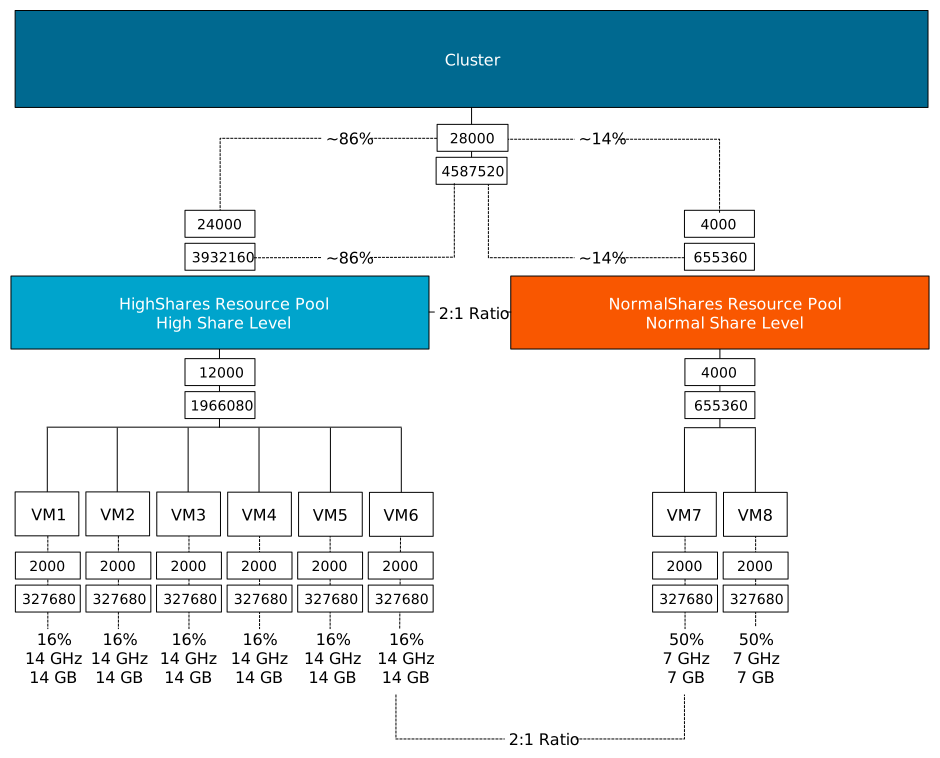
If we are going to look at the worst-case-scenario allocation of each VM (if every VM in the cluster is 100% active), then we notice that the VMs allocation is increased in the HighShares RP, and decreased in the NormalShares RP. VM7 and VM8 now get a max of 7 GB instead of 16 GB, VMs 1 to 6 allocation increases 3 GHz and 3 GB each. Easily spotted, but the worst-case-scenario allocation is modeled after the RP share level ratio.
What if I adjust the share level at the RP-level? The NormalShares RP is downgraded to a low memory share level. The CPU shares remain the same. The RP receives 81920 of shares and now establishes a ratio of 4:1 compared to the HighShares RP (327680 vs. 81920). The interesting thing is that the MOB shows the same values as before, 655360 shares of memory. Why? Because it just sums the shares of the entities in the RP.
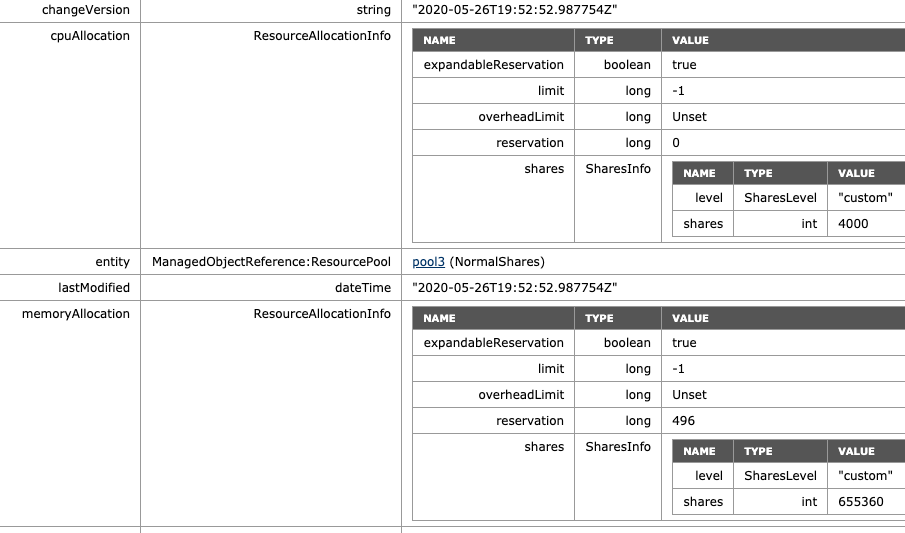
As a test, I’ve reduced the memory shares of VM7 from 327680 to 163840. The MOB indicates a drop of shares from 655360 to 491520 (327680+163840), proofing that the share value is a total of shares of child-objects.
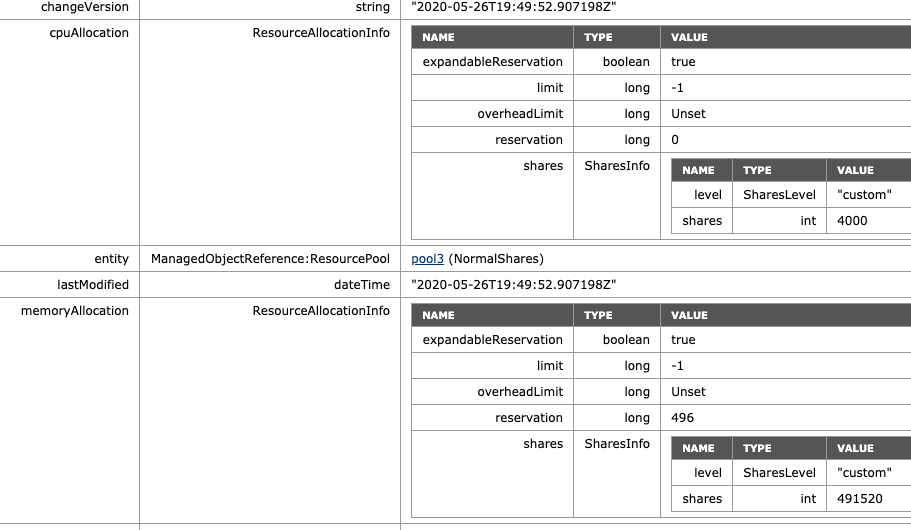
Please note that this is a fundamental change in behavior. With non-scalable shares RP, share values are only relative at the sibling level. That means that a VM inside a resource pool competes for resources with other VMs on the same level inside that resource pool. Now a VM with an absurd high number (custom-set or monster-VM) impacts the whole resource distribution in the cluster. The resource pool share value is a summation of its child-object. Inserting a monster-VM in a resource pool automatically increases the share value of the resource pool; therefore, the entire group of workloads benefits from this.

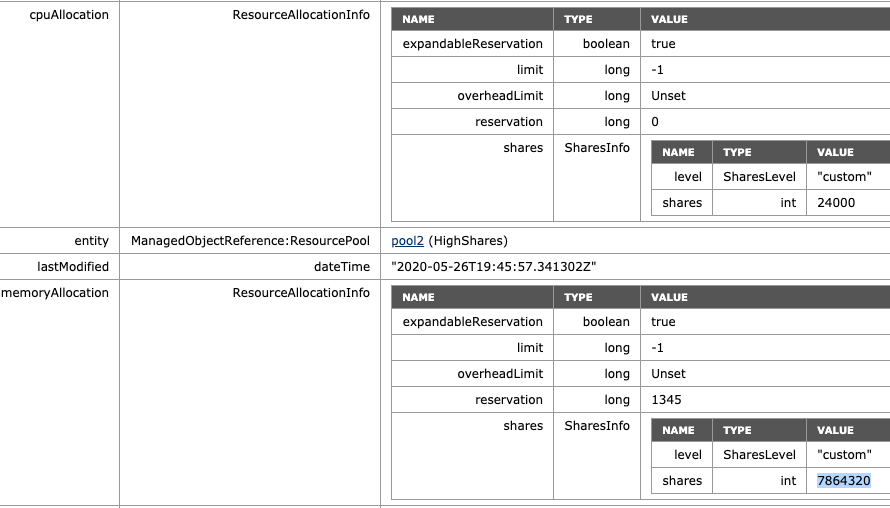
I corrected the share value of VM7 to the default of 327680 to verify the ratio of the increase occurring on HighShares RP. The ratio between low and high is 4:1, and therefore the adjusted memory shares at HighShares should be 1966080 x 4 = 7864320.
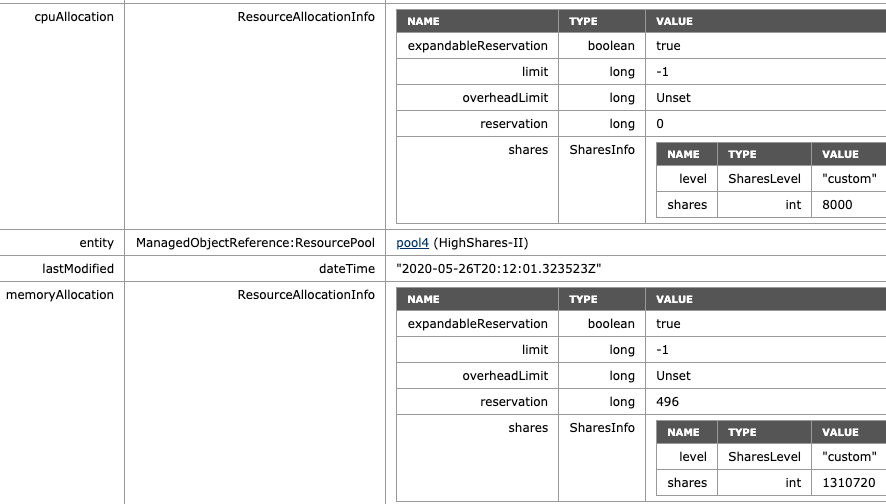
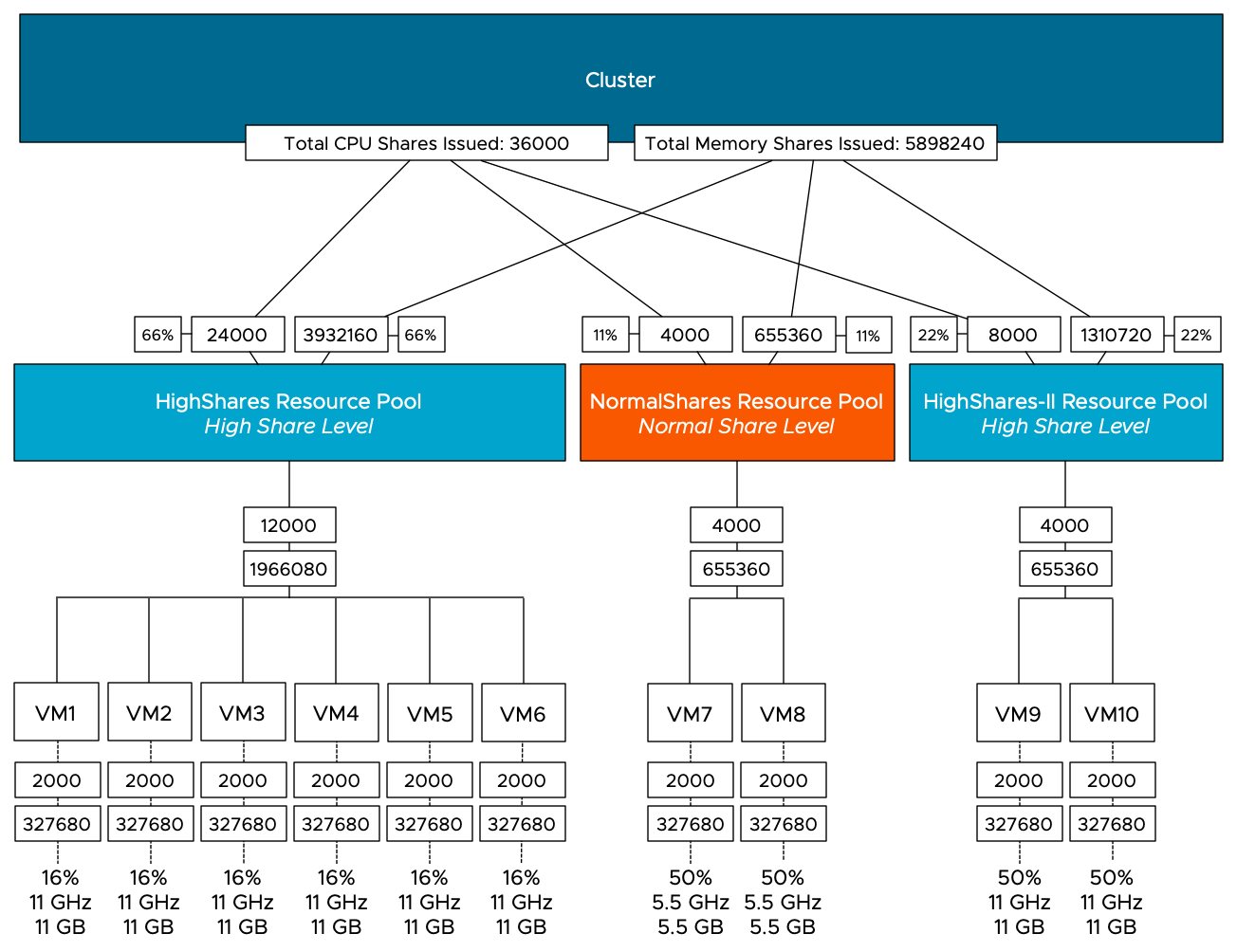
What if we return NormalShares to the normal share value similar to the beginning of this test, but add another High Share value RP to the environment? For this test, we add VM9 and VM10, both equipped with two vCPUs and 32GBs of memory. For test purposes, they are affined with ESXi01, similar to the HighShare RP VMs. The MOB on ESXi01 shows the following values for the new RP HighShares-II: 8000 shares of CPU, 1310720 shares of memory, following the ratio of 2:1.
If we are going to look at the worst-case-scenario allocation of each VM, then we notice that the VMs allocation is decreased for all the VMs in the HighShares and NormalShares RP. VMs 1 to 6 get 16% (11 GHz & 11 GBs), while VM 7 and 8 get 50% of 11% of the cluster resources, i.e. 5.5 GHz and 5.5 GBs each. The new VMs 9 and 10 each can allocate up to 11 GHz and 11 GB, same as the VMs in Highshares RP, following the RP share level ratio.
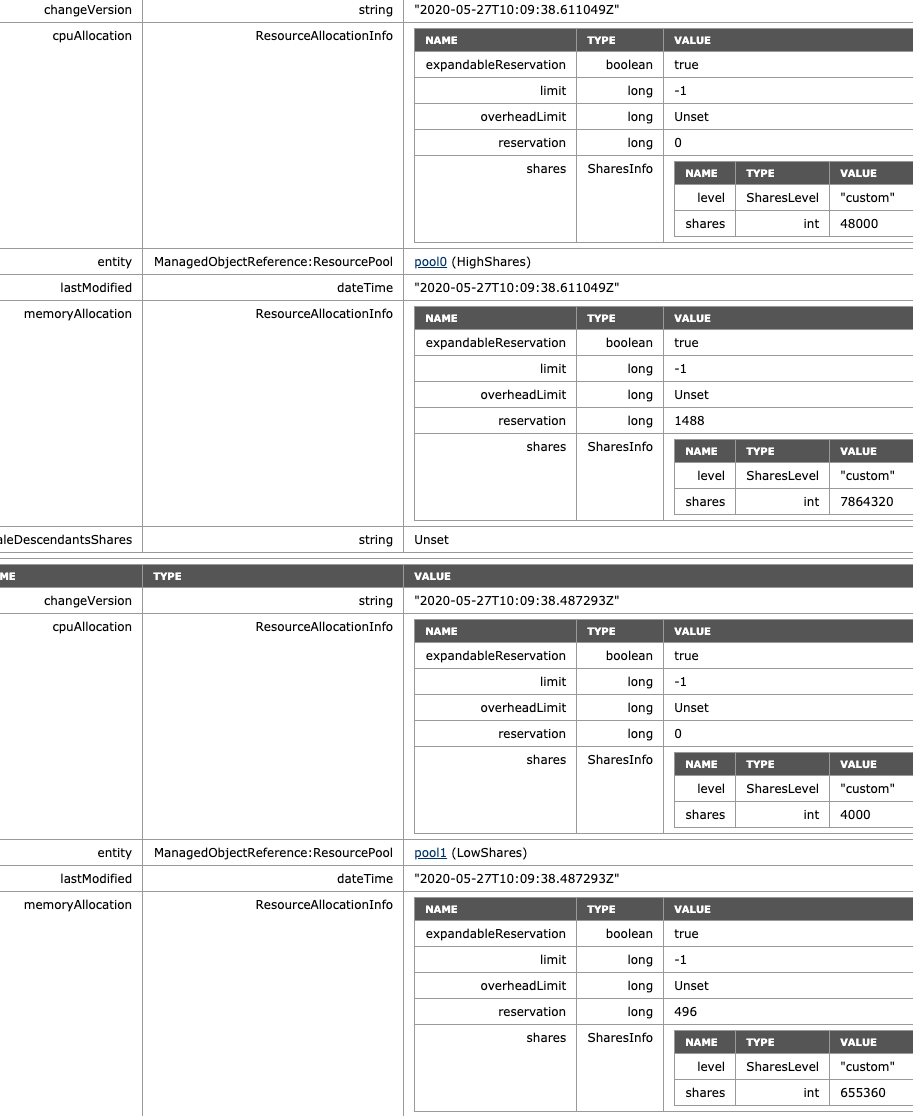
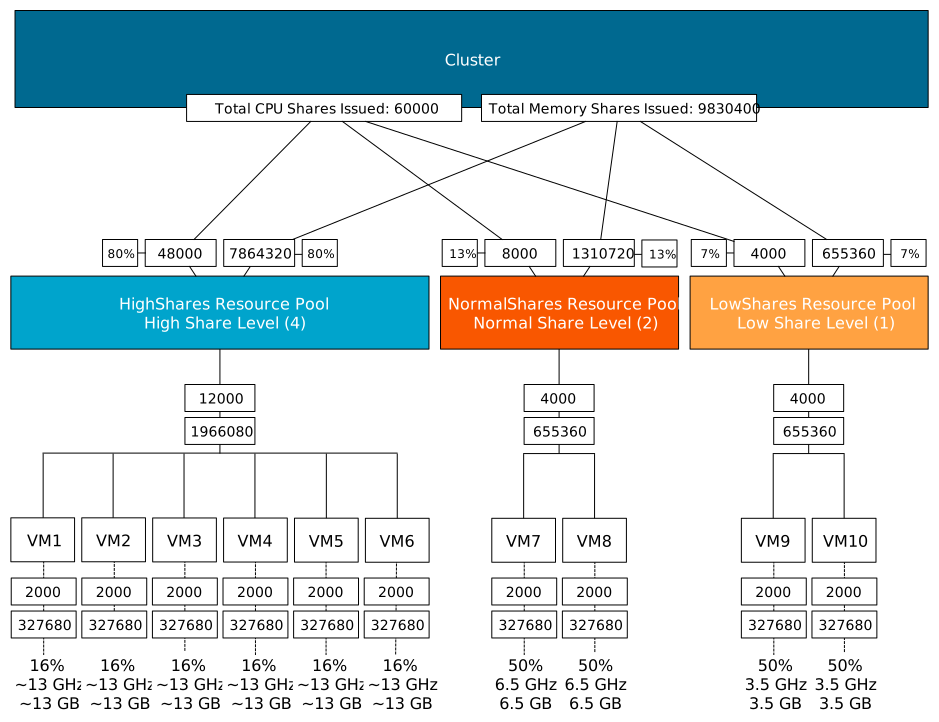
What happens if we remove the HighShares-II RP and move VM9 and VM10 into a new LowShares RP? This creates a situation where there are three RPs with a different share level assigned to it, providing us with a ratio of 4:2:1. The MOB view of ESXi01 shows that the LowShares RP shares value is not modified, and the HighShares RP shares quadrupled.
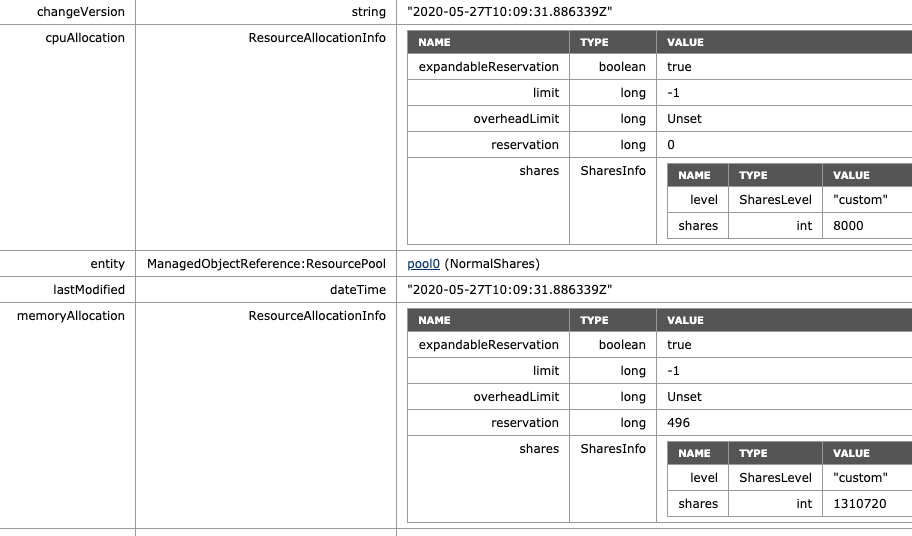
The MOB view of ESXi01 shows that the share value of the NormalShares RP shares is now doubled, following the 4:2:1 ratio exactly.
This RP design results in the following worst-case-scenario allocation distribution:
VMs as Siblings

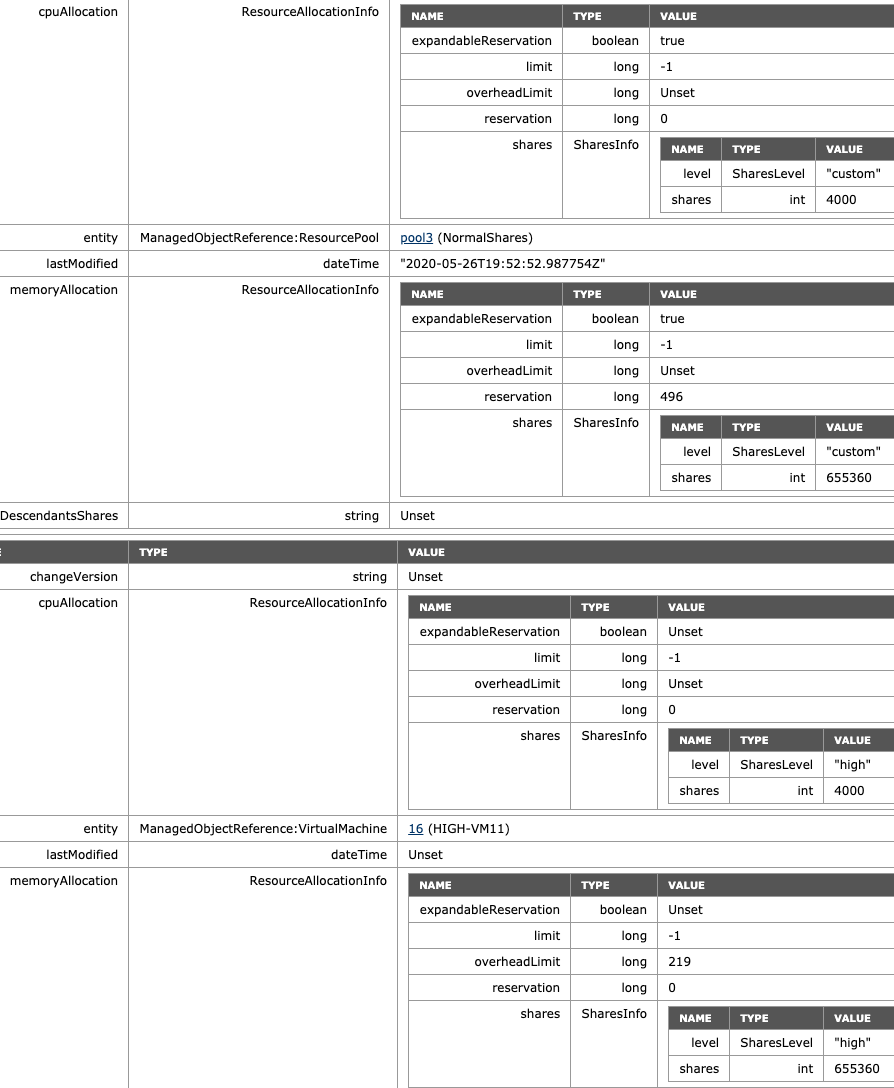
The last scenario I want to highlight is a VM deployed at the same level at the RP level. A common occurrence. Without scalable shares, this could be catastrophic as a Monster-VM could cast a shadow over a resource pool. A (normal share value) VM with 16 vCPUs and 128 GB would receive 16000 shares of CPU and 1310720 shares of memory. In the pre-scalable shares, it would dwarf a normal share value RP with 4000 shares and 163840 shares of memory. Now with scalable shares bubbling up the number of shares of its child-objects, it evens out the playing field. It doesn’t completely solve it, but it reduces the damage. As always, the recommendation is to commit to a single object per level. Once you use resource pools, provision only resource pools at that level. Do not mix VMs and RPs on the same level, especially when you are in the habit of deploying monster VMs. As an example, I’ve deployed the VM “High-VM11” at the same level as the resource pool, and DRS placed it on ESXi02, where the NormalShares RP lives in this scenario. The share value level is set to high, thus receiving 4000 shares for its two vCPUs and 655360 shares for its memory configuration, matching the RP config, which needs to feed the need of two VMs inside.
I hope this write-up helps to understand how outstanding Scalable Shares is, turning Share levels more or less into QoS levels. Is it perfect? Not yet, as it is not bulletproof against VMs being provisioned out of place. My recommendation is to explore VEBA (4) for this and generate a function to automatically move root-deployed VMs into a General RP, avoiding mismatch.

Closing Notes

Please note that I constrained the placement of VMs of an entire RP to a single host in the scenarios I used. In everyday environments, this situation will not exist, and RPs will not be tied to a single host. The settings I used are to demonstrate the inner workings of scalable shares and must not be seen as endorsements or any kind of description of normal vSphere behavior. The platform was heavily tuned to provide an uncluttered view to make it more comprehensible.

Worst-case-scenario numbers are something that shows a situation that is highly unlikely to occur. This is the situation where each VM is simultaneously 100% active. It helps to highlight resource distribution while explaining a mechanism, typically resource demand ebbs and flows between different workloads, thus the examples used in these scenarios are not indicative of expected resource allocation when using resource pools and shares only.
Filed Under: DRS Tagged With: DRS, resource pools, vSphere 7

vSphere 7 vMotion with Attached Remote Device

May 12, 2020 by frankdenneman

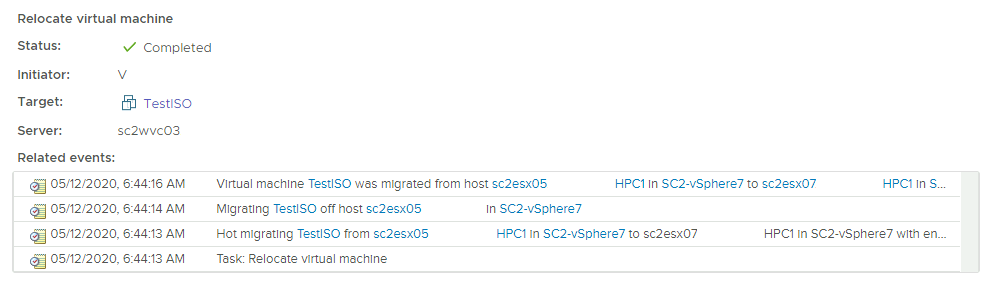
A lot of cool new features fly under the radar during a major release announcement. Even the new DRS algorithm didn’t get much air time. One thing that I discovered this week, is that vSphere 7 allows for vMotion with an attached remote device attached.

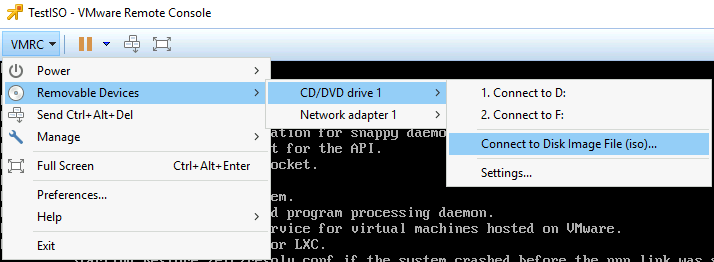
When using the VM Remote Console, you can attach ISOs stored on your local machine to the VM. An incredibly useful tool that allows you to quickly configure a VM.

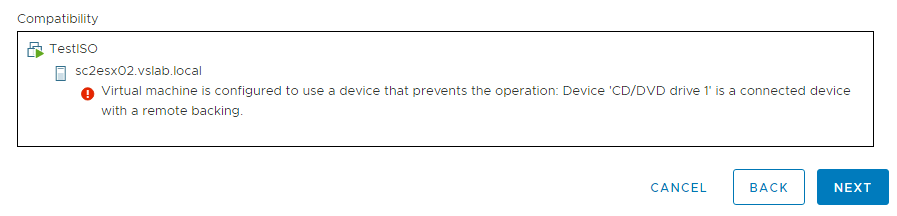
The feature avoids the hassle of uploading an ISO to a shared datastore, but unfortunately, it does disable vMotion for that particular machine.

Even worse, this prohibits DRS to migrate it for load-balancing reasons, but maybe even more annoying, it will fail maintenance mode. We’ve all been there, putting a host into maintenance mode, to notice ten minutes later that the host isn’t placed in MM-mode. Once you exit MM to figure out what’s going on DRS seems to be on steroids and piles on every moveable VM it can find onto that host again.

With vSphere 7, this enhancement makes that problem a thing of the past. vMotions will work, and that means so does DRS and Maintenance Mode.

When a VM is vMotioned with a remote device attached, the session ends as the connection is closed. In vSphere 7, when a vMotion is initiated, the VMX process sends a disconnect command with a session cookie to the source ESXi host. The device is marked as remote and once the vMotion process is complete, the remote device is connected through VMRC again. Any buffered accesses to the device are completed.

Please note that the feature “vSphere vMotion with attached remote devices” is a vSphere 7 feature only and that means that it only works when migrating between vSphere 7 hosts.

It has the look and feel of a small function upgrade, but I’m sure it will reduce a lot of frustration during maintenance windows.

Filed Under: VMware

DRS Migration Threshold in vSphere 7

May 8, 2020 by frankdenneman

DRS in vSphere 7 is equipped with a new algorithm. The old algorithm measured the load of each host in the cluster and tried to keep the difference in workload within a specific range. And that range, the target host load standard deviation, was tuned via the migration threshold.  

The new algorithm is designed to find an efficient host for the VM that can provide the resources the workload demand while considering the potential behavior of other workloads. Throughout a series of articles, I will explain the actions of the algorithm in more detail.  

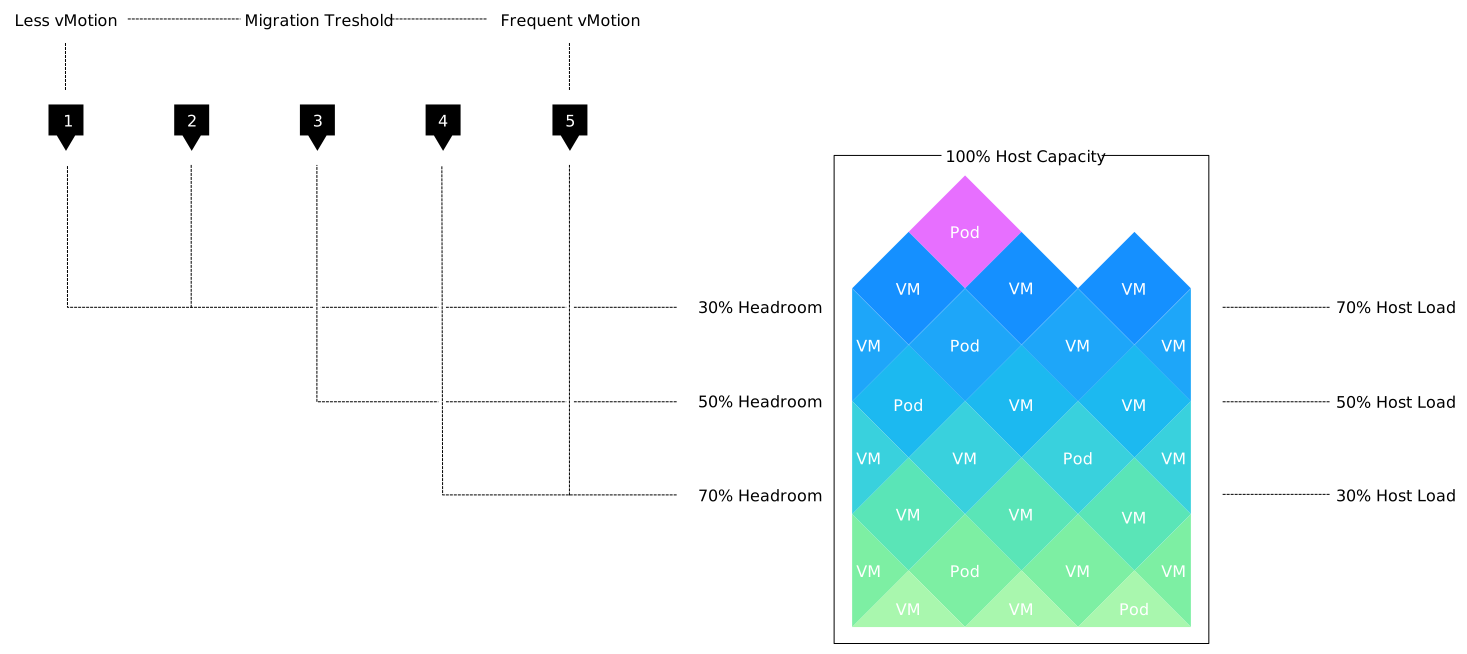
Due to the changes, the behavior of the migration threshold changed as well. In general, the migration threshold still acts as the metaphorical gas pedal. By sliding it to the right, you press the gas pedal to the floor. You tell DRS to become more aggressive, to reduce or relax certain thresholds. Underneath the covers, things changed a lot. There is no host load standard deviation to compare, but DRS needs to understand workload demand change and how much host inefficiency to tolerate. Let’s take a look closer: 

Migration Threshold 

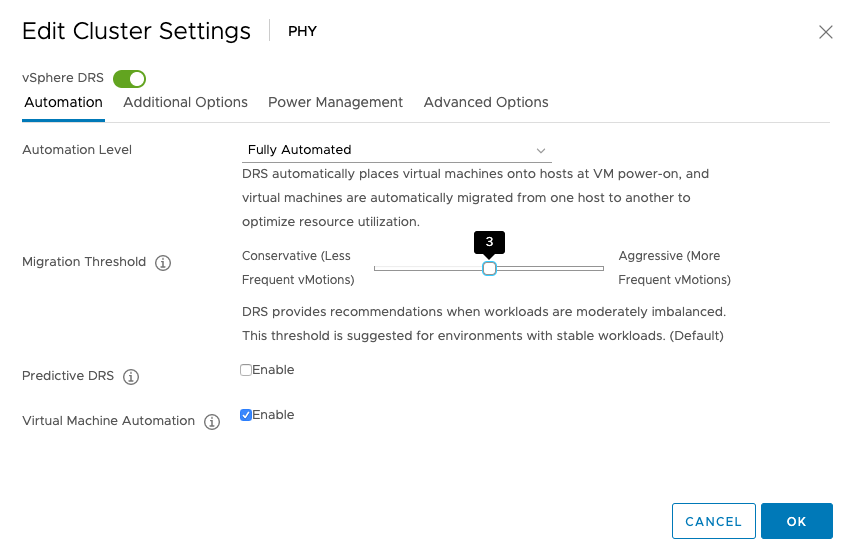
Other than greatly improving the text describing each migration threshold, the appearance and behavior of the Migration Threshold (MT) have not changed much in vSphere 7. By default, the slider is set to the moderate “3” setting. There are two more aggressive load-balance settings, 4, and 5. 5 Being the most aggressive. To the left of the default, there are two settings, 1 and 2. However, only setting 2 generates load-balancing recommendations. If you set the slider to 1, the most conservative option, DRS only produces migration recommendations that are considered mandatory.  Mandatory moves are generated for a few events, the three common reasons are when the host is placed into maintenance mode, when a proactive HA evacuation occurs, or when a VM violates an (anti-) affinity rule.  The remainder of the article describes the setting of the sliders by referring to the numbers.  

Selecting the Appropriate Migration Threshold Setting 

MT setting 2 is intended for a cluster with mostly stable workloads. Stable in the sense of workload variation, not failure rates ;). When workload generates a continuous workload, it makes less sense to move workload aggressively around. MT 3 is a healthy mix of stable and bursty workloads, while MT 4 and MT5 are designed to react to workloads spikes and bursts.


Headroom threshold 

To influence balancing moves, DRS uses a threshold that identifies a particular level of headroom (used capacity) within a host. To point out, this is not a strict admission control function.  

The threshold identifies a point where overall host utilization starts to introduce (some) performance loss to the associated workloads on the host. As the new DRS algorithm is designed to consider VM demand, it is focused on finding the best host possible. DRS compares the overall host utilization of each host and migrates VMs to help workloads have enough room to burst.  

By default, DRS starts to consider the host less efficient when the host load exceeds 50%. Once the threshold is surpassed, DRS examines possible migrations to help find workloads a more efficient host. Similar to the old algorithm, the cost of the migration needs to exceed the improvement of efficiency.  When you select a more aggressive migration threshold setting (MT4, MT5), the tolerance for host load is lowered to 30%. From that point on, DRS will take a particular level of inefficiency into account and starts to analyze other hosts to understand whether specific workloads will benefit from placement on another host.  Another way to put it is that DRS attempts to provide 70% headroom in this situation. As a result, you will notice more workload migrations when selecting MT4 or MT5.  

Demand Estimation 

To find an efficient host, DRS needs to understand the demand of the vSphere Pod or the VM. DRS uses a number of stats to get a proper understanding of the workload demand. These stats are provided by the ESXi hosts. DRS is designed to be conservative as it doesn’t want to move a virtual machine based on an isolated event. Taking care of a sudden increase in demand is the role of the ESXi host. When this becomes structural behavior, then it’s DRS task to find the right spot for this VM.  

Please note that a vSphere pod will not be migrated. Although DRS does not load-balance vSphere pods to get a better overall capacity usage, it will keep track of the vSphere Pods demand since it could affect the performance of other workloads (VMs and pods) running on the host. For more info about vSphere pods, please read the article “Initial Placement of a vSphere Pod“.

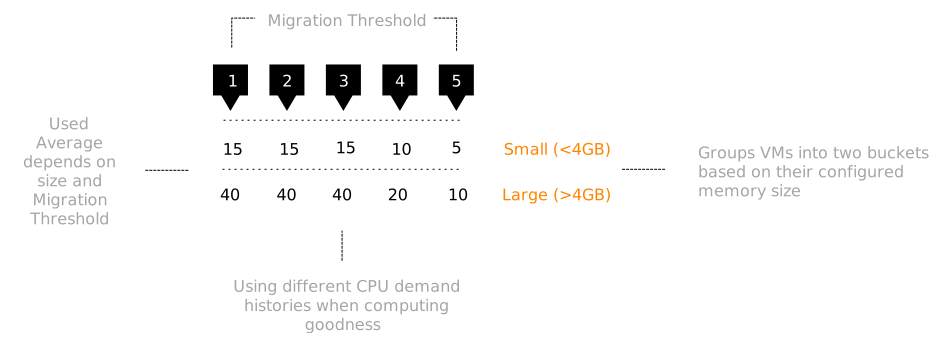
By default, DRS calculates an average demand of over 40 minutes for each workload. This period depends on the VM memory configuration and the migration threshold. We learned that DRS needs to use a shorter history for smaller VMs to better catch the behavior of vSphere pods or VMs with a smaller memory footprint. Below is an overview of the Migration Threshold settings and the number of minutes used to determine the demand for each workload. 

Cost-Benefit 

DRS needs to consider the state of the cluster, the workload demand of all the vSphere pods and the VMs, and it needs to ensure that whatever it does, does not interfere with the primary goal of the virtual infrastructure, and that is providing resources to workloads. Every move made consumes CPU resources. It absorbs bandwidth, and in some cases, can affect memory sharing benefits. DRS must weigh all the possibilities. With DRS in vSphere 7 that functionality is called cost-benefit filtering. Moving the migration threshold to the right reduces certain cost filtering aspects while relaxing some benefit requirements. This allows DRS to become more responsive to bursts.  As a result, you will notice more workload migrations when selecting MT4 or MT5.  

DRS Responsibility 

Please remember that vSphere consists of many layers of schedulers all working closely together. DRS is responsible for placement, finding the best host for that particular vSphere pod or VM. However, it is the responsibility of the actual ESXi host schedulers to ensure the workload gets scheduled on the physical resources. Consider DRS as the host or hostess of the restaurant, escorting you to a suitable table, while the ESXi schedulers are the cooks and the waiters.  

Individual workload behavior can change quite suddenly, or there is an abrupt change in resource availability. DRS needs to coordinate and balance all the workloads and their behavior in any possible scenario. The new DRS algorithm is completely redesigned, and I think it’s an incredible step forward.  

But a new algorithm, with new tweakable parameters, also means that we can expect different behavior. It’s expected that you will see more vMotions compared to the old algorithm, regardless of MT selection. A future article will explain the selection process of the algorithm. As always, it’s recommended to test the new software in a controlled environment. Get to understand its behavior and test out which migration threshold fits your workload best. 

Filed Under: DRS Tagged With: DRS, VMware, vSphere7

vSphere Supervisor Namespace

April 1, 2020 by frankdenneman

vSphere 7 with Kubernetes enables the vSphere cluster to run and manage containers as native constructs (vSphere Pods). The previous two articles in this series cover the initial placement of a vSphere pod and compute resource management of individual vSphere pods. This article covers the compute resource management aspect of the vSphere Supervisor namespace construct. Cormac Hogan will dive into the storage aspects of the Supervisor namespace in his (excellent) blog series.

Supervisor Cluster

A vSphere cluster turns into a Supervisor cluster once Kubernetes is enabled. Three control plane nodes are spun up and placed in the vSphere cluster, and the ESXi nodes within the cluster act as worker node (resource providers) for the Kubernetes cluster. A vSpherelet runs on each ESXi node to control and communicate with the vSphere pod. More information about the container runtime for ESXi is available in the article “Initial Placement of a vSphere pod.” 

Supervisor Namespace

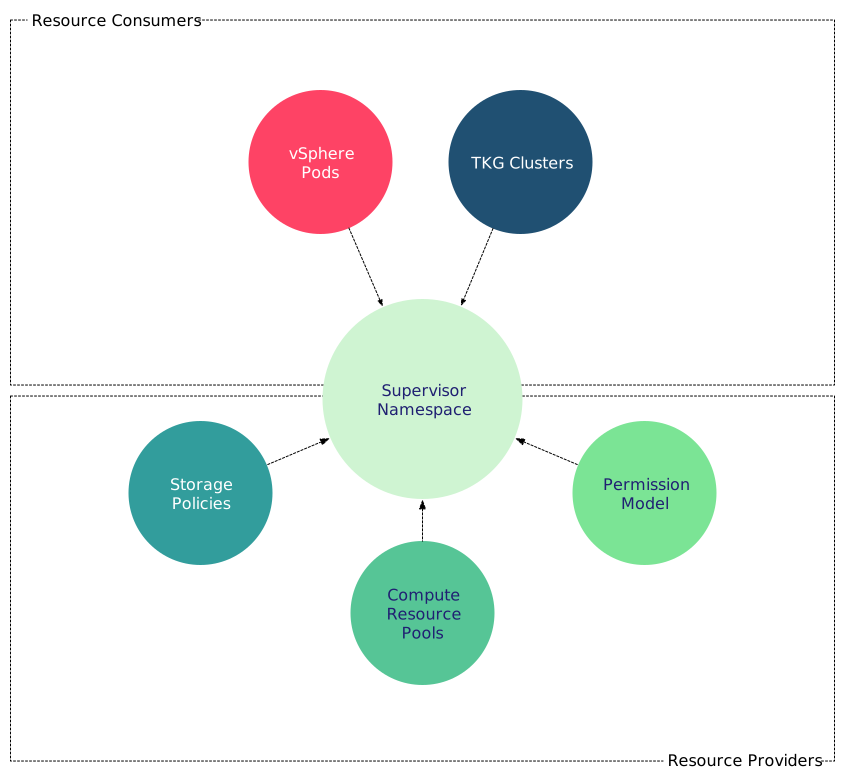
Once up and running, a Supervisor cluster is a contiguous range of compute resources. The chances are that you want to carve up the cluster into smaller pools of resources. Using namespaces turns the supervisor cluster into a multi-tenancy platform. Proper multi-tenancy requires a security model, and the namespace allows the vAdmin to control which users (developers) have access to that namespace. Storage policies that are connected to the namespace provide different types and classes for (persistent) storage for the workload.

Not only vSphere Pods can consume the resources exposed by a Supervisor namespace. Both vSphere pods and virtual machines can be placed inside the namespace. Typically the virtual machine placed inside the namespace could be running a Tanzu Kubernetes Grid Cluster (TKG). Still, you are entirely free to deploy any other virtual machine in a namespace as well. Namespaces allow you to manage application landscapes at a higher level. If you have an application that consists of virtual machines running a traditional setup and adding new services to this application that run in containers, you can group these constructs in a single namespace. Assign the appropriate storage and compute resources to the namespace and monitor the application as a whole. We want to move from managing hundreds or thousands of virtual machines individually to managing a small group of namespaces. (i.e., up-leveling workload management).

Default Namespace

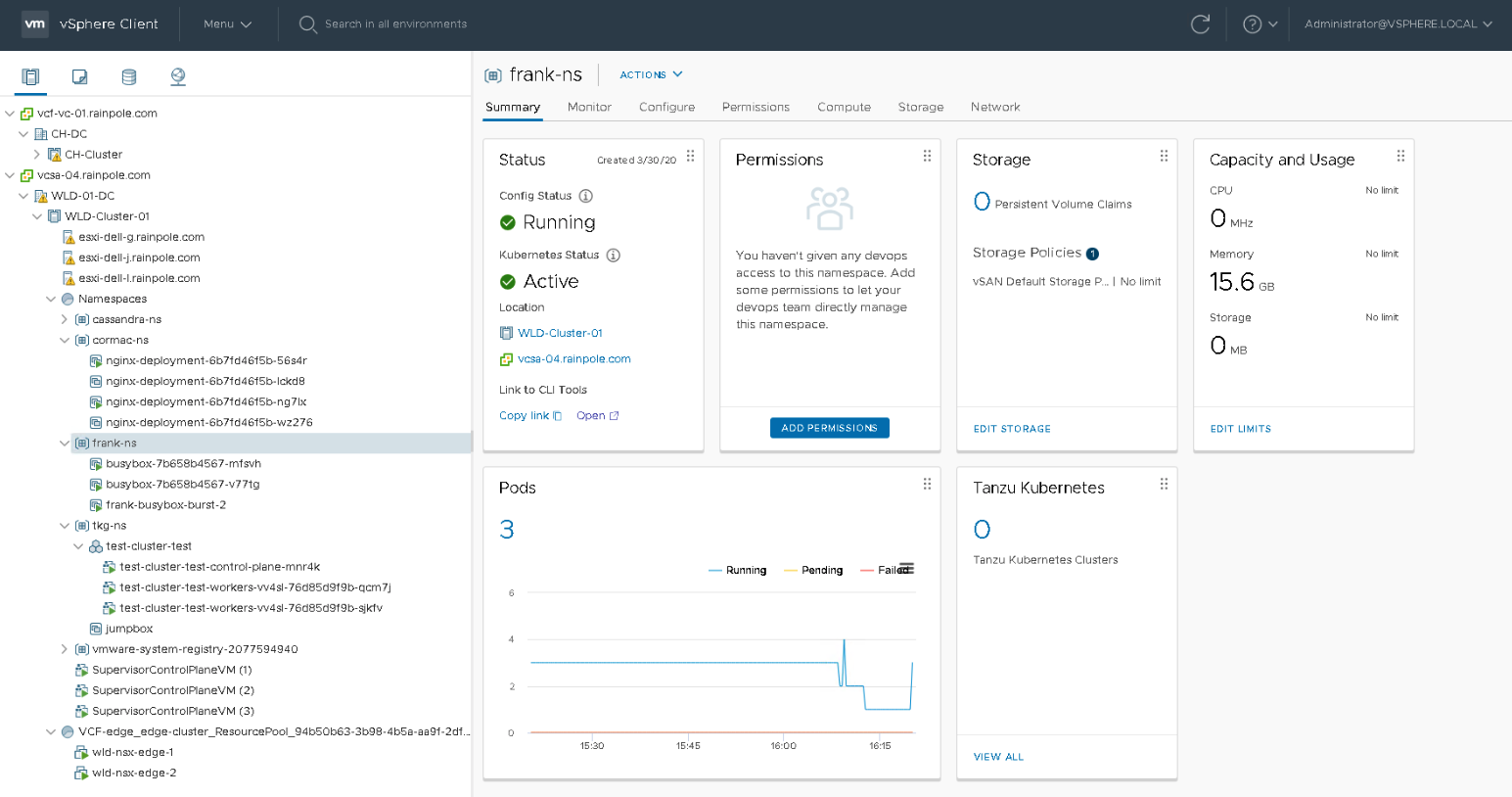
Compute resources are provided to the namespace by a vSphere DRS Resource Pool. This resource pool is not directly exposed, a vAdmin interfaces with the resource pool via the namespace UI. In the screenshot below, you can see a Workload Domain Cluster (WLD) with vSphere with Kubernetes enabled. Inside the Supervisor cluster, a top resource pool “Namespace” is created automatically, and the three Control Plane VMs of the Supervisor cluster are directly deployed in the Namespaces resource pool. (I will address this later). Cormac and I have created a couple of namespaces, and the namespace “frank-ns” is highlighted.

As you can see, this new construct is treated to a new icon. The summary page on the right side of the screen shows the status, the permission (not configured yet), the configured storage policy attached, and the capacity and usage of compute resources. The bottom part of the screen shows whether you have deployed pods or TKG clusters. In this example, three pods are currently running.

Compute Resource Management

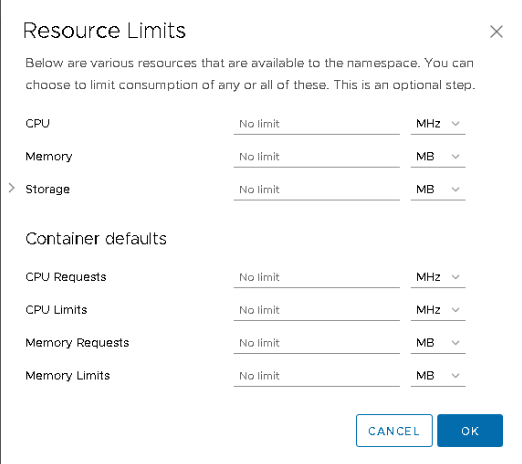
With a traditional Resource Pool, the vAdmin can set CPU and memory reservations, shares, and limits to guarantee and restrict the consumption of compute resources. A supervisor namespace does not expose the same settings. A namespace allows the vAdmin to set limits or requests (reservations) and limits on a per-container basis.

Limits

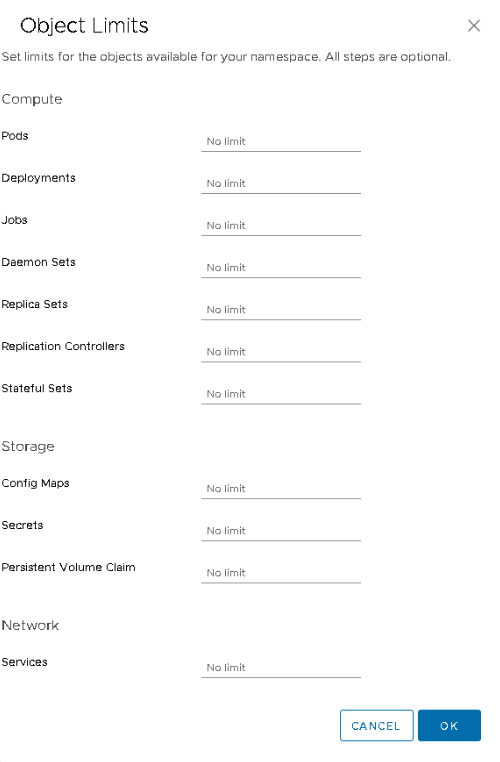
A vAdmin can set a limit on CPU or memory resources for the entire namespace. This way, the developer can deploy the workload in the namespace, and not risk consuming the full compute capacity of the supervisor cluster. Beyond the resource pool limits, a vAdmin can also set a per container default limit. The namespace will automatically apply a limit to each incoming workload, regardless of the resource configuration specified in the YAML file of the containerized workload. On top of this, the vAdmin can also specify object limits. A maximum number of pods can be specified for the namespace, ultimately limiting the total consumed resources by the workload constructs deployed in the namespace.

Reservations

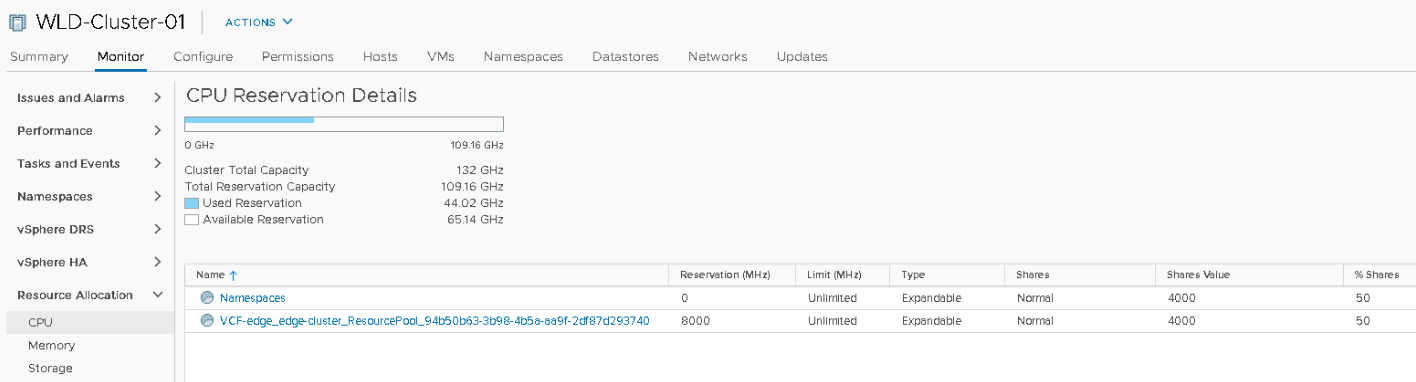
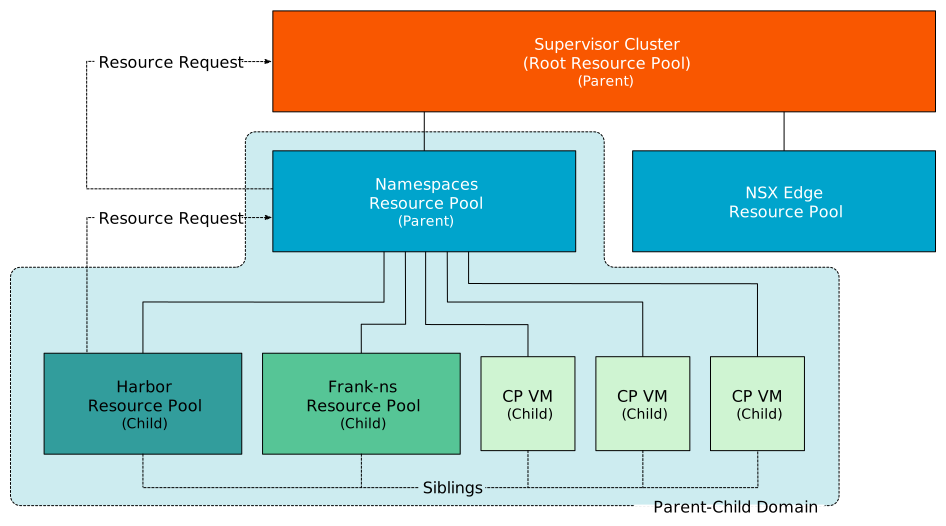
A Supervisor namespace does not provide the option to set a reservation at the namespace level. However, the resource pool is configured with an expandable reservation and that allows the resource pool to request for unreserved resources from its parent. These unreserved resources are necessary to satisfy the request for reservable resources for a workload. The resource pool “Namespaces” is the parent resource pool where all namespaces are deployed in. The resource pool “Namespaces” is not configured with reserved resources and as a result, it will request unreserved resources from its parent, which is the root resource pool, better known as the cluster object.

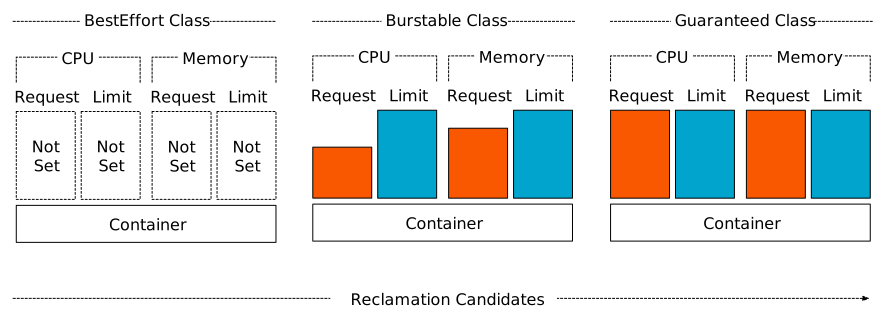
A reservation of resources is needed to protect a workload from contention. This can be done via two methods. A vAdmin can set a default reservation per container, or the resource requests must be specified in the resource configuration of the YAML file. If the vAdmin sets a default reservation per container, every container that is deployed in that namespace will be configured with that setting. The developer can specify a request or a limit for each container individually in the workload YAML file. Based on the combination of requests and limits used, Kubernetes automatically assigns a QoS class to the containers inside the pod. And based on Qos classes, reclamation occurs.  There are three Quality of Service (QoS) classes in Kubernetes, BestEffort, Burstable, and Guaranteed.

Both the Burstable and Guaranteed classes consist of a request configuration. With Burstable QoS class, the limit exceeds the number specified by the request. The Guaranteed QoS class requires that the limit and request are set to an identical value. That means that the relative priority of the namespace determines whether BestEffort or the part of the resources of the Burstable workload that is not protected by a request setting will get the resources they require during resource contention. The relative priority is specified by the level of shares assigned to the namespace.

Shares

DRS assigns shares to objects within the cluster to determine the relative priority when there is resource contention. The more shares you own, the higher priority you have on obtaining the resources you desire. It’s an incredibly dynamic (and elegant) method of catering to the needs of the active objects. A VM or resource pool can have all the shares in the world, but if that object is not pushing an active workload, these shares are not directly in play. Typically, to determine the value of shares awarded to an object, we use the worst-case scenario calculation. In such an exercise, we calculate the value of the shares, if each object is 100% active. I.e., the perfect storm. 

DRS assigns each object shares. DRS awards shares based on the configured resources of the object. The number of vCPUs and the amount of memory and then multiplying it with a number of shares. The priority level (low, normal, high) of the object determines the factor of shares. The priority levels have a 1:2:4 ratio. The normal priority is the default priority, and each vCPU gets 1000 CPU shares awarded. For every MB of memory, 10 shares are allocated. For instance, a VM with a 2 vCPU configuration, assigned the normal priority level, receives 2000 shares (2 vCPU x 1000). If the VM is configured with a high priority level, it will receive 4000 shares (2 vCPU x 2000). Although a resource pool cannot run workload by itself, DRS needs to assign shares to this construct to determine relative priority. As such, the internal definition of a resource pool for DRS equals that of a 4 vCPU, 16GB VM. As a result, a normal priority resource pool, regardless of the number of objects it contains, is awarded 4000 CPU shares and 163840 shares of memory.

A namespace is equipped with a resource pool configured with a normal priority level. Any object that is deployed inside the namespace receives a normal priority as well, and this cannot be changed. As described in the “Scheduling vSphere Pods” article, a container is a set of processes and does not contain any hardware-specific sizing configuration. It just lists the number of CPU cycles and the amount of memory it wants to have and that the upper limit of resource consumption should be. vSphere interprets the requests and limits as CPU and memory sizing for the vSphere pod (CRX), and DRS can assign shares based on that configuration. As more containers can be deployed inside a pod, a combination of limits and requests of the containers is used to assign virtual hardware to the vSphere Pod. 

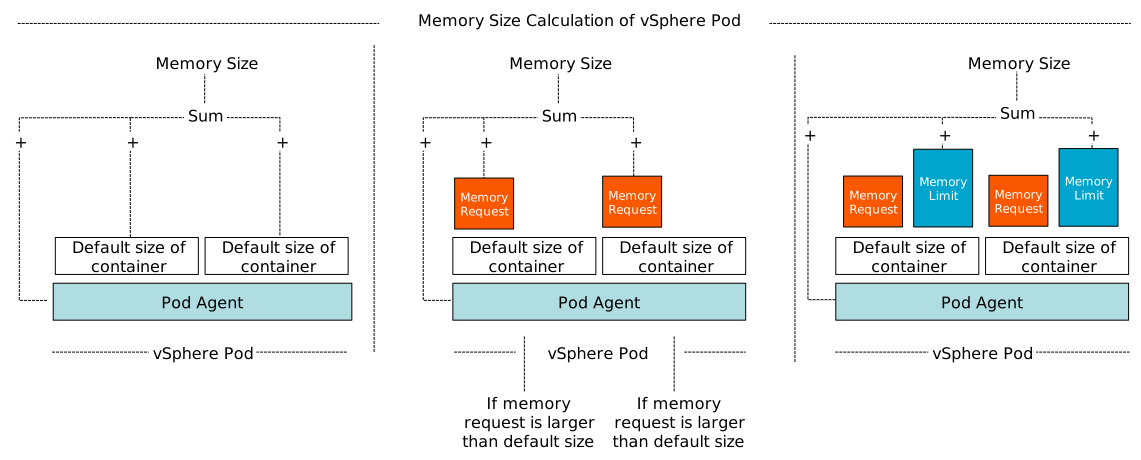
BestEffort workloads do not have any requests and limit set, and as such, a default sizing is used of 1 vCPU and 512MB. From a shares perspective, this means that a vSphere pod running a single container receives 1000 CPU shares and 5120 shares of memory. A Burstable QoS class has a request set or both a request and a limit. If either setting is larger than the default size, that metric is used to determine the size of the container (see image below). If the pod manifest contains multiple containers, the largest parameter of each container is added, and the result is used as a vSphere pod size. For example, a pod includes two containers, each with a request and limit that are greater than the default size of the container. The CPU limit exceeds the quantity of the CPU request. As a result, vSphere uses the sum of both CPU limits and adds a little padding for the components that are responsible for the pod lifecycle, pod configuration, and vSpherelet interaction. A similar calculation is done for memory.

Relative Priority During Sibling Rivalry

Why are these vSphere pod sizes so interesting? DRS in vSphere 7 is equipped with a new feature called Scalable shares and it uses the CPU and memory configurations of the child objects to correctly translate the relative priority of the resource pools with regards of its siblings. The resource pool is the parent of the objects deployed inside. That means that during resource contention, the resource pool will request resources from its parent, the “Namespaces” resource pool, and it will, in turn, request resources from its parent the root resource pool (Supervisor Cluster). At each level, other objects exist doing the same thing during a perfect storm. That means we have to deal with sibling rivalry. 

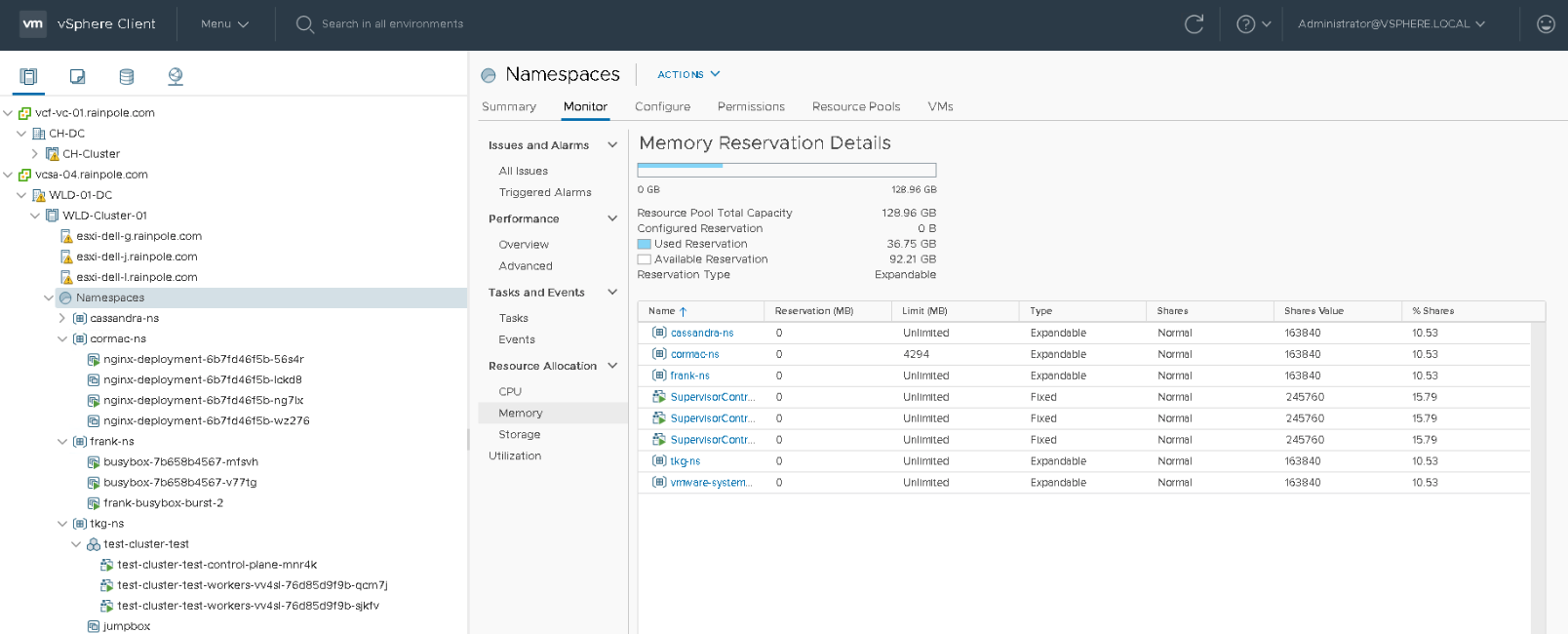
Within the “Namespaces” RP, a few objects are present. Two namespaces and three control plane VMs. A reservation protects none of the objects, and thus each object has to battle it out with their share value if they want some of the 126.14 GB. Each control plane VM is configured with 24 GBs, owning 245,760 shares. Both RPs own 163,840 of CPU shares. A total of 1,064,960 shares are issued within the “Namespaces” RP, as shown in the UI, each control plane owns 23.08% of the total shares, whereas both resource pools own 15.38%. In a worst-case scenario, that means that the “Namespaces” RP will divide the 126.14 GB between the five objects (siblings). Each control plane node is entitled to consume 23.08% of 126.14 GB = 29.11 GB. Since it cannot allocate more than its configured hardware, it will be able to consume up to 24GB (and its VM overhead) in this situation. The remaining 5 GB will flow back to the resource pool and will be distributed amongst the objects that require it. In this case, all three control planes consume 72 GB (3 x 24 GB), and the 54.14 GB will be distributed amongst the “frank-ns” namespace and “vmware-system-reg…” (which is the harbor) namespace.

The resource requirements of the objects within each namespace can quickly exceed the relative priority of the namespace amongst its siblings. And it is expected that more namespaces will be deployed, further diluting the relative priority amongst its siblings. This behavior is highlighted in the next screenshot. In the meantime, Cormac has been deploying new workloads. He created a namespace for his own vSphere pods. He deployed a TKG cluster and a Cassandra cluster. All deployed in their own namespace.

As you can see, my namespace “frank-ns” is experiencing relative priority dilution. The percentage of shares has been diluted from 15.38% to 10.53%. I can expect that my BestEffort and Burstable deployments will not get the same amount of resources they got before if resource contention occurs. The same applies to the control plane nodes. They are now entitled to 15.79% of the total amount of memory resources. That means that each control plane node can access 19.92 GB (15.79% of 126.14GB).

Design Decision

I would consider applying either a reservation on the control plane nodes or create a resource pool and set a reservation at the RP level. If a reservation is set at the VM object-level it has an impact on admission control and HA restart operations (Are there enough unreserved host resources left after one or multiple host failures in the cluster? 

Reserved Resources

The available amount of unreserved resources in the “Namespaces” RP are diluted when a Guaranteed or Burstable workload is deployed in one of the namespaces. The RPs backing the namespaces are configured as “Expandable” and therefore request these resources from their parent. If the parent has these resources available, it will provide them to the child resource and immediately mark it as reserved. The namespace will own these resources as long as the namespace exists. Once the Guaranteed or Burstable workload is destroyed, the reserved resources flow back to the parent. Reserved resources, when in use, cannot be allocated by other workloads based on their share value.

The interesting to note here is that in this situation, multiple Burstable workloads are deployed inside the namespaces. The Used Reservation of the “Namespaces” RP shows that 36.75GB of resources are reserved. Yet when looking at the table, none of the namespaces or VMs are confirming any reservation. That is because that column shows the reservation that is directly configured on the object itself. And no resource pool that backs a namespace will be configured directly with a reservation. Please note that it will not sum the vSphere pod or VM reservations that are running inside the RP!

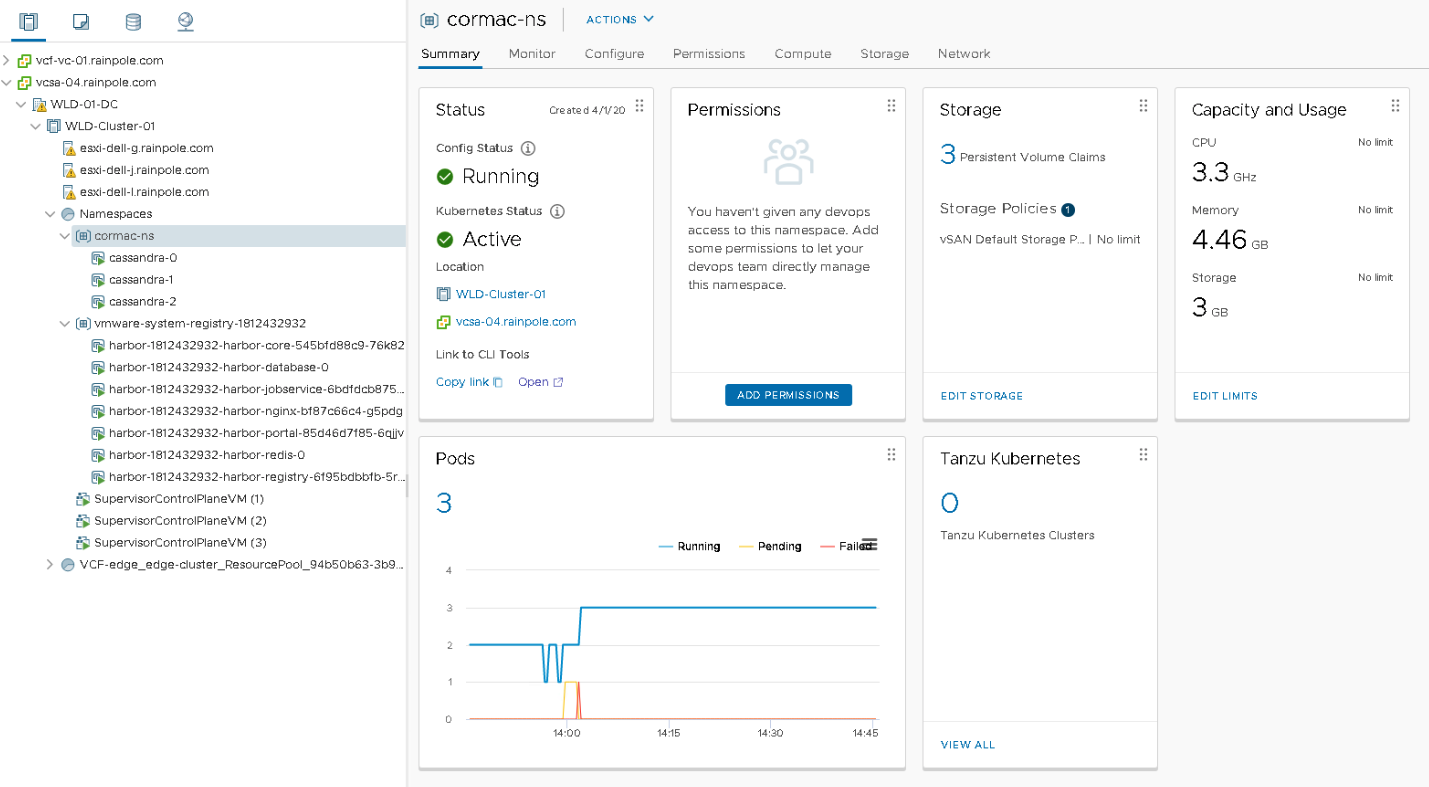
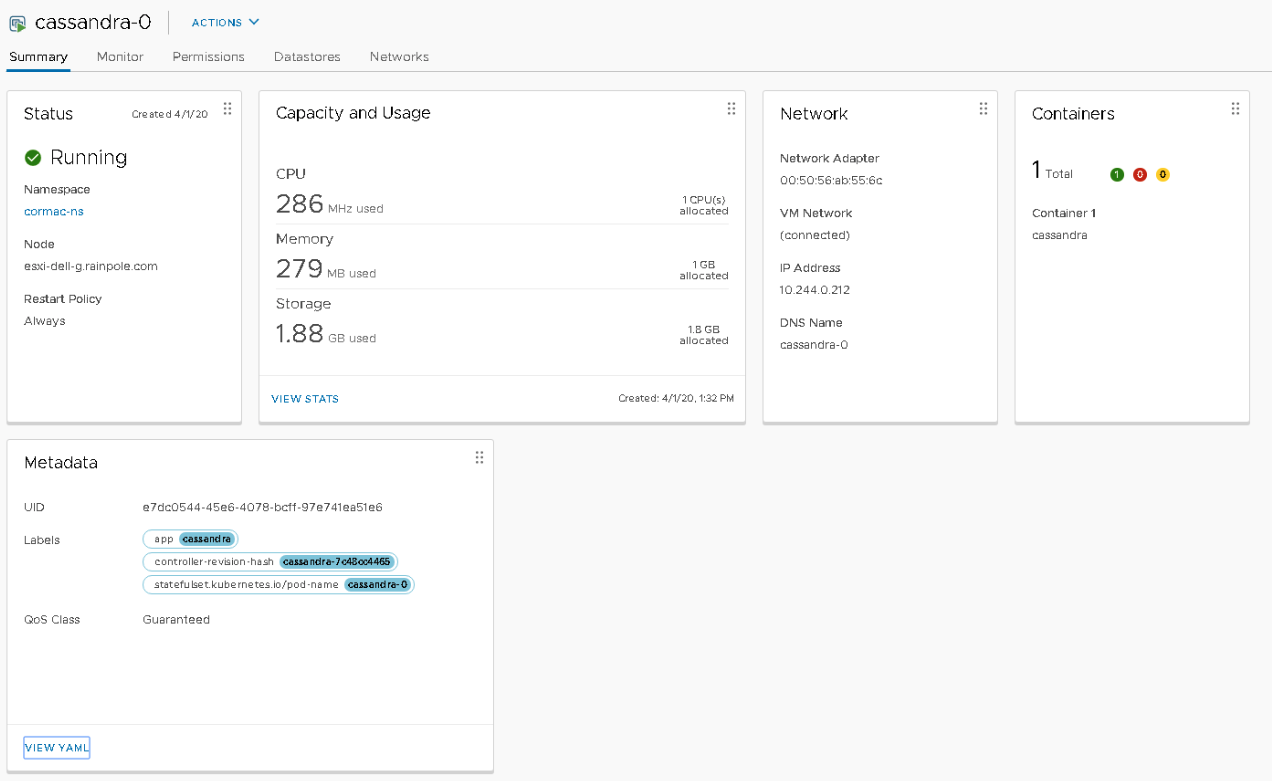
The summary view of the namespace shows the capacity and usage of the namespace. In this example, the summary page is shown of the “Cormac-ns”. It shows that the namespace is “consuming” 3.3 GHz and 4.46 GB. 

These numbers are a combination of reservation (request) and actually usage. This can be been seen when each individual pod is inspected. The summary page of the “cassandra-0” pod shows that 1 CPU is allocated and 1 GB is allocated, the pod consumes some memory and some CPU cycles. 

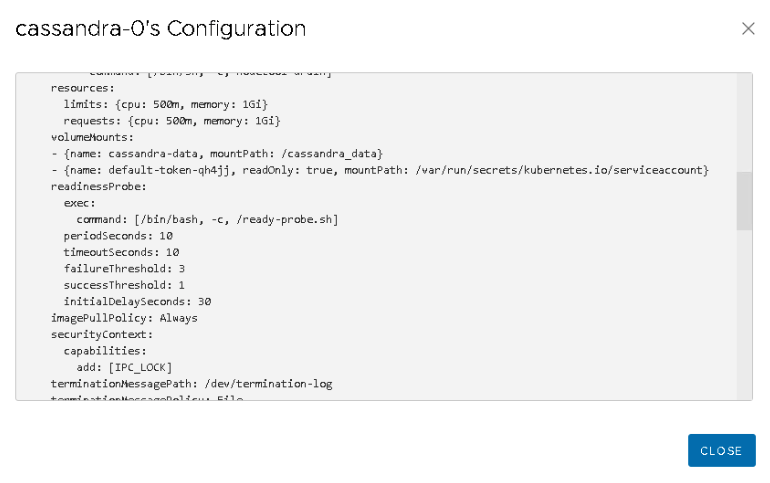
The metadata of the pod shows that this pod has a QoS class of Guaranteed. When viewing the YAML file, we can see that the request and limit of both CPU and Memory resources are identical. Interestingly enough, the CPU resource settings show 500m. The m stands for millicpu. A 1000 millicpu is equal to 1 vCPU, so this YAML file states that this container is fine with consuming half a core. However, vSphere does not have a configuration spec for a virtual CPU of half a core. vSphere can schedule per MHz, but this setting is used to define the CRX (vSphere pod) configuration. And therefore the vSphere pod is configured with the minimum of 1 vCPU and this is listed in the Capacity and Usage view.

Scalable Shares

The reason why this is interesting is that Scalable shares can calculate a new share value based on the number of vCPU of total memory configuration of all the objects inside the resource pool. How this new functionality behaves in an extensive resource pool structure is the topic of the next article.

Previous Articles in this Series

Initial Placement of a vSphere Pod

Scheduling vSphere Pods

Filed Under: VMware

Scheduling vSphere Pods

March 20, 2020 by frankdenneman

The previous article “Initial Placement of a vSphere Pod,” covered the internal construction of a vSphere Pod to show that it is a combination of a tailor-made VM construct and a group of containers. Both the Kubernetes and vSphere platforms contain a rich set of resource management controls, policies, and features that guide, control, or restrict scheduling of workloads. Both control planes use similar types of expressions, creating a (false) sense of unification in the context of managing a vSphere pod. This series of articles examines the overlap of the different control plane dialects, and how the new vSphere 7 platform allows the developer to use Kubernetes native expressions, while the vSphere Admin continues to use the familiar vSphere native resource management functionalities.

Workload Deployment Process

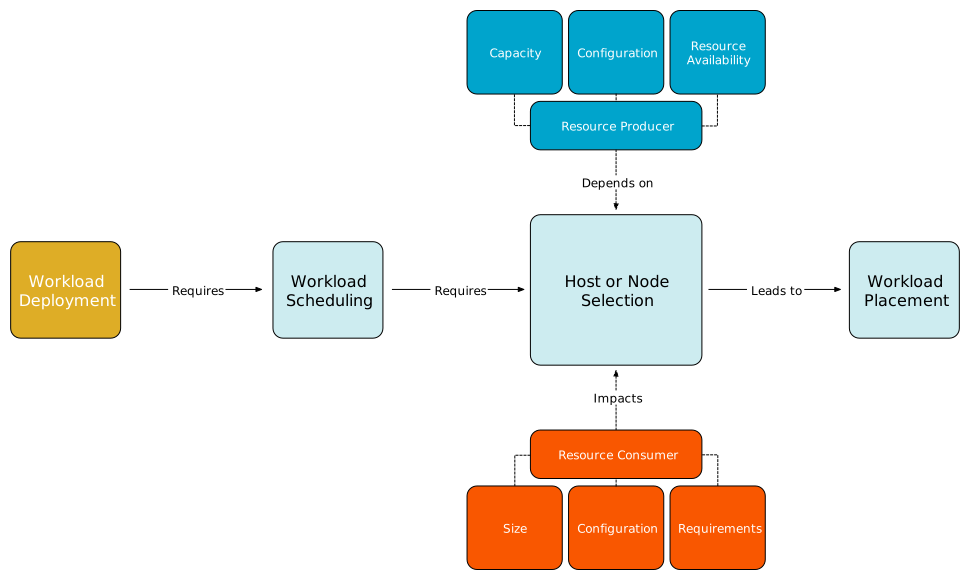
Both control planes implement a similar process to deploy a workload, the workload needs to be scheduled on a resource producer (worker node, or ESXi host), the control plane selects a resource producer based on the criteria presented by the resource consumer (pod manifest / VM configuration). The control plane verifies which resource producer is equipped with enough resource capacity, if there are enough resources available and if it meets the criteria listed in the pod manifest/VM configuration. An instruction is sent over to the workload producer to initiate a power-up process of the workload. 

The difference between the deployment processes of containers and virtual machines is the size aspect. A virtual machine is defined by its virtual hardware and this configuration acts as a boundary for the guest OS and its processes (hence the strong isolation aspect of a virtual machine). A container is a controlled process and uses an abstract OS to control the resource allocation, there is no direct hardware configuration assigned to a process. And this difference introduces a few interesting challenges when you want to run a container natively on a hypervisor. The hypervisor requires workload constructs to define their hardware configuration so it can schedule the workloads and manage resource allocation between active workloads. How do you size a construct that might provide you with absolutely no hints on expected resource usage? You can prescribe an arbitrary hardware configuration, but then you miss out on capturing the intent of the developer if he or she wants the application to be able to burst and temporarily use more resources than it structurally needs. You do not want to create a new resource management paradigm, where developers need to change their current methods of deploying workloads, you want to be able to accept new workloads with the least amount of manual effort. But having these control planes work together is not only a process of solving challenges, it provides the ability to enrich the user experience as well. This article explores the difference in resource scheduler behavior and how Kubernetes resource requests, limits, and QoS policies affect vSphere pod sizing. It starts off by introducing Kubernetes constructs and Kubernetes scheduling to provide enough background information to understand how it can impact vSphere pod sizing and eventually placement of a vSphere pod.

Managing Compute Resources for Containers

In Kubernetes, you can specify how much resources a container can consume (limits) and how many resources the worker node must allocate to a container (request). These are similar to vSphere VM reservations and limits. Similar to vSphere, Kubernetes selects a worker node (Kubernetes term for a host that runs workload), based on the request (reservation) of a container. In vSphere, the atomic unit to assign reservation, shares, and limits is the virtual machine, in Kubernetes, it’s the container. It sounds straight-forward, but there is a bit of a catch.

A container is deployed not directly onto a Kubernetes Worker Node, but it is encapsulated in a higher-level construct called a pod. In short, the reason why a pod exists is that it’s expected to run a single process in a container. If an app exists out of multiple processes, a group of containers should exist, and you do not want to manage a group of processes independently, but the app itself, hence the existence of a pod. What’s the catch? Although you deploy a pod, you have to specify the resource allocation settings per container and not per pod. But since a pod is an atomic unit for scheduling, the requests of all the containers inside the pod are summed, and the result is used for worker node selection. Once the pod is placed, the worker node resource scheduler has to take care of each container request and limits individually. But that is a topic for a future article. Let’s take a closer look at a pod manifest.

Container Size Thinking versus VM Size Thinking

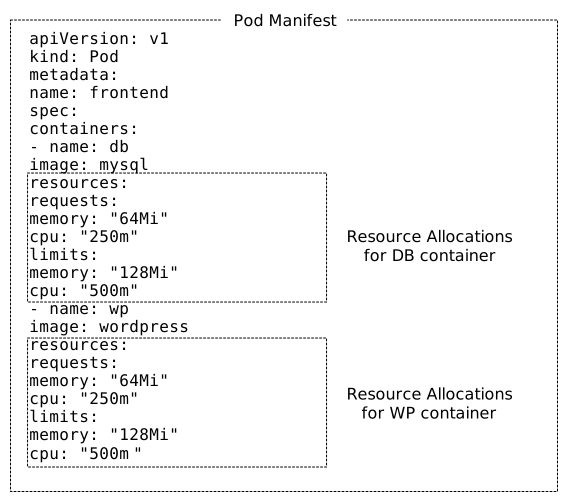
The pod manifest list two containers, each equipped with a request and a limit for both CPU and memory.  A CPU can be expressed in a few different ways. 1 equals to 1 CPU, which is the same as a hyperthread of an Intel processor. If that seems lavishly outlandish, you can actually use a smaller unit of expression by using millicpu or decimals. That means that 0.5 means half of a hyperthread or 500 millicpu. For a seasoned vSphere admin, you are now exploring the other end of the spectrum, instead of dealing with users who are demanding 64 Cores, we are now trying to split atoms here. With memory, you can express memory requirements in plain integers (126754378954) or fixed-point integers using suffixes 64MiB (226 bytes). Kubernetes.Io documentation can help you with which fixed-point integer exists. In this example, the pod request is 128 Mi of memory and 500m of CPU resources.

Kubernetes Scheduling

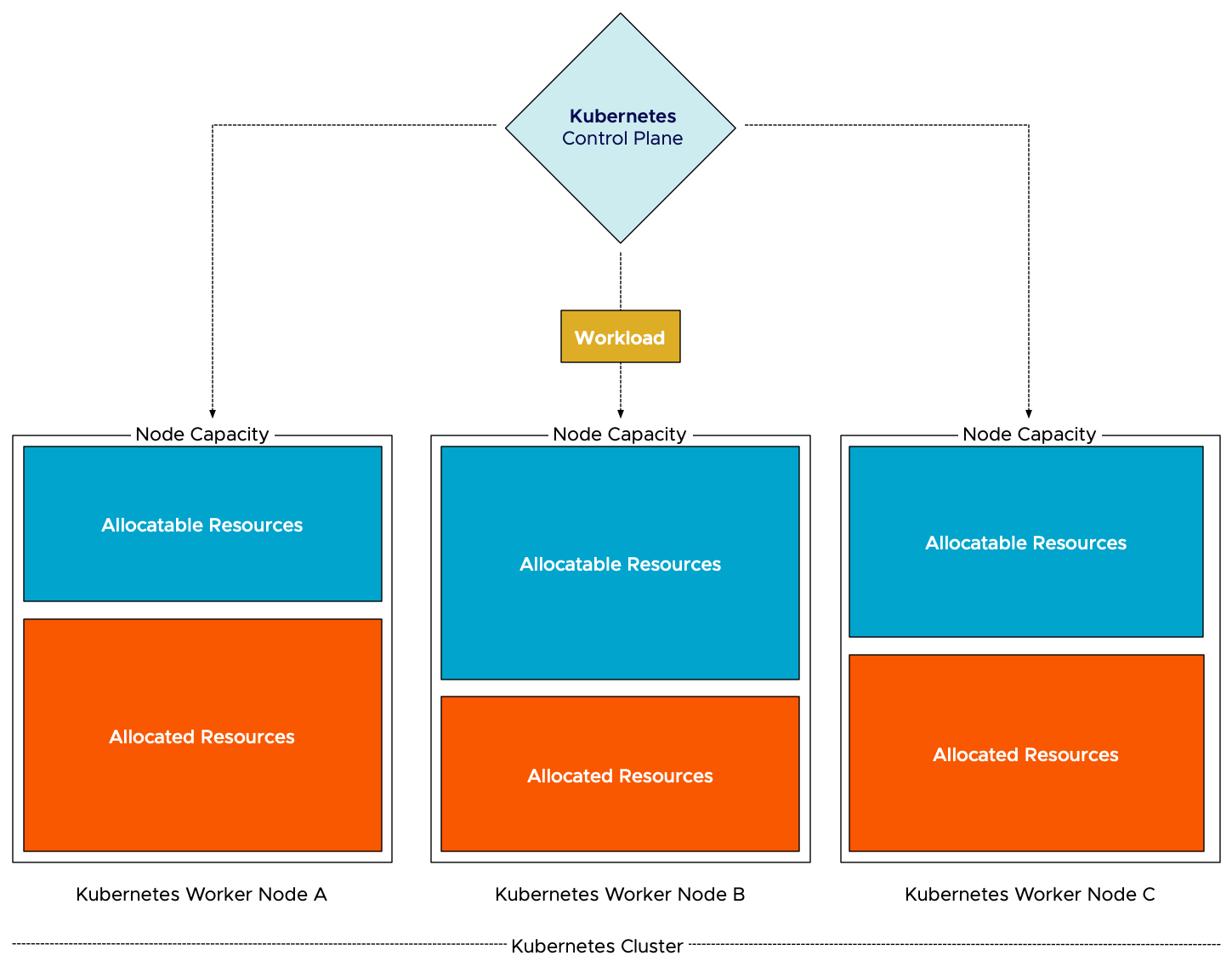
During the process of initial placement of the container, the scheduler needs to check the “compatibility” first. After the Kubernetes scheduler has considered the taints and tolerations, the pod affinity and anti-affinity, and the node affinity, it looks at the node capacity to understand if it can satisfy the pod requests (128Mi and 500m CPU). To be more precise, it inspects the “node allocatable.” This is the number of resources that is available for pods to consume. Kubernetes reserves some resources of the node to make sure system daemons and itself can run without risking resource starvation. The node allocatable resources are divided into two parts, allocated and unallocated. The total of allocated resources is the sum of all request configurations of all active containers on the worker node. As a result, Kubernetes matches the request stated in the pod manifest and the unallocated resources listed by each worker node in the cluster. The node with the most unallocated resources is selected to run the pod. To be clear, Kubernetes’ initial placement does not consider actual resource usage.

As depicted in the diagram, the workload needs to be scheduled. The Kubernetes control plane reviews the individual worker nodes, filters the nodes out which node can fit the pods, and then selects the node based on the configured prioritization function. The most used function is the “LeastRequestedPriority” option, which favors worker nodes with fewer requested resources. As node B has the least amount of reserved resources, the scheduler deems this node to be the best candidate to run the workload.

vSphere Scheduling

DRS has a more extensive resource scheduling model. The method used by Kubernetes is more or less in-line with the vSphere admission control model. Kubernetes scheduling contains more nuances and features than I just described in the paragraphs above. It checks if a node is reporting memory pressure, allowing it to exclude from the node selection list (CheckNodeMemoryPressure), and a priority functionality is in beta, but overall looking at reserved and unreserved memory can be considered to be a little bit coarse. vSphere has three admission controls that all work together to ensure continuity and resource availability.  DRS resource scheduling aligns the host resource availability, with the resource entitlement of the workload. Reservations, shares, limits, and actual resource usage of a workload is used to determine the appropriate host. Now you might want to argue that a workload that needs to be placed does not use any resources yet, so how does this work?

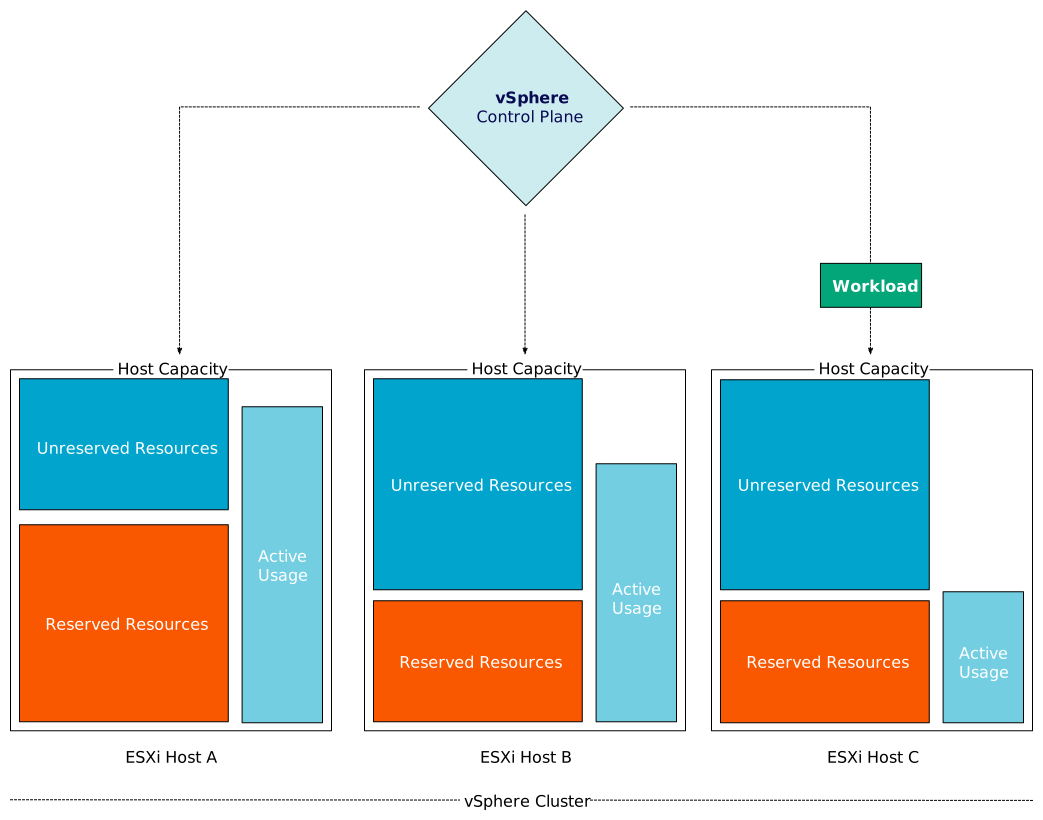
During initial placement, DRS considers the configured size as resource entitlement, in this case the resource entitlement is a worst-case scenario. So a VM with a hardware configuration of 4 vCPUs and 16 GB has a resource entitlement before power-up of 4 vCPUs and 16GB plus some overhead for running the VM (VM overhead). However, if a reservation is set of 8GB, then the resource entitlement is now switched to a minimum resource entitlement of 4 vCPU, 8GB+VM overhead. A host must have at least have 8GB(+VM overhead ) of unreserved resources available to be considered. How is this different from Kubernetes? Well, this part isn’t. The key is taking the future state of a workload into consideration. DRS understands the actual resource usage (and the entitlement) of all other active workloads running on the different hosts. And thus, it has an accurate view of the ability (and possibility) of the workload to perform on each host. Entitlement indicates the number of resources the workload has the right to consume; as such, it also functions as a form of prediction, an estimation on workload pressure. Would you rather place a new workload on a crowded host or on one that is less busy?

In this example, there are three hosts, each with 100 GB of memory capacity. Host A has workload active that has reserved 60 GBs of memory. 40 GB of memory is unreserved. Host B and host C have workload active that have reserved 40 GBs of memory. 60GBs of memory is unreserved. A new workload with a 35 GB reservation comes in. The Kubernetes scheduler would have considered both hosts to be equally good. However, DRS is aware of active use. Host B has an active resource consumption of 70 GB, while host C has an active use of 45 GBs. As host B resource usage is closer to its capacity, DRS selects host C as the destination host for initial placement.

Considering active resource usage of other active resource consumers, whether they are VM constructs or containers in vSphere pods, creates a platform that is more capable of satisfying intent. If a pod is configured with a burstable Quality of Service class (limit exceeds request), the developer declares the intent that the workload should be able to consume more resources if available. With initial placement enriched with active host resource usage, the probability of having that capability is highly increased. 

Managing Compute Resources for vSphere Pods

Seeing that a vSphere pod is a combination of containers and a VM construct, both control planes interact with the different components of the vSphere pod. But some of the qualities of the different constructs impact the other constructs’ behavior, for example, sizing. A VM is a construct defined by its hardware configuration. In essence, a VM is virtualized hardware, and the scheduler needs to understand the boundaries of the VM to place and schedule it properly. This configuration acts as a boundary of the world where the guest OS lives in. A guest OS cannot see beyond the borders of a VM, and therefore it acts and optimizes for the world it lives in. It has no concept of “outer-space”. A container is the opposite of this. A container is, contrary to its definition, not a rigid or a solid structure. It’s a group of processes that are contained by features to isolate or “contain” resource usage (control groups). Compare this to a process or an application on a Windows machine. When you start or configure an application, you are not defining how many CPUs or memory that particular app can consume. You hope it doesn’t behave like Galactus (better known as Google Chrome) and that it just won’t eat up all your resources. That means that a process in Windows can see all the resources the host (i.e., laptop or virtual machine) contains. The same applies to Linux containers. A container can see all the resources that are available to its host; the limit setting restricts it to consume above this boundary. And that means that if no limit is set, the container should be able to consume as much as the worker node can provide. I.e., in VM-sizing terms, the size of the container is equal to the size worker node. If this container was to run inside a vSphere pod, the vSphere pod should have the size of the ESXi host. Although we all love our monster-VMs, we shouldn’t be doing this. Especially when most expressions of container resource management borders on splitting atoms, and are not intended to introduce planet-sized container entities in the data center.

Kubernetes QoS Classes and the impact of vSphere Pod Sizing

A very interesting behavior of Kubernetes is the implicit definition of Quality of Service (QoS) classes due to combinations of limits and requests definition in the pod manifest. As seen in the introduction of this article, a pod manifest contains limits and requests definitions of each container. However, these specifications are entirely optional. Based on the combination used, Kubernetes automatically assigns a QoS class to the containers inside the pod. And based on Qos classes, reclamation occurs. A developer well versed in the Kubernetes dialect understands this behavior and configures the pod manifest accordingly. Let’s take a look at the three QoS classes to understand a developers’ intent better. 

Three Qos Classes exist BestEffort class, Burstable class, and Guaranteed class. If no requests and limits are set on all containers in the pod manifest, the BestEffort class is assigned to that pod. That means all containers in that pod can allocate as many resources as they want, but they are also the first containers to be evicted if resource pressure occurs. If all containers in the pod manifest contain both a memory and CPU requests and the request equals the limit, then Kubernetes assigns the Guaranteed QoS class to the Pod. Guaranteed pods are the last candidates to be hit if resource contention occurs. Every other thinkable combination of CPU and memory requests and limits ensures that Kubernetes assigns the Burstable class. It is important not to disrupt the expected behavior of resource allocation and reclamation and as a result, the requests and limits used in the pod manifest are used as guidance for vSphere Pod sizing while keeping the expected reclamation behavior of the various combinations. 

If there is no limit set on a container, how must vSphere interpret this when sizing the vSphere pod? To prevent host-sized vSphere pods, a default container size is introduced. It’s on a per-container basis. To be exact, if a simplest pod with one container and no request/limit settings is created, that vSphere Pod will get 1 vCPU and 512 MB. It actually gets 0.5 cores by default, but if there is only one container we will round the vCPU up to 1. Why not on a pod basis? Simply because of scalability reasons, the size of the Pod scales up with the number of BestEffort containers inside. If a request or a limit is set, that is larger than the default size, than this metric is used to determine the size of the container. If the pod manifest contains multiple containers, the largest metric of each container is added and the result is used as a vSphere pod size. For example, a pod contains two containers, each with a request and limit that are greater than the default size of the container. The CPU limit exceeds the size of the CPU request, as a result, vSphere uses the sum of both CPU limits, and adds a little padding for the components that are responsible for the pod lifecycle, pod configuration, and vSpherelet interaction. A similar calculation is done for memory.

Initial Placement of Containers Inside a vSphere Pod on vSphere with Kubernetes

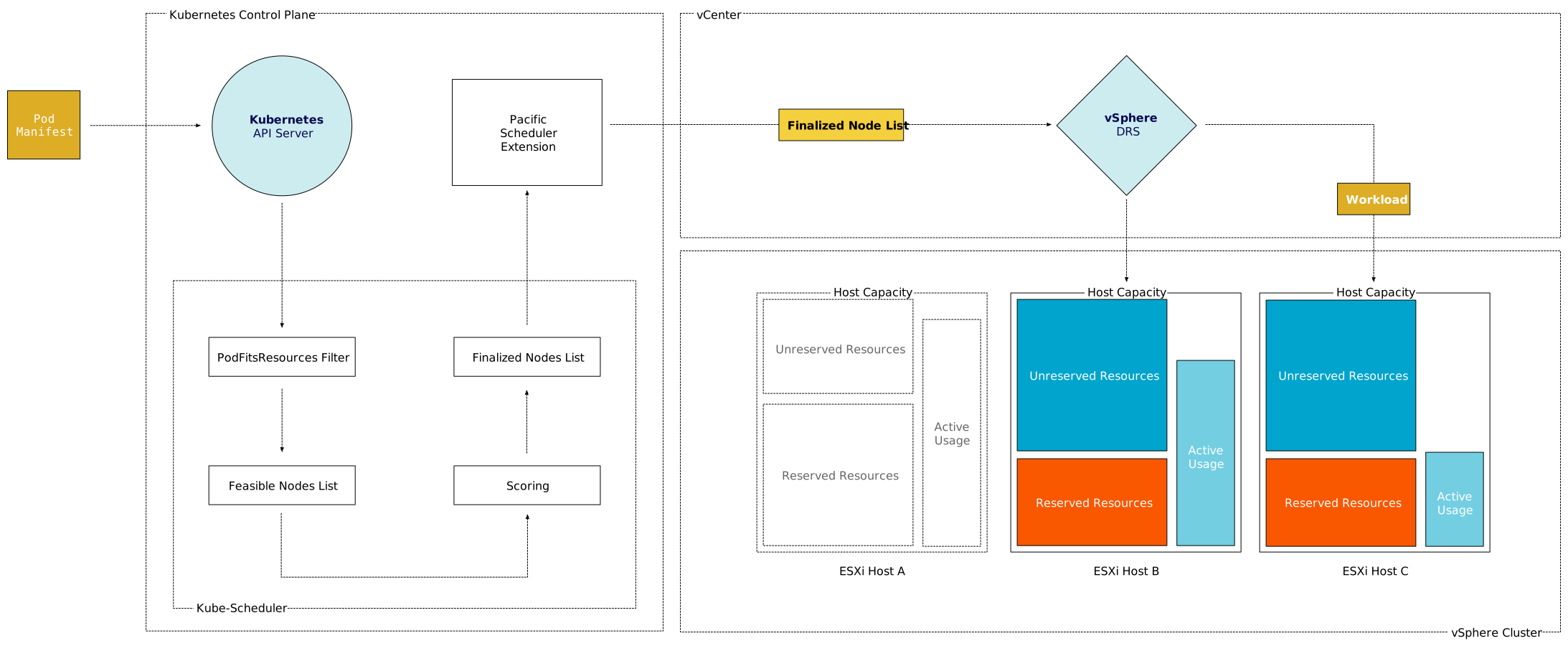
When a developer pushes a pod manifest to the Kubernetes control plane, the Kube-Scheduler is required to find an appropriate worker node. In the Kubernetes dialect, the worker-node that meets the resource allocation requirements of the pod is called a feasible node. In order to determine which nodes are feasible, Kube-Scheduler will filter the nodes that do not have enough unallocated resources that are required to satisfy the listed requests in the pod manifest. The second step in the process done by the Kube-Scheduler is to score each feasible node in the list based on additional requirements, such as affinity and labels. The ranked list is sent over to the Pacific Scheduler Extension which in turn sends it over to the vSphere API server, who forwards it to the vSphere DRS service. DRS determines which host aligns best with the resource requirements and is the most suitable candidate to ensure that the vSphere pod reaches the highest happiness score (getting the resources the vSphere pod is entitled to). The vSphere Pod LifeCycle Controller ensures that the Spherelet on the selected host creates the pod and injects the Photon Linux Kernel into the vSphere pod. The Spherelet starts the container. (See Initial Placement of a vSphere Pod for a more detailed diagram of the creation process of a vSphere Pod).

Please note that if the developer specifies a limit that exceeds the host capabilities than the configuration is created, however, the vSphere pod fails to deploy.

Resource Reclamation

In addition to sizing the vSphere pod, vSphere uses the resources requests listed in the pod manifest to apply vSphere resource allocation settings to guarantee the requested resources are available. There can be a gap between the set reservation and the size of the vSphere pod. Similar to VM behavior, these resources are available as long as there is no resource contention. When resource contention occurs, the reclamation of resources is initiated. In the case of a vSphere pod, vSphere broad spectrum of consolidation techniques are used, but when it comes to the eviction of a pod, vSphere lets Kubernetes do the dirty work. In all seriousness, this is due to internal Kubernetes event management and a more granular view of resource usage.

Namespaces

In Kubernetes, a higher-level construct is available to guide and control its member pods, this construct is called the namespace. vSphere 7 with Kubernetes provides a similar construct at the vSphere level, the supervisor namespace. A vSphere resource pool is used to manage the compute resources of the supervisor namespace. The namespace can be configured with an optional limit range that defines a default request or limit on containers, influencing vSphere pod sizes and reclamation behavior. The supervisor namespaces is a vast topic and therefore more info about Namespace will appear in the next article in this series.

Previous articles in this series

Part 1: Initial Placement of a vSphere Pod

Filed Under: VMware

  • « Go to Previous Page
  • Page 1
  • Interim pages omitted …
  • Page 11
  • Page 12
  • Page 13
  • Page 14
  • Page 15
  • Interim pages omitted …
  • Page 89
  • Go to Next Page »

Copyright © 2026 · SquareOne Theme on Genesis Framework · WordPress · Log in