Sometimes something comes along that makes you feel you need to get involved with. Something that makes you want to leave the comfortable position you have now and take up the challenge of starting all over again. Help turn that something into something big. Well that something is in my case PernixData and its Flash Virtualization Platform.
Joining PernixData means I’m leaving the great company of VMware and an awful lot of great colleague behind. Some of them I consider to be good friends. During my years at VMware I learned a lot and words cannot describe how awesome those years were. Designing the vCloud environment for the European launching partner, consulting a lot of the Fortune 500 firms, participating in VCDX panels around the world and co-authoring three books are some of the highlights during my time at VMware but I’m sure I’m forgetting a lot of other great moments. Being a part of the technical marketing team was amazing! Besides working alongside the best bloggers in the world I had the privilege to work with the engineers on a daily basis. Having a job that allows you to think, talk and write about technology you absolutely love is great and difficult to let go.
But opportunities do come along and as I mentioned in the beginning some of these opportunities spark the desire to become a part of that story. When I attended a technical preview of the Flash Virtualization Platform at PernixData I got excited. I think just as excited as when I saw my first vMotion. Meeting the founders and the team made me realize that this company and product was more than just a single product, this platform is a game changer in the world of virtual infrastructure and datacenter design. Which drove me to the decision to accept a position with PernixData as Technology Evangelist.
As the Technology Evangelist I’m responsible for helping the virtualization community understand PernixData’s Flash Virtualization Platform (FVP). And as the first international employee I also will be focusing on expanding the European organization.
I will be starting at PernixData soon, can’t wait to start
vSphere 5.1 update 1 release fixes Storage vMotion rename "bug"
vSphere 5.1 update 1 is released today which contains several updates and bug fixes for both ESXi and vCenter Server 5.1.
This release contains the return of the much requested functionality of renaming VM files by using Storage vMotion. Renaming a virtual machine within vCenter did not automatically rename the files, but in previous versions Storage vMotion renamed the files and folder to match the virtual machine name. A nice trick to keep the file structure aligned with the vCenter inventory. However engineers considered it a bug and “fixed” the problem. Duncan and I pushed hard for this fix, but the strong voice of the community lead (thanks for all who submitted a feature request) helped the engineers and product managers understand that this bug was actually considered to be a very useful feature. The engineers introduced the “bugfix” in 5.0 update 2 end of last year and now the fix is included in this update for vSphere 5.1
Here’s the details of the bugfix:
vSphere 5 Storage vMotion is unable to rename virtual machine files on completing migration
In vCenter Server , when you rename a virtual machine in the vSphere Client, the VMDK disks are not renamed following a successful Storage vMotion task. When you perform a Storage vMotion task for the virtual machine to have its folder and associated files renamed to match the new name, the virtual machine folder name changes, but the virtual machine file names do not change.
This issue is resolved in this release. To enable this renaming feature, you need to configure the advanced settings in vCenter Server and set the value of the provisioning.relocate.enableRename parameter to true.
Read the rest of the vCenter 5.1 update 1release notes and ESXi 5.1 update 1 release notes to discover other bugfixes
Awesome read: Storage Performance And Testing Best Practices
The last couple of days I’ve been reading up on EMC VPLEX technology as I’m testing VPLEX metro with SIOC and Storage DRS. Yesterday I discovered a technical paper called “EMC VPLEX: Elements Of Performance And Testing Best Practices Defined” and I think this paper should be read by anyone who is interested in testing storage or even wanting to understand the difference between workloads. Even if you do not plan to use EMC VPLEX the paper delivers some great insights about IOPS versus MB/s. What to expect when testing for transactional-based workloads and throughput-based workload? Here’s a little snippet:
“Let’s begin our discussion of VPLEX performance by considering performance in general terms. What is good performance anyway? Performance can be considered to be a measure of the amount of work that is being accomplished in a specific time period. Storage resource performance is frequently quoted in terms of IOPS (IO per second) and/or throughput (MB/s). While IOPS and throughput are both measures of performance, they are not synonymous and are actually inversely related – meaning if you want high IOPS, you typically get low MB/s. This is driven in large part by the size of the IO buffers used by each storage product and the time it takes to load and unload each of them. This produces a relationship between IOPS and throughput as shown in Figure 1 below.”
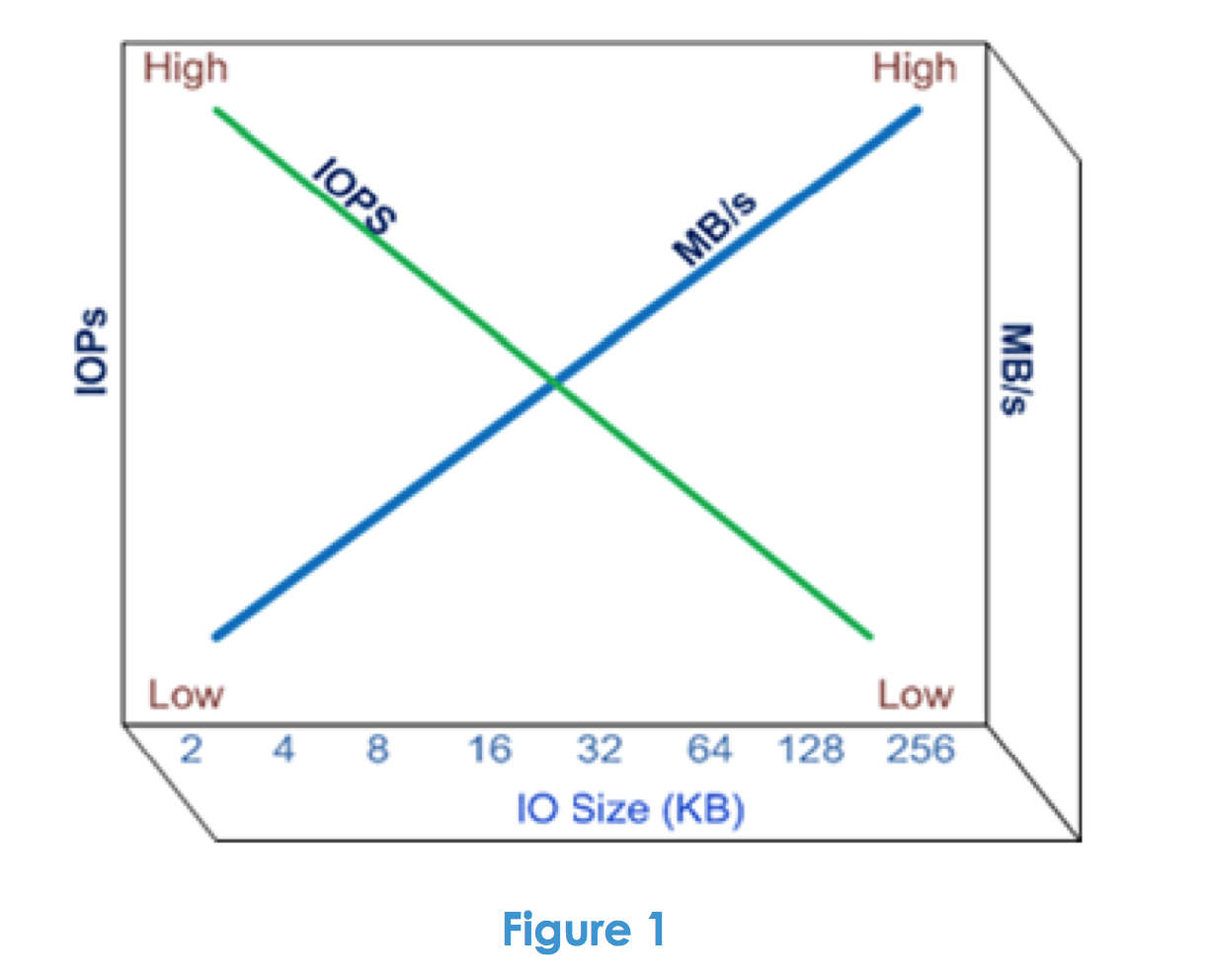
Although it’s primarily focused on VPLEX, the paper helps you understand the different layers of a storage solution and how each layer affects performance. Another useful section is the overview of good benchmark software which describes the basic operation of each listed benchmark program. The paper is very well written and I bet even a joy to read for both the beginner as well as the the most hardened storage geek.
Download the paper here.
Migrating VMs between DRS clusters in an elastic vDC
In the article “Migrating datastore clusters by changing storage profiles in a vCloud“ I closed with the remark that vCD is not providing an option to migrate virtual machines between compute clusters that are part of an elastic vDC. Fortunately my statement was not correct. Tomas Fojta pointed out that vCD does provide this functionality. Unfortunately this feature is not exposed in the vCloud organization portal but in the system portal of the vCloud infrastructure itself. In other words, to be able to use this functionality you need to have system administrator privileges.
In the previous article, I created the scenario where you want to move virtual machines between two sites. Site 1 contains compute cluster “vCloud-Cluster1” and datastore cluster “ DSC-Site-1”. Site 2 contains “vCloud-Cluster2” and datastore cluster “DSC-Site-2” . By changing the VM storage profile from Site-1 to Site-2, we have vCD instruct vSphere to storage vMotion the virtual machine disk files from one datastore cluster to another. Now at this point we need to migrate the compute state of the virtual machine.
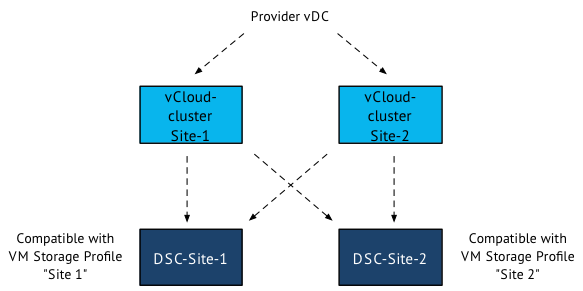
Migrate virtual machine between clusters
Please note that vCD refers to clusters as resource pools. To migrate the virtual machine between clusters, log into the vCloud director and select the system tab. Go to the vSphere resources and select Resource Pools menu option.
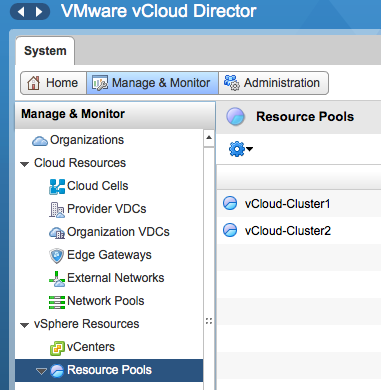
The UI displays the clusters that are a part of the Provide vDC. Select the cluster a.k.a. resource pool in which the virtual machine resides. Select the virtual machine to migrate, right click the virtual machine to have vCD display the submenu and select the option “Migrate to…”
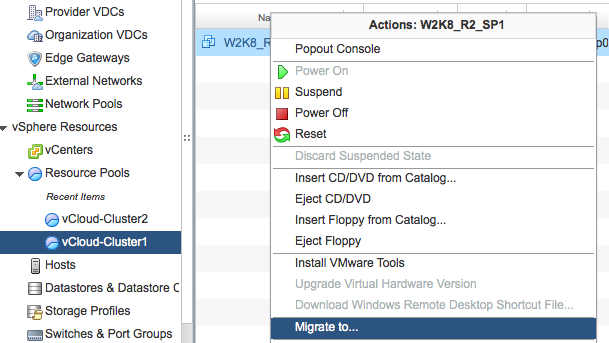
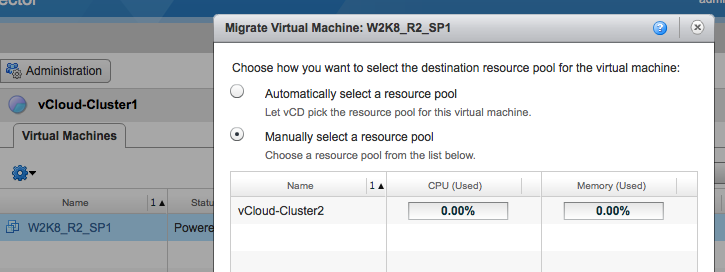
The user interface allows you to choose how you want to select the destination resource pool for the virtual machine: Either automatic and let vCD select the resource pool for you, or select the appropriate resource pool manually. When selecting automatic vCD selects the cluster with the most unreserved resources available. If the virtual machine happens to be in the cluster with the most unreserved resources available vCD might not move the virtual machine. In this case we want to place the virtual machine in site 2 so that means we need to select the appropriate cluster. We select vCloud-Cluster2 and click on OK to start the migration process.
vCD instructs vSphere to migrate the virtual machine between clusters with the use of vMotion. In order to use vMotion, both clusters need to have access to the datastore on which the virtual machine files reside. vCD does not use “enhanced’ vMotion where it can live migrate between host without being connected shared storage. Hopefully we see this enhancement in the future. When we log into vSphere we can verify if the life migration of the virtual machine was completed.
Select the destination cluster, in this case that would be vCloud-Cluster2, go to menu option Monitor, select tasks and click on the entry “Migrate virtual machine”
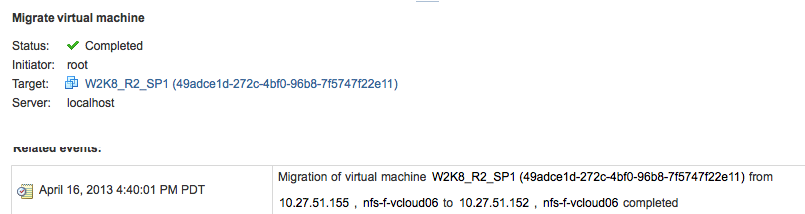
In the lower part of the screen, you get more detailed information of the Migrate-virtua-machine entry. As you can seem the virtual machine W2K8_RS_SP1 is migrated between servers 10.27.51.155 and 10.27.51.152. As we do not change anything to the storage configuration, the virtual machine files remains untouched and stay on the same datastore.
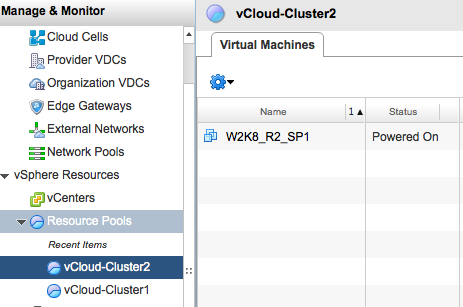
To determine if vCD has updated the current location of the virtual machine, log into vCD again, go to the menu option “Resource Pools” and select the cluster chosen as destination as the previously org cluster.
3 common questions about DRS preferential VM-Host affinity rules
On a regular basis I receive questions about the behavior of DRS when dealing with preferential VM to Host affinity rules. The rules configured with the rule set “should run on / should not run on” are considered preferential. Meaning that DRS prefers to satisfy the requirements of the rules, but is somewhat flexible to run a VM outside the designated hosts. It is this flexibility that raises questions; lets see how “loosely” DRS can operate within the terms of conditions of a preferential rule:
Question 1: If the cluster is imbalanced does DRS migrate the virtual machines out of the DRS host group?
DRS only considers migrating the virtual machines to hosts external to the DRS host group if each host inside the group is 100% utilized. And if the hosts are 100% utilized, then DRS will consider virtual machines that are not part of a VM-Host affinity rule first. DRS will always avoid violating an affinity rule
Question 2: When a virtual machine is powered on, will DRS start the virtual machine on a host external to the DRS host group?
By default DRS will start the virtual machine on hosts listed in the associated Host DRS group. If all hosts are 100% utilized – or – if they do not meet the virtual machine hardware requirements such as datastore or network connectivity, then DRS will start the virtual machine on a host external to the Host DRS group.
Question 3: If a virtual machine is running on a host external to the associated host DRS group, shall DRS try to migrate the virtual machine to a host listed in the DRS host group?
The first action DRS triggers during an invocation is to determine if an affinity rules is violated. If a virtual machine is running on a host external to the associated Host DRS group then DRS will try to correct this violation. This move will have the highest priority ensuring that this move is carried out during this invocation.