While searching for a diagram I stumbled upon an old diagram I made in 2007. I think this diagram started my whole obsession with diagrams and to add “cleanness” to my diagrams.

This diagram depicts a virtual infrastructure located in two datacenters with replication between them. This infrastructure is no longer in use, but to make absolutely sure, I changed the device names into generic text labels such as ESX host, array, SW switch, etc. Back then I really liked to draw Isometric style. Now I’m more focused onto block diagrams and trying to minimalize the number of components in a diagram. In essence I follow the words from Colin Chapman: Simplify, then add lightness. But then applied to diagrams 🙂
The fact that this diagram is still stored on my system tells me that I’m still very proud of this diagram. So that made me wonder, which diagram did you design and are you proud of?
Get notification of these blogs postings and more DRS and Storage DRS information by following me on Twitter: @frankdenneman
Cloudphysics VM Reservation & Limits card – a closer look
The VM Reservation and Limits card was released yesterday. CloudPhysics decided to create this card based on the popularity of this topic in the contest. So what does this card do? Let’s have a closer look.
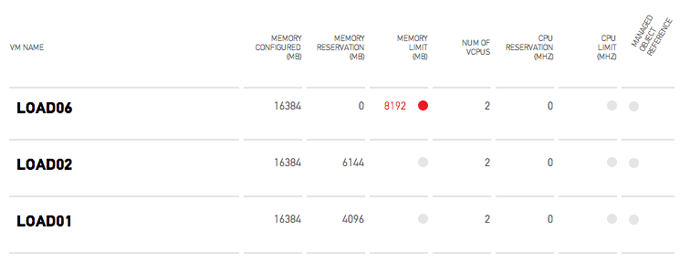
This card provides you an easy overview of all the virtual machines configured with any reservation or limits for CPU and memory. Reservations are a great tool to guarantee the virtual machine continuous access to physical resources. When running business critical applications reservations could provide a constant performance baseline that helps you meet your SLA. However reservations can impact your environment as the VM reservations impacts the resource availability of other virtual machines in your virtual infrastructure. It can lower your consolidation ratio: The Admission Control Family and it can even impact other vSphere features such as vSphere High Availability. The CloudPhysics HA Simulation card can help you understand the impact of reservations on HA.
Besides reservations virtual machine limits are displayed. A limit restricts the use of physical access of the virtual machine. A limit could be helpful to test the application during various level of resource availability. However virtual machine limits are not visible to the Guest OS, therefor it cannot scale and size its own memory management (or even worse the application memory management) to reflect the availability of physical memory. For more information about memory limits, please read this post by Duncan: Memory limits. As the VMkernel is forced to provide alternative memory resources limits can lead to the increased use of VM swap files. This can lead to performance problems of the application but can also impact other virtual machines and subsystems used in the virtual infrastructure. The following article zooms into one of the many problems when relying on swap files: Impact of host local VM swap on HA and DRS.
Color indicators
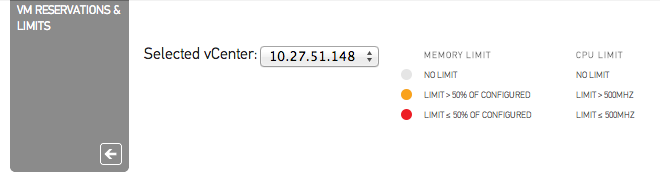
As virtual machine level limits can impact the performance of the entire virtual infrastructure, the CloudPhysics engineers decided to add an additional indicator to help you easily detect limits. When a virtual machine is configured with a memory limit still greater than 50% of its configured size an Amber dot is displayed next to the configured limit size. If the limit is smaller or equal to 50% of its configured size than a red dot is displayed next to the limit size. Similar for CPU limits, an amber dot is displayed when the limit of a virtual machine is set but is more than 500MHz, a red dot indicates that the virtual machine is configured with a CPU limit of 500MHz or less.
For example: Virtual Machine Load06 is configured with 16GB of memory. A limit is set to 8GB (8192MB), this limit is equal to 50% of the configured size. Therefore the VM reservation and Limits card displays the configured limit in red and presents an additional red dot.

Flow of information
The indicators are also a natural divider between the memory resource controls and the CPU controls. As memory resource control impacts the virtual infrastructure more than the CPU resource controls, the card displays the memory resource controls at the left side of the screen.
We are very interested in hearing feedback about this card, please leave a comment.
Get notification of these blogs postings and more DRS and Storage DRS information by following me on Twitter: @frankdenneman
Cloudphysics VM Reservation & Limits card – a closer look
The VM Reservation and Limits card was released yesterday. CloudPhysics decided to create this card based on the popularity of this topic in the contest. So what does this card do? Let’s have a closer look.
This card provides you an easy overview of all the virtual machines configured with any reservation or limits for CPU and memory. Reservations are a great tool to guarantee the virtual machine continuous access to physical resources. When running business critical applications reservations could provide a constant performance baseline that helps you meet your SLA. However reservations can impact your environment as the VM reservations impacts the resource availability of other virtual machines in your virtual infrastructure. It can lower your consolidation ratio: The Admission Control Family and it can even impact other vSphere features such as vSphere High Availability. The CloudPhysics HA Simulation card can help you understand the impact of reservations on HA.
Besides reservations virtual machine limits are displayed. A limit restricts the use of physical access of the virtual machine. A limit could be helpful to test the application during various level of resource availability. However virtual machine limits are not visible to the Guest OS, therefor it cannot scale and size its own memory management (or even worse the application memory management) to reflect the availability of physical memory. For more information about memory limits, please read this post by Duncan: Memory limits. As the VMkernel is forced to provide alternative memory resources limits can lead to the increased use of VM swap files. This can lead to performance problems of the application but can also impact other virtual machines and subsystems used in the virtual infrastructure. The following article zooms into one of the many problems when relying on swap files: Impact of host local VM swap on HA and DRS.
Color indicators
As virtual machine level limits can impact the performance of the entire virtual infrastructure, the CloudPhysics engineers decided to add an additional indicator to help you easily detect limits. When a virtual machine is configured with a memory limit still greater than 50% of its configured size an Amber dot is displayed next to the configured limit size. If the limit is smaller or equal to 50% of its configured size than a red dot is displayed next to the limit size. Similar for CPU limits, an amber dot is displayed when the limit of a virtual machine is set but is more than 500MHz, a red dot indicates that the virtual machine is configured with a CPU limit of 500MHz or less.
For example: Virtual Machine Load06 is configured with 16GB of memory. A limit is set to 8GB (8192MB), this limit is equal to 50% of the configured size. Therefore the VM reservation and Limits card displays the configured limit in red and presents an additional red dot.
Flow of information
The indicators are also a natural divider between the memory resource controls and the CPU controls. As memory resource control impacts the virtual infrastructure more than the CPU resource controls, the card displays the memory resource controls at the left side of the screen.
We are very interested in hearing feedback about this card, please leave a comment.
Get notification of these blogs postings and more DRS and Storage DRS information by following me on Twitter: @frankdenneman
Changing your vCenter logging level using the webclient
In order to monitor some load behavior I needed to increase the logging level of the vCenter server. The logging level still is included in the vCenter Server Settings, however it takes a few more clicks to get the Statistics option compared to the old vSphere client.
1. In the home screen click on vCenter.
2. click on the vCenter Servers link in the Inventory list.
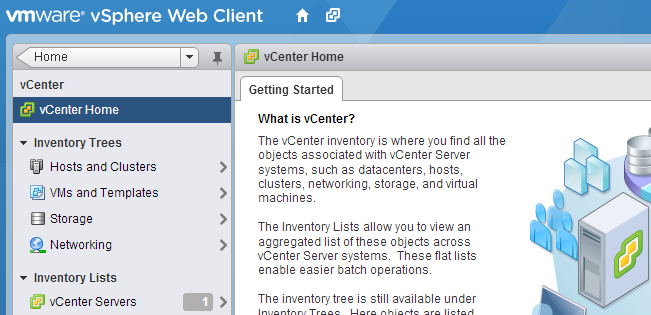
3. Select the vCenter (probably Localhost).
4. Select the Manage tab in the right-pane.
5. Select Setting.
6. Click on the Edit button located on the far end right side of the screen.
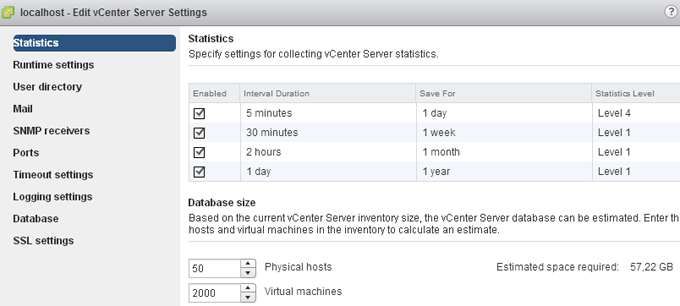
7. Change the appropriate Statistic setting.
Get notification of these blogs postings and more DRS and Storage DRS information by following me on Twitter: @frankdenneman
Storage DRS automation level and initial placement behavior
Recently I was asked why Storage DRS was missing a “Partially Automated mode”. Storage DRS has two automation levels, no automation (Manual Mode) and Fully Automated mode. When comparing this with DRS, we notice that Storage DRS is missing a “Partially Automated mode”. But in reality the modes of Storage DRS cannot be compared to DRS at all. This article explains the difference in behavior.
DRS automation modes:
There are three cluster automation levels:
Manual automation level:
When a virtual machine is configured with the manual automation level, DRS generate both initial placement and load balancing migration recommendations, however the user needs to manual approve these recommendations.
Partially automation level:
DRS automatically places a virtual machine with a partially automation level, however it will generate a migration recommendation which requires manual approval.
Fully automated level:
DRS automatically places a virtual machine on a host and vCenter automatically applies migration recommendation generated by DRS
Storage DRS automation modes:
There are two datastore cluster automation levels:
No Automation (Manual mode):
Storage DRS will make migration recommendations for virtual machine storage, but will not perform automatic migrations.
Fully Automated:
Storage DRS will make migration recommendations for virtual machine storage, vCenter automatically confirms migration recommendations.
No automatic Initial placement in Storage DRS
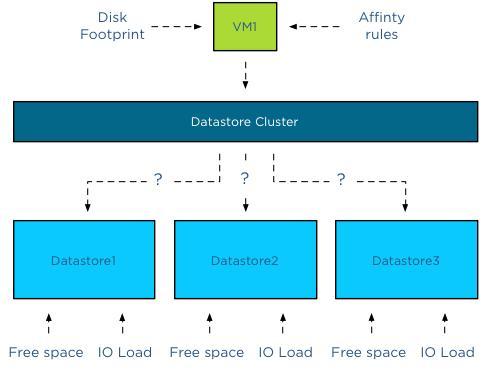
Storage DRS does not provide placement recommendations for vCenter to automatically apply. (Remember that DRS and Storage DRS only generate recommendations, it is vCenter that actually approves these recommendations if set to Automatic). The automation level only applies to migration recommendation of exisiting virtual machines inside the datastore cluster. However, Storage DRS does analyze the current state of the datastore cluster and generates initial placement recommendations based on space utilization and I/O load of the datastore and disk footprint and affinity rule set of the virtual machine.
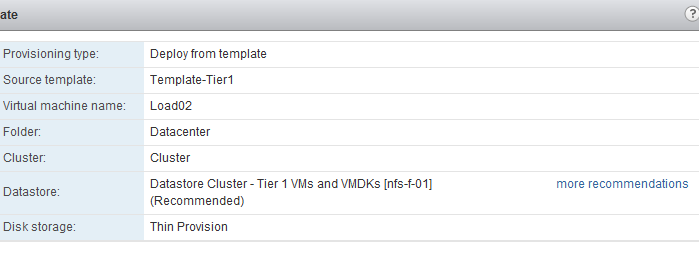
When provisioning a virtual machine, the summary screen provided in the user interface displays a datastore recommendation.
When clicking on the “more recommendations” less optimal recommendations are displayed.
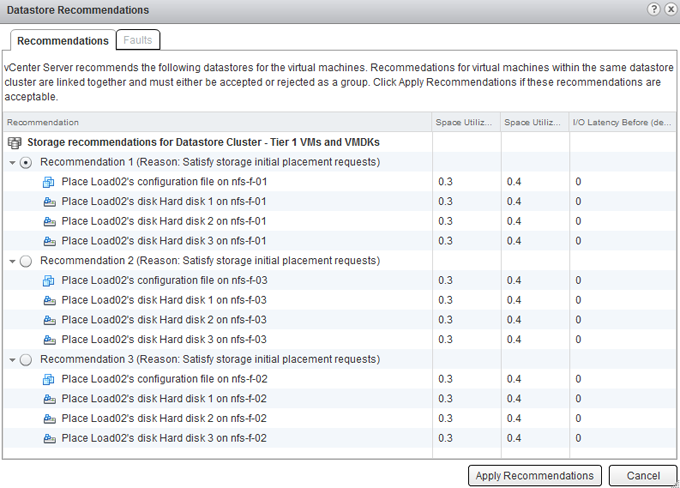
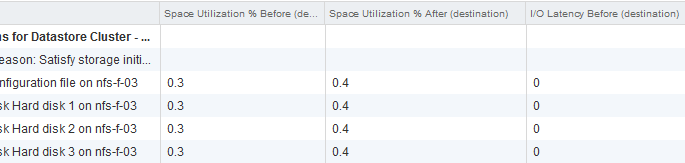
This screen provides information about the Space Utilization % before placement, the Space Utilization % after the virtual machine is placed and the measured I/O Latency before placement. Please note that even when I/O load balancing is disabled, Storage DRS uses overall vCenter I/O statistics to determine the best placement for the virtual machine. In this case the I/O Latency metric is a secondary metric, which means that Storage DRS applies weighing to the space utilization and overall I/O latency. It will satisfy space utilization first before selecting a datastore with an overall lower I/O latency.
Adding new hard-disks to a existing VM in a datastore cluster
As vCenter does not apply initial placement recommendations automatically, adding new disks to an existing virtual machine will also generate an initial placement recommendation. The placement of the disk is determined by the default affinity cluster rule. The datastore recommendation depicted below shows that the new hard disk is placed on datastore nfs-f-01, why? Because it needs to satisfy storage initial placement requests and in this case this means satisfying the datastore cluster default affinity rule.
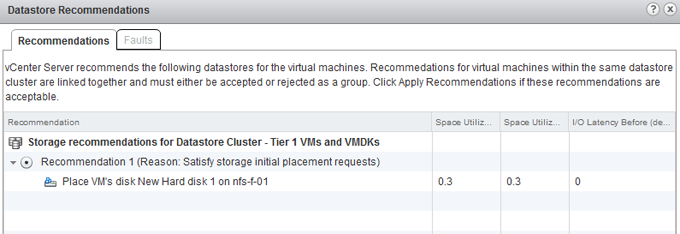
If the datastore cluster were configured with a VMDK anti-affinity rule, the datastore recommendation would show any other datastore except datastore nfs-f-01.
Get notification of these blogs postings and more DRS and Storage DRS information by following me on Twitter: @frankdenneman