Today the technical paper “VMware vCloud Director Resource Allocation Models” has been made available for download on VMware.com.
This whitepaper covers the allocation models used by vCloud Director 1.5 and how they interact with the vSphere layer. This paper helps you correlate the vCloud allocation model settings with the vSphere resource allocation settings. For example what happens on the vSphere layer when I set a guarantee on an Org VDC configured with the Allocation Pool Model. It provides insight on the distribution of resources on both the vCloud layer and vSphere layer and illustrates the impact of various allocation model settings on vSphere admission control. The paper contains a full chapter about allocation model in practice and demonstrates the effect of using various combinations of allocation models within a single provider vDC.
Please note that this paper is based on vCloud Director 1.5
http://www.vmware.com/resources/techresources/10325
VM Storage Profiles and Storage DRS – Part 2 – Distributed VMs
Mentioned in part-1 of the Storage DRS and VM Storage Profiles series, Storage DRS expects “storage characteristics –alike” datastores inside a single datastore cluster. But what if you have multiple tiers of storage and you want to span the virtual machine across them? Storage profiles can assist in deploying the VMs across multiple datastore clusters safely and inline with your SLAs.
Storage DRS Datastore architecture
When you have multiple tiers of storage, its recommended to create multiple datastore clusters and each datastore cluster contains disks from a single tier. Let’s assume you have three different kinds of disks in your array: SSD, FC 15K and SATA.
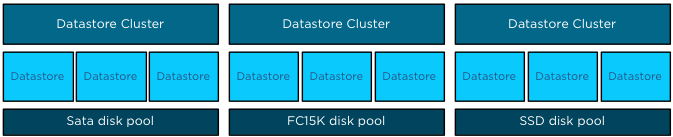
Datastores backed by disk out a single pool are aggregated into a single datastore, resulting in three datastore clusters. Having multiple datastore clusters can increase the complexity of the provisioning process, using VM storage profiles ensures you that virtual machines or disk files are placed in the correct datastore cluster.
Assign storage capabilities to datastores
All datastores within a single datastore cluster are associated with the same storage capability.
| Storage Capability | Associated with datastores in Datastore cluster: |
| SSD – Low latency disks (Tier 1 VMs and VMDKs) | Datastore Cluster Tier 1 VMs and VMDKs |
| FC 15K – Fast disks (Tier 2 VMs and VMDKs) | Datastore Cluster Tier 2 VMs and VMDKs |
| SATA – High Capacity Disks (Tier 3 VMs and VMDKs) | Datastore Cluster Tier 3 VMs and VMDKs |
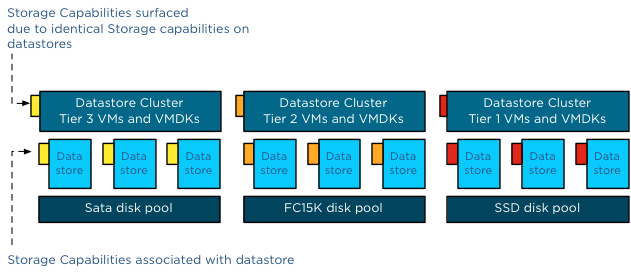
Please note that all datastores must be configured with the same storage capability. If one datastore is not associated with a storage capability or has a different storage capability than its sibling datastores, the datastore cluster will not surface a storage capability.
One virtual machine – different levels of service required
Generally faster disk have higher cost per gigabyte and have a lower maximum capacity per drive, this usually drives various design decisions and operational procedures. Typically Tier 1 applications and data caching mechanisms end up in on the fastest storage disk pools.
Most virtual machines are configured with multiple hard disks. A system disk containing the Operating System and one or more disks containing log files and data. The footprint of the virtual machine is made up out of a working directory and its VMDK files. When reviewing the requirements of the virtual machine, it is common that only the VMDKs containing the log files and the databases require low latency disks while the system disk can be placed in a lower tier storage pool. And this is the reason why you can assign multiple different VM storage profiles to a virtual machine.
Multiple VM storage Profiles
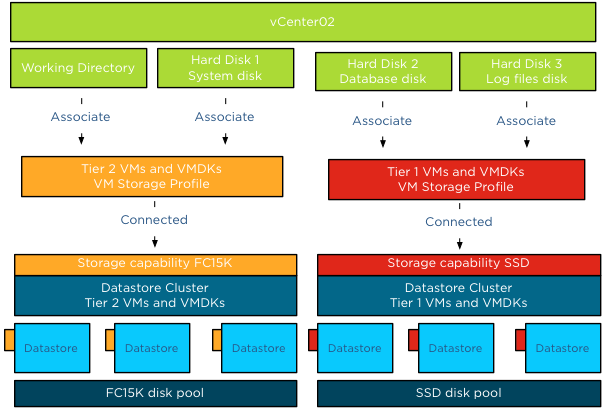
Let’s use an example; in this scenario we are going to deploy the virtual machine vCenter02. The virtual machine is configured with three disks, Hard disk 1 contains the OS, Hard disk 2 contains the database and Hard disk 3 contains the log files.
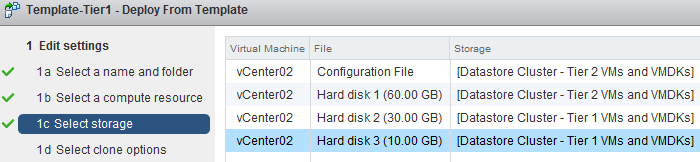
We associated the VM with two VM Storage Profiles. To avoid wasting precious low latency disk space in the Tier 1 datastore cluster, we are going to associate the VMs working directory (containing the VM swap file) and the 60GB system disk are to the Tier 2VM storage profile, which is connected to Tier 2 Storage capability.
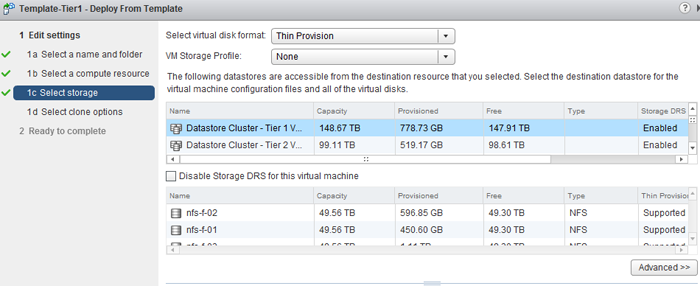
When selecting storage during the deployment process, click on the button advanced.
To associate a VM storage profile to a Hard disk or the working directory, called Configuration file in this screen, double click the item in the storage column and select browse.
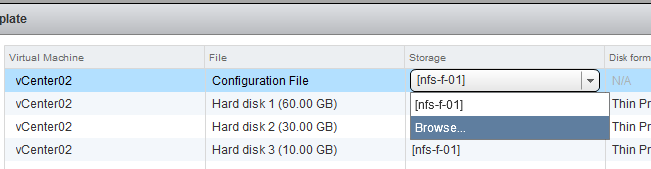
The VM storage Profile screen appears and you can select the appropriate VM storage profile. The VM storage profile “Tier 2 VMs and VMDKs” is selected and will be associated with the Configuration file once we click ok. As Tier 2 storage profile is associated with Storage Capability “FC 15K – Fast disks (Tier 2 VMs and VMDKs)”, the UI list “Datastore Cluster – Tier 2 VMs and VMDKs” as the only compatible datastore cluster.
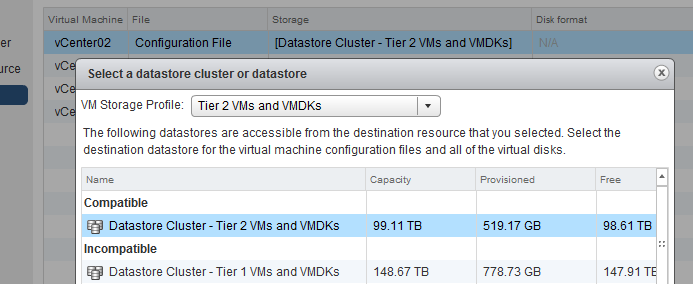
These steps have to be repeated for every hard disk of the virtual machine. At this point the working directory (configuration file) and the System disk will be placed on Datastore Cluster Tier 2 and the Database disk and Log file disk will be placed on Datastore Cluster Tier 1 once the deployment process has completed.
The ready to complete screen displays the associated VM storage profiles and the destinations of the working directory and Hard disks.
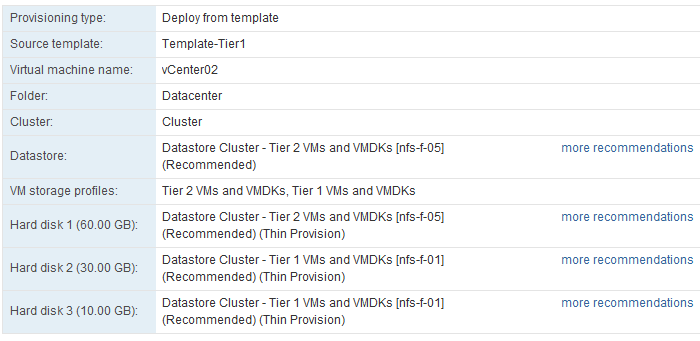
Storage DRS generates placement recommendations and these can be changed if you want to select a different datastore. By selecting the option “more recommendations” a window is displayed and will show you alternative destination datastores.
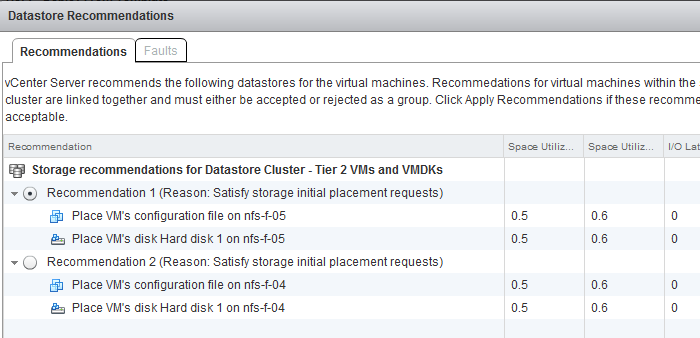
DRMDisks
Storage DRS is able to generate these stand-alone recommendations due to the construct called DRMDisks. Storage DRS generates a construct called DRMDisk for each VM working directory and each VMDK. The DRMDisk is the smallest element Storage DRS can load balance (atomic level). Therefore Storage DRS can move a system disk VMDK to a different datastore in the datastore cluster without having to move the working directory or another disk. Depending on the default Affinity rule of the cluster, DRMdisks within the datastore cluster will be placed on the same datastore (affinity) or separated on different datastores (anti-affinity).
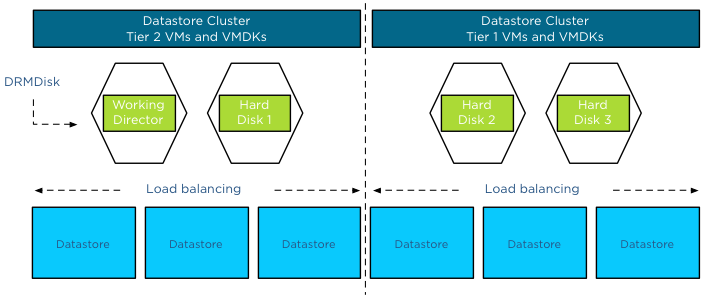
For more information about load balancing based on DRMdisk instead of a complete VM, please read the article: Impact of Intra VM affinity rules on Storage DRS.
Part 3 will cover applying Storage Profiles to virtual machine templates
Get notification of these blogs postings and more DRS and Storage DRS information by following me on Twitter: @frankdenneman
VM Storage Profiles and Storage DRS – Part 1
In my previous article about how to configure storage profiles using the web client I stated that different storage profiles could be assigned to a single virtual machine. Storage profiles can be used together with Storage DRS. Let’s take a closer look on how to use storage profiles with Storage DRS.
Architectural view
VM storage profiles need to be connected to a storage capability to function. The storage capability itself needs to be associated to one or more datastores. A virtual machine in its whole can be associated with a storage profile, or you can use a more granular configuration and associate different storage profiles to the VM working directory and / or VMDK files.
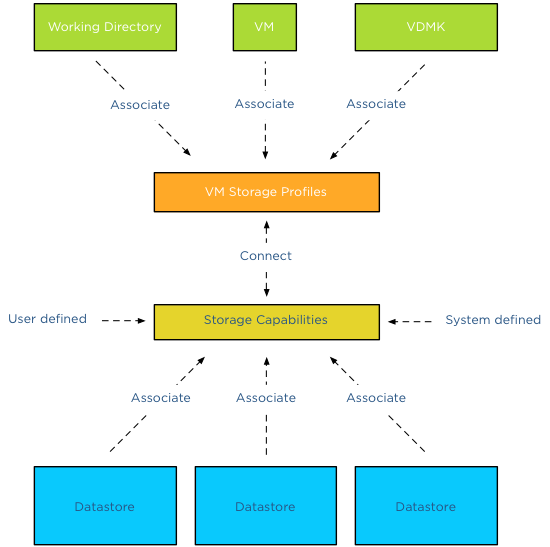
Datastore cluster storage capabilities
You might have noticed that there isn’t a datastore cluster element depicted in the diagram. The storage capabilities of a datastore cluster are extracted from the associated storage capabilities of each datastore member. If all datastores are configured with the same storage capability, the datastore cluster surfaces this storage capability and becomes compliant with the connected VM storage profiles.
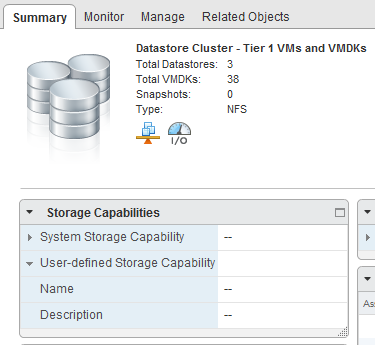
For example, “Datastore cluster – Tier 1 VMs and VMDKs” contains 4 datastores. NFS-F-01, NFS-F-02, NFS-F-03 are associated with the storage capability “SSD low latency disk (Tier-1 VMs and VMDKs)” while datastore NFS-F-04 is associated with storage capability “FC 15K – High Speed disk (Tier 2 VMs and VMDKs)”.
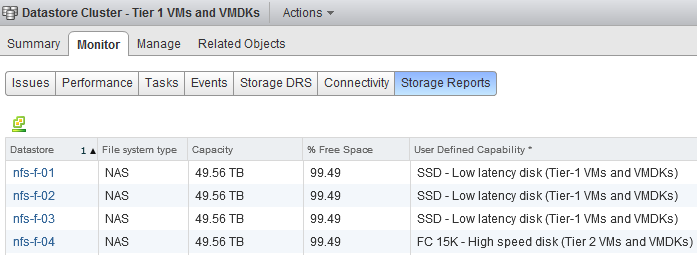
When reviewing the Storage Capabilities of the datastore cluster, no Storage Capability is displayed:
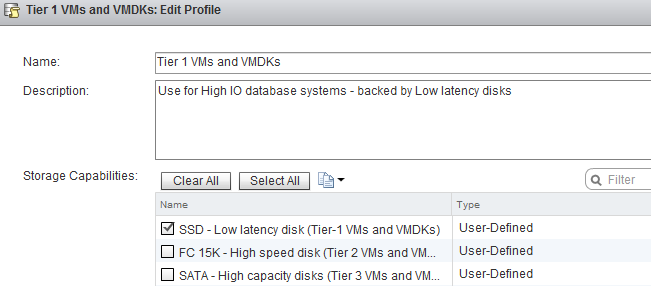
The VM Storage Profile “Tier 1 VMs and VMDK” is connected to the Storage Capability “SSD low latency disk (Tier-1 VMs and VMDKs)”.
When selecting storage during the deployment of a virtual machine, the datastore cluster is considered incompatible with the selected VM Storage Profile.
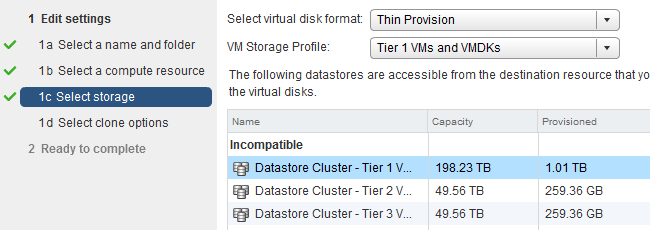
Incompatible, but there are three datastores available with the correct Storage capabilities?
Although this is true, Storage DRS does not incorporate storage profiles compliancy in its balancing algorithms. Storage DRS is designed with the assumption that all disks backing the datastores are “storage characteristics-alike”.
Manually selecting a datastore in the datastore cluster is only possible if the option “Disable Storage DRS for this virtual machine” is selected. Placing the VM on the specific datastore and then enabling Storage DRS later on that VM is futile. Storage DRS will load balance the VM if necessary, but it doesn’t take the VM storage profile compatibility into account when load balancing. So if you have, please remove this “workaround” in your operation manuals 🙂
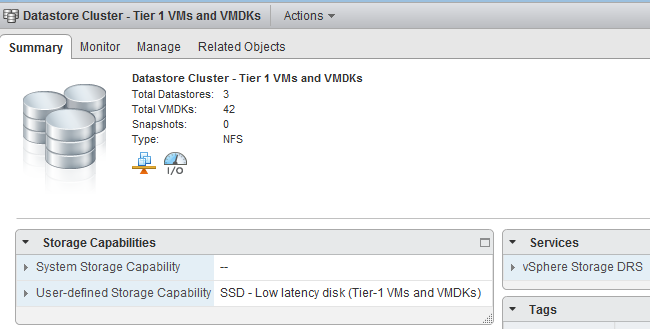
After removing the datastore with the dissimilar storage capability (NFS-F-04), the Datastore cluster surfaces “SSD – Low Latency disk (Tier-1 VMs and VMDKs)” and becomes compatible with virtual machines associated with the Tier-1 VM storage Profile.
Part 2 will cover distributing virtual machine across multiple datastores using Storage Profiles.
Get notification of these blogs postings and more DRS and Storage DRS information by following me on Twitter: @frankdenneman
VMworld Europe Sessions
At VMworld Europe I will participate in Meet the Expert sessions, Group discussions and three breakout sessions. Here’s an overview of my public schedule.
I hope to see you all in my sessions or participate in the group discussions. Or schedule a time slot in Meet the Expert if you have a question about Storage DRS or DRS that you want to ask me.
Tuesday 9 October:
11:00 – 12:00: Group Discussion 28 Resource Management
12:30 – 13:30: INF-VSP1168 Architecting a Cloud Infrastructure
14:00 – 15:00: INF-VSP1683 Resource Pool Best Practices
Wednesday 10 October:
11:00 – 12:00: Meet the Experts 05
12:30 – 13:30: Group Discussion 28 Resource Management
15:30 – 16:30: INF-STO1545 Architecting and designing (SDRS) Datastore Clusters
Thursday 11 October:
10:30 – 11:30: Meet the Experts 11
How to attach VM storage profiles to a virtual machine using the web client
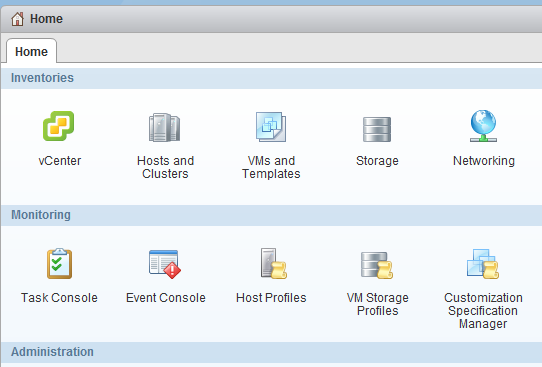
Virtual Machine Storage Profiles are used to identify the storage capabilities necessary in order to properly run the application within the virtual machine. VM Storage Profiles need to enabled first on the hosts and/or Cluster before you are able to assign them to a virtual machine.
1. Select VM Storage Profiles in the Home screen
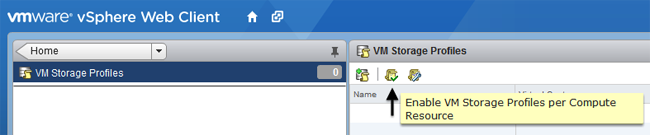
2. Select the Icon in the middle to enable VM Storage profiles
3. Select the cluster or host that you want to enable
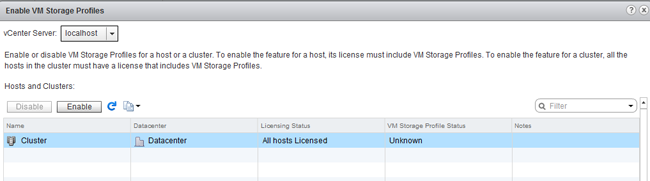
Check if the host has the appropriate license
4. Create Storage Profiles
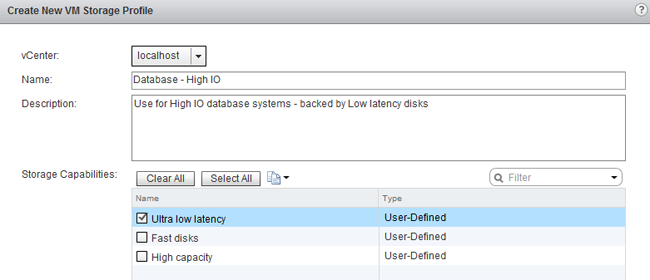
A VM storage profile is attached to a Storage capability. In turn a Storage Capability profile is attached to a datastore. For more information about storage capabilities please read the article: vSphere 5.0 Storage Features Part 11 – Profile Driven Storage by Cormac Hogan.
5. Go back to home
6. Select VM and Templates
7. Select Datacenter in the left pane
8. Select the menu option “Related Objects” in the right pane
9. Select the menu option “Virtual Machines”
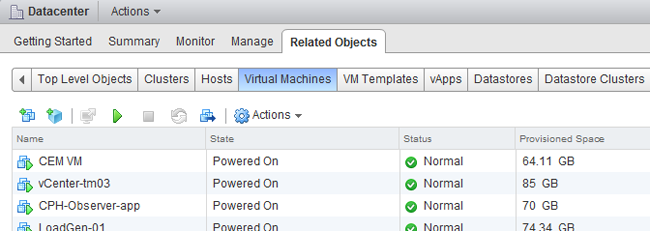
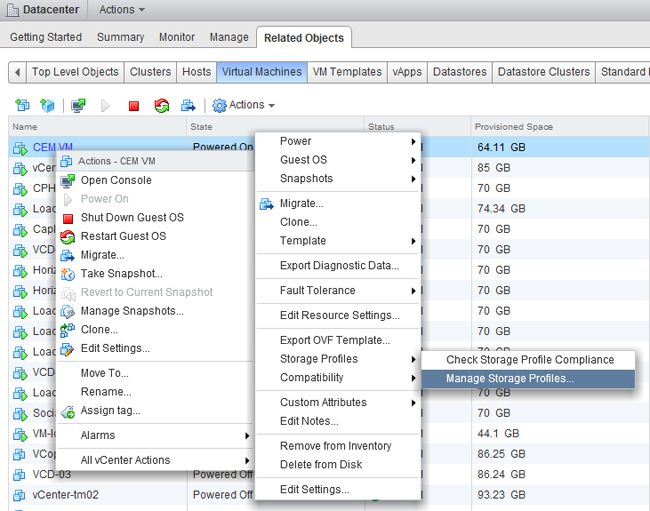
10. Right click on a virtual machine
11. Select All vCenter Actions
12. Select Storage Profiles
13. Select Manage Storage Profiles
14. Apply the VM storage Profiles to the working directory and disk
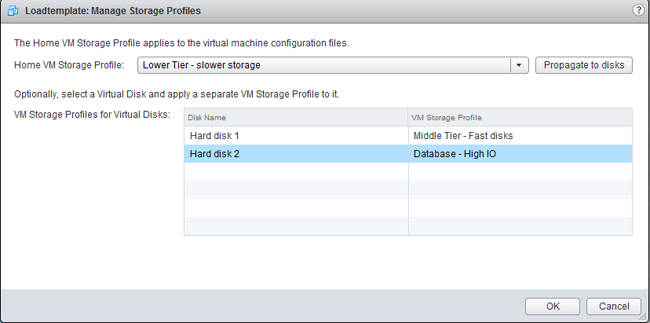
Please note that you can assign different storage profiles to the virtual machine working directory and each single VMDK. The working directory is where the .vmx, .nvram, .log resides. This is listed in the UI as the Home VM location. Each VMDK can be assigned with a different storage profile to align it with your SLA’s.