vSphere 5.1 main user interface is provided by the web client, during beta testing I spend some time to get accustomed to the new user interface. In order to save you some time, I created this write-up on how to create a datastore cluster using the web client. I assume you already installed the new vCenter 5.1. If not, check out’s Duncan post on how to install the new vCenter Server Appliance.
Before showing the eight easy steps that need to be taken when creating a datastore cluster, I want to list some constraints and the recommendations for creating datastore clusters.
Constraints:
• VMFS and NFS cannot be part of the same datastore cluster.
• Similar disk types should be used inside a datastore cluster.
• Maximum of 64 datastores per datastore cluster.
• Maximum of 256 datastore clusters per vCenter Server.
• Maximum of 9000 VMDKs per datastore cluster
Recommendations:
• Group disks with similar characteristics (RAID-1 with RAID-1, Replicated with Replicated, etc.)
• Leverage information provided by vSphere Storage APIs – Storage Awareness
The Steps
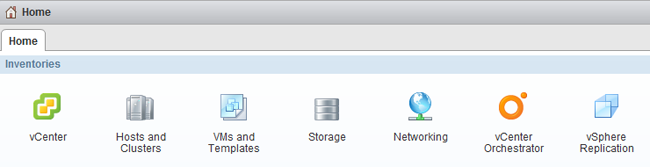
1. Go to the Home screen and select Storage
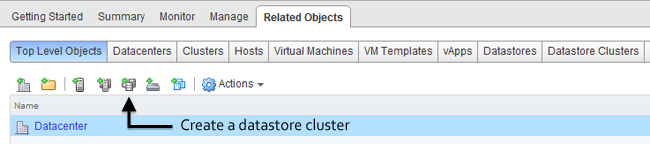
2. Select the Datastore Clusters icon in Related Objects view.
3. Name and Location
The first steps are to enable Storage DRS, specify the datastore cluster name and check if the “Turn on Storage DRS” option is enabled.
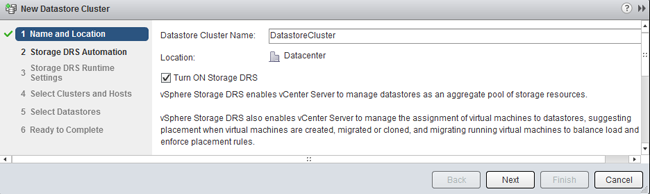
When “Turn on Storage DRS” is activated, the following functions are enabled:
• Initial placement for virtual disks based on space and I/O workload
• Space load balancing among datastores within a datastore cluster
• IO load balancing among datastores within a datastore cluster
The “Turn on Storage DRS” check box enables or disables all of these components at once. If necessary, I/O balancing functions can be disabled independently.If Storage DRS is not enabled, a datastore cluster will be created which lists the datastores underneath, but Storage DRS won’t recommend any placement action for provisioning or migration operations on the datastore cluster.
When you want to disable Storage DRS on an active datastore cluster, please note that all the Storage DRS settings, e.g. automation level, aggressiveness controls, thresholds, rules and Storage DRS schedules are saved so they may be restored to the same state at the moment Storage DRS was disabled.
4. Storage DRS Automation
Storage DRS offers two automation levels:
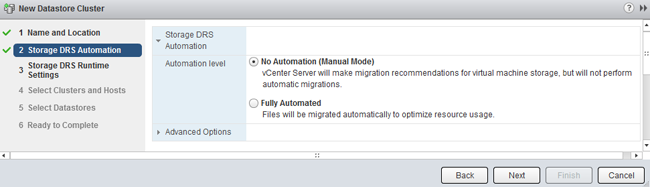
No Automation (Manual Mode)
Manual mode is the default mode of operation. When the datastore cluster is operating in manual mode, placement and migration recommendations are presented to the user, but are not executed until they are manually approved.
Fully Automated
Fully automated allows Storage DRS to apply space and I/O load-balance migration recommendations automatically. No user intervention is required. However, initial placement recommendations still require user approval.
Storage DRS allows virtual machines to have individual automation level settings that override datastore cluster-level automation level settings.
Similar to when DRS was introduced, I recommend to start using manual mode first and review the generated recommendations. If you are comfortable with the decision matrix of Storage DRS you can switch to fully automated. Please note that you can switch between modes on the fly and without incurring downtime.
5. Storage DRS Runtime Settings
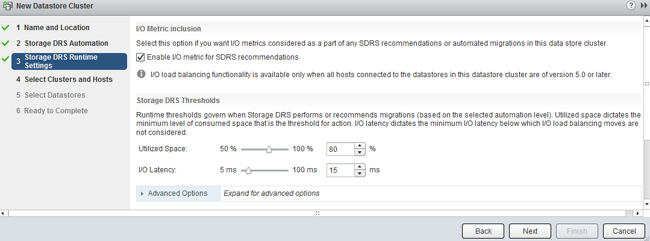
Keep the defaults for now. Future articles expand upon the Storage DRS thresholds and advanced options.
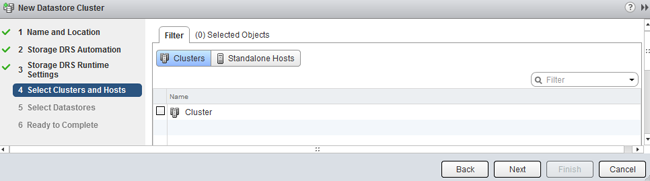
6. Select Clusters and Hosts
The “Select Hosts and Clusters” view allows the user to select one or more (DRS) clusters to work with. Only clusters within the same vCenter datacenter can be selected, as the vCenter datacenter is the boundary for Storage DRS to operate in.
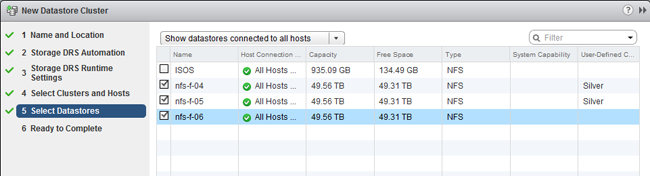
7. Select Datastores
By default, only datastores connected to all hosts in the selected (DRS) cluster(s) are shown. The Show datastore dropdown menu provides the options to show partially connected datastores. The article partially connected datastore cluster gives you insight of the impact of this design decision.
8. Ready to Complete
The “Ready to Complete” screen provides an overview of all the settings configured by the user.
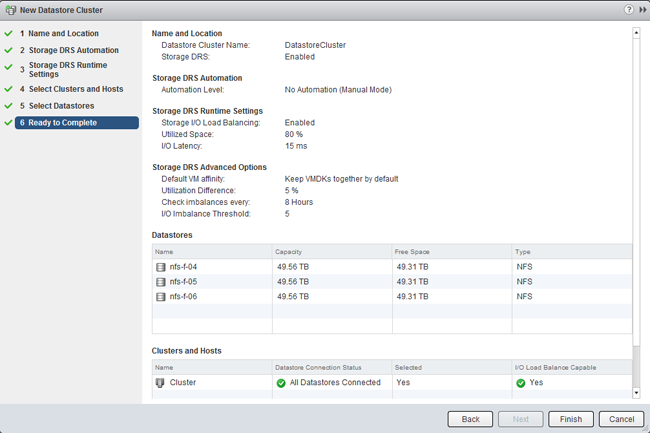
Review the configuration of your new datastore cluster and click on finish.
Where is my new vMotion functionality?
Just a reminder as I received a lot of questions and comments about this:
The new vMotion functionality – migrating virtual machines between host without shared storage – is only available via the web client.
Please note that in the vSphere 5.1 release all new features are only visible via the web client and not in the old vSphere client.
For more information about the vMotion functionality: vSphere 5.1 vMotion deepdive
Get notification of these blogs postings and more DRS and Storage DRS information by following me on Twitter: @frankdenneman
vSphere 5.1 vMotion Deep Dive
vSphere 5.1 vMotion enables a virtual machine to change its datastore and host simultaneously, even if the two hosts don’t have any shared storage in common. For me this is by far the coolest feature in the vSphere 5.1 release, as this technology opens up new possibilities and lays the foundation of true portability of virtual machines. As long as two hosts have (L2) network connection we can live migrate virtual machines. Think about the possibilities we have with this feature as some of the current limitations will eventually be solved, think inter-cloud migration, think follow the moon computing, think big!
The new vMotion provides a new level of ease and flexibility for virtual machine migrations and the beauty of this is that it spans the complete range of customers. It lowers the barrier for vMotion use for small SMB shops, allowing them to leverage local disk and simpler setups, while big datacenter customers can now migrate virtual machines between clusters that may not have a common set of datastores between them.
Let’s have a look at what the feature actually does. In essence, this technology combines vMotion and Storage vMotion. But instead of either copying the compute state to another host or the disks to another datastore, it is a unified migration where both the compute state and the disk are transferred to different host and datastore. All is done via the vMotion network (usually). The moment the new vMotion was announced at VMworld, I started to receive questions. Here are the most interesting ones that allows me to give you a little more insight of this new enhancement.
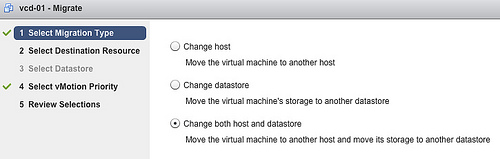
Migration type
One of the questions I have received is, will the new vMotion always move the disk over the network? This depends on the vMotion type you have selected. When selecting the migration type; three options are available:
This may be obvious to most, but I just want to highlight it again. A Storage vMotion will never move the compute state of a VM to another host while migrating the data to another datastore. Therefore when you just want to move a VM to another host, select vMotion, when you only want to change datastores, select Storage vMotion.
Which network will it use?
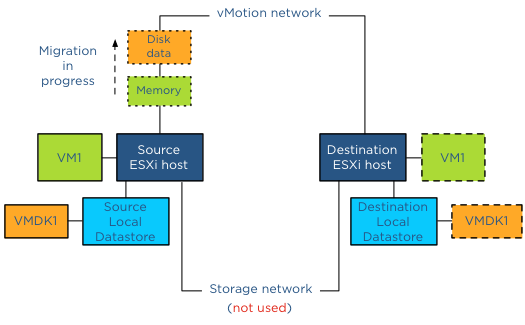
vMotion will use the designated vMotion network to copy the compute state and the disks to the destination host when copying disk data between non-shared disks. This means that you need to the extra load into account when the disk data is being transferred. Luckily the vMotion team improved the vMotion stack to reduce the overhead as much as possible.
Does the new vMotion support multi-NIC for disk migration?
The disk data is picked up by the vMotion code, this means vMotion transparently load balances the disk data traffic over all available vMotion vmknics. vSphere 5.1 vMotion leverages all the enhancements introduced in the vSphere 5.0 such as Multi-NIC support and SDPS. Duncan wrote a nice article on these two features.
Is there any limitation to the new vMotion when the virtual machine is using shared vs. unshared swap ?
No, either will work, just as with the traditional vMotion.
Will the new vMotion features be leveraged by DRS/DPM/Storage DRS ?
In vSphere 5.1 DRS, DPM and Storage DRS will not issue a vMotion that copies data between datastores. DRS and DPM remains to leverage traditional vMotion, while Storage DRS issues storage vMotions to move data between datastores in the datastore cluster. Maintenance mode, a part of the DRS stack, will not issue a data moving vMotion operation. Data moving vMotion operations are more expensive than traditional vMotion and the cost/risk benefit must be taken into account when making migration decisions. A major overhaul of the DRS algorithm code is necessary to include this into the framework, and this was not feasible during this release.
How many concurrent vMotion operations that copies data between datastores can I run simultaneously?
A vMotion that copies data between datastores will count against the limitations of concurrent vMotion and Storage vMotion of a host. In vSphere 5.1 one cannot perform more than 2 concurrent Storage vMotions per host. As a result no more than 2 concurrent vMotions that copy data will be allowed. For more information about the costs of the vMotion process, I recommend to read the article: “Limiting the number of Storage vMotions”
How is disk data migration via vMotion different from a Storage vMotion?
The main difference between vMotion and Storage vMotion is that vMotion does not “touch” the storage subsystem for copy operations of non-shared datastores, but transfers the disk data via an Ethernet network. Due to the possibilities of longer distances and higher latency, disk data is transferred asynchronously. To cope with higher latencies, a lot of changes were made to the buffer structure of the vMotion process. However if vMotion detects that the Guest OS issues I/O faster than the network transfer rate, or that the destination datastore is not keeping up with the incoming changes, vMotion can switch to synchronous mirror mode to ensure the correctness of data.
I understand that the vMotion module transmits the disk data to the destination, but how are changed blocks during migration time handled?
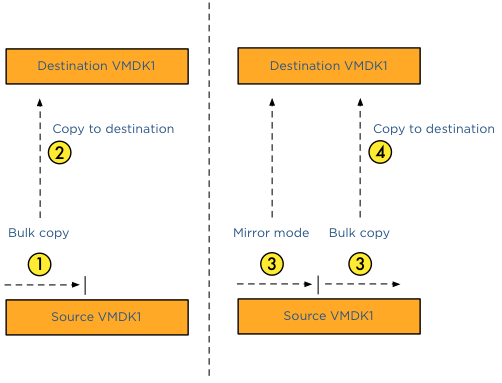
For disk data migration vMotion uses the same architecture as Storage vMotion to handle disk content. There are two major components in play – bulk copy and the mirror mode driver. vMotion kicks off a bulk copy and copies as much as content possible to the destination datastore via the vMotion network. During this bulk copy, blocks can be changed, some blocks are not yet copied, but some of them can already reside on the destination datastore. If the Guest OS changes blocks that are already copied by the bulk copy process, the mirror mode drive will write them to the source and destination datastore, keeping them both in lock-step. The mirror mode driver ignores all the blocks that are changed but not yet copied, as the ongoing bulk copy will pick them up. To keep the IO performance as high as possible, a buffer is available for the mirror mode driver. If high latencies are detected on the vMotion network, the mirror mode driver can write the changes to the buffer instead of delaying the I/O writes to both source and destination disk. If you want to know more about the mirror mode driver, Yellow bricks contains a out-take of our book about the mirror mode driver.
What is copied first, disk data or the memory state?
If data is copied from non-shared datastores, vMotion must migrate the disk data and the memory across the vMotion network. It must also process additional changes that occur during the copy process. The challenge is to get to a point where the number of changed blocks and memory are so small that they can be copied over and switch over the virtual machine between the hosts before any new changes are made to either disk or memory. Usually the change rate of memory is much higher than the change rate of disk and therefore the vMotion process start of with the bulk copy of the disk data. After the bulk data process is completed and the mirror mode driver processes all ongoing changes, vMotion starts copying the memory state of the virtual machine.
But what if I share datastores between hosts; can I still use this feature and leverage the storage network?
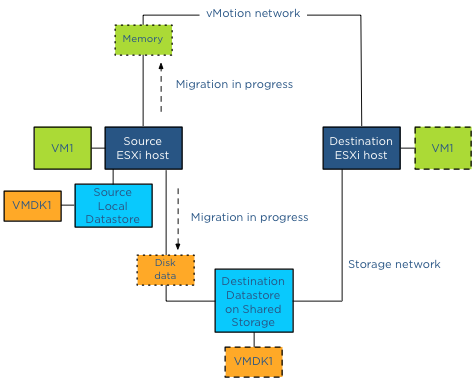
Yes and this is very cool piece of code, to avoid overhead as much as possible, the storage network will be leveraged if both the source and destination host have access to the destination datastore. For instance, if a virtual machine resides on a local datastore and needs to be copied to a datastore located on a SAN, vMotion will use the storage network to which the source host is connected. In essence a Storage vMotion is used to avoid vMotion network utilization and additional host CPU cycles.
Because you use Storage vMotion, will vMotion leverage VAAI hardware offloading?
If both the source and destination host are connected to the destination datastore and the datastore is located on an array that has VAAI enabled, Storage vMotion will offload the copy process to the array.
Hold on, you are mentioning Storage vMotion, but I have Essential Plus license, do I need to upgrade to Standard?
To be honest I try to keep away from the licensing debate as far as I can, but this seems to be the most popular question. If you have an Essential Plus license you can leverage all these enhancements of vMotion in vSphere 5.1. You are not required to use a standard license if you are going to migrate to a shared storage destination datastore. For any other licensing question or remark, please contact your local VMware SE / account manager.
Update: Essential plus customers, please update to vCenter 5.1.0A. For more details read the follow article: “vMotion bug fixed in vCenter Server 5.1.0a”.
Get notification of these blogs postings and more DRS and Storage DRS information by following me on Twitter: @frankdenneman
Storage DRS datastore cluster default affinity rule
In vSphere 5.1 you can configure the default (anti) affinity rule of the datastore cluster via the user interface. Please note that this feature is only available via the web client. The vSphere client does not contain this option.
By default the Storage DRS applies an intra-VM vmdk affinity rule, forcing Storage DRS to place all the files and vmdk files of a virtual machine on a single datastore. By deselecting the option “Keep VMDKs together by default” the opposite becomes true and an Intra-VM anti-affinity rule is applied. This forces Storage DRS to place the VM files and each VDMK file on a separate datastore.
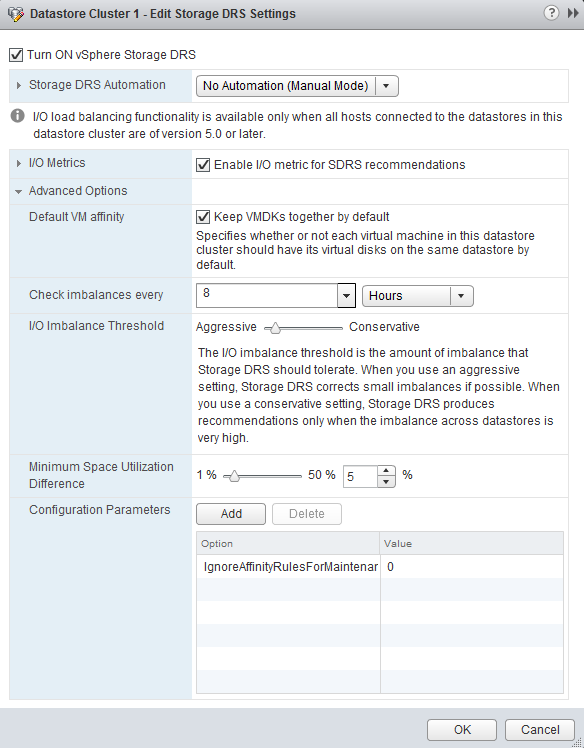
Please read the article: “Impact of intra-vm affinity rules on storage DRS” to understand the impact of both types of rules on load balancing.
vSphere 5.1 storage vMotion parallel disk migrations
Where previous versions of vSphere copied disks serially, vSphere 5.1 allows up to 4 parallel disk copies per Storage vMotion operation When you migrate a virtual machine with five VMDK files, Storage vMotion copies of the first four disks in parallel, then starts the next disk copy as soon as one of the first four finishes.
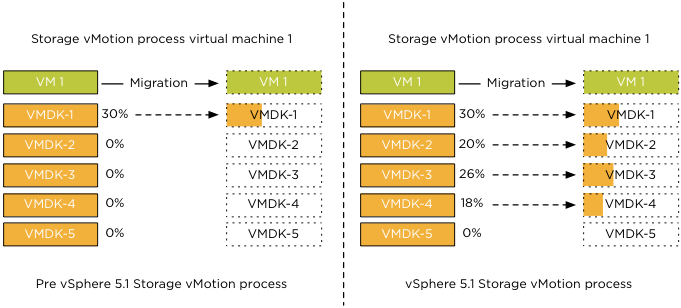
To reduce performance impact on other virtual machines sharing the datastores, parallel disk copies only apply to disk copies between distinct datastores. This means that if a virtual machine has multiple VMDK files on Datastore1 and Datastore2, parallel disk copies will only happen if destination datastores are Datastore3 and Datastore4.
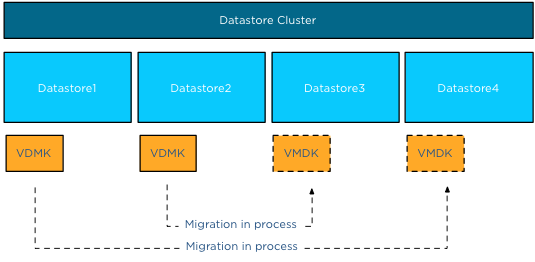
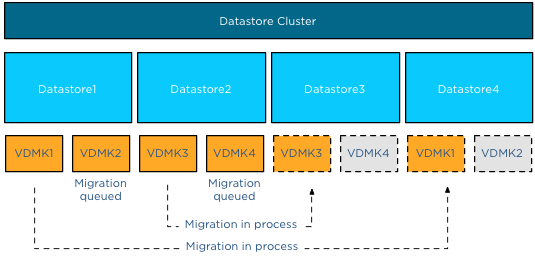
Let’s use an example to clarify the process. Virtual machine VM1 has four vmdk files. VMDK1 and VMDK2 are on Datastore1, VMDK3 and VMDK4 are on Datastore2. The VMDK files are moved from Datastore1 to Datastore4 and from Datastore2 to Datastore3. VMDK1 and VMDK3 are migrated in parallel, while VMDK2 and VMDK4 are queued. The migration process of VMDK2 is started the moment the migration of VMDK1 is complete, similar for VMDK4 as it will be started when the migration of VMDK3 is complete.
A fan out disk copy, in other words copying two VMDK files on datastore A to datastores B and C, will not have parallel disk copies. The common use case of parallel disk copies is the migration of a virtual machine configured with an anti-affinity rule inside a datastore cluster.