• Skip to primary navigation
  • Skip to main content

frankdenneman.nl

  • AI/ML
  • NUMA
  • About Me
  • Privacy Policy

NUMA, Hyperthreading and NUMA.PreferHT

October 7, 2010 by frankdenneman

I received a lot of questions about Hyperthreading and NUMA in ESX 4.1 after writing the ESX 4.1 NUMA scheduling article.

A common misconception is that Hyperthreading is ignored and therefore not used on a NUMA system. This is not entirely true and due to the improved Hyperthreading code on Nehalems, the CPU scheduler is programmed to use the HT feature more aggressively than the previous releases of ESX. The main reason why I think this misconception exists is the way the NUMA load balancer handles vCPU placement of vSMP virtual machine. Before continuing, let’s get our CPU elements nomenclature aligned, I’ve created a diagram showing all the elements:
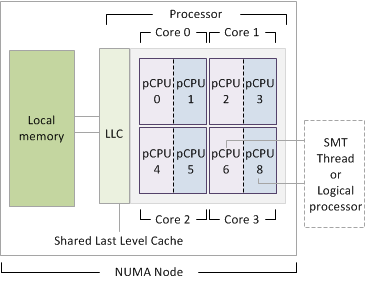
NUMA and CPU elemenents
The Nehalem Hyperthreading feature is officially called Symmetric MultiThreading (SMT), the term HT and SMT are interchangeable.

1. An Intel Nehalem processor often called a CPU or package.
2. An Intel Nehalem processor contains 4 cores in one package.
3. Each core contains 2 threads if Hyperthreading is enabled.
4. A SMT Thread equals a logical processor.
5. A logical processor is translated in esxtop as a PCPU.
6. A vCPU is scheduled on a PCPU.
7. NUMA= Non-uniform Memory Access (Each Processor has its own local memory assigned)
8. LLC= Last Level Cache: Shared by Cores is last on-die cache memory before turning to Local memory.

NUMA load balancer virtual machine placement
During placement of a vSMP virtual machine, the NUMA load balancer assigns a single vCPU per CPU core and “ignores” the availability of SMT threads. As a result a 4-way vSMP virtual machine will be placed on four cores. In ESX 4.1 this virtual machine can be placed on one processor or on two processors, depending on the amount of cores on the processor or if set the advanced option numa.vcpu.maxPerMachineNode.

When a virtual machine contains more vCPUs than the amount of cores the processor, this virtual machine will span across multiple processors (Wide-VM). The default policy is to span the virtual machine across as few processors (NUMA nodes) as possible, but this can be overridden by an advanced option called numa.vcpu.maxPerMachineNode, which defines the maximum amount of vCPUs of a virtual machine per NUMA client. But as always, only use advanced options if you know the full impact of this setting on your environment. But I digress; let’s go back to NUMA and Hyperthreading.

Now the key to understand is that only during placement the SMT threads are ignored by the NUMA load balancer. It is the up to the CPU scheduler to decide in which way it will schedule the vCPUs within the core. It can allow the vCPU to use the full core or schedule it on a SMT thread depending on the workload, resource entitlement, the amount of active vCPUs and available pCPUs in the system.

Because SMT threads share resources within a core will result into lesser performance than running a vCPU on a dedicated singe core. The ESX scheduler is designed in such a way that it will try to spread the load across all the cores in the NUMA node or in the server.
But basically, If the workload is low it will try to schedule the vCPU on a complete core, if that’s not possible, it will schedule the vCPU on a SMT thread.

As mentioned before, running a vCPU on a SMT thread will not offer the same progress than running on a complete core; therefore a different charging scheme is used for each scenario. This charging scheme is used to keep track of the delivered resources and to check if the VM gets it entitled resources, more on this topic can be found in the article “Reservations and CPU scheduling”.

NUMA.preferHT=One NUMA node to rule them all?
Although the CPU scheduler can decide how to schedule the vCPU within the core, it will only schedule one vCPU of a vSMP virtual machine onto one core. Scott Drummonds article about numa.preferHT might offer a solution. Setting the advanced parameter numa.preferHT=1 allows the NUMA load balancer to assign vCPU to SMT thread and if possible “contain” one vSMP VM into a single NUMA node. However the amount of vCPU must be less or equal than the amount of pCPUs within the NUMA node.
By placing all vCPUs within a processor a virtual machine with a “intensive-cache-footprint” workload can benefit from a “warmed-up” cache. The vCPUs can fetch the memory from Last Level Cache instead of turning to local memory resulting in less latency. And this is exactly why this setting might not be beneficial to most environments.

The numa.preferHT setting is a CPU scheduler wide setting, that means that the NUMA load balancer will place every vSMP virtual machine inside a processor i.e. both intensive cache workloads and low-cache footprint workloads. Currently the ESX 4.1 CPU scheduler does not detect different workloads so it cannot distinguish virtual machines from each other and select an appropriate placement method i.e. place the virtual machine within one processor and use SMT threads or use wide-VM numa placement and “isolate” a vCPU per core.

It is crucial to know that by placing all vCPU on one processor doesn’t guarantee it to have all its memory in local memory, the main goal is to use LLC as much as possible, but if there is a cache miss (memory not available in cache) it will fetch it from local memory. The VMkernel tries to keep memory as local as possible but if there is not enough room inside local memory, it will place the memory into remote memory. Storing memory in remote memory is still faster than swapping it out to disk but inter-socket communication is noticeable slower than intra-socket communications.

This brings me to migration of virtual machines between NUMA nodes, if a virtual machines home node is more heavily loaded than other NUMA nodes, it will be migrated to a less loaded NUMA node. During the migration phase, local memory turns into remote memory. This newly remote memory is moved gradually because moving memory has high overhead.
By using the numa.preferHT option forces you to scope the maximum amount of memory assigned to a virtual machine and the consolidation ratio. Having multiple virtual machine traverse the quick path interlink to fetch memory stored in remote memory defeats the purpose of containing the virtual machines inside a processor.
Filed Under: NUMA Tagged With: NUMA, Prefer.HT, VMware

VM settings: Prefer Partially Automated over Disabled

October 1, 2010 by frankdenneman

Due to requirements or constraints it might be necessary to exclude a virtual machine from automatic migration and stop it from moving around by DRS. Use the “Partially automated” setting instead of “Disabled” at the individual virtual machine automation level. Partially automated blocks automated migration by DRS, but keep the initial placement function. During startup, DRS is still able to select the most optimal host for the virtual machine. By selecting the “Disabled” function, the virtual machine is started on the ESX server it is registered and chances of getting an optimal placement are low(er).
An exception for this recommendation might be a virtualized vCenter server, most admins like to keep track of the vCenter server in case a disaster happens. After a disaster occurs, for example a datacenter-wide power-outage, they only need to power-up the ESX host on which the vCenter VM is registered and manually power-up the vCenter VM. An alternative to this method is to keep track of the datastore vCenter is placed on and register and power-on the VM on a (random) ESX host after a disaster. Slightly more work than disabling DRS for vCenter, but offers probably better performance of the vCenter Virtual Machine during normal operations.
Due to expanding virtual infrastructures and new additional features, vCenter is becoming more and more important for day-to-day operational management today. Assuring good performance outweighs any additional effort necessary after a (hopefully) rare occasion, but both methods have merits.

Filed Under: DRS Tagged With: DRS, Partially automated, VMware

Voted number 6 of top 25 VMware blogs, WOW!

October 1, 2010 by frankdenneman

Eric Siebert of vSphere-land, together with David Davis, Simon Seagrave and John Troyer announced the results of the Top 25 blogs election this week. Using vChat is in my opinion a very cool format and I had the feeling that I was watching the academy awards for Bloggers.
Gentlemen, thank you for taking the time and effort to create this entertaining show. Next time I will be viewing this from my TV instead of my 13″ laptop screen and making sure I’ll have the popcorn ready.
But most of all I want to thank everyone who voted for me.
According to you my blog belongs in the top 10 and I’m very proud and honored to be ranked up that high. Thank you very much!

Filed Under: Miscellaneous Tagged With: Top 25 Virtualization bloggers

Provider vDC: cluster or resource pool?

September 24, 2010 by frankdenneman

Duncan’s article on vCloud Allocation models states that:

a provider vDC can be a VMware vSphere Cluster or a Resource Pool …

Although vCloud Director offers the ability to map Provider vDCs to Clusters or Resource Pool, it might be better to choose for the less complex solution. This article zooms in on the compute resource management constructs and particularly on making the choice between assigning a VMware Cluster or a Resource Pool to a Provider vDC and placement of Organization vDCs. I strongly suggest visiting Yellow Bricks to read all vCloud Director posts, these posts explain the new environment / cloud model used by VMware very thoroughly.

Let’s do a quick rehash of these elements before discussing whether to choose between a Cluster or Resource Pool based Provider vDC.

Provider vDC and Organization vDC
In the vCloud a construct named vDCs exist. vDCs stands for Virtual Data Center. Two types of vDCs exists; Provider vDCs and Organization vDCs. A Provider vDC is used to offer a single type of compute resources and a single type of storage resources. This means that Provider vDCs are created for segmenting resources based on resource characteristics (Tiering) or quantity of resources (Capacity). Basically a Provider vDC will function as a SLA construct in the vCloud. At the vSphere layer a VMware vSphere Cluster or Resource Pool can be used to provide the Provider vDC raw Virtual Infrastructure resources. Now the fun part is that using Resource Pools basically contradicts the whole idea behind a Provider vDC, but we will discuss that later.

An Organization vDC (Org vDC) is an allocation out of the Provider vDC (pVDC), in other words the resources provided by the PvDC are consumed by the Org vDC. Organization vDCs inherit the resource types (Tiering\Capacity) from the Provider vDC. At the vSphere level this means that a Resource Pool is created per Org vDC and this will carve out resources from the Provider vDC using the resource allocation settings Reservation, Shares and Limit values for compute resources.

Note: A vDC is not identical to a vSphere Resource Pool, a vDC provides storage additional to compute resources (leveraging resource pools) whether a resource pool only offers compute resources (CPU and Memory). Compute resource management is done at the vSphere level, Storage is enforced and maintained at the vCloud Director level.
vCloud Director uses allocation models to define different usage levels of Reservation and Limits. The Share levels are identical throughout all allocation models and each model uses the normal share level setting.

Allocation Models
Each Organization vCD is configured with an allocation model, three models different types of allocation models exist.

  • Pay As You Go
  • Allocation Pool
  • Reservation Pool

Each allocation model has a unique set of resource allocation settings and each model uses both Resource Pool level and Virtual Machine level resource allocation settings differently. Read the vCD allocation models article on Yellow-Bricks.com.
Note: Reservations on resource pool act differently than reservations on VM-level, for a refresher please read the articles: “Resource Pools memory reservations” and “Impact of memory reservations“. In addition CPU type reservations behave differently from Memory reservations, please read the article “Reservations and CPU scheduling”.
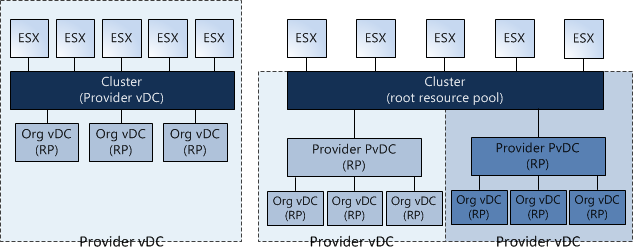
Now let’s visualize the difference between a PvDC aligned with a cluster and a pVDC aligned with a Resource Pool:

Aligning PvDC to Cluster or Resource Pool
Using Resource Pools instead of Clusters
One thing immediately becomes obvious, when using a Resource Pool for providing Compute and Memory resources to the PvDC you share the cluster resources with other PvDCs. One might argue to create only one Resource Pool below Cluster level and create some sort of buffer, but creating a single Resource Pool below cluster level and assigning a PvDC to it will render a certain amount of cluster resources unused. By default, a Resource Pool can claim up to a maximum of 94% of its parent Resource Pool.

By using multiple Provider vDCs in one cluster you abandon the idea of segmenting resources based on resource characteristics and quantity (Tiering and Capacity). Because a Resource Pool spans the entire cluster the PvDCs will schedule the virtual machine on every host available in the cluster. By using the Resource Pool model it introduces a whole new complex resource management construct all by itself. Let’s focus on the challenges this model will introduce:

Resource Pool creation
When creating a Provider vDC, a Cluster or Resource Pool must be selected, this means the Resource Pool must be manually configured before creating and mapping the Provider vDC to the Resource Pool. During the creation of this Resource pool, the admin must specify the resource allocation settings. The Reservation, Shares and Limit settings of a Resource Pool are not changed dynamically when adding additional ESX hosts to the cluster. The admin must change (increase) the reservation and Limit setting each time new hosts are added to the cluster.

The second drawback of the RP model is sizing. Because multiple Provider vDC Resource Pools will exists beneath the Root Resource Pool (Cluster) level the admin/architect needs to calculate a proper resource allocation ratio for the existing Provider vDCs.
Mapping a Provider vDC to a Resource pool result in manually recalculation the resource allocation settings each time a new tenant is introduced and when the new Org vDC joins the Provider vDC.

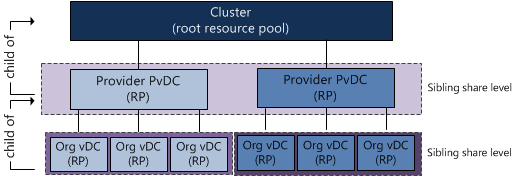
Sibling Share Level
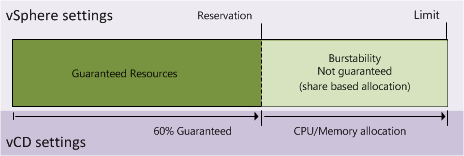
If “Pay as You go” or “Allocation Pool” models are used, some resources might be provided via a “burstability” model. When creating an Organization vDC, a guaranteed amount of resources must be specified as well as an upper limit known as an “Allocation”. The difference between the total allocated resources and the specified guaranteed resources is a pool of resources that are available to that Organization vDC, however, it is important to note that those resources are not certain to be available at any given point in time. This is called the burstability space.

VMware Organization vDC burstability space

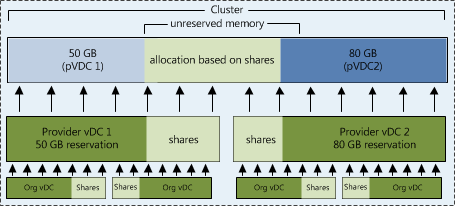
These “burstable” resources are allocated based on Shares in times of contention. Shares specify the priority for the virtual machine or Resource Pool relative to other Resource Pools and/or virtual machines with the same parent in the resource hierarchy. The key point is that shares values can be compared directly only among siblings. This means that each Provider vDC is the sibling of another Provider vDC in the cluster and they will receive resources from its parent Resource Pool (Root Resource Pool) based on their Resource Entitlement. That means that this model:

Resource Pool sibling share level
Translates into this model:
Allocation based on shares

Resource Entitlement
Resource Pool and virtual machine resource entitlements are based on various statistics and some estimation techniques. DRS computes a resource entitlement for each virtual machine, based on virtual machine and Resource Pool configured shares, reservations, and limits settings, as well as the current demands of the virtual machines and Resource Pools, the memory size, its working set and the degree of current resource contention.

As mentioned before, this burstable space is allocated based on the amount of shares and the active utilization (working set) when calculating the resource entitlement. Virtual machines who are idling aren’t competing for resources, so they won’t get any new resources assigned and therefore the Provider vDC will not demand it from the Root Resource Pool. Be aware that the resource entitlement is calculated at host level scheduling (VMkernel) and Global scheduling (DRS). DRS will create a pack (lump sum) of resources and divide this across the Resource pools and its children. This lump sum is recalculated every 5 minutes.

Introducing an additional layer of Provider vDC Resource Pools between the cluster and the Organization vDC Resource Pools will not only complicate the resource entitlement calculation but will also create additional unnecessary overhead on DRS. Besides the 300 second invocation period, DRS also gets invocated each time when a virtual machine is powered-off, when a resource setting of a virtual machine or Resource Pool is changed or when a Resource Pool or a virtual machine is moved in or out the Resource Pool hierarchy. This is the reason why the Resource Pool tree must be as “flat” as possible; having additional layers will complicate the resource calculation and distribution.

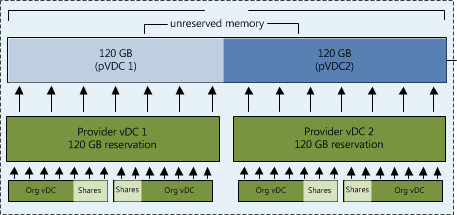
If you decide to map a Provider vDC to a Resource Pool is recommended allocating the amount of CPU and Memory resources of the pVDC Resource Pool identical to the combined amount of resources allocated to the Org vDCs. By accumulating all Org vDC allocation settings and setting the reservation on the Provider vDC equal to the result of that sum removes the burstable space on PvDC level. Only siblings inside the Provider vDC will have to compete for resources during contention.
Guaranteed resources on PvDC
Placement of Organization vDCs in Provider vDCs
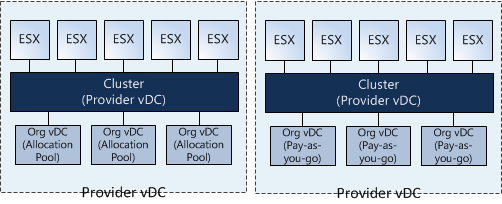
Proper Resource management is very complicated in a Virtual Infrastructure or vCloud environment. Each allocation models uses a different combination of resource allocation settings on both Resource Pool and Virtual Machine level, therefore introducing different types of resource entitlement behavior. Mixing Allocation models inside a Provider vDC makes capacity management and capacity planning a true nightmare. It is advised to create a Provider vDC per Allocation Model. This means that (preferential) a Provider vDC is mapped to a Cluster and this cluster will host only “Pay As You Go”, “Allocation Pool” or “Reservation Pool” type Organization vDCs.

Provider vDC per VMware ESX Cluster

Words of advice
Using different allocation models within a Provider vDC can be a challenge to create a proper level of utilization and flexibility all by itself. Using Resource Pools to act as the compute Resource Pool construct for Provider vDCs makes it in my opinion incredibly complex. Using Resource Pools instead of Clusters deviates from the intention Provider vDCs are created (segmenting Tiering and Capacity). Although it’s possible to map Provider vDC to a Resource Pool it is wiser to map Provider vDCs to Cluster levels only.

Avoid using different types of allocation models within a Provider vDC, mixing allocation models makes proper capacity management and capacity planning unnecessary difficult.

Best practice:
Map Provider vDC to a VMware vSphere Cluster.
Usage of same type of Allocation model type Organization vDC inside a Provider vDC.

Filed Under: VMware Tagged With: cluster, DRS, PvDC, resource pools

Resource pools and simultaneous vMotions

September 20, 2010 by frankdenneman

Many organizations have the bad habit to use resource pools to create a folder structure in the host and cluster view of vCenter. Virtual machines are being placed inside a resource pool to show some kind of relation or sorting order like operating system or types of application. This is not reason why VMware invented resource pools. Resource pools are meant to prioritize virtual machine workloads, guarantee and/or limit the amount of resources available to a group of virtual machines.
During design workshops I always try to convince the customer why resource pools should not to be used to create a folder structure. The main object I have for this is the sibling share level of resource pools and virtual machines.
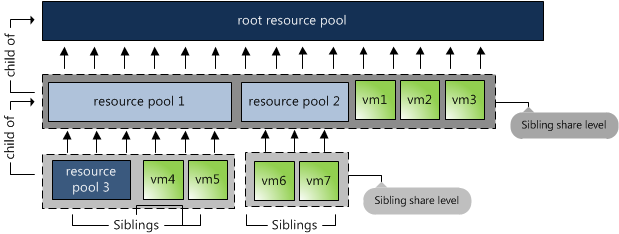
VMware VM and Resource Pool Sibling Share Level
Shares specify the priority for the virtual machine or resource pool relative to other resource pools and/or virtual machines with the same parent in the resource hierarchy. The key point is that shares values can be compared directly only among siblings: the ratios of shares of VM6:VM7 tells which VM is higher priority, but the shares of VM4:VM6 does not tell which VM has higher priority.
Many articles have been written about this, such as: “The resource pool priority-pie paradox”, (Craig Risinger) “Resource pools and shares” (Duncan Epping), “Don’t add resource pools for fun” (Eric Sloof) and “Resource pools caveats” (Bouke Groenescheij).
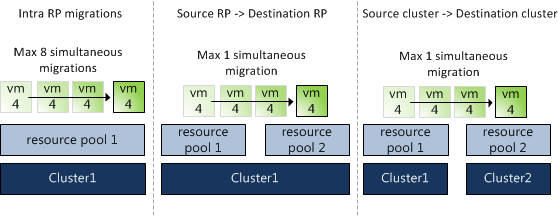
But another reason not to use resource pools as a folder structure is the limitation resource pools inflict on vMotion operations. Depending on the network speed, vSphere 4.1 allows 8 simultaneous vMotion operations, however simultaneous migrations with vMotion can only occur if the virtual machine is moving between hosts in the same cluster and is not changing its resource pool. This is recently confirmed in Knowledge Base article 1026102.
Fortunately simultaneous cross-resource-pool vMotions can occur if the virtual machines are migrating to different resource pools, but still one vMotion operation per target resource pool. Because clusters are actually implicit resource pools (the root resource pool), migrations between clusters are also limited to a single concurrent vMotion operation.
Resource Pool migrations
Using resource pools to create a folder structure can not only impact the availability of resources for the virtual machines, but can also hinder your daily (maintenance) operations if batches of virtual machines are being migrated to other resource pools.

Filed Under: DRS Tagged With: resource pools, vMotion, VMware

  • « Go to Previous Page
  • Page 1
  • Interim pages omitted …
  • Page 72
  • Page 73
  • Page 74
  • Page 75
  • Page 76
  • Interim pages omitted …
  • Page 83
  • Go to Next Page »

Copyright © 2026 · SquareOne Theme on Genesis Framework · WordPress · Log in