Currently I’m involved in a high-secure virtual infrastructure design and we are required to reduce the number of entry points to the virtual infrastructure. One of the requirements is to allow only a single session to the virtual machine console. Due to the increasing awareness \ demand of security in virtual infrastructure more organizations might want to apply this security setting.
1. Turn of the virtual machine.
2. Open Configuration parameters of the VM to edit the advanced configuration settings
3. Add Remote.Display.maxConnections with a value of 1
4. Power on virtual machine
Update: Arne Fokkema created a Power-CLI function to automate configuring this setting throughout your virtual infrastructure. You can find the power-cli function on ICT-freak.nl.
Provider vDC: cluster or resource pool?
Duncan’s article on vCloud Allocation models states that:
a provider vDC can be a VMware vSphere Cluster or a Resource Pool …
Although vCloud Director offers the ability to map Provider vDCs to Clusters or Resource Pool, it might be better to choose for the less complex solution. This article zooms in on the compute resource management constructs and particularly on making the choice between assigning a VMware Cluster or a Resource Pool to a Provider vDC and placement of Organization vDCs. I strongly suggest visiting Yellow Bricks to read all vCloud Director posts, these posts explain the new environment / cloud model used by VMware very thoroughly.
Let’s do a quick rehash of these elements before discussing whether to choose between a Cluster or Resource Pool based Provider vDC.
Provider vDC and Organization vDC
In the vCloud a construct named vDCs exist. vDCs stands for Virtual Data Center. Two types of vDCs exists; Provider vDCs and Organization vDCs. A Provider vDC is used to offer a single type of compute resources and a single type of storage resources. This means that Provider vDCs are created for segmenting resources based on resource characteristics (Tiering) or quantity of resources (Capacity). Basically a Provider vDC will function as a SLA construct in the vCloud. At the vSphere layer a VMware vSphere Cluster or Resource Pool can be used to provide the Provider vDC raw Virtual Infrastructure resources. Now the fun part is that using Resource Pools basically contradicts the whole idea behind a Provider vDC, but we will discuss that later.
An Organization vDC (Org vDC) is an allocation out of the Provider vDC (pVDC), in other words the resources provided by the PvDC are consumed by the Org vDC. Organization vDCs inherit the resource types (Tiering\Capacity) from the Provider vDC. At the vSphere level this means that a Resource Pool is created per Org vDC and this will carve out resources from the Provider vDC using the resource allocation settings Reservation, Shares and Limit values for compute resources.
Note: A vDC is not identical to a vSphere Resource Pool, a vDC provides storage additional to compute resources (leveraging resource pools) whether a resource pool only offers compute resources (CPU and Memory). Compute resource management is done at the vSphere level, Storage is enforced and maintained at the vCloud Director level.
vCloud Director uses allocation models to define different usage levels of Reservation and Limits. The Share levels are identical throughout all allocation models and each model uses the normal share level setting.
Allocation Models
Each Organization vCD is configured with an allocation model, three models different types of allocation models exist.
- Pay As You Go
- Allocation Pool
- Reservation Pool
Each allocation model has a unique set of resource allocation settings and each model uses both Resource Pool level and Virtual Machine level resource allocation settings differently. Read the vCD allocation models article on Yellow-Bricks.com.
Note: Reservations on resource pool act differently than reservations on VM-level, for a refresher please read the articles: “Resource Pools memory reservations” and “Impact of memory reservations“. In addition CPU type reservations behave differently from Memory reservations, please read the article “Reservations and CPU scheduling”.
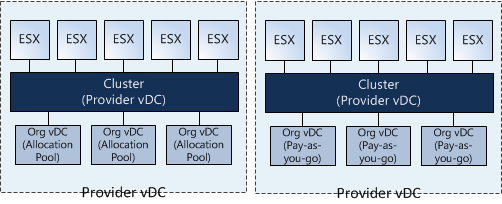
Now let’s visualize the difference between a PvDC aligned with a cluster and a pVDC aligned with a Resource Pool:
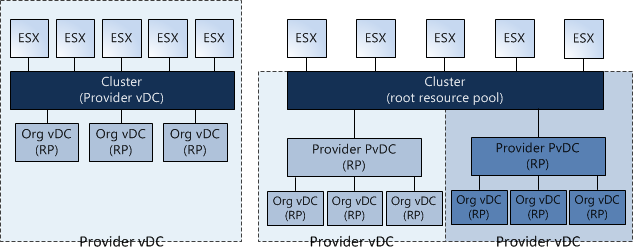
Using Resource Pools instead of Clusters
One thing immediately becomes obvious, when using a Resource Pool for providing Compute and Memory resources to the PvDC you share the cluster resources with other PvDCs. One might argue to create only one Resource Pool below Cluster level and create some sort of buffer, but creating a single Resource Pool below cluster level and assigning a PvDC to it will render a certain amount of cluster resources unused. By default, a Resource Pool can claim up to a maximum of 94% of its parent Resource Pool.
By using multiple Provider vDCs in one cluster you abandon the idea of segmenting resources based on resource characteristics and quantity (Tiering and Capacity). Because a Resource Pool spans the entire cluster the PvDCs will schedule the virtual machine on every host available in the cluster. By using the Resource Pool model it introduces a whole new complex resource management construct all by itself. Let’s focus on the challenges this model will introduce:
Resource Pool creation
When creating a Provider vDC, a Cluster or Resource Pool must be selected, this means the Resource Pool must be manually configured before creating and mapping the Provider vDC to the Resource Pool. During the creation of this Resource pool, the admin must specify the resource allocation settings. The Reservation, Shares and Limit settings of a Resource Pool are not changed dynamically when adding additional ESX hosts to the cluster. The admin must change (increase) the reservation and Limit setting each time new hosts are added to the cluster.
The second drawback of the RP model is sizing. Because multiple Provider vDC Resource Pools will exists beneath the Root Resource Pool (Cluster) level the admin/architect needs to calculate a proper resource allocation ratio for the existing Provider vDCs.
Mapping a Provider vDC to a Resource pool result in manually recalculation the resource allocation settings each time a new tenant is introduced and when the new Org vDC joins the Provider vDC.
Sibling Share Level
If “Pay as You go” or “Allocation Pool” models are used, some resources might be provided via a “burstability” model. When creating an Organization vDC, a guaranteed amount of resources must be specified as well as an upper limit known as an “Allocation”. The difference between the total allocated resources and the specified guaranteed resources is a pool of resources that are available to that Organization vDC, however, it is important to note that those resources are not certain to be available at any given point in time. This is called the burstability space.
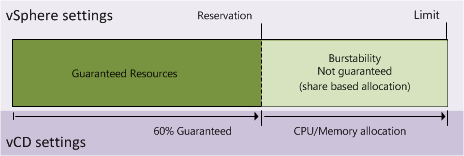
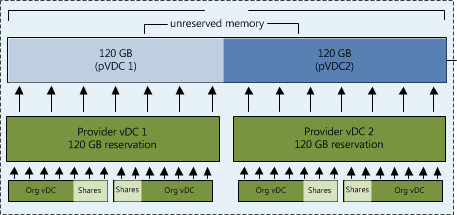
These “burstable” resources are allocated based on Shares in times of contention. Shares specify the priority for the virtual machine or Resource Pool relative to other Resource Pools and/or virtual machines with the same parent in the resource hierarchy. The key point is that shares values can be compared directly only among siblings. This means that each Provider vDC is the sibling of another Provider vDC in the cluster and they will receive resources from its parent Resource Pool (Root Resource Pool) based on their Resource Entitlement. That means that this model:
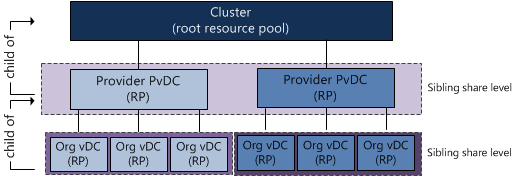
Translates into this model:
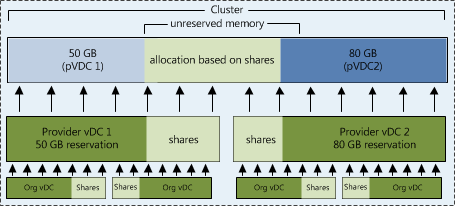
Resource Entitlement
Resource Pool and virtual machine resource entitlements are based on various statistics and some estimation techniques. DRS computes a resource entitlement for each virtual machine, based on virtual machine and Resource Pool configured shares, reservations, and limits settings, as well as the current demands of the virtual machines and Resource Pools, the memory size, its working set and the degree of current resource contention.
As mentioned before, this burstable space is allocated based on the amount of shares and the active utilization (working set) when calculating the resource entitlement. Virtual machines who are idling aren’t competing for resources, so they won’t get any new resources assigned and therefore the Provider vDC will not demand it from the Root Resource Pool. Be aware that the resource entitlement is calculated at host level scheduling (VMkernel) and Global scheduling (DRS). DRS will create a pack (lump sum) of resources and divide this across the Resource pools and its children. This lump sum is recalculated every 5 minutes.
Introducing an additional layer of Provider vDC Resource Pools between the cluster and the Organization vDC Resource Pools will not only complicate the resource entitlement calculation but will also create additional unnecessary overhead on DRS. Besides the 300 second invocation period, DRS also gets invocated each time when a virtual machine is powered-off, when a resource setting of a virtual machine or Resource Pool is changed or when a Resource Pool or a virtual machine is moved in or out the Resource Pool hierarchy. This is the reason why the Resource Pool tree must be as “flat” as possible; having additional layers will complicate the resource calculation and distribution.
If you decide to map a Provider vDC to a Resource Pool is recommended allocating the amount of CPU and Memory resources of the pVDC Resource Pool identical to the combined amount of resources allocated to the Org vDCs. By accumulating all Org vDC allocation settings and setting the reservation on the Provider vDC equal to the result of that sum removes the burstable space on PvDC level. Only siblings inside the Provider vDC will have to compete for resources during contention.
Placement of Organization vDCs in Provider vDCs
Proper Resource management is very complicated in a Virtual Infrastructure or vCloud environment. Each allocation models uses a different combination of resource allocation settings on both Resource Pool and Virtual Machine level, therefore introducing different types of resource entitlement behavior. Mixing Allocation models inside a Provider vDC makes capacity management and capacity planning a true nightmare. It is advised to create a Provider vDC per Allocation Model. This means that (preferential) a Provider vDC is mapped to a Cluster and this cluster will host only “Pay As You Go”, “Allocation Pool” or “Reservation Pool” type Organization vDCs.
Words of advice
Using different allocation models within a Provider vDC can be a challenge to create a proper level of utilization and flexibility all by itself. Using Resource Pools to act as the compute Resource Pool construct for Provider vDCs makes it in my opinion incredibly complex. Using Resource Pools instead of Clusters deviates from the intention Provider vDCs are created (segmenting Tiering and Capacity). Although it’s possible to map Provider vDC to a Resource Pool it is wiser to map Provider vDCs to Cluster levels only.
Avoid using different types of allocation models within a Provider vDC, mixing allocation models makes proper capacity management and capacity planning unnecessary difficult.
Best practice:
Map Provider vDC to a VMware vSphere Cluster.
Usage of same type of Allocation model type Organization vDC inside a Provider vDC.
2 days left to vote
Eric Siebert owner of vSphere-land.com started the second round of the bi-annual top 25 VMware virtualization blogs voting. The last voting was back in January and this is your chance to vote for your favorite virtualization bloggers and help determining the top 25 blogs of 2010.
This year my blog got nominated for the first time and entered the top 25 (no. 14) and I hope to stay in the top 25 after this voting round. My articles tend to focus primarily on resource management and cover topics such as DRS, CPU and memory scheduler to help you make an informed decision when designing or managing a virtual infrastructure. As noble as this may sound I know that these kinds of topics are not mainstream and I can understand that not everybody is interested to read about these topics week in week out.
Fortunately I’ve managed to get a blog post listed in the Top 5 Planet V12n blog post list at least once every month and referred on a regular basis by sites like Yellow-bricks.com (Duncan Epping), Scott Lowe, NTpro.nl (Eric Sloof) and Chad Sakac and of course many others. So it seems I’m doing something right.
This is my list of top 10 articles I’ve created this year:
- ESX 4.1 NUMA scheduling
- vCloud Director Architecture
- VM to Host Affinity rule
- Memory Reclaimation, when and how?
- Reservations and CPU scheduling
- Resource pools and memory reservations
- ESX ALUA, TPGS and HP CA
- Removing an orphaned Nexus DVS
- Impact of Host local swap on HA and DRS
- Sizing VMs and NUMA nodes
Closing remarks
This year I’ve got to personally know a lot of bloggers and one thing that amazed me was the time and effort that each of these bloggers put into their work in their spare time. Please take a couple of minutes to vote at vSphere-land whether it’s for me or any of the other bloggers listed and reward them for their hard work.
vCloud Director Architecture
A vCloud infrastructure consists of several components. Many of you have deployed, managed, installed or designed vSphere environments. The vCloud Director architecture introduces a new and additional layer on top of the vSphere environment.
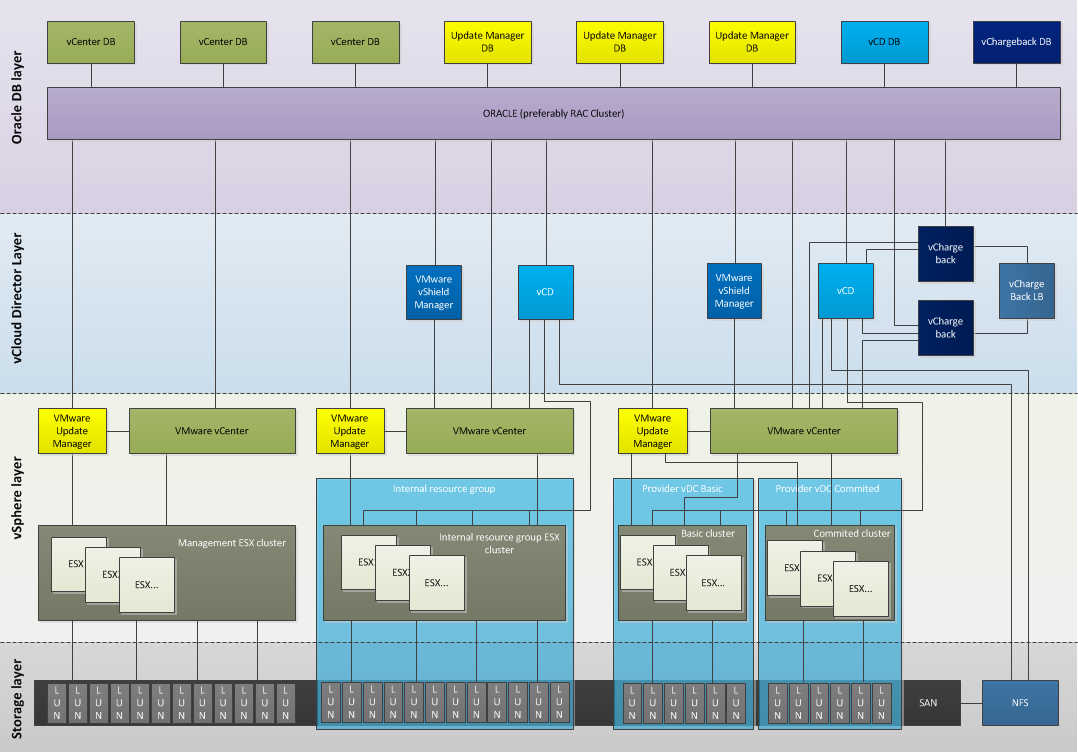
I have created a diagram which depicts architecture mainly to be used by service providers. Service providers are likely to use an internal cloud for their own application and IT department operations and an external cloud environment for their service delivery.
The purpose of this diagram is to create a clear overview of the new environment and showing a relational overview of all the components. In essence, which component connects with which other components?
The environment consists of a management cluster, an internal resource group and an external resource group. Building blocks (VMware vSphere, SAN and networking) within a vCD environment are often referred to as “resource groups”.
To run a VMware vCloud environment, the minimum components to run are:
• VMware vCloud Director (vCD)
• VMware vShield Manager
• VMware Chargeback
• VMware vCenter (supporting the Resource groups)
• vSphere infrastructure
• Supporting infrastructure elements (Networking, SAN)
The management cluster contains all the vCD components, such as the vCenters and Update managers managing the resource groups, the vCD cells and Chargeback clusters. Due to the Oracle Database requirement, a physical Oracle cluster is recommended, as RAC clustering is not supported on VMware vSphere. No vCD is used to manage the management cluster, management is done by a dedicated vCenter.
Within a resource pod a separate cluster is created for each pVCD to enable the service provider to deliver the different service levels. Duncan wrote a great introduction to VCD recently. http://www.yellow-bricks.com/2010/08/31/vmware-vcloud-director-vcd/.
This diagram shows two additional vCenters, one for the internal resource pod and one for the external resource pod. It is advised to isolate internal IT resources from customer IT resources. Managing and deploying internal IT services and external IT services such as customers VM from one vCD can become obscure and complex. A single vCenter is used for both pVCDs as it expected that customer will deploy virtual machines in different service level offerings. By using one vCenter a single Distributed Virtual Switch can be used, spanning both clusters\service offerings.
To rehash, this is a abstract high level diagram intended to show the involved elements of a vCloud environment and to show the relation or connections all the components.
VMware tools disk timeout value Linux GOS
After I posted the “VMtools increases TimeOutValue article” I received a lot of questions if the VMware Tools automatically adjust the timeout value for Linux machines as well.
Well, VMware Tools of versions ESX 3.5 Update 5 and ESX 4.0 install a udev rule file on Linux operating systems with kernel version equal or greater then 2.6.13. This rule file changes the default timeout value of VMware virtual disks to 180 seconds. This helps the guest operating system to better survive a SAN failure and keep the linux system disk from becoming read only.
Because of the requirement of updates related to udev featured in the 2.6.13 kernel, the SCSI timeout value in other Linux kernels is not touched by the installation of VMware tools and the default value remains active.
The two major Linux Kernel version each have a different timeout value:
Linux 2.4 – 60 seconds
Linux 2.6 – 30 seconds
You can set the timeout value manually listed in /sys/block/disk/device/timeout. The problem is the distinction VMtools make between certain Linux Kernels, if you do not know this caveat you might end up with an Linux environment which is not configured exactly the same. This can lead to different behaviour during a SAN outage. Standardization is key when managing virtual infrastructure environments and a uniform environment eases troubleshooting
A while ago Jason wrote an excellent article about the values and benefit of increasing the guest os timeout