• Skip to primary navigation
  • Skip to main content

frankdenneman.nl

  • AI/ML
  • NUMA
  • About Me
  • Privacy Policy

Introduction 2016 NUMA Deep Dive Series

July 6, 2016 by frankdenneman

Recently I’ve been analyzing traffic to my site and it appears that a lot CPU and memory articles are still very popular. Even my first article about NUMA published in february 2010 is still in high demand. And although you see a lot of talk about the upper levels and overlay technology today, the focus on proper host design and management remains. After all, it’s the correct selection and configuration of these physical components that produces a consistent high performing platform. And it’s this platform that lays the foundation for the higher services and increased consolidating ratios.

Most of my NUMA content published throughout the years is still applicable to the modern datacenter, yet I believe the content should be refreshed and expanded with the advancements that are made in the software and hardware layers since 2009.

To avoid ambiguity, this deep dive is geared towards configuring and deploying dual socket systems using recent Intel Xeon server processors. After analyzing the dataset of more than 25.000 ESXi host configurations collected from virtual datacenters worldwide, we discovered that more than 80% of ESXi host configuration are dual socket systems. Today, according to IDC, Intel controls 99 percent of the server chip market.
Despite the strong focus of this series on the Xeon E5 processor in a dual socket setup, the VMkernel, and VM content is applicable to systems running AMD processors or multiprocessor systems. No additional research was done on AMD hardware configurations or performance impact when using high-density CPU configurations.

The 2016 NUMA Deep Dive Series

The 2016 NUMA Deep Dive Series consists of 7 parts.The 2016 NUMA deep dive series is split into three main categories; Physical, VMkernel, and Virtual Machine.

Part 1: From UMA to NUMA
Part 1 covers the history of multi-processor system design and clarifies why modern NUMA systems cannot behave as UMA systems anymore.

Part 2: System Architecture
The system architecture part covers the Intel Xeon microarchitecture and zooms in on the Uncore. Primarily focusing on Uncore frequency management and QPI design decisions.

Part 3: Cache Coherency
The unsung hero of today’s NUMA architecture. Part 3 zooms in to cache coherency protocols and the importance of selection the proper snoop mode.

Part 4: Local Memory Optimization
Memory density impacts the overall performance of the NUMA system, part 4 dives into the intricacy of channel balance and DIMM per Channel configuration.

Part 5: ESXi VMkernel NUMA Constructs
The VMkernel has to distribute the virtual machines to provide the best performance. This part explores the NUMA constructs that are subject to initial placement and load-balancing operations.

Part 6: NUMA Initial Placement and Load Balancing Operations
The VMkernel has to distribute the virtual machines to provide the best performance. This part explores the NUMA initial placement and load-balancing operations. (not yet released)

Part 7: From NUMA to UMA
The world of IT moves in loops of iteration, the last 15 years we moved from UMA to NUMA systems, which today’s focus on latency and the looming licensing pressure, some forward-thinking architects are looking into creating high performing UMA systems. (not yet released)

The articles will be published on a daily basis to avoid saturation. Similar to other deep dives, the articles are lengthy and contain lots of detail. Up next, Part 1: From UMA to NUMA
Filed Under: NUMA, VMware

Top 5 vBlog Again, Thanks!!!!

July 1, 2016 by frankdenneman

Yesterday the top 25 vBlogs were announced and once again I’m in the top 5. I would like to thank all who have voted for me! It’s great to see that the content is appreciated.
The broadcast:

Looking forward, there is a lot of content getting ready to be published and I hope to release my 5th book this year, the vSphere 6.x host resource deep dive. I’m excited about the content I’m working on and I’ll hope you guys will too!
Thanks!
Frank

Filed Under: Miscellaneous

New Home Lab Hardware – Dual Socket Xeon v4

June 22, 2016 by frankdenneman


A new challenge – a new system for the home lab

About one year ago my home lab was expanded with a third server and a fresh coat of networking. During this upgrade, which you can read at “When your Home Lab turns into a Home DC” I faced the dilemma of adding new a new generation of CPU (Haswell) or expanding the hosts with another Ivy Bridge system. This year I’ve proceeded to expand my home lab with a dual Xeon system, and decided to invest in the latest and greatest hardware available. Like most good tools, you buy them for the next upcoming job, but in the end, you will use it for countless other projects. I expect the same thing with this year’s home lab ‘augmentation’. Initially, the dual socket system will be used to test and verify the theory published in the upcoming book “vSphere 6 Host resource deep dive” and the accompanying VMworld presentation (session id 8430), but I have a feeling that it’s going to become my default test platform. Besides the dual socket system, the Intel Xeon 1650 v2 servers are expanded with more memory and a Micron 9100 PCIe NVMe SSD 1.2 TB flash device. Listed below is the bill of materials of the dual socket system:

Amount Component Type Cost in Euro
2 CPU Intel Xeon E5 2630 v4 1484 (742)
2 CPU Cooler Noctua NH-U12DX i4 CPU Cooler 118 (59)
1 Motherboard Supermicro X10DRi-T 623
8 Memory Kingston KVR24R17D8/16MA – 16 GB 2400 MHz CL17 760 (95)
1 Flash Device Micron 9100 PCIe NVMe SSD 1.2 TB Sample
1 Flash Device Intel PC P3700 PCIe NVMe SSD 400 GB Sample
1 Flash Device Intel SSD PC S3700 100 GB 170
1 Ethernet Controller HP NC365T 4-port Ethernet Server Adapter 182
1 Case Fan Noctua NF-A14 FLX FAN 140 MM 25
1 Case Fractal Design Define XL R2 – Titanium 135
Total Cost 3497 EUR

Update: I received a lot of questions about the cost of this system, I’ve listed the price in EURO’s. With todays exchange rate Euro to USD 1.1369 it’s about 3976 U.S. Dollar.


Dual socket configuration

Building a dual socket system is still interesting, for me it brought back the feeling of the times when I built a dual Celeron system. Some might remember the fantastic Abit BP6 motherboard with the Intel BX440 chip. Do you know today’s virtual machines still use a virtualized BX440 chipset? But I digress. Building a dual socket system is less difficult than in those days when you had to drill a hole in CPU to attach it to a specific voltage, but it still has some minor challenges.
Form Factor
A dual-socket design requires more motherboard real estate than a single socket system. However there are some dual socket motherboards that are offered in the popular ATX form factor format, however, concessions are made by omitting some components. Typically this results in a reduced number of PCIe slots or the absolute minimum number of DIMM slots supported by the CPUs. Typically, you end up with selecting an E-ATX motherboard or if you really feel adventures EE-ATX or a proprietary format of the motherboard manufacturer. I wanted to have a decent amount of PCI-E slots as it needs to fit both the Intel and the Micron NVMe devices as well as the Quad 1 GB NIC. On the plus side, there seems to be a decent amount of PC cases available that support this E-ATX format.
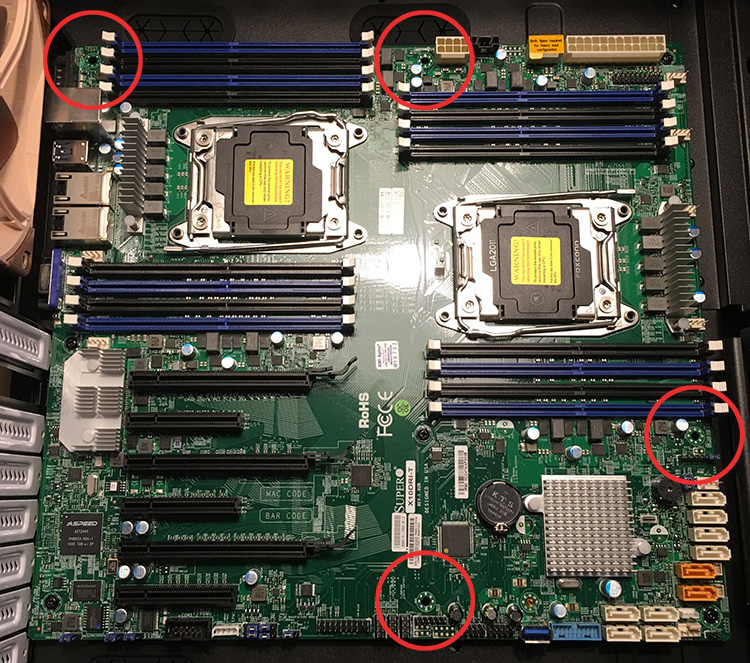
One of them is the Fractal Design Define R4, but there are many others. I selected the Fractal R4 as it’s the same case design all the other servers use, only slightly bigger to fit the motherboard. The build quality of this case is some of the best I’ve seen. Due to all the noise-reducing material its quite heavy. Although it states it supports E-ATX on their spec sheet I assume they’ve only focused on the size of the motherboard. Unfortunately, the chassis does not contain the necessary mounting holes to secure the motherboard properly. In total 4 mounting points cannot be used, as the E-ATX uses in total 10 mounting points it should not be a big problem, however, it is missing a crucial one, the one in the top left corner. This might lead to problems when installing the DIMMs or the CPUs. I solved this by drilling a hole in the chassis to mount a brass grommet, but next time I would rather go for a different case. The red circles indicate the missing grommets.
Missing_Grommets
Power Supply
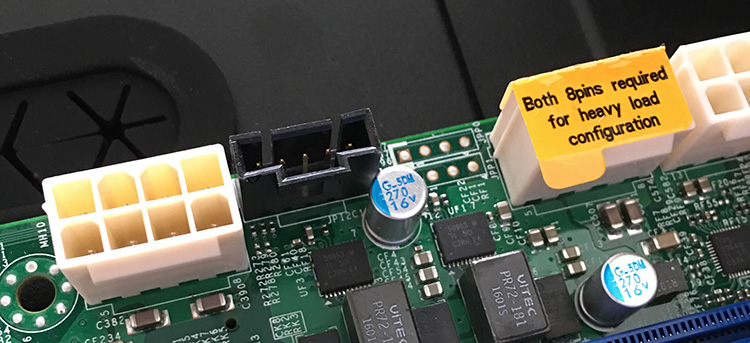
Dual Socket systems are considered heavy load configurations and require the dual 8 Pin EPS 12V connectors to be populated. Make sure that your power supply kit contains these connectors. Pictured below are the 12v 8-pin power connectors located on the motherboard.
8-pins-dual socket-cpu
When researching power supplies, I noticed that other people prefer to use 700 or 1000 watt power supplies. I don’t believe you need to go that extreme. The amount of watts required all depends on what configuration you want to run.  In my design I’m not going to run dual SLI video card, it will ‘only’ contain the Intel Xeon 2640 v4 CPUs, 3 PCIe devices and 8 DDR4 2400 MHz Modules. Although it sounds like an extreme configuration already, it’s actually not that bad. Let’s do the math.
With a TDP value of 85 watts each, the CPU’s consume a maximum of 170 W. The PCIe devices increases the power requirement to 207 W. According to Intel the DC P3700 NVMe device consumes 12 W on write, 9 of read. The quad NIC Ethernet controller is reported to consume 5 W. Micron states that the active power consumption of the P9100 1.2TB PCIe device is between 7 and 21 W. DDR4 DIMM voltage is set to 1.2V, compared to the 1.5V DDR3 requires, the reduce voltage which likely translate in a lower power consumption than similar DDR3 configurations. Unfortunately, Memory vendors do not provide exact power consumption specs. Toms Hardware measured the power consumption of 4 DDR4 modules and discovered the consumption ranged from 6 to 12 W depending on the manufacturer. Worst case scenario, my 8 DIMMS consume 24 W. As the motherboard is quite large I assume it consumes a great deal of power as well, build computer states motherboard power consumption of high-end motherboards is between 45 to 80 Watts. As the board features two X540 10 G NICS, I will add the 12.5 W of power consumption stated by Intel to the overall motherboard consumption. In my calculation I assume a consumption of a 100 W . The Intel SSD DC3700 100 GB acting as base OS disk is rated to consume 2.9. This totals to a power consumption of roughly 330 W.
There are some assumptions made therefore I’m playing it safe by using the Corsair RM 550 power supply which provides an output of 550W at 12 Volt. The cooling solutions don’t move the needle that much, but for completeness sake, I’ve included them in the table.

Component Estimated Active Power Consumption Vendor Spec
Intel Xeon E5 2630 v4 85 * 2 = 170 W ark.intel.com
Micron P9100 1.2 TB 21 W Micron Product Brief (PDF)
Kingston KVR24R17D8/16MA ~24 W Toms Hardware review
Intel SSD PC P3700 400 GB 12 W ark.intel.com
HP NC365T 4-port Ethernet Server Adapter 5 W HP.com
Intel SSD PC S3700 100 GB 2.9 W ark.intel.com
Noctua NF-A14 FLX FAN 140 MM 0.96 W Noctua.at
Noctua NH-U12DX i4 CPU Cooler 2 * 0.6 = 1.2 W Noctua.at
Supermicro X10DRi-T ~80 W Buildcomputers.net
Intel X540-AT2 Dual 10 Gb Ethernet Controller 12.5 W ark.intel.com
Total Power Consumption ˜330 W

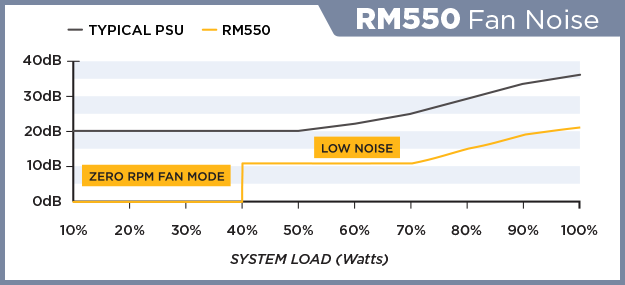
One thing you might want to consider is the fan noise when buying “Zero RPM Fan Mode” power supply. Typically these power supplies can operate without using the fan up to an X percentage of system load. It will increase the use of the fan when the system loads go up. With my calculation I operate in the 60% system load range, above the threshold of the Zero RPM Fan Mode nut still in the Low Noise mode, while benefiting from the maximum efficiency of the power supply.
RM550-FAN-NOISE
Cooling
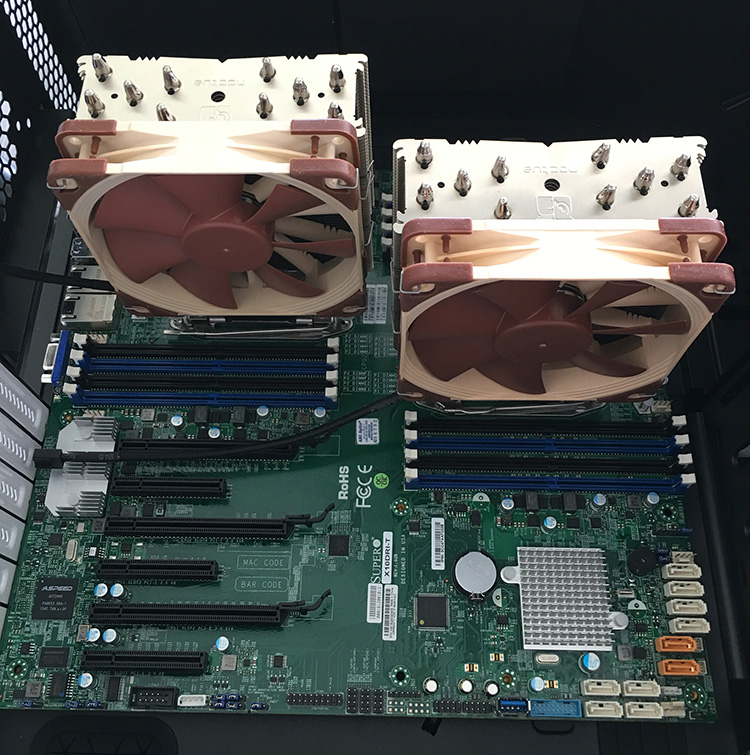
With more power consumptions comes the great need of cooling. And as we all know power consumption is the path to the dark side, power consumption leads to heat, heat leads to active cooling. Active cooling leads to noise. Noise leads to suffering. Or something like that. To reduce the noise generated by the home lab, I use Noctua cooling. High-quality low noise, it cost a pretty penny, but as always, quality products cost more.  In the UP (Uni-Processor) servers, I use the Noctua NH-U9DX-I4, which is an absolute behemoth. Due to the dual CPU setup, I selected the Noctua NH-U12DX i4 CPU Cooler which is specified as a slim design. In retrospect, I could have gone with the U9DX-I4 as well. Detailed information on both CPU coolers: https://www.quietpc.com/nh-udxi4
03-Noctua_Dual_Socket_configuration
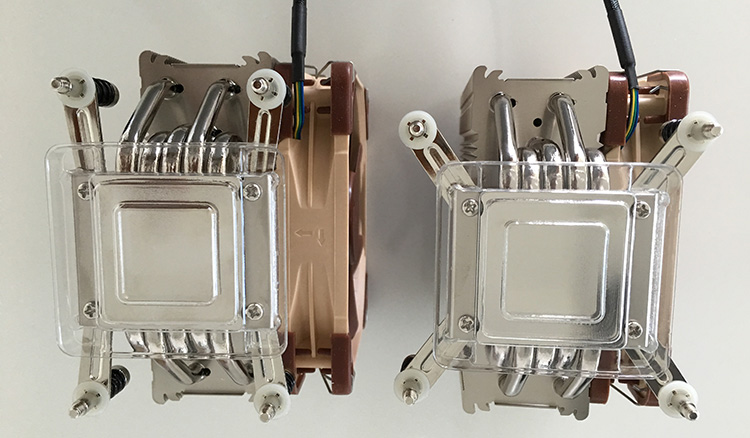
Please ensure that your choice of cooler supports the 2011-3 socket configuration. According to Wikipedia: The 2011-3 socket use the so-called Independent Loading Mechanism (ILM) retention device that holds the CPU in place on the motherboard. 2011-3. Two types of ILM exist, with different shapes and heatsink mounting hole patterns. The  square ILM (80×80 mm mounting pattern), and narrow ILM (56×94 mm mounting pattern). Square ILM is the standard type, while the narrow one is alternatively available for space-constrained applications. It’s not a surprise to see the Supermicro X10DRi-T features the arrow ILM configuration. Noctua ships the coolers with mounting kits for both ILM configuration, check your motherboard specs and the supported ILM configuration of your cooling solution before ordering.
05-Narrow_ILM-vs-Square_ILM
 

Micron 9100 PCIe NVMe SSD 1.2 TB

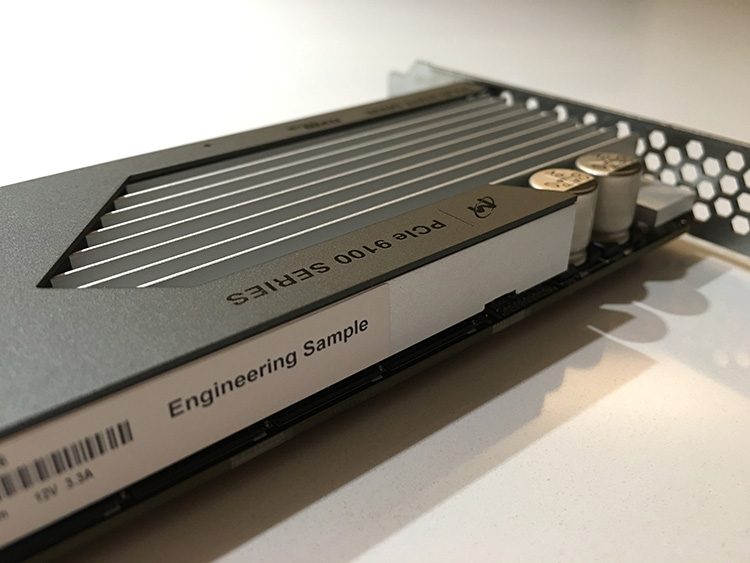
Recently Micron supplied me with three engineering samples of their soon to be released PCIe NVMe SSD device. According to the product brief the 1.2 TB version provides 2.8/1.3 GB/s sequential write speed at a steady state when using a 128KB transfer size, impressive to say the least. The random read/write performance of the device of 4 KB blocks are 700.000 IOPS/180.000 IOPS. Remember the times where you were figuring out if you had to 150 IOPS or 180 IOPS when using a 15K spindle disk. 🙂
06-Engineering_sample
I’m planning to use the devices to create a EMC ScaleIO 2.0 architecture. Paired together with DFTM and a 10Gb network, this will be a very interesting setup. Mark Brookfield published an extensive write up of the ScaleIO 2.0 installation. Expect a couple of blog posts about the performance insights on Scale IO soon.

RAM for Intel Xeon 1650 V2 servers

I’ve purchased some additional RAM to further test the in-memory I/O acceleration of FVP (DFTM) and the impact of various DIMM Per Channel configuration on memory bandwidth. One server will have a configuration of 2 DPC, containing 128 GB of DDR3 1600MHz RAM, the second UP server is also 2 DPC configuration, equipped with 128GB of DDR3 1866 MHz and the Dual Xeon system runs a 1 DPC configuration with DDR4 2400 MHz RAM. The attentive reader will notice that I’ve over-specced the memory for the Intel Xeon v4 as this CPU supports memory up to 2133 MHz. Apparently 2400 MHz memory is produced more than the 2133 MHz equivalent, resulting in cheaper 2400 MHz memory. The mainboard adjusts the memory to the supported frequency accordingly.
07-Memory_posted_by_BIOS
The various memory configurations will also aid in the development of the FVP and Architect coverage. We recently released FVP 3.5 and Architect 1.1 and this release provided the long awaited management virtual appliance. Couple that with the FVP freedom edition (RAM acceleration) and you can speed up your home lab with just a couple of clicks. I will publish an article on this soon.

Filed Under: Home Lab

vSphere 6.x host resource deep dive session (8430) accepted for VMworld US and Europe

June 16, 2016 by frankdenneman

Yesterday both Niels and I received the congratulatory message from the VMworld team, informing us that our session is accepted for both VMworld US and Europe. We are both very excited that our session was selected and we are looking forward at presenting to the VMworld audience. Our session is called the vSphere 6.x host resource deep dive (session ID 8430) and is an abstract of our similar titled book (publish date will be disclosed soon).
Session Outline
Today’s focus is on upper levels/overlay’s (SDDC stack, NSX, Cloud) but proper host design and management still remains the foundation of success. With the introduction of these new ‘overlay’ services, we are presented with a new consumer of host resources. Ironically it’s the attention to these abstraction layers that returns us to focusing on individual host components. Correct selection and configuration of these physical components leads to creating a stable high performing platform, that lays the foundation for the higher services and increased consolidating ratios.
Topics we will address in this presentation are:
The introduction of NUMA (Non-Uniform Memory Access) required changes in memory management. Host physical memory is now split into local and remote memory structures for CPUs that can impact virtual machine performance. We will discuss how to right size your VMs CPU and memory configuration in regards to NUMA and vNUMA VMkernel CPU scheduler characteristics. Processor speed and core counts are important factors when designing a new server platform. However with virtualization platforms the memory subsystem can have equal or sometimes even have a greater impact on application performance than the processor speed.
In this talk we focus on physical memory configurations. Providing consistent performance is key to predictable application behavior. It benefits day-to-day customer satisfaction and helps reduce application performance troubleshooting. This talk covers flash architecture and highlights the differences between the predominant types of local storage technologies. We look closer into recurring questions about virtual networking. For example, how many resources does the VMkernel claim for networking, what impact does a vNIC type has on resource consumption. Such info allows you to get better grips on sizing your virtual datacenter for NFV workloads.
Key Takeaway 1:
Identifying how proper NUMA and physical memory configuration allows for increased VM performance
Key Takeaway 2:
What is the impact of virtual network services on consumption of host compute resources?
Key Takeaway 3:
How next-gen storage components lead to low latency, higher bandwidth and increased scalability.
Key dates:
VMworld US takes place at Mandalay Bay Hotel & Convention Center in Las Vegas, NV from August 28 –  September 1, 2016
VMworld Europe takes place at Fira Barcelona Gran Via in Barcelona, Spain from 17 – 20 October, 2016
Repeat the feat
Five years ago Duncan and I got this room completely full with our vSphere Clustering Deepdive Q&A, I would love to repeat that feat doing a Host deep dive session. I hope to see you all in our session!
Room

Filed Under: VMware

Home Lab Fundamentals: DNS Reverse Lookup Zones

June 13, 2016 by frankdenneman

unless its a time sync issue-750
When starting your home lab, all hints and tips are welcome. The community is full of wisdom, yet sometimes certain topics are taken for granted or are perceived as common knowledge. The Home Lab fundamentals series focusses on these subjects, helping you how to avoid common pitfalls that provide headaches and waste incredible amounts of time.
One thing we always keep learning about vSphere is that both time and DNS needs to be correct. DNS resolution is important to many vSphere components. You can go a long way without DNS and use IP-addresses within your lab, but at one point you will experience weird behavior or installs just stop without any clear explanation.In reality vSphere is build for professional environments where it’s expected that proper networking structure is in place, physical and logical. When reviewing a lot of community questions, blog posts and tweets, it appears that DNS is partially setup, i.e. only forward lookup zones are configured. And although it appears to be ”just enough DNS to get things going, many have experienced that their labs start to behave differently when no reverse lookup zones are present. Time-outs or delays are more frequent, the whole environment isn’t snappy anymore. Ill-configured DNS might give you the idea that the software is crap but in reality, it’s the environment that is just configured crappy. When using DNS, use the four golden rules; forward, reverse, short and full. DNS in a lab environment isn’t difficult to set up and if you want to simulate a proper working vSphere environment then invest time in setting up a DNS structure. It’s worth it! Besides expanding your knowledge, your systems will feel more robust and believe me, you will wait a lot less on systems to respond.
vCenter and DNS
vCenter inventory and search rely heavy on DNS. And since the introduction of vCenter Single Sign-On service (SSO) as a part of the vCenter Server management infrastructure DNS has become a crucial element. SSO is an authentication broker and security token exchange infrastructure. As described in the KB article Upgrading to vCenter Server 5.5 best practices (2053132);

With vCenter Single Sign-On, local operating system users become far less important than the users in a directory service such as Active Directory. As a result, it is not always possible, or even desirable, to keep local operating system users as authenticated users.

This means that you are somewhat pressured into using an ‘external’ identity source for user authentication, even for your lab environment . One of the most popular configurations is the use of Active Directory as an identity source. Active Directory itself uses DNS as the location mechanism for domain controllers and services. If you have configured SSO to use Microsoft Active Directory for authentication, you might have seen some weird behavior when you haven’t created a reverse DNS lookup zone.

Installation of vCenter Server (Appliance) fails if the FQDN and IP addresses used are not resolvable by the DNS server specified during the deployment process. The vSphere 6.0 Documentation Center vSphere DNS requirements state the following:

Ensure that DNS reverse lookup returns a Fully Qualified Domain Name (FQDN) when queried with the IP address of the host machine on which vCenter Server is installed. When you install or upgrade vCenter Server, the installation or upgrade of the Web server component that supports the vSphere Web Client fails if the installer cannot look up the fully qualified domain name of the vCenter Server host machine from its IP address. Reverse lookup is implemented using PTR records.

Before deploying vCenter I recommend to deploy a virtual machine on the first host running a DNS server. The ESXi Embedded Host Client allows you to deploy a virtual machine on an ESXi host without the need of having an operational vCenter first. As I use active Directory as identity source for authentication, I deploy a Windows AD server with DNS before deploying the vCenter Server Appliance (VCSA). Toms IT pro has a great article on how to configure DNS on a Windows 2012 server, but if you want to configure a lightweight DNS server running on Linux, follow the steps Brandon Lee has documented. If you want to explore the interesting world of DNS, you can also opt to use Dynamic DNS to automatically register both the VCSA and ESXi hosts in the DNS server. Dynamic DNS registration is the process by which a DHCP client register its DNS with a name server. For more information please check out William article “Does ESXi Support DDNS (Dynamic DNS)?” . Although he published it in 2013. it’s still a valid configuration in ESXi 6.0.
Flexibility of using DNS
Interestingly enough, having a proper DNS structure in place before deploying the virtual infrastructure provides future flexibility.  One of the more annoying time wasters is the result of using an IP address instead of an FQDN during setup of the VCSA. When you use only an IP-address instead of a Fully Qualified Domain Name (FQDN) during setup, changing the hostname or IP-address will produce this error:
IPv4 configuration for nic0 of this node cannot be edited post deployment.
Kb article 2124422 states the following:

Attempting to change the IP address of the VMware vCenter Server Appliance 6.0 fails with the error: IPv4 configuration for nic0 of this node cannot be edited post deployment. (2124422)

This occurs when the VMware vCenter Server Appliance 6.0 is deployed using an IP address. During the initial configuration of the VMware vCenter Server Appliance, the system name is used as the Primary Network Identifier. If the Primary Network Identifier is an IP address, it cannot be changed after deployment.
This is an expected behavior of the VMware vCenter Server Appliance 6.0. To change the IP address for the VMware vCenter Server Appliance 6.0 that was deployed using an IP address, not a Fully Qualified Domain Name, you must redeploy the appliance with the new IP address information.

Changing the hostname will result in the Platform Service Controller (responsible for SSO) to fail. According to Kb article:

Changing the IP address or host name of the vCenter Server or Platform Service controller cause services to fail (2130599)

Changing the Primary Network Identifier (PNID) of the vCenter Server or PSC is currently not supported and will cause the vSphere services to fail to start. If the vCenter Server or PSC has been deployed with an FQDN or IP as the PNID, you will not be able to change this configuration.
To resolve this issue, use one of these options:

  • Revert to a snapshot or backup prior to the IP address or hostname change.
  • Redeploy the vSphere environment.

This means that you cannot change the IP-address or the host name of the vCenter Appliance. Yet another reason to deploy a proper DNS structure before deploying your VCSA in your lab.
FQDN and vCenter permissions
Even when you have managed to install vCenter without a reverse lookup zone, the absence of DNS pointer records can obstruct proper permission configuration according to (KB article 2127213)

Unable to add Active Directory users or groups to vCenter Server Appliance or vRealize Automation permissions 

Attempting to browse and add users to the vCenter Server permissions (Local Permission: Hosts and Clusters > vCenter >Manage >Permissions)(Global Permissions: Administration > Global Permissions) fails with the error:

Cannot load the users for the selected domain

A workaround for this issue is to ensure that all DNS servers have the Reverse Lookup Zone configured as well as Active Directory Domain Controller (AD DC) Pointer (PTR) records present. Please note that allowing domain authentication (assuming AD) on the ESXi host does not automatically add it to an AD managed DNS zone. You’ll need to manually create the forward lookup (which will give the option for the reverse lookup creation too).
SSH session password delay
When running multiple hosts most of you will recognize the waste of time when (quickly) wanting to log into ESXi via an SSH session. Typically this happens when you start a test and you want to monitor ESXTOP output. You start your ssh session, to save time you type on the command line ssh root@esxi.homelab.com and then you have to wait more than 30 seconds to get a password prompt back. Especially funny when you are chasing a VM and DRS decided to move it to another server when you weren’t paying attention. To get rid of this annoying time waster forever:

DNS name resolution using nslookup takes up to 40 seconds on an ESXi host(KB article 2070192)

When you do not have a reverse lookup zone configured, you may experience a delay of several seconds when logging in to hosts via SSH.

When you’re management machine is not using the same DNS structure, you can apply the quick hack of adding “useDNS no” to the /etc/ssh/sshd.config file on the ESXi host to avoid the 30-second password delay.
Troubleshoot DNS
BuildVirtual.net published an excellent article on how to troubleshoot ESXi Host DNS and Routing related issues. For more information about setting the DNS configuration from the command line, review this section of the VMware vSphere 6.0 Documentation Center
vSphere components moving away from DNS
As DNS is an extra dependency, a lot of newer technologies try to avoid incorporate DNS dependencies. One of those is VMware HA. HA has been redesigned and the new FDM architecture avoided DNS dependencies. Unfortunately not all VMware  official documentation has been updated with this notion: https://kb.vmware.com/kb/1003735 states that ESX 5.x also has this problem but that is not true. Simply put, VMware HA in vSphere 5.x and above does not depend on DNS for operations or configurations.
Home Lab Fundamentals Series:

  • Time Sync
  • DNS Reverse Lookup Zones

Up next in this series: vSwitch0 routing

Filed Under: Home Lab, VMware

  • « Go to Previous Page
  • Page 1
  • Interim pages omitted …
  • Page 27
  • Page 28
  • Page 29
  • Page 30
  • Page 31
  • Interim pages omitted …
  • Page 89
  • Go to Next Page »

Copyright © 2026 · SquareOne Theme on Genesis Framework · WordPress · Log in